Textarea
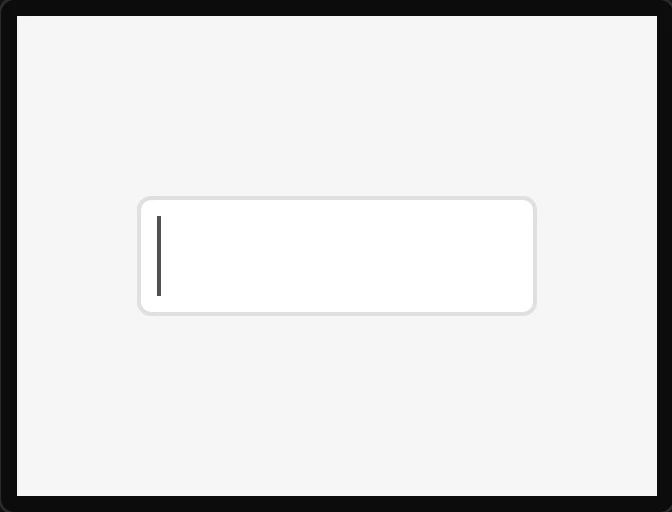
Editable text. Pair it with a Keyboard widget whose Target is this textarea.
| Setting | Default | What it does |
|---|---|---|
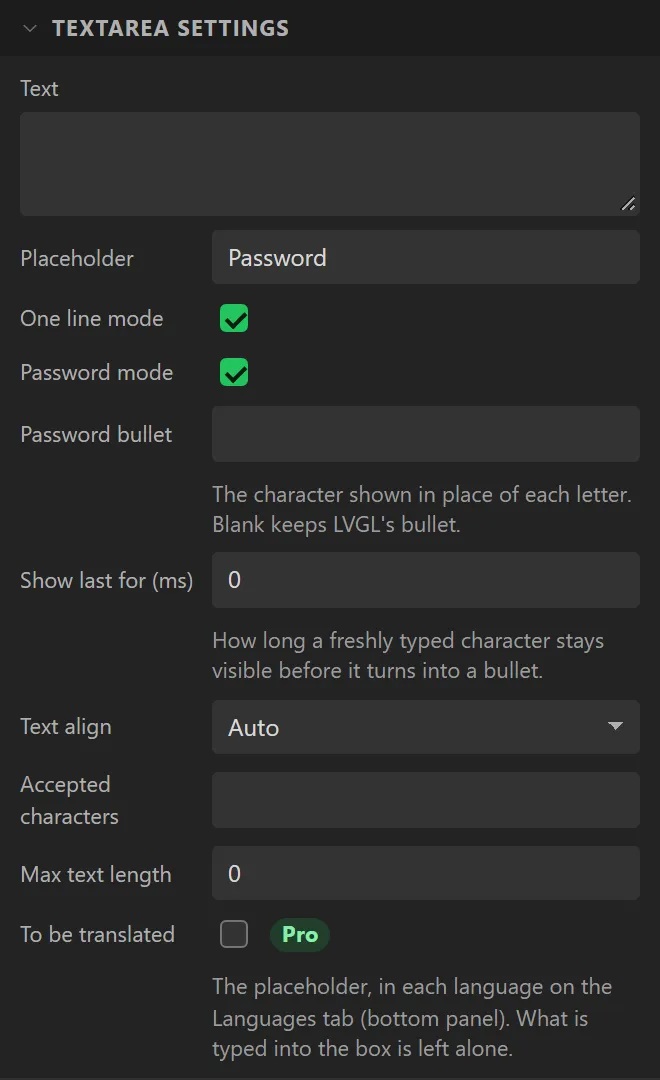
| Text | (empty) | Initial contents. |
| Placeholder | (empty) | Shown greyed when empty. |
| One line mode | off | No wrapping; Enter does not insert a newline. |
| Password mode | off | Shows bullets. |
| Accepted characters | (any) | A whitelist, e.g. 0123456789.. |
| Max text length | 0 | 0 is unlimited. |
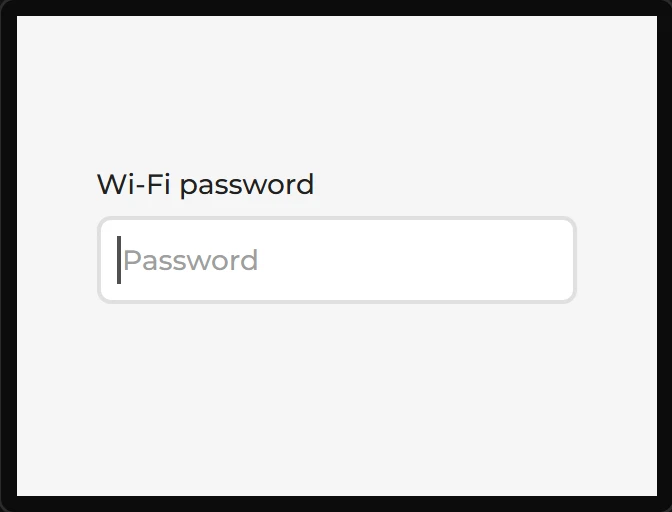
Example: a one-line password box
- Drag a Textarea onto the screen and set its Name to
Password. Under Geometry give it X40, Y100, Width240and Height44. - Under Textarea settings set Placeholder to
Passwordand tick One line mode and Password mode. - Drag a Label above it saying
Wi-Fi password. - On the board something has to type into it: a Keyboard whose Target text area is this one.