Image
Give an Image the size of its picture. It takes that size when you choose the asset, and at that size every version of LVGL draws it alike. Make the box bigger and they do not: LVGL 9 draws the picture once, at the top left unless Inner Align says otherwise, and LVGL 8 repeats it to fill the box; make it smaller and both cut the picture off. The canvas shows what your project’s LVGL version will do. To have a picture at another size, use Scale (or, on LVGL 9, Inner Align set to Stretch).
Shows an asset. The source is either &symbol for a compiled-in image or "S:/file.bin" for one on the board filesystem; the generator picks whichever the asset is set to.
| Setting | Default | What it does |
|---|---|---|
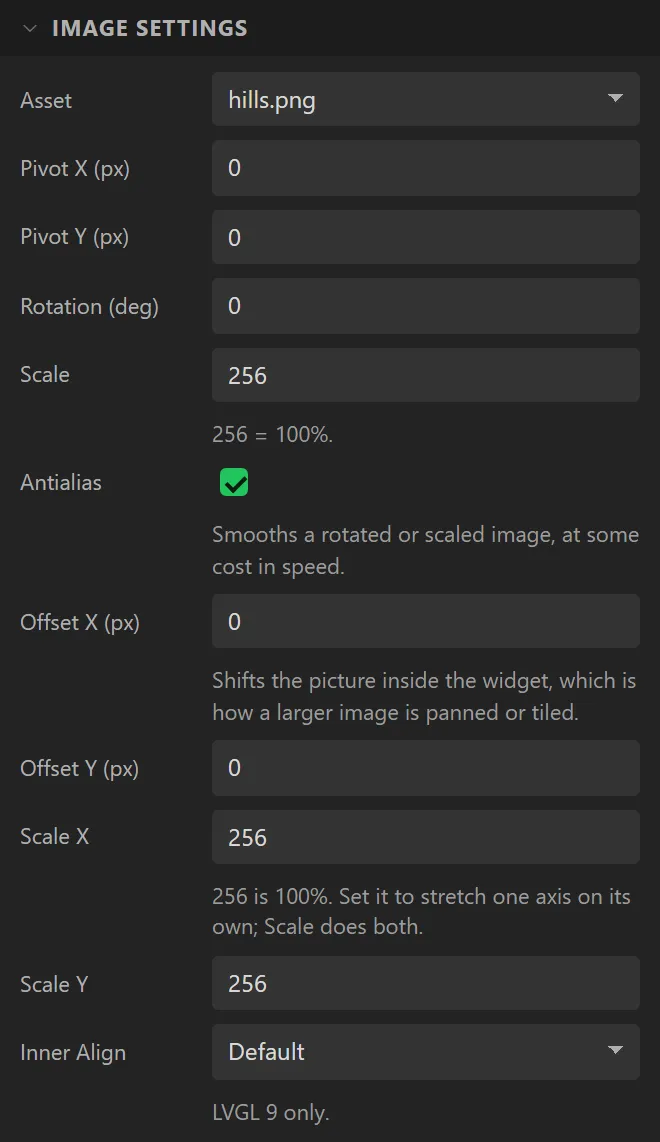
| Asset | (none) | Which imported image to show. |
| Pivot X / Pivot Y | 0 | The point rotation and scaling happen around, in pixels from the top-left. |
| Rotation | 0° | Rotation in degrees. LVGL uses tenths of a degree internally; the generator multiplies. |
| Scale | 256 | 256 is 100%. 128 is half size, 512 double. |
| Inner Align | Default | How the image sits inside a widget larger than it: the nine positions, Stretch or Tile. LVGL 9 only. |
Example: a picture at its own size
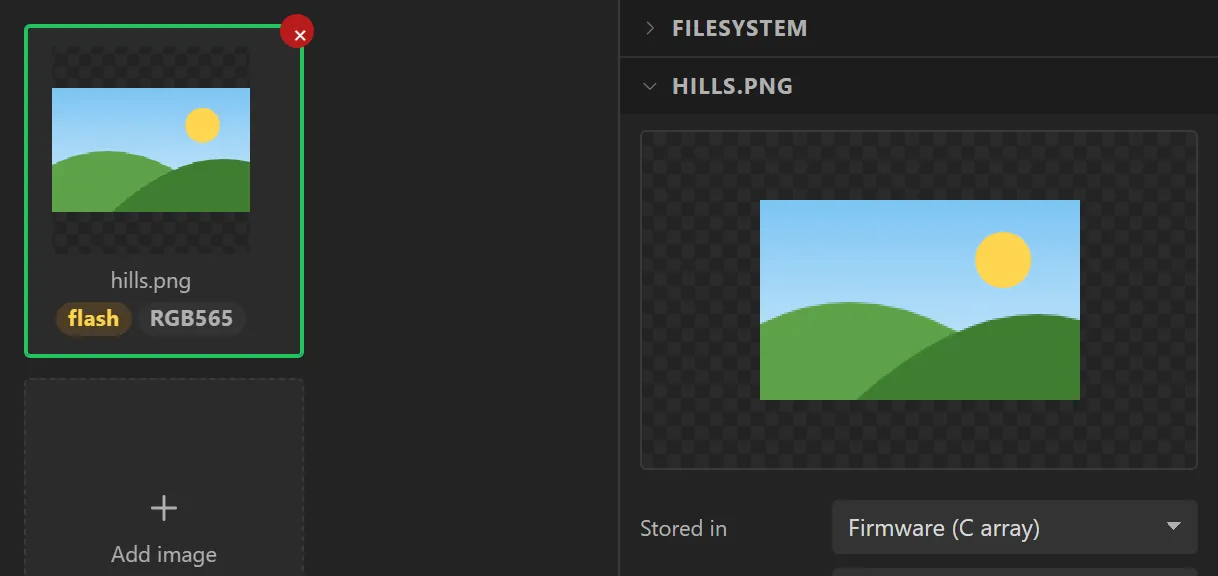
- In the bottom panel, on the Assets tab, press Add image and choose a PNG or JPEG. It appears as a tile. Click the tile and set Stored in to Firmware (C array): one small picture is simplest compiled in.
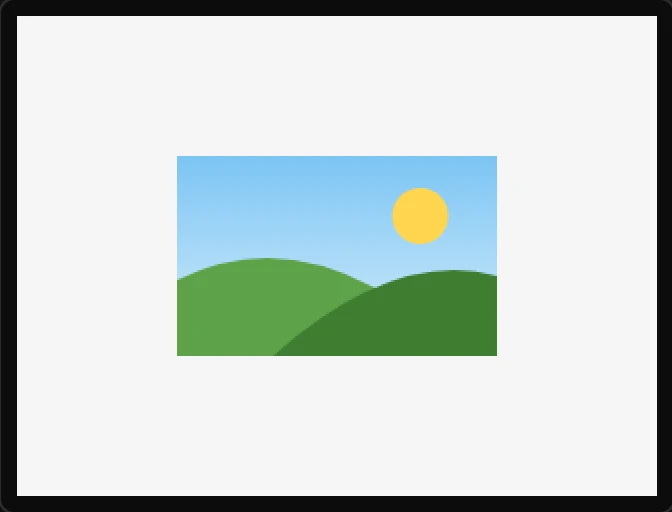
- Drag an Image onto the screen, open Image settings and set Asset to the picture. The widget takes the picture’s size, 160 x 100 here.
- Under Geometry, set X to
80and Y to70.