Automations
Things that happen without a finger: timers, edges, thresholds and variable changes.
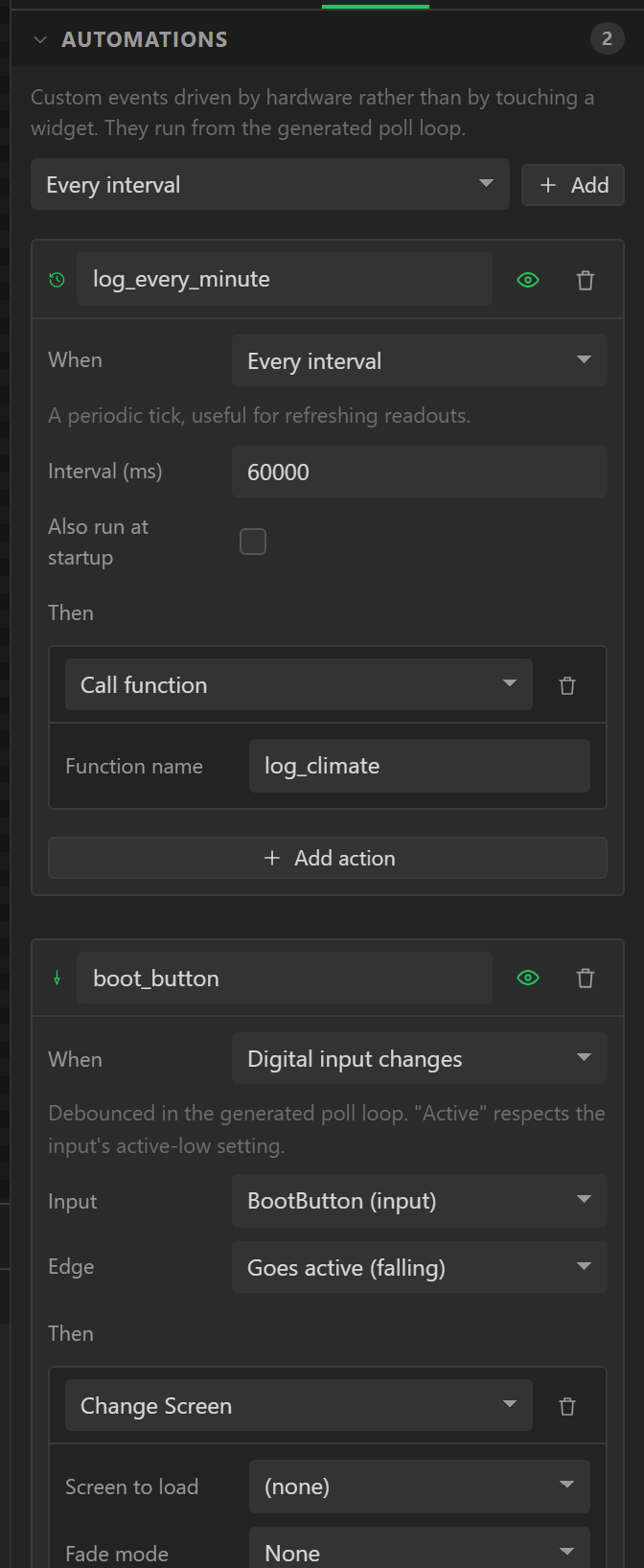
An automation is an event raised by the hardware or by time rather than by a finger on the
screen. It has a trigger and a list of actions, exactly like a widget event, and it is evaluated
inside app_poll() on every refresh. Automations live on the Data tab under
the variables.
Triggers
| Trigger | Parameters | Notes |
|---|---|---|
| On startup | Delay (ms) | Runs once, after the UI has been created. |
| Every interval | Interval (ms), Also run at startup | A periodic tick. Each run is due an interval after the last one was due, so a counter kept by a one-second tick keeps time. The period you set is the period it runs at, on every export (Arduino, MicroPython, ESPHome and ESP-IDF). Before 2026-10-21 an ESPHome interval always ran every second; a saved design is corrected when it is opened or exported. |
| Digital input changes | Input, Edge | Debounced in the generated poll loop. "Active" respects the input's active-low setting. |
| Digital input held | Input, Hold time (ms) | Fires once per press, after the input has been active continuously for the hold time. |
| Analog crosses threshold | Analog input, When it, Threshold, Hysteresis | Compared against the scaled value. Hysteresis stops it chattering around the threshold. |
| Variable changes | Variable, Condition, Value | Evaluated after every variable refresh. |
| Encoder turned | Encoder, Direction | A rotary encoder from Hardware > Inputs. Runs once for every click of the knob, so three clicks run it three times. Arduino export. |
| Encoder pressed | Encoder, When it is | The push switch in the knob's shaft, debounced: pressed, or let go. It needs the encoder's Push switch pin. Arduino export. |
| Screen went off | none | Once each time the screen goes dark: its time with nothing happening ran out, or Screen off now was done. See Screen off when idle. On ESPHome it is on_pause. |
| Screen woke | none | Once each time a dark screen lights again: a touch, motion, the wake button or Wake the screen. A screen that was only dimmed does not count. On ESPHome it is on_resume. |
| Wake word heard | none | Once each time the wake word (“Hi ESP”) is said. The board then listens for a command for a few seconds. Needs Wake words and spoken commands. Arduino export, ESP32-S3. Not run in Preview. |
| Command heard | Command | Once each time that command is said after the wake word. The Command list is the one under Wake words and spoken commands. One command is heard for each wake word. Arduino export, ESP32-S3. Not run in Preview. |
Actions
The same list a widget event offers - Change Screen, Set/Modify Flag, Set Property, Increment Slider, Play Animation, Call function and the rest - plus the hardware actions:
- Set variable - a fixed value, a formula, an amount added, a toggle, or a widget's value.
- Set digital output - activate, deactivate or toggle an output on an MCU pin or an extender.
- Write to peripheral - a value to a writable channel, such as a PCA9685 output.
- Refresh inputs now - read every device, analog and digital input immediately.
- Set backlight - a fixed level, a step brighter or dimmer, or a widget's value - say, dim the screen on a timer.
- Bluetooth - Send a key or shortcut, Type text, Press a media key on a board that is a keyboard, or Send a line to the host on one that is an HMI link. Sending is an action, so anything that fires an event can send. On a Bluetooth speaker that takes calls, Hands-free call answers, hangs up, calls the last number again or mutes the microphone.
- Stream to card - start or stop a CSV log, or write a row now.
- Audio - on the Internet Radio’s card player, Shuffle the files, Repeat all the files and Seek in the file; on an ES8311, Set speaker gain.
A Call function run by an automation is handed NULL for the event, since
nothing was touched: see Your own code.
An automation with no actions, or an action with a required field empty, is an error.
Patterns
- A readout that refreshes on a schedule. None needed - bindings already refresh every 100 ms. Use Every interval for something heavier, such as a Call function that recomputes a table.
- A thermostat. A constant variable
setpointbound both ways to a slider; Variable changes ontemperaturewith Rises above the setpoint is not expressible directly (the value is a number, not a variable), so instead give a variableheatthe formulatemperature < setpoint - 0.5and trigger Variable changes onheatwith Set digital output on a relay. - A physical button that changes screen. A digital input on the button's GPIO, active-low with the pull-up on; Digital input changes, edge Goes active, running Change Screen.
- Hold to reset. Digital input held for 3000 ms running Set variable to a fixed value.
- A low-battery warning. Analog crosses threshold, Falls below 3.4 with a hysteresis of 0.1, running Modify Flag to remove Hidden from a warning panel.
- Something once at boot. On startup with a delay, running Call function into your own code.
- A volume knob. A rotary encoder under Hardware > Inputs with Navigate the screen with it switched off, and three automations: Encoder turned, Clockwise, running Press a media key - Volume up; the same Anticlockwise for Volume down; and Encoder pressed for Mute. The board is a Bluetooth keyboard, and the knob works on whatever it is paired with.
- A stopwatch. Every interval, 1000 ms, running Set variable with the
formula
seconds + running: a second is added only whilerunningis 1. The OBS Stream Deck counts its recording and its stream this way.
Generated code
Each automation becomes a block in app_poll() that keeps whatever state it needs
- the last timer tick, the previous input level and the time it went active, whether an analog
value is currently above or below its threshold, the previous variable value - and calls the
generated action sequence when its condition is met. Debounce and hysteresis are applied in the
generated code, so a chattering input or a reading hovering at the threshold fires once.
In the preview
Press Play and the automations a browser can know the trigger of are run, with the firmware's own arithmetic: On startup, Every interval and Variable changes. A counter counts, a threshold on a variable fires, and the Console says what each one did - once, and again when what it says changes, so a one-second tick does not fill it.
The ones that watch a pin, an analog reading or an encoder are not run: there is nothing in a
browser for them to watch. Their logic is simple enough to read in app_logic.cpp if
you want to check it.