SerialWizard
The free desktop tool for the bench: a serial monitor, live plotter, Modbus master and ESP32 flasher.
SerialWizard is a separate program from the designer. It runs on your computer, not in the browser, and it is free for everybody: no account, nothing to install. Use it to flash the firmware LCD Wizard exports, to read what the board prints as it boots, and to plot or poll what it sends afterwards. Download it here.
Getting started
Every download is one self-contained program. Pick the one for your computer on the download page, then:
- Windows 10 and 11: unzip it and run
SerialWizard.exe. If the files are blocked, right-click the zip, choose Properties and tick Unblock before you unzip it. - macOS: unzip it and drag SerialWizard into Applications. Serial ports show up as
/dev/cu.usbserial-*,/dev/cu.wchusbserial-*or/dev/cu.usbmodem-*. - Linux (Ubuntu and the like):
- Put the download in the folder you want it to live in and extract it (right-click,
Extract Here, or
tar xzfthe archive). - Right-click the extracted folder and choose Open in Terminal.
- Run
./install-menu-entry.sh. This adds SerialWizard to your application menu. - Run
./SerialWizardto start it. - Opening a serial port needs your account in the
dialoutgroup (uucpon Arch). If it is not, the terminal shows the command with your user name filled in, such assudo usermod -aG dialout $USER. Close SerialWizard, paste that command, press Enter and type your password if asked. - Log out of your desktop session and log back in (or restart the computer). The new group only applies from your next sign-in, so until then the ports stay closed to you.
/dev/ttyUSB*for USB-to-UART bridges and/dev/ttyACM*for native USB. - Put the download in the folder you want it to live in and extract it (right-click,
Extract Here, or
Checking a download, and the first-run warning
SerialWizard is not code-signed yet. It has no Windows code-signing certificate and no Apple Developer ID, so Windows and macOS will warn you the first time you open it. Checking the file's hash first is how you know it is the one LCD Wizard published.
The download page lists the MD5 and SHA-256 of every file, and the same lists are published as MD5SUMS.txt and SHA256SUMS.txt. Work out the hash of the file you downloaded and compare it with the list. If it does not match, do not run it: download it again.
- Windows, in PowerShell:
Get-FileHash -Algorithm MD5 SerialWizard-*-windows-x64.zip, or leave out-Algorithm MD5for SHA-256. - macOS, in Terminal:
md5 SerialWizard-*.zip, orshasum -a 256 -c SHA256SUMS.txtwith the list in the same folder. - Linux:
md5sum -c MD5SUMS.txtorsha256sum -c SHA256SUMS.txtwith the list in the same folder.
Chrome and Edge may call the download suspicious, or say it is not commonly downloaded, before it finishes. That is the browser's reputation check on a new program with no signature, not a virus found in it. Open the downloads list (Ctrl+J, or Cmd+Shift+J on a Mac), choose to keep the file, and check its hash as above.
Then, the first time you open it:
- Windows: SmartScreen says "Windows protected your PC". Click More info, then Run anyway. It does not ask again.
- macOS 15 and later: open it once, then go to System Settings > Privacy & Security and
click Open Anyway. On macOS 12 to 14, right-click the app, choose Open, then
Open again. If macOS says the app "is damaged", run
xattr -cr "/Applications/SerialWizard.app"once in Terminal.
Monitor
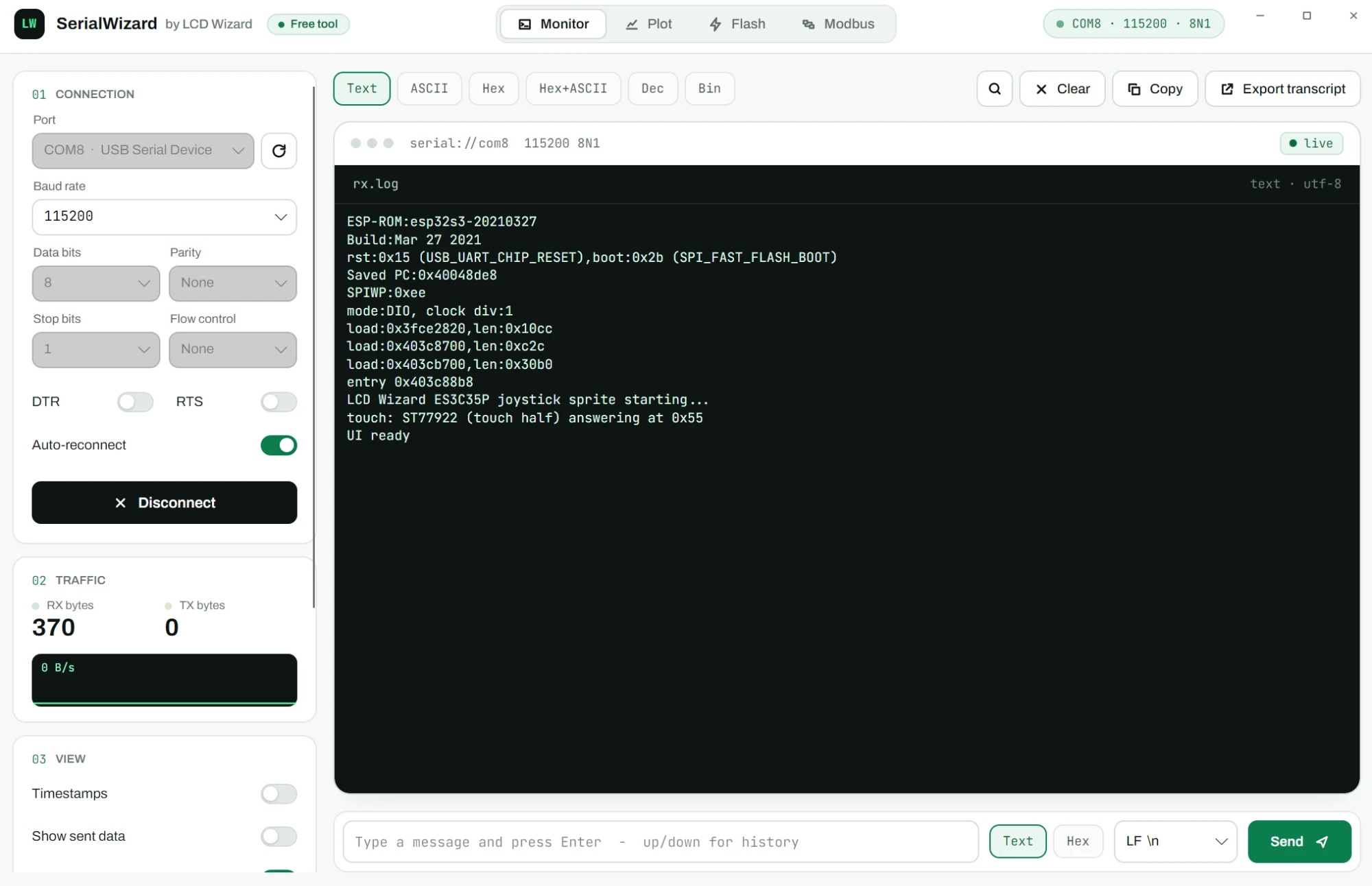
Choose the port and baud rate in the sidebar and click Connect. Data bits, parity, stop bits and flow control are there too, with switches for DTR and RTS. LCD Wizard's exports print at 115200 baud.
- Views: Text (UTF-8), ASCII, Hex, Hex+ASCII, Decimal and Binary. Switching view redraws everything already received, so you can look at the same bytes another way.
- Clear-screen codes (
ESC[2J,ESC c, form feed) clear the window, and ANSI colour codes are hidden rather than printed. - Search with Ctrl+F (Cmd+F on macOS), F3 and Shift+F3 for next and previous. Ctrl+L clears.
- Sending: type in the box at the bottom and press Enter, as text or hex, with the line ending you choose. Up and down go through what you sent before.
- Auto-reconnect picks the port up again when a USB board resets or is plugged back in, which is what most ESP32 boards do when they are flashed.
- Export transcript saves exactly what the window shows as
.txt, or the raw bytes as.bin.
Plot
The Plot tab picks numbers out of each line the board prints. Three forms are recognised:
temp:23.5C, hum:41%: named series, with the units taken from the text.23.5 41 1013.2: plain columns.time,volts,amps: a header line that names the columns of the lines after it.
The axes scale to the data. Auto layout puts series in lanes of their own when their ranges are far apart, so a temperature and a pressure do not flatten each other. Click Record, then export the run as CSV, or as a PDF report with the chart, statistics and data.
To plot from an LCD Wizard export, print values from your own code in one of those forms: see Your own code.
Modbus
SerialWizard is a Modbus RTU and TCP master. RTU uses the serial port and line settings in the sidebar; TCP talks to a host and port, 502 by default.
- Reads: coils (01), discrete inputs (02), holding registers (03) and input registers (04), each with a unit id, start address and count.
- Decoding: U16, S16, U32, S32, F32, hex or binary, with word order ABCD, CDAB, BADC or DCBA and a scale factor.
- Addresses are the 0-based addresses on the wire, so holding register 40001 is 0. The results show the PLC-style number beside each one.
- Writes: a single register or several (06 and 16), a single coil or several (05 and 15). While polling, writes are slotted in between reads.
- The traffic log shows every frame in hex, with the CRC and any exception checked.
- Send values to the Plot tab charts each value, so Modbus readings can be recorded and exported like anything else.
To try it with no hardware, choose TCP and click Start a demo device on this PC. For RS485 on a board, see Waveshare 4.3 and 7 inch boards.
Flash
The Flash tab writes firmware to an ESP32, ESP32-S3 or ESP32-P4. Drop .bin files, or a
whole build folder, onto it.
- The bootloader, partition table, app and merged images are recognised from their contents, not their names, and each is put at the address it belongs at. An address that would leave the board unable to boot is refused before anything is written.
- Flash resets the board into its bootloader, writes compressed, verifies the write with MD5, then hands the port to the Monitor tab so the first boot line is caught.
- For a board with no auto-reset circuit, choose Hold BOOT: hold the board's BOOT button, tap RESET, then start.
A merged image from LCD Wizard, a single .bin meant for address 0, is the simplest thing
to flash: drop it on and click Flash. A PlatformIO or ESP-IDF build folder works too. See
Flashing and configuration for building one.
Settings
Settings are saved in SerialWizard.ini next to the program when that folder can be
written to, so a copy on a USB stick keeps its own setup. Otherwise they go in
%APPDATA%\LCD Wizard on Windows, ~/Library/Application Support/LCD Wizard on macOS
and ~/.config/lcdwizard on Linux.
When it will not connect
- "Port busy" or access denied: only one program can have a serial port open at a time. Close the Arduino IDE's serial monitor, PlatformIO's monitor or another SerialWizard window.
- No port at all: some boards need a USB driver for their bridge chip (CH340, CP210x).
On Linux, check you are in the
dialoutgroup. - Garbage characters: the baud rate is wrong. Try 115200 first.
- Flash cannot reach the bootloader: use Hold BOOT, or try a shorter USB cable that carries data, not only power.