Tutorial: build a stream deck for OBS Studio
Fifteen keys, an ON AIR lamp and two timers on a 3.5-inch touchscreen, built from an empty project one step at a time.
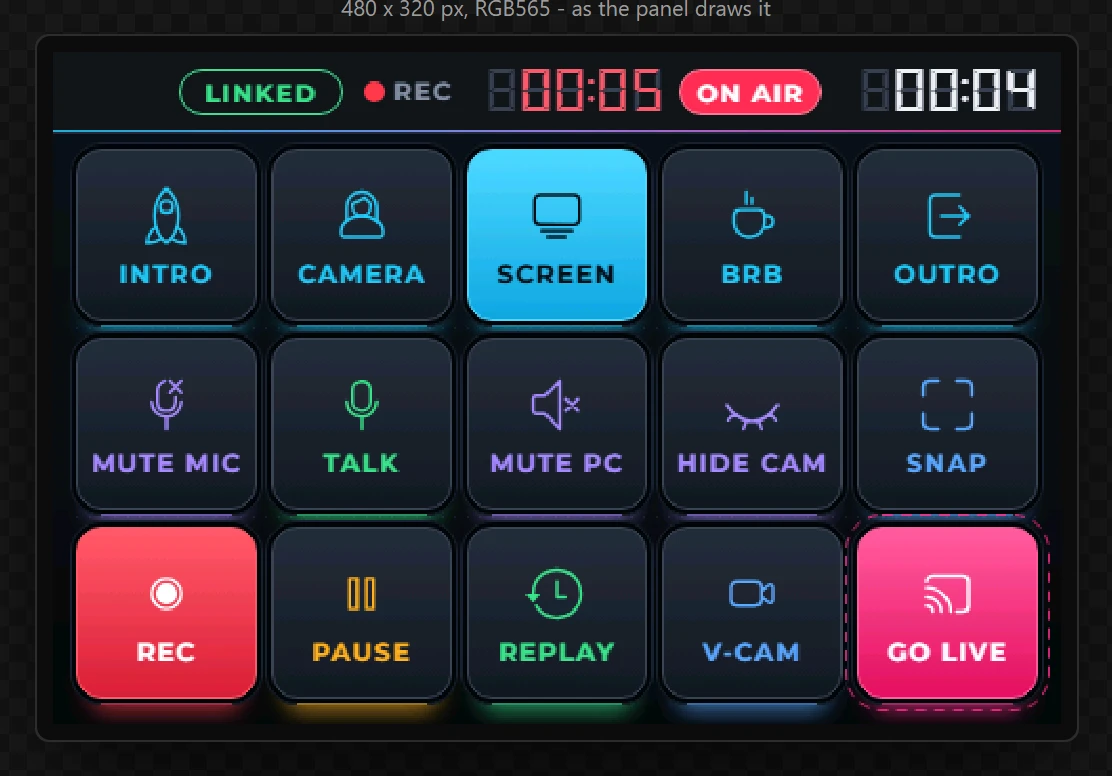
This is the gallery's OBS Stream Deck, rebuilt from nothing. To the PC it is a Bluetooth keyboard, so there is no driver, no companion program and no cable: you pair it, tell OBS Studio which key does what, and it works. Along the way it uses most of what makes a design do something - events, variables, bindings, automations and a ready-made Timer - so it is also a tour of the designer.
Every step below was carried out in the designer to take its picture, and the design that came out of them was generated and compiled for the board: 1.32 MB of firmware. The example it rebuilds has been run against OBS Studio on this board.
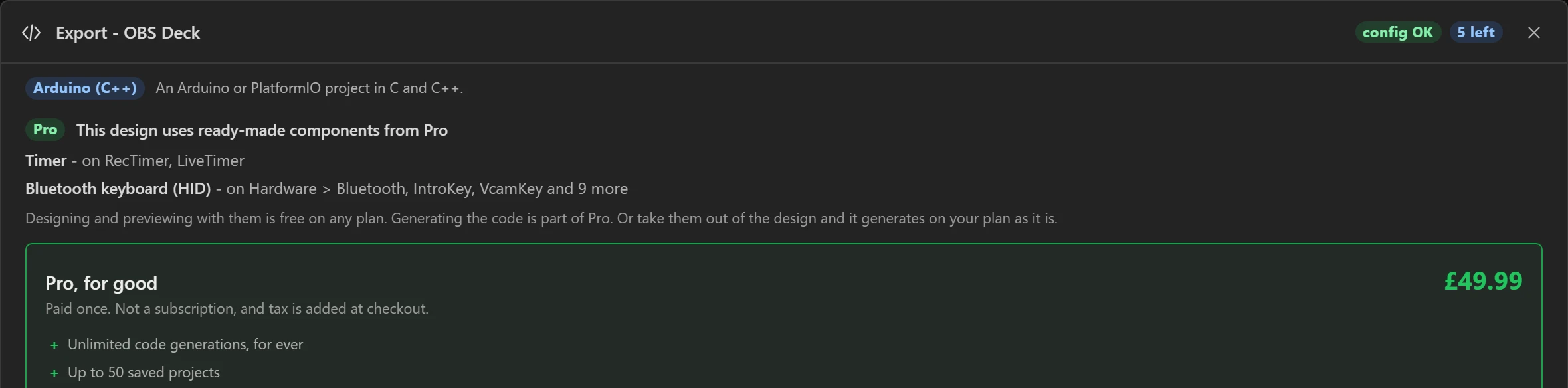
What is free and what is Pro. Building this design and trying it in Preview are free and need no account. Generating its code is part of Pro, because it uses two Pro parts: the Bluetooth keyboard and the Timer widget. The export dialog says so before anything is charged (step 46).
What you need
- An LCDWIKI 3.5" ESP32-S3 board (ES3C35P) and a USB-C cable. The layout is drawn for its panel turned on its side, 480 x 320.
- A PC with Bluetooth and OBS Studio.
- PlatformIO or the Arduino IDE, to build and upload what the designer generates. Flashing and configuration covers both.
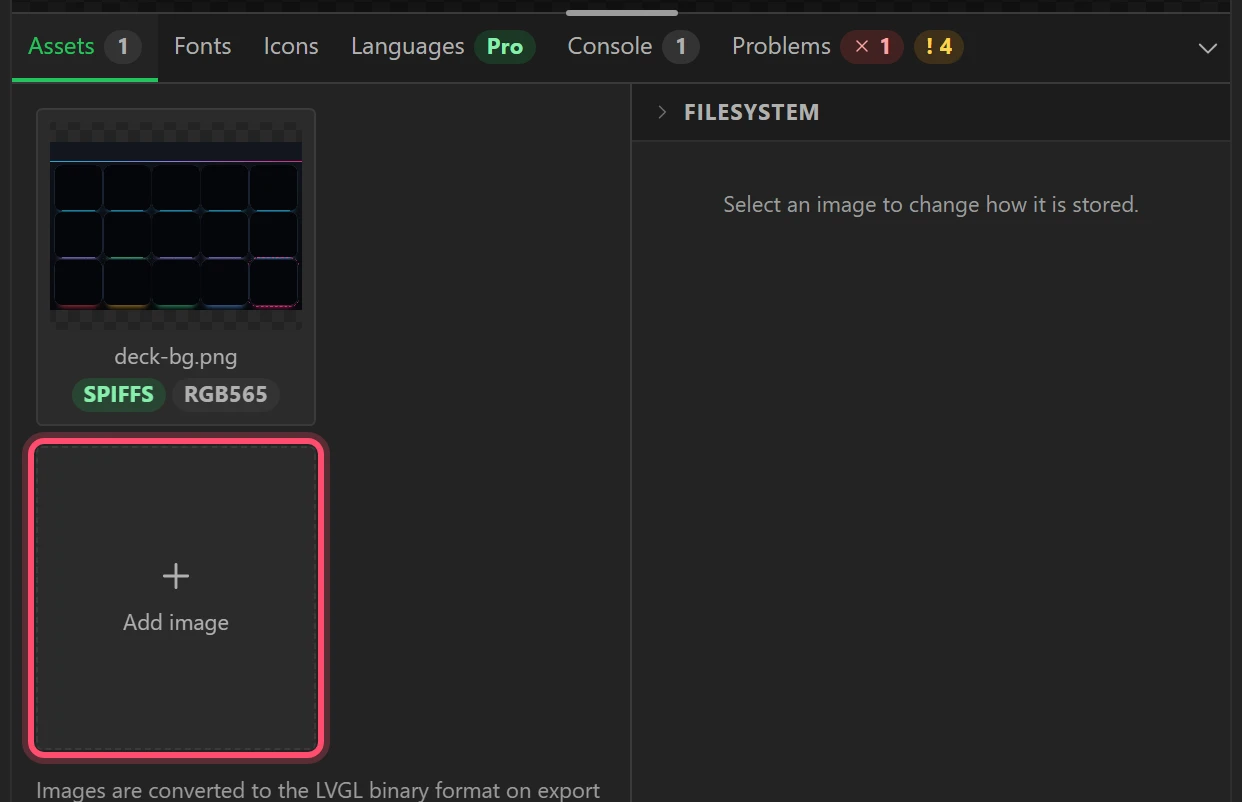
- The backdrop picture: deck-bg.png (19 KB). It is the ground, the bar across the top, a well for each key and the light under it.
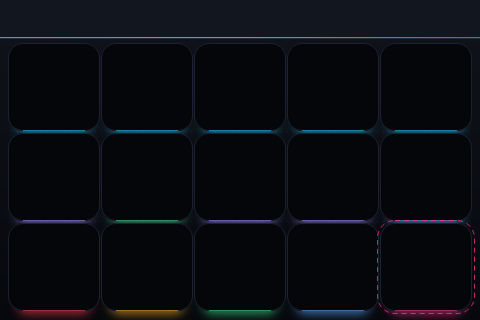
Allow about an hour for the design and ten minutes for the build. If you would rather start from the finished thing, open the example and press Open a copy: everything below is then there to read, key by key.
Part 1: a new project
1 Start a project for Arduino
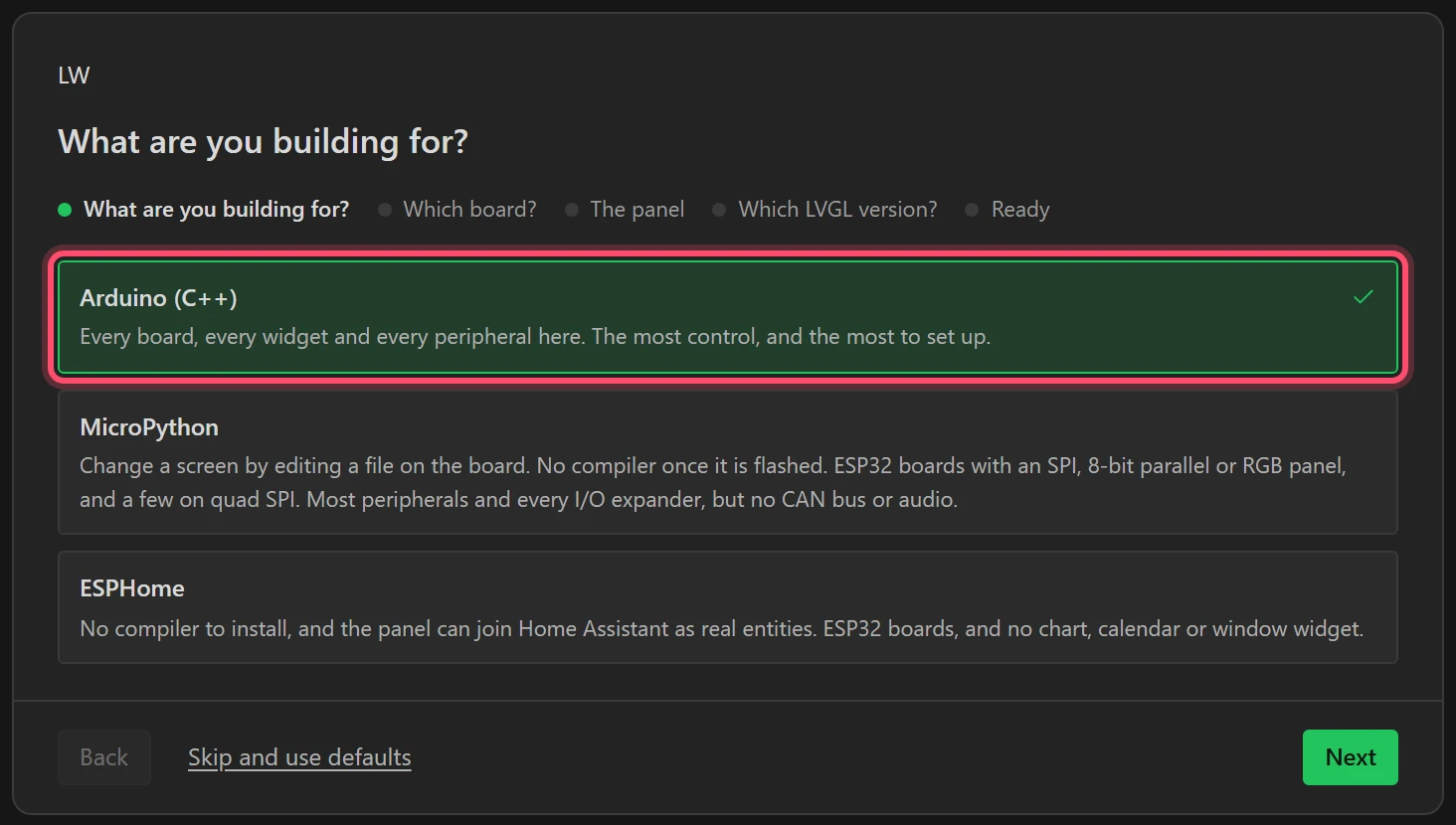
Open the designer. On a first visit the setup wizard is already there; otherwise choose File > New project. For What are you building for? choose Arduino (C++) and press Next. A Bluetooth keyboard is in the Arduino export only.
2 Choose the board
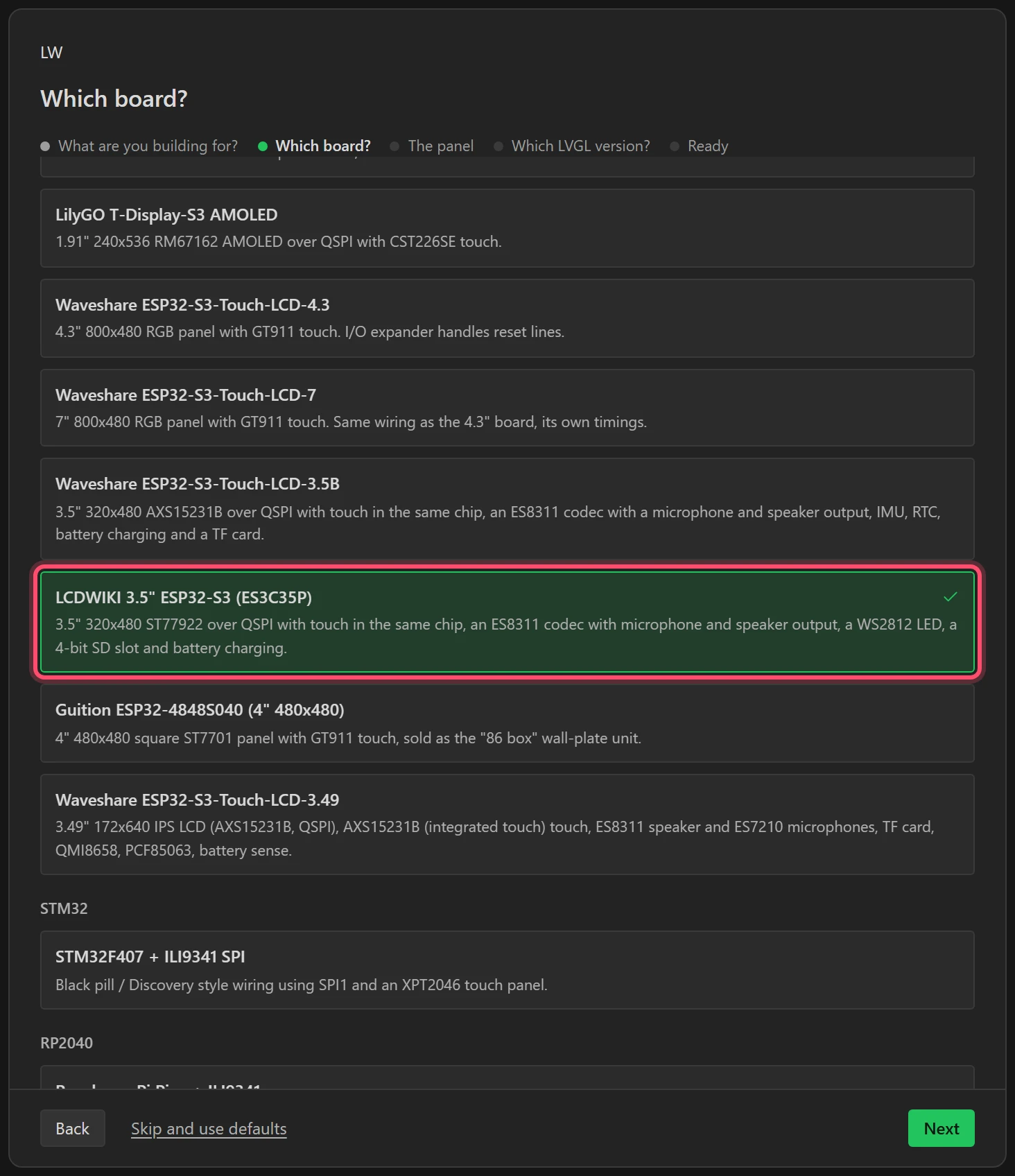
Under All-in-one boards choose LCDWIKI 3.5" ESP32-S3 (ES3C35P). Choosing a board fills in every pin, the panel's controller and the touch chip, so there is no wiring to enter. Press Next.
3 Turn the panel on its side
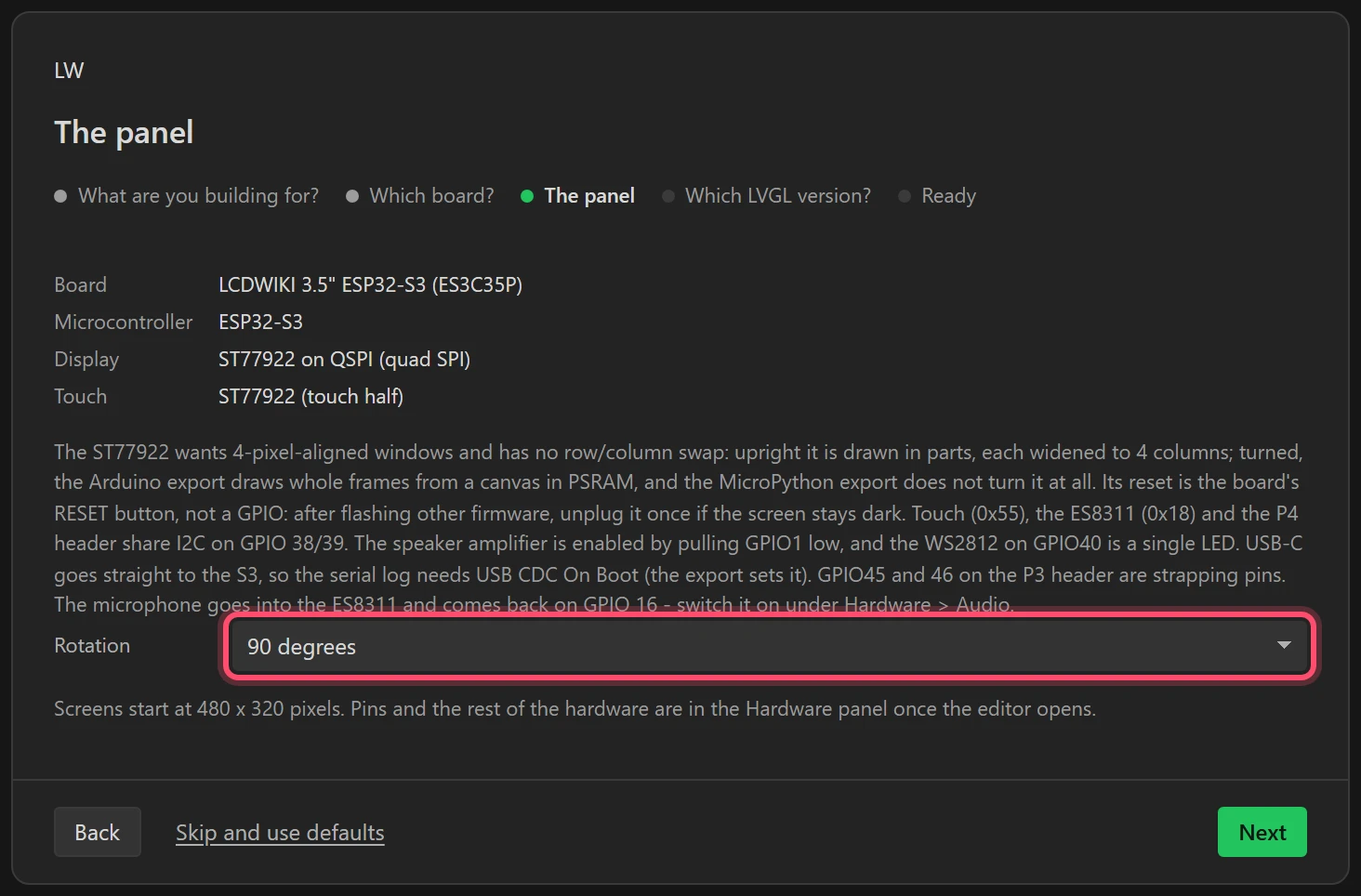
Set Rotation to 90 degrees. The panel is 320 x 480 upright, and the deck is drawn 480 x 320. Press Next.
4 Keep LVGL 9
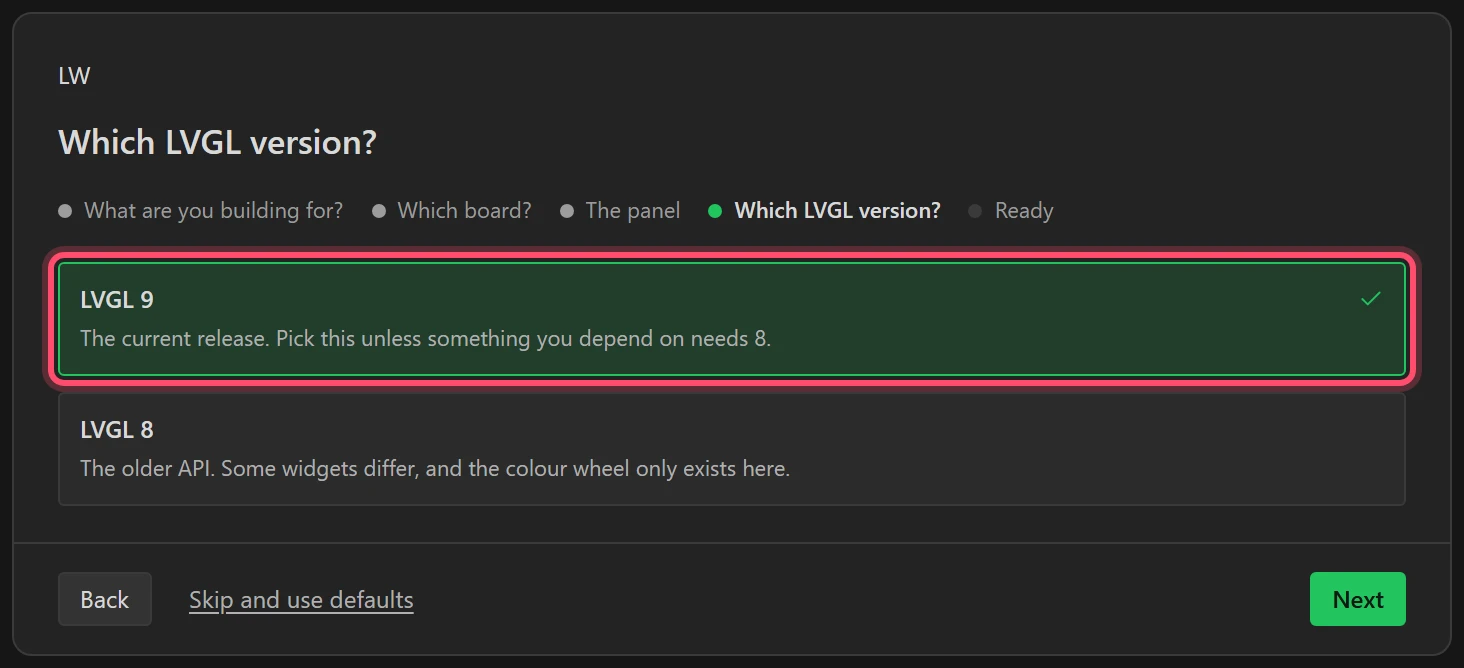
LVGL 9 is already chosen. Press Next.
5 Name it and start empty
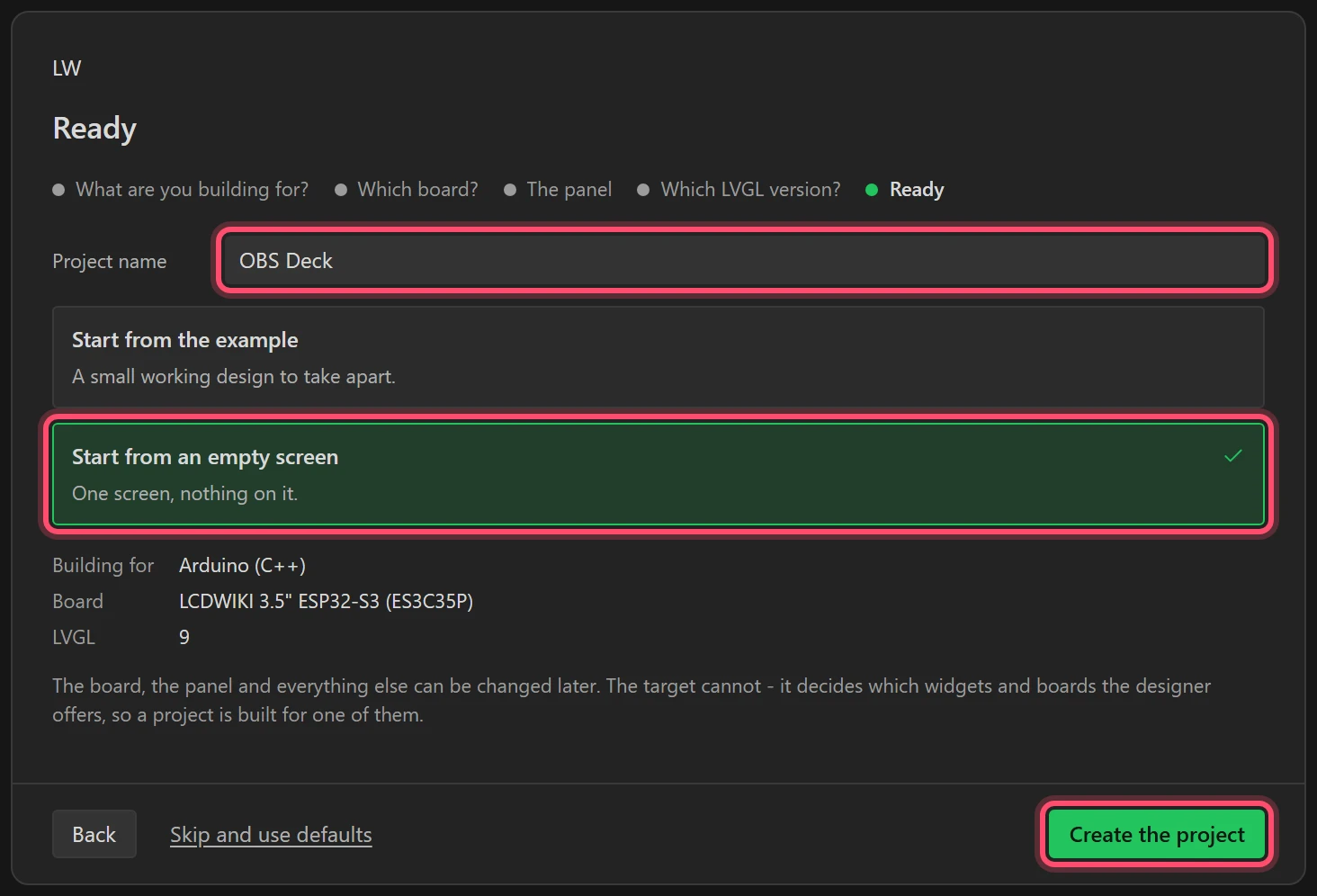
Type OBS Deck for the project name, choose Start from an empty screen, and press
Create the project.
6 Look round the designer
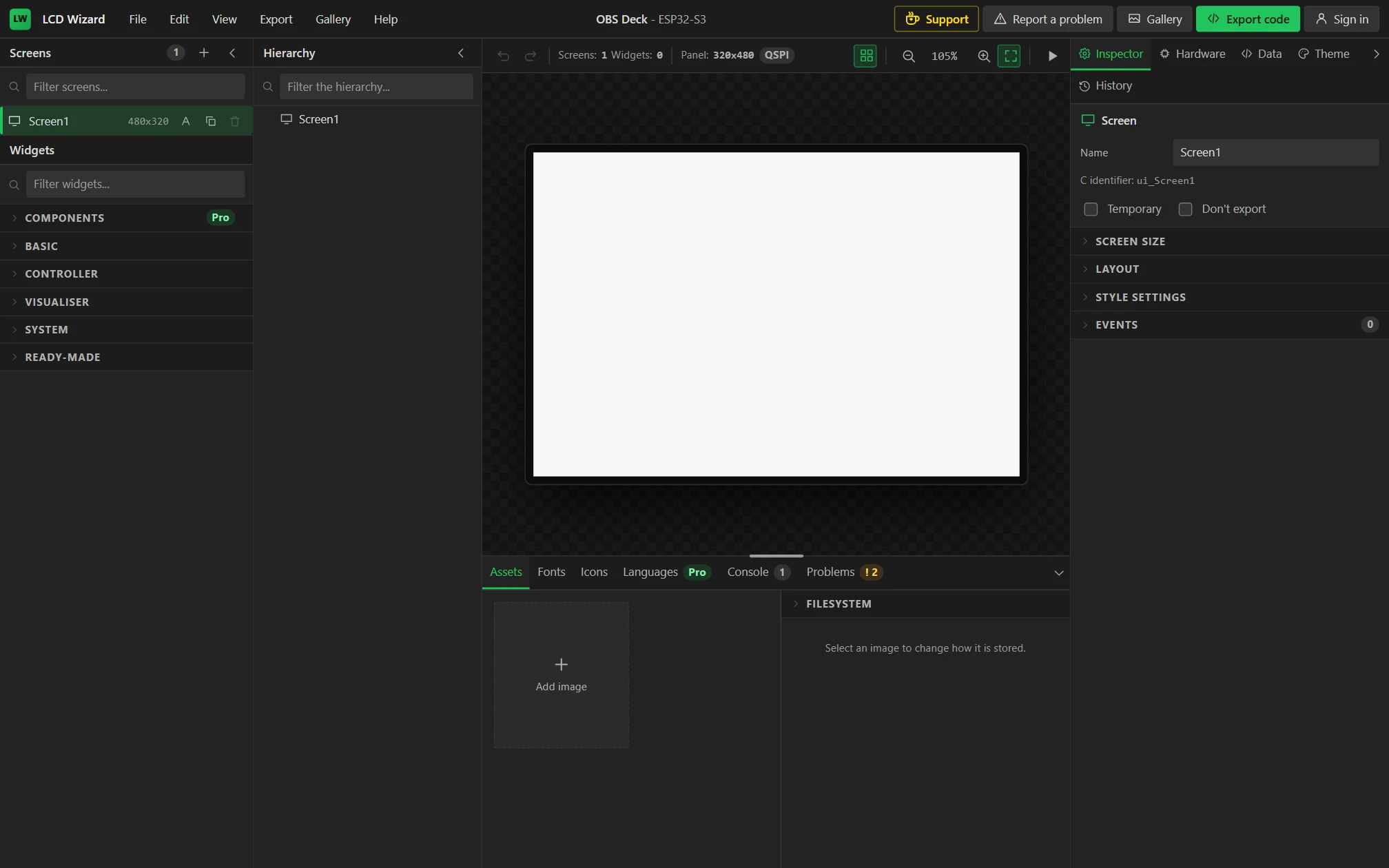
The screen is in the middle. Widgets are on the left, with the Hierarchy of what is on the screen beside them. On the right are the tabs this tutorial uses most: Inspector (the selected widget), Hardware, Data and Theme. Along the bottom are Assets, the Console and Problems. Your work is saved in the browser as you go.
Part 2: make the board a Bluetooth keyboard
7 Switch Bluetooth on, as a keyboard
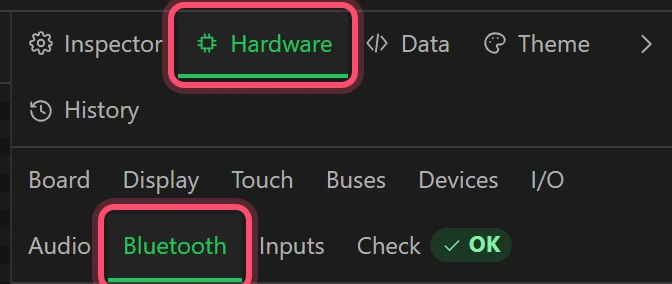
Open the Hardware tab and, in its second row of tabs, Bluetooth.
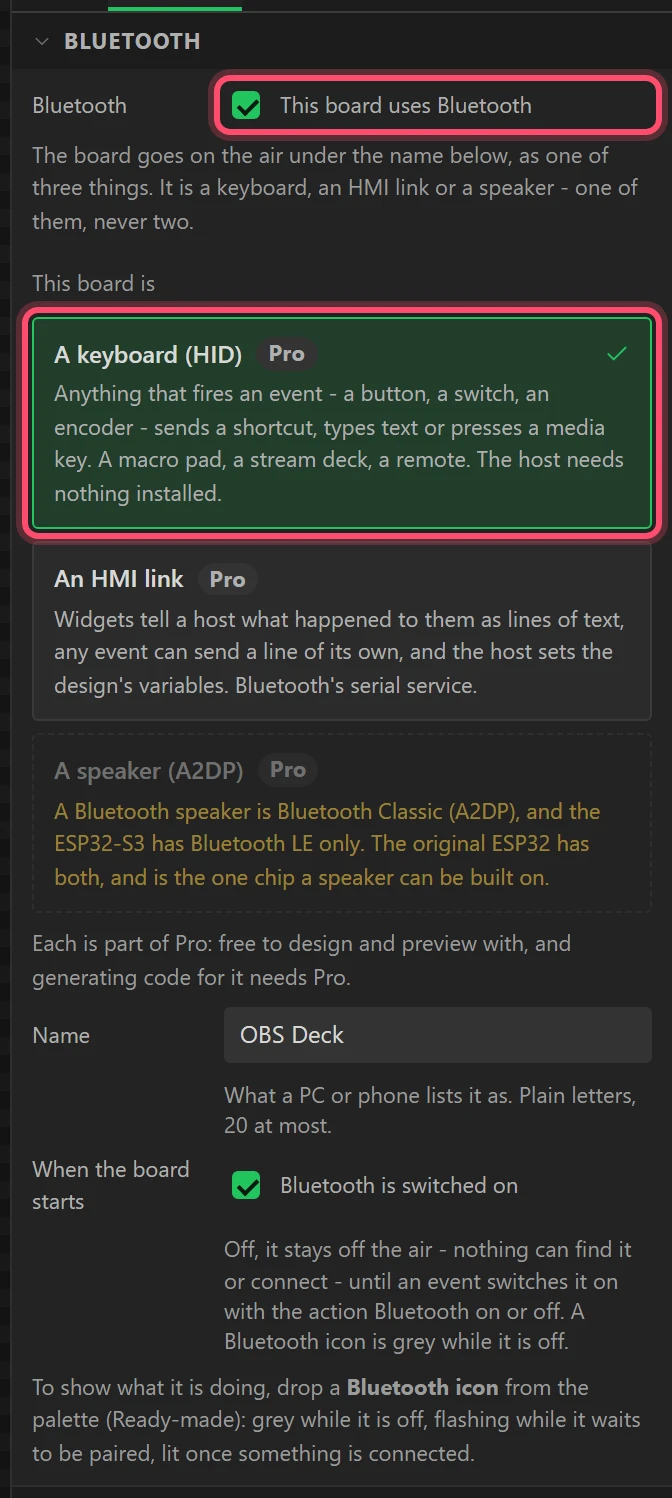
- Tick This board uses Bluetooth.
- Under This board is, choose A keyboard (HID).
- Set Name to
OBS Deck. That is what the PC will list it as.
A board has one Bluetooth role. As a keyboard, anything that fires an event can send a key, which is all a stream deck is.
Part 3: the ground the keys sit on
8 Set the theme to dark
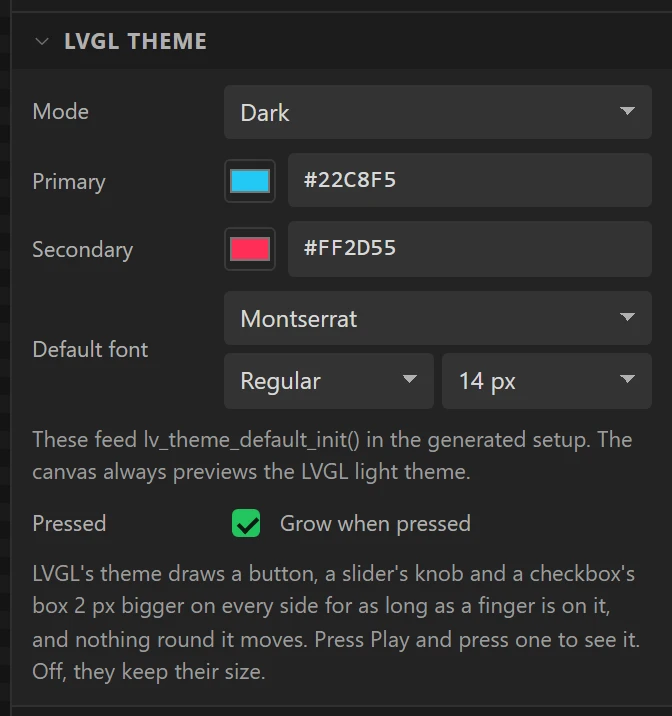
Open the Theme tab and the LVGL theme section. Set Mode to Dark,
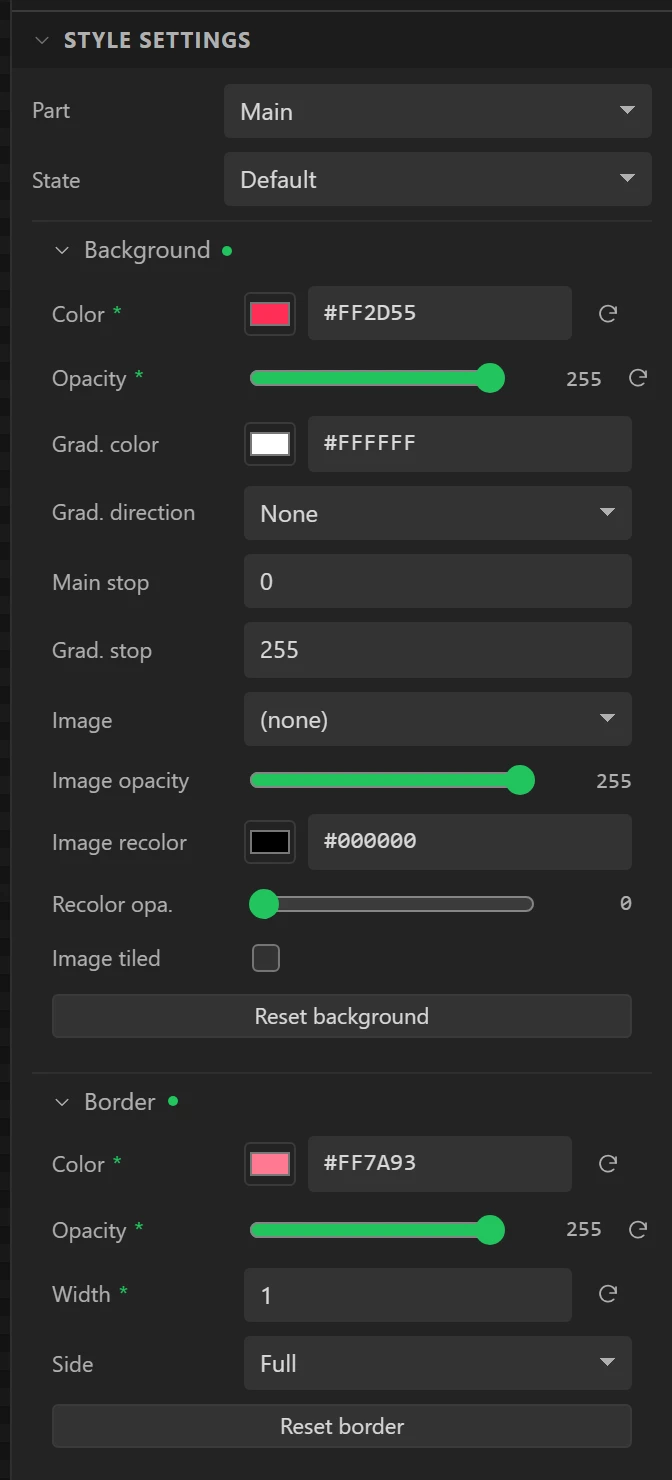
Primary to #22C8F5 and Secondary to #FF2D55.
The theme is what a widget looks like before you style it. Every widget in this design is styled, so this mostly decides what LVGL draws for a moment while the board starts.
9 Make the screen itself dark
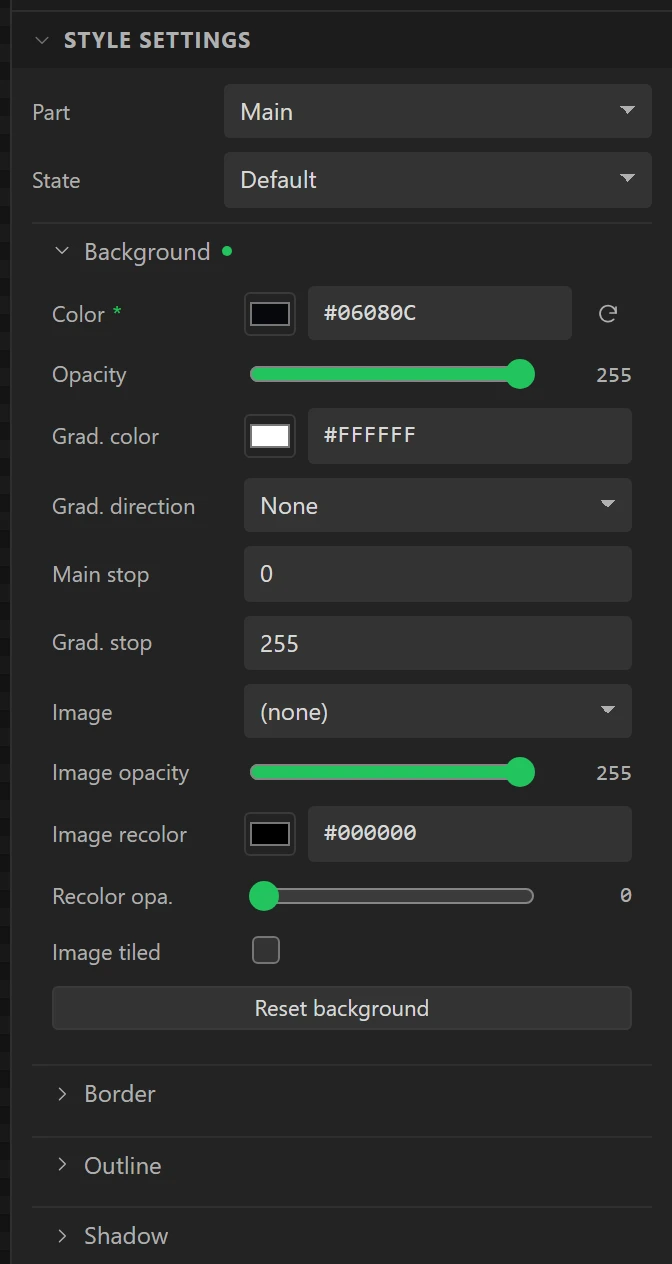
Go back to the Inspector tab and click Screen1 in the Hierarchy, so the Inspector shows the
screen. Open Style settings, then Background, and set Color to
#06080C.
A green dot beside a group, and a star beside a setting, mark what you have changed. Only those are written into the code.
10 Add the backdrop picture
In the bottom panel, on the Assets tab, press Add image and choose the
deck-bg.png you downloaded. It appears as a tile.
11 Keep the picture in the firmware
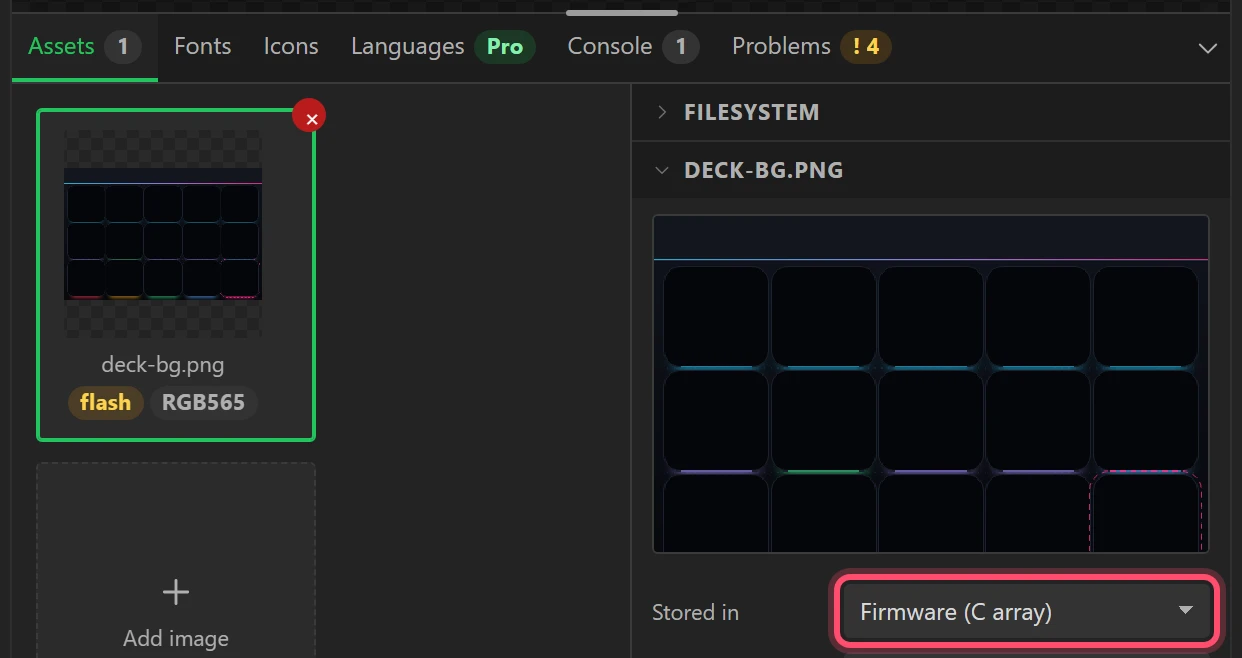
Click the picture's tile. On the right, set Stored in to Firmware (C array). The other choice keeps pictures on the board's filesystem, which is a second upload; one picture this size is simpler compiled in.
12 Put the picture on the screen
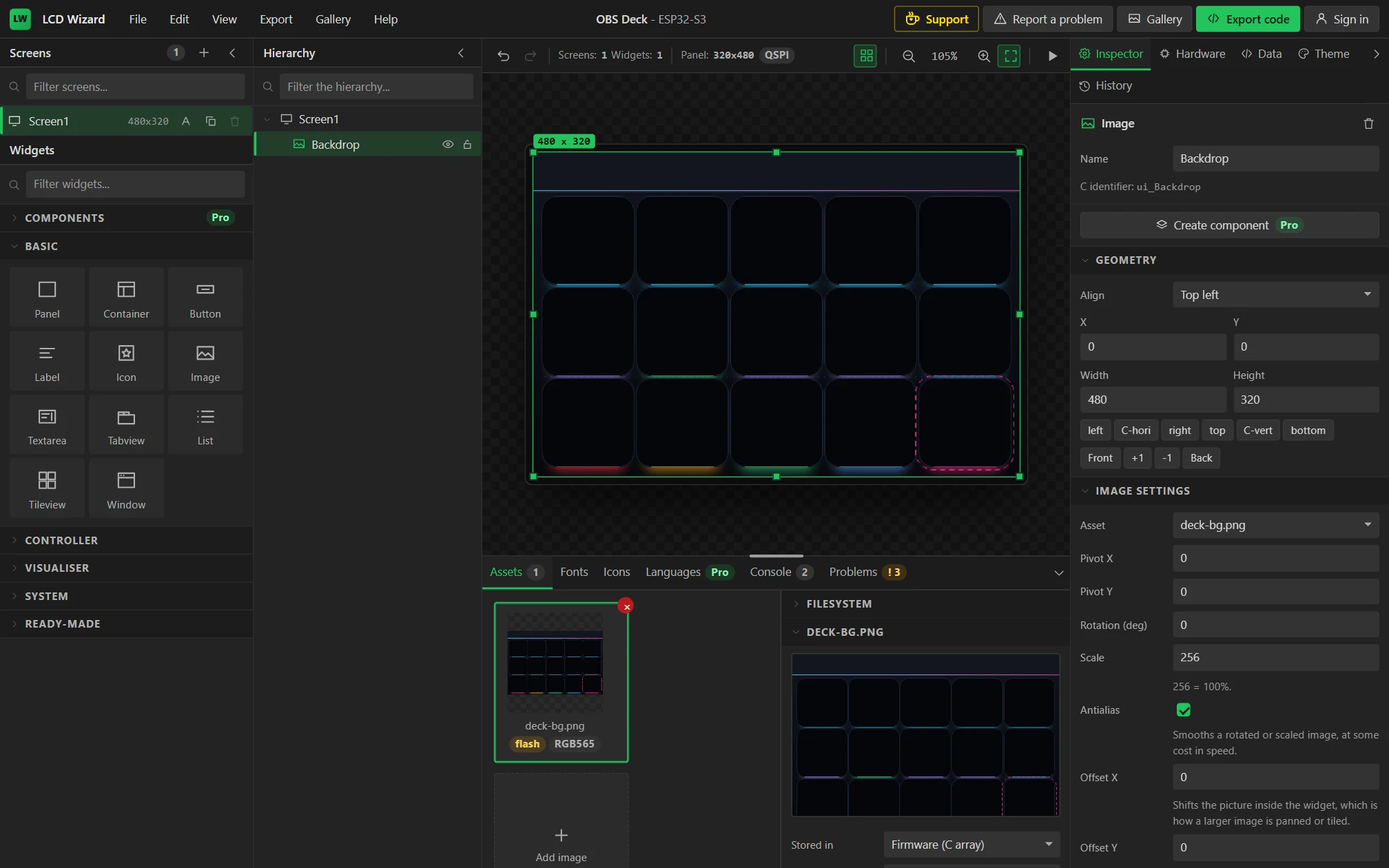
Open Basic in the Widgets list and drag Image onto the screen. In the Inspector:
- Set Name to
Backdrop. - Open Image settings and set Asset to deck-bg.png. The widget takes the picture's size, 480 x 320.
- Open Geometry and set X and Y to
0.
Everything else goes on top of it. A widget added later is drawn over the ones before it, so adding the backdrop first is what puts it at the back.
Part 4: the first key
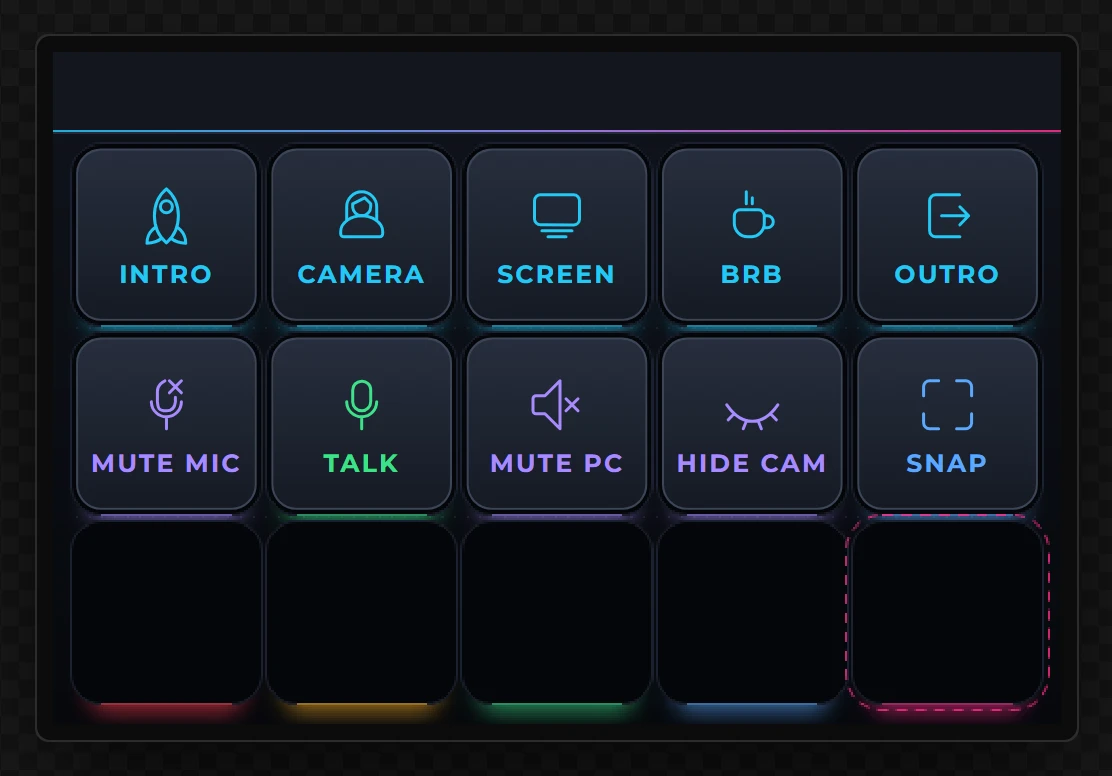
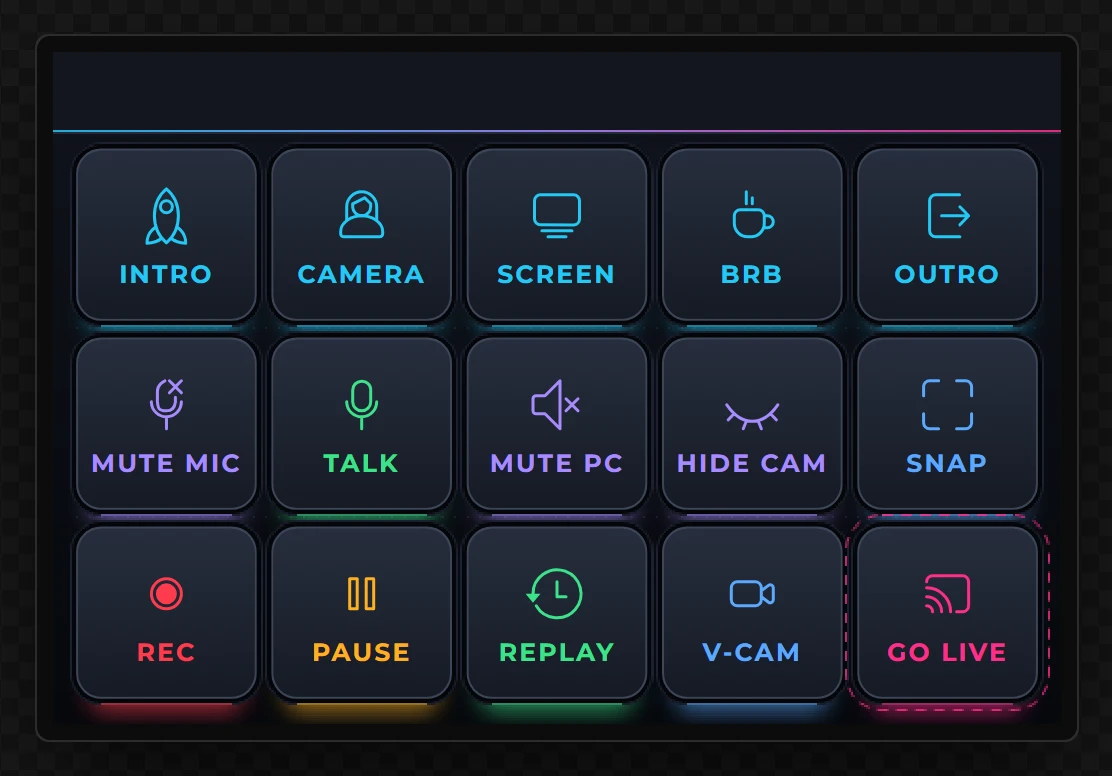
One key is made completely - its place, its caption, its look, what it sends, when it lights and when it is greyed out. The other fourteen are copies of it with a few things changed.
13 Drag a Button onto the screen
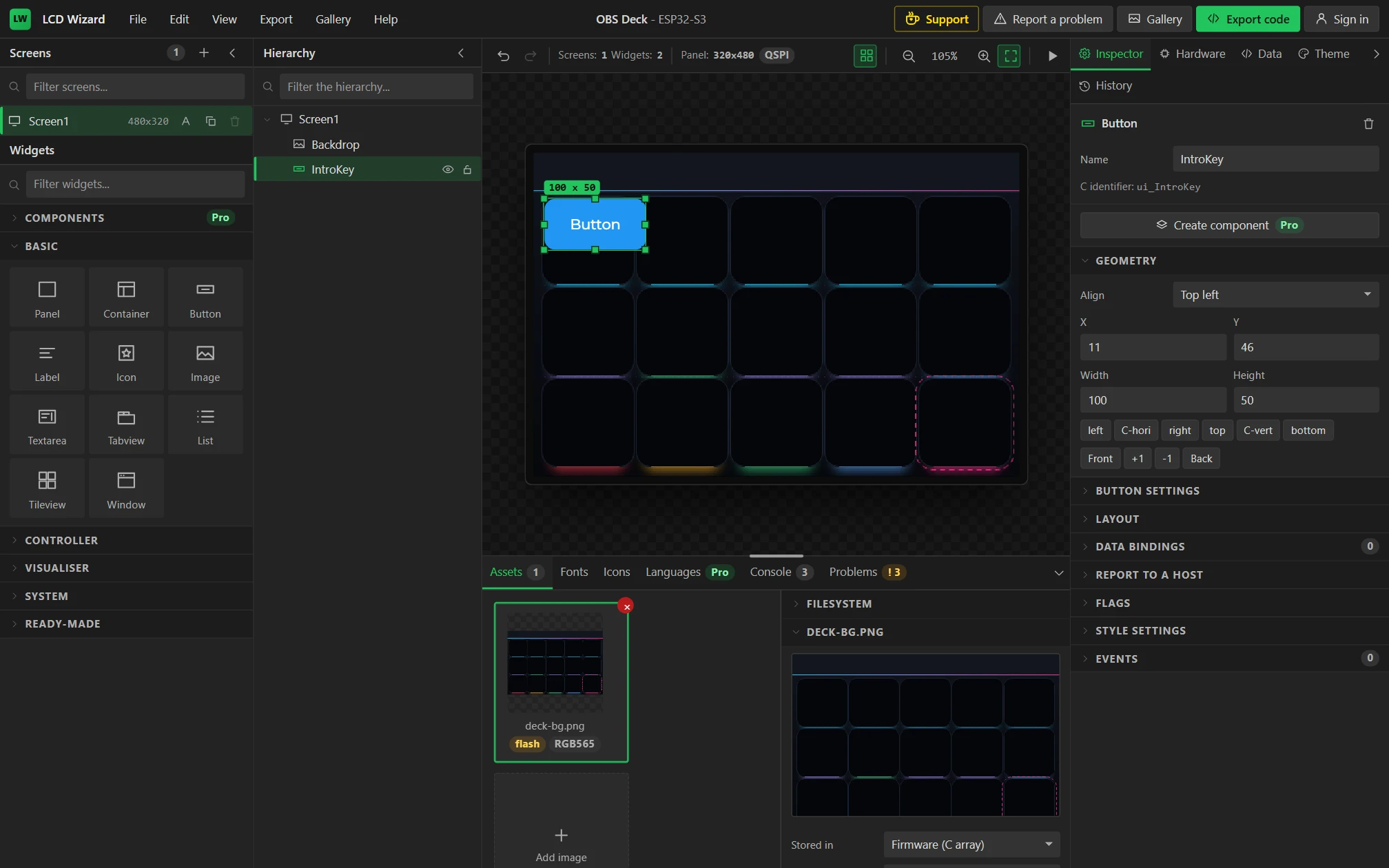
From Basic, drag Button onto the screen, anywhere. It arrives blue, saying "Button".
14 Name it and put it in the first well
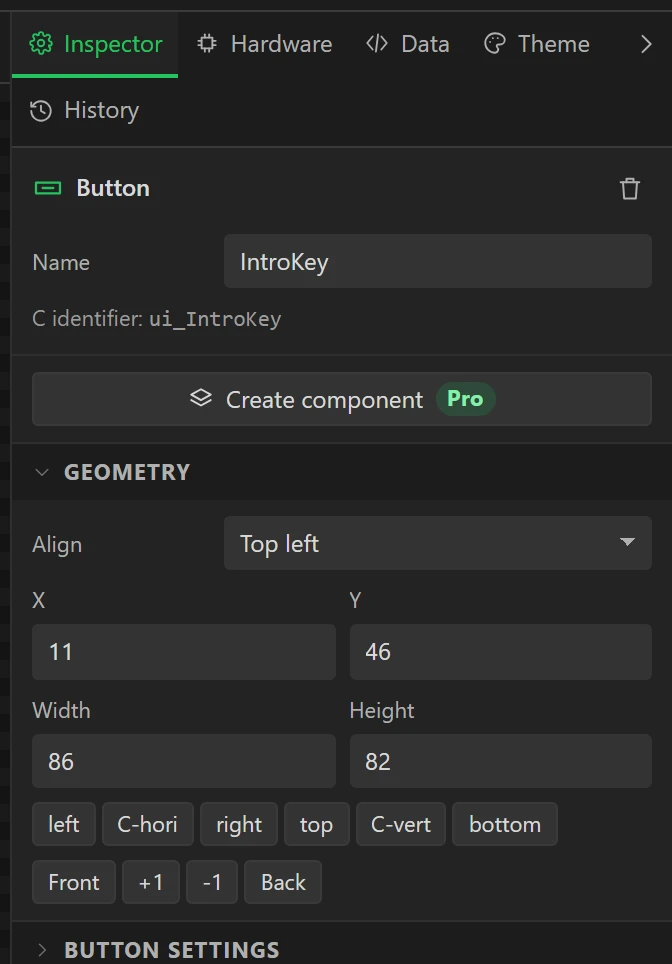
With the button selected, set Name to IntroKey. Open Geometry and type:
| X | Y | Width | Height |
|---|---|---|---|
11 | 46 | 86 | 82 |
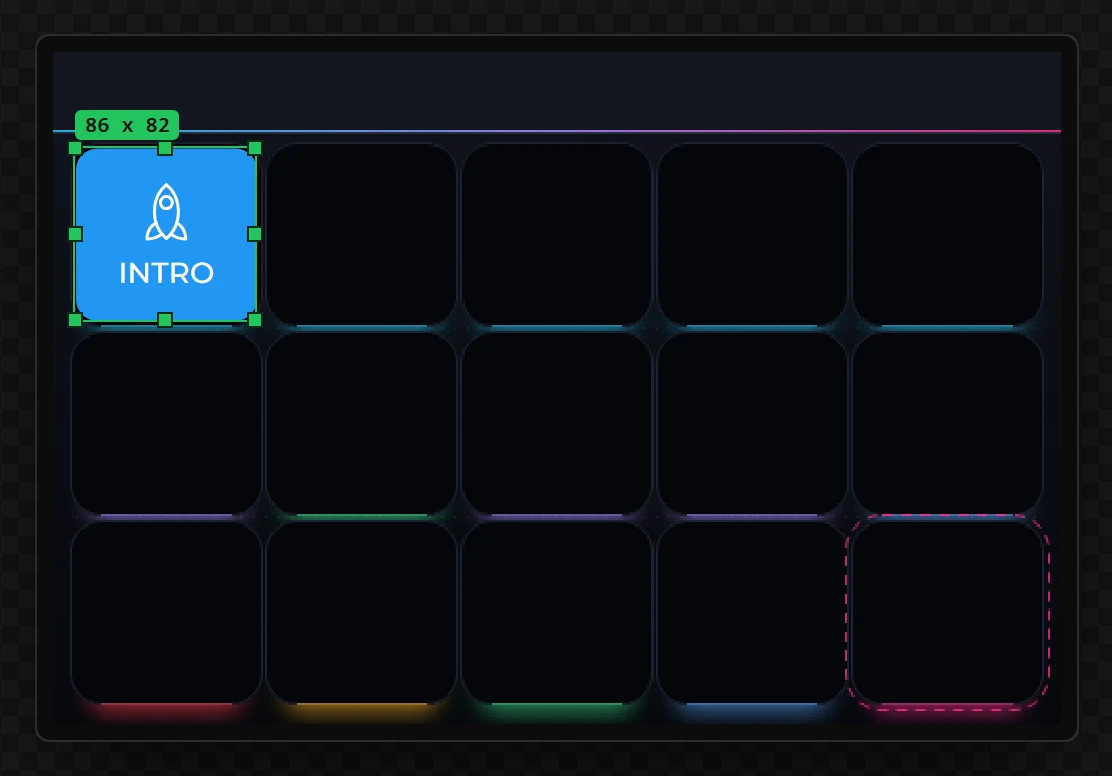
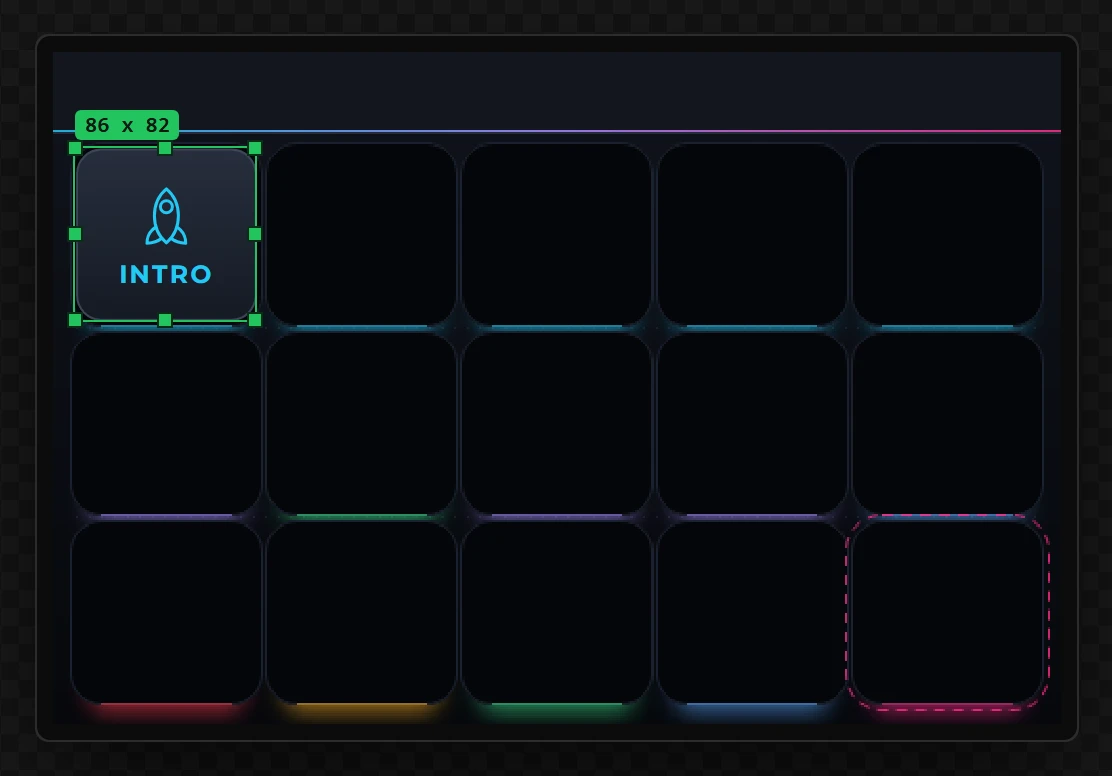
Every key is 86 x 82. The columns are at X 11, 104, 197, 290 and 383, and the rows at Y 46, 136 and 226.
15 Give it a caption and an icon
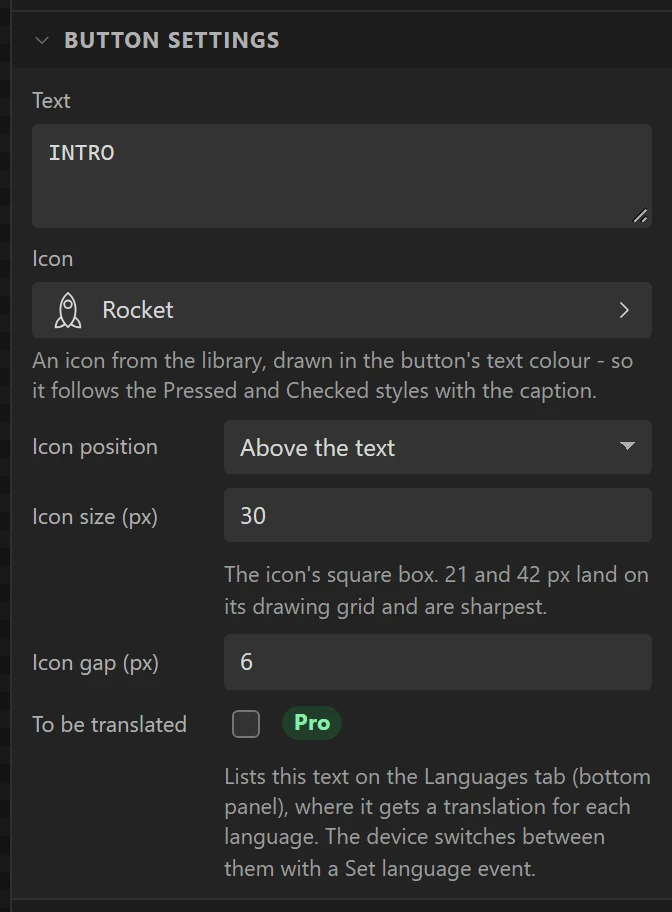
Open Button settings.
- Set Text to
INTRO. - Click Icon and choose Rocket. The search box finds one by name.
- Set Icon position to Above the text, Icon size to
30and Icon gap to6.
The icon is drawn in the button's text colour, so when the key lights up and its text turns dark, the icon turns with it.
16 Style the key as it rests
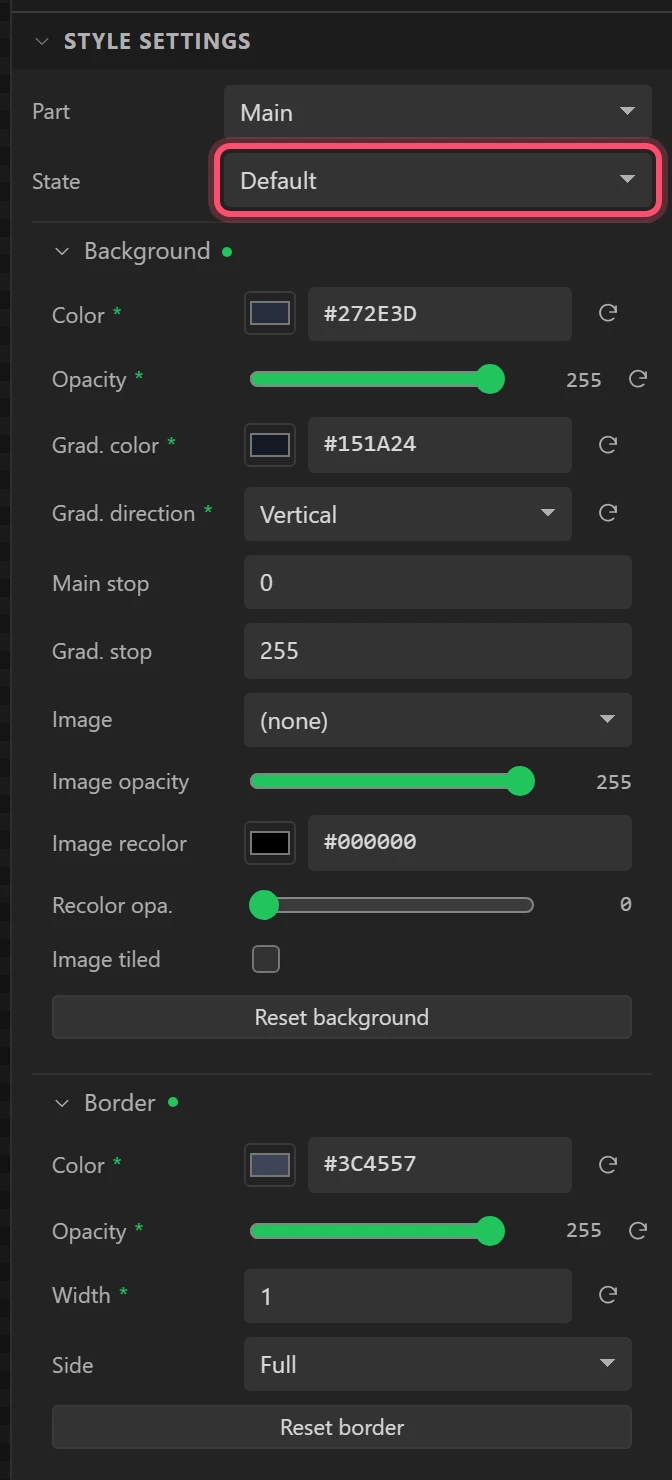
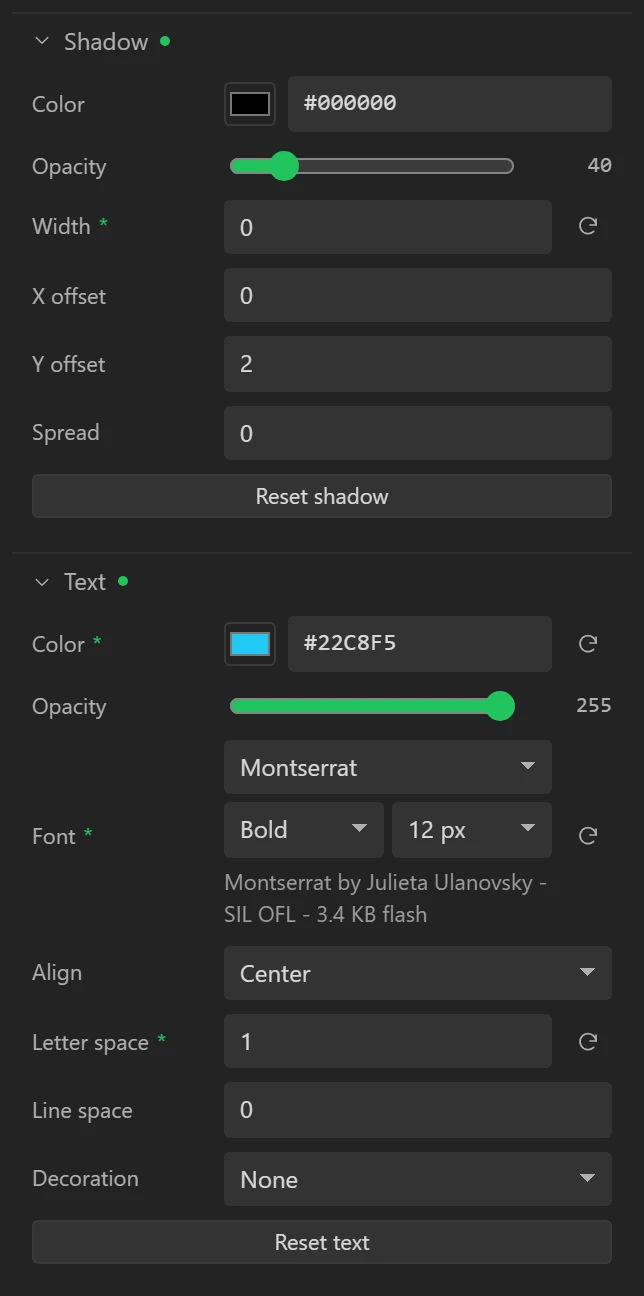
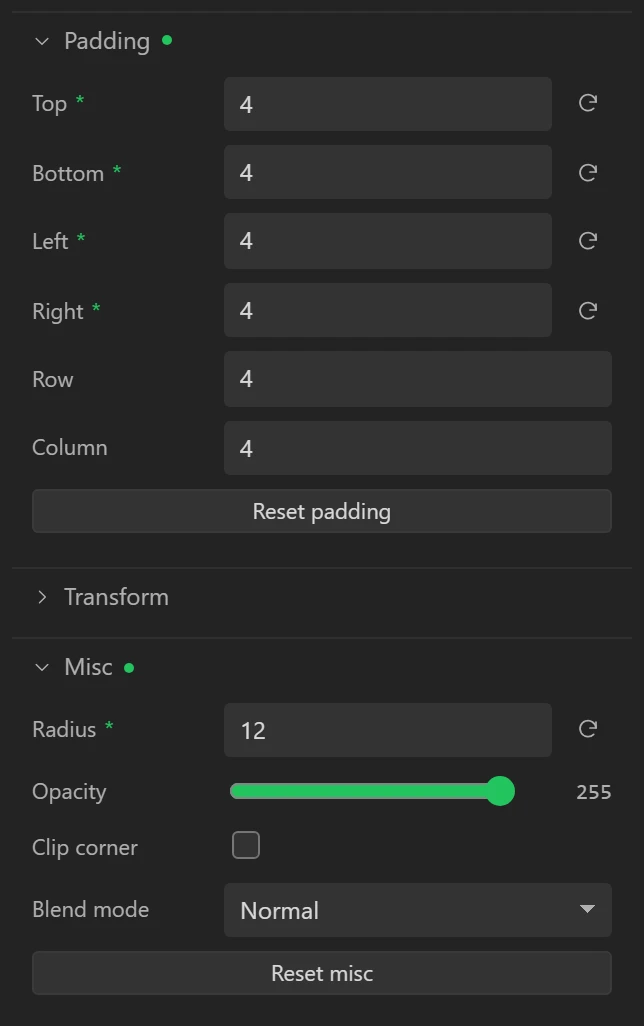
Open Style settings. Part stays on Main and State on Default: this is how the key looks when nothing is happening to it. Open each group and set:
| Group | Setting | Value |
|---|---|---|
| Background | Color | #272E3D |
| Grad. color | #151A24 | |
| Grad. direction | Vertical | |
| Border | Color | #3C4557 |
| Width | 1 | |
| Shadow | Width | 0 |
| Text | Color | #22C8F5 |
| Font | Montserrat, Bold, 12 px | |
| Letter space | 1 | |
| Padding | Top, Bottom, Left, Right | 4 each |
| Misc | Radius | 12 |
17 Style it while a finger is on it
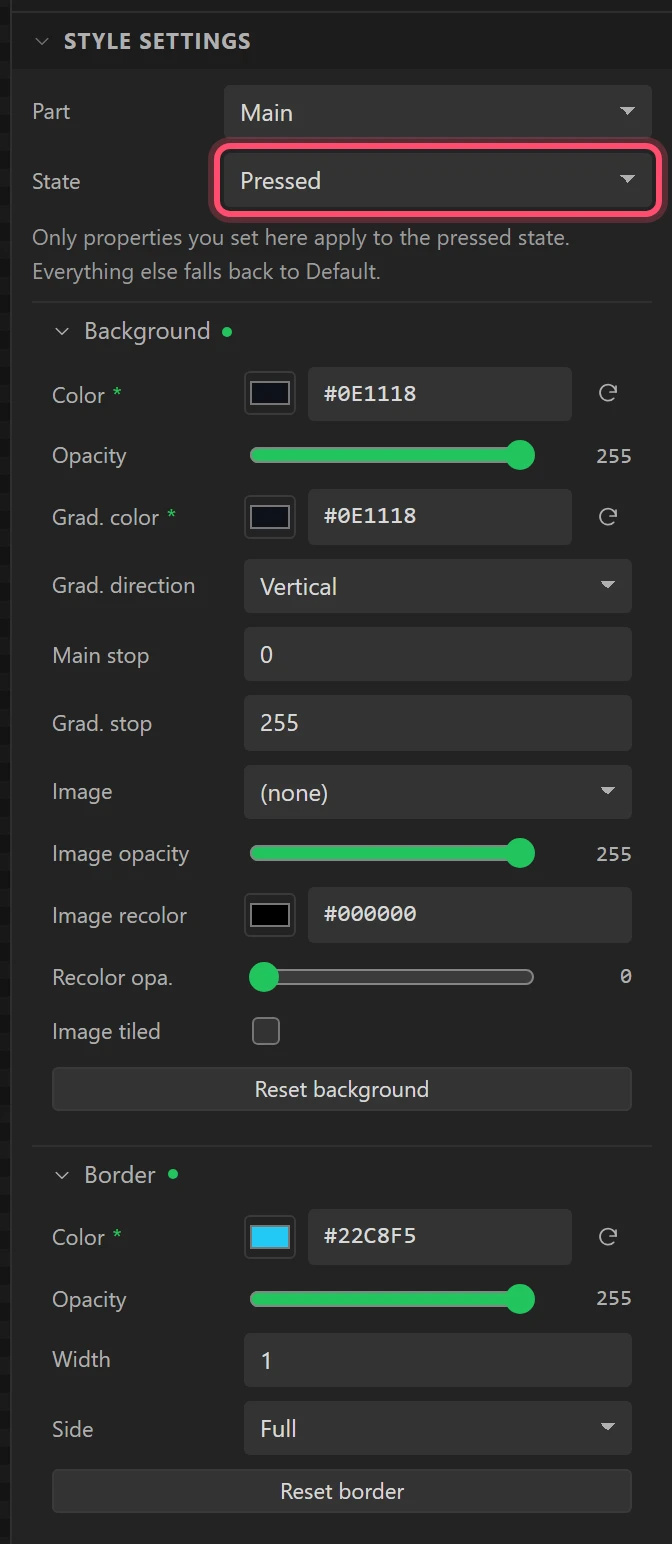
Change State to Pressed. A state holds only what differs from Default, so there is little to set:
| Group | Setting | Value |
|---|---|---|
| Background | Color | #0E1118 |
| Grad. color | #0E1118 | |
| Border | Color | #22C8F5 |
While State is on Pressed, the canvas draws the key pressed, so you can see what you are setting.
18 Style it lit
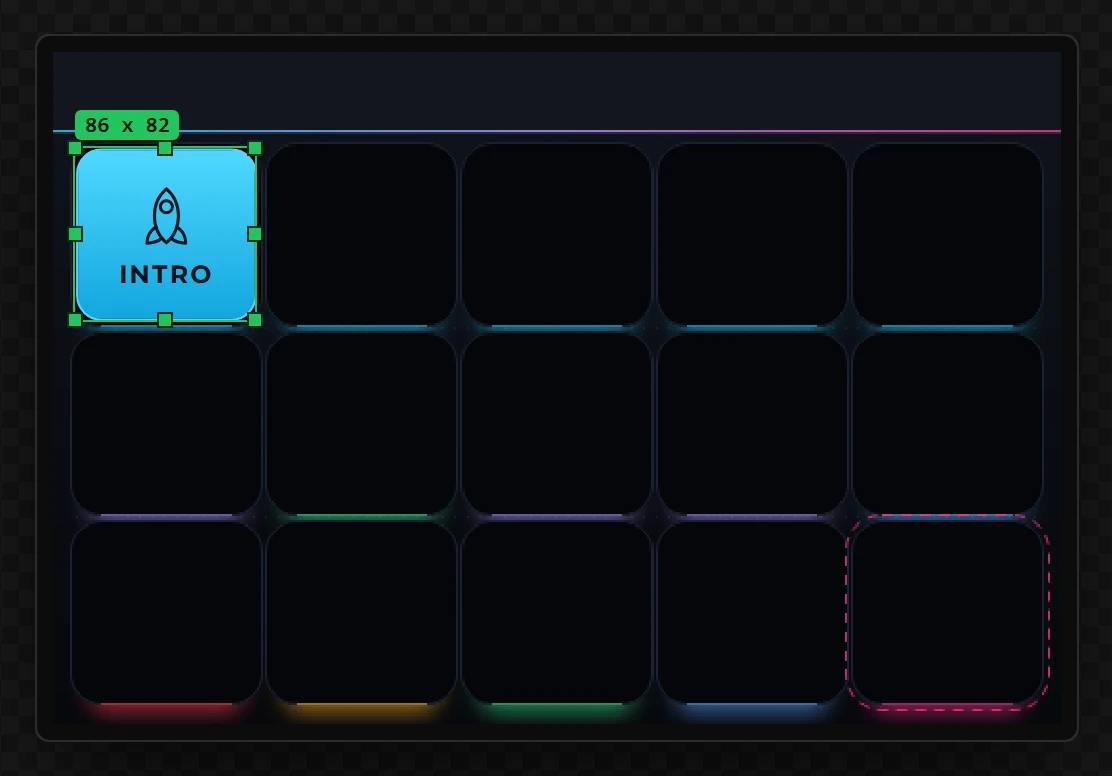
Change State to Checked. Checked is the state a key is in while it is "on", and for this key that will mean "this is the scene OBS is showing".
| Group | Setting | Value |
|---|---|---|
| Background | Color | #4FD8FF |
| Grad. color | #12A6DE | |
| Border | Color | #4FD8FF |
| Text | Color | #03131C |
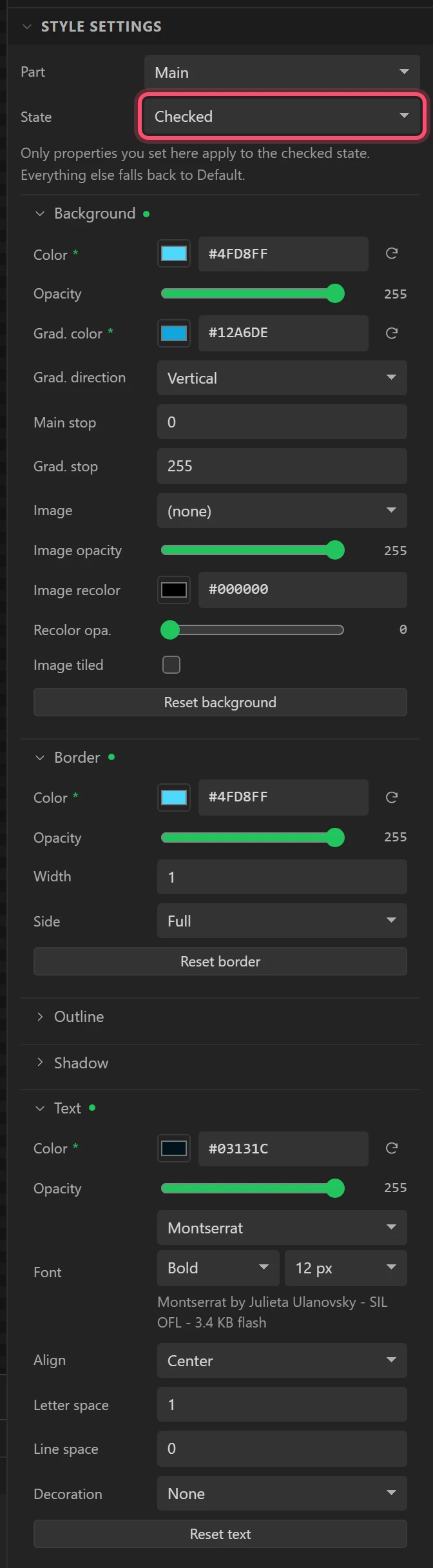
19 Style it greyed out
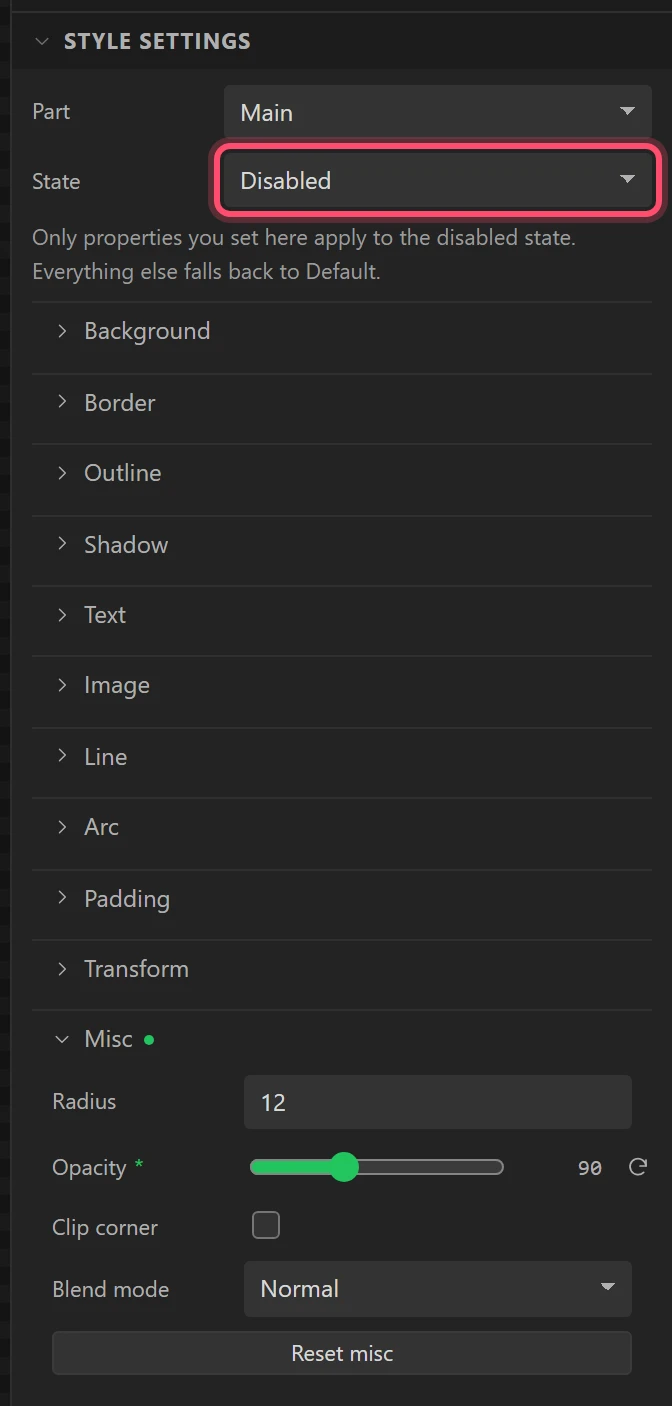
Change State to Disabled, open Misc and set Opacity to 90.
Then put State back to Default.
A disabled key takes no touch. Step 26 is what disables it: while no PC is connected.
Part 5: what the key sends
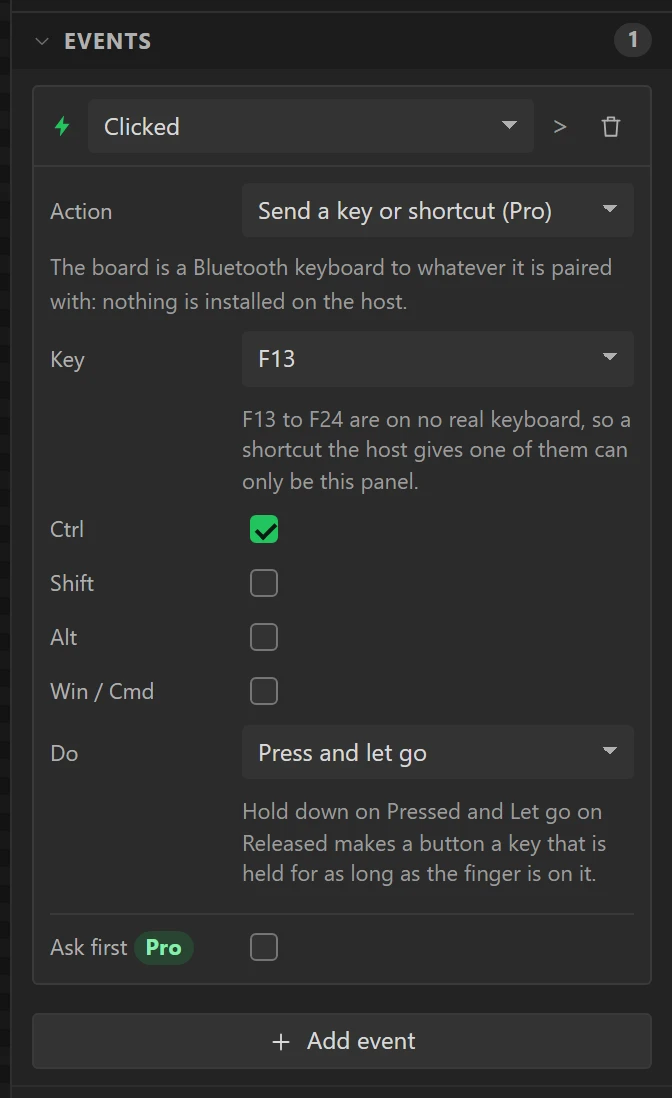
20 Send Ctrl + F13 when it is clicked
Open Events and press Add event.
- Leave the trigger on Clicked.
- Set Action to Send a key or shortcut. It is in the Bluetooth group, near the end of the list.
- Set Key to F13 and tick Ctrl.
- Leave Do on Press and let go.
F13 to F24 are real keys that no keyboard has, so nothing else on the PC will ever send one and no program has claimed them. Each key on the deck takes exactly one modifier: Ctrl is "on", Alt is "off" and Shift is a single press.
21 Try it in Preview
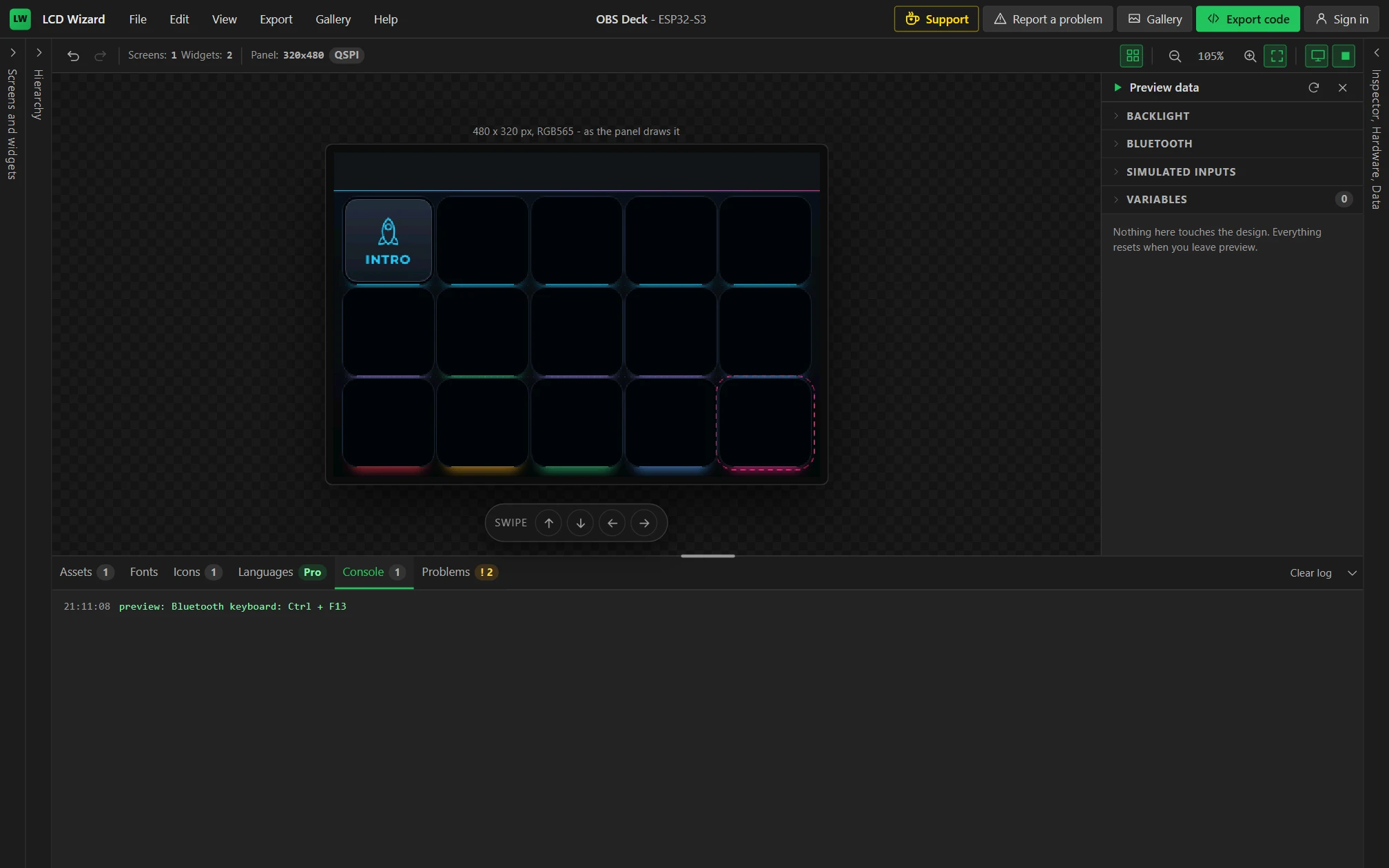
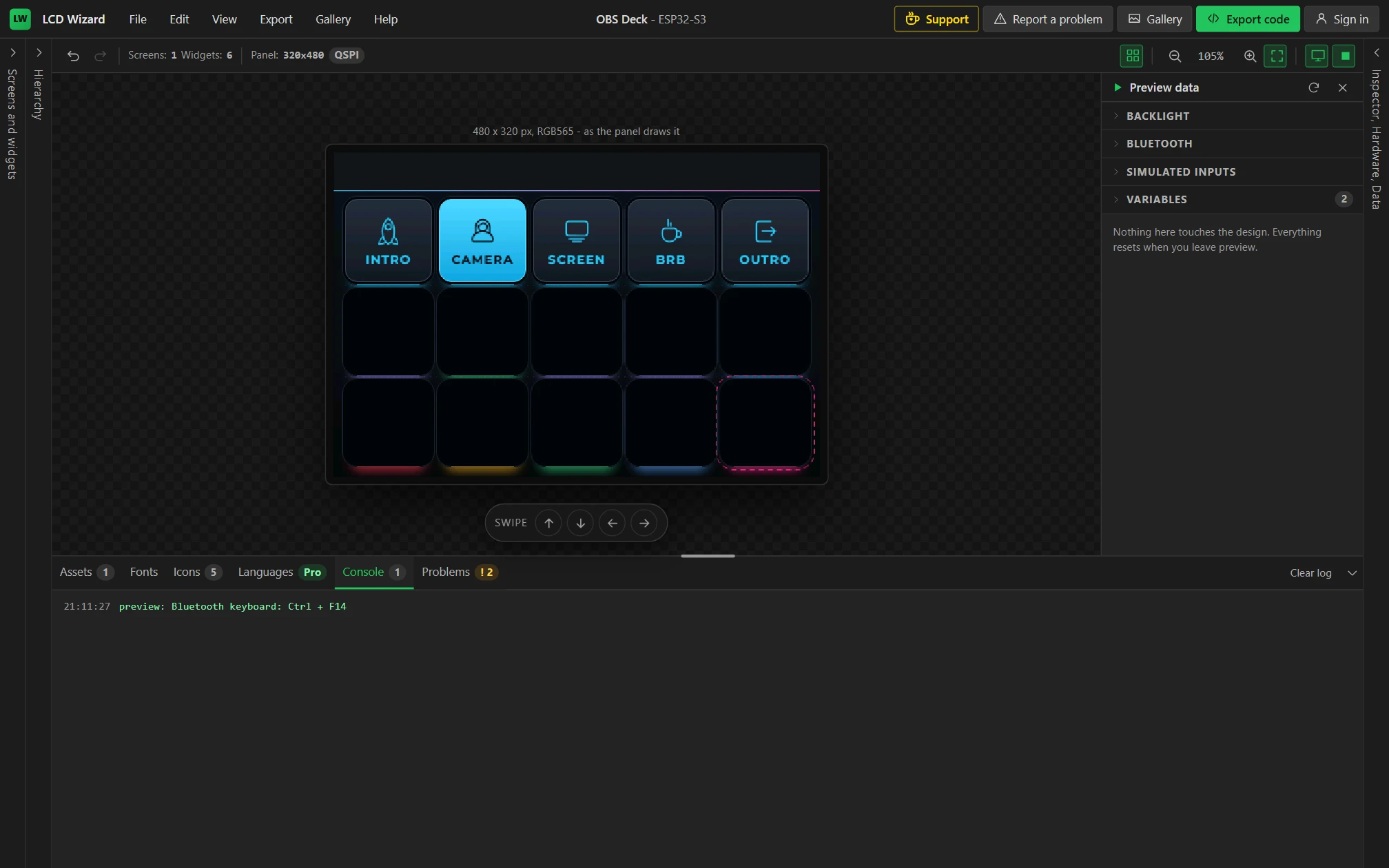
Press the Preview button, the triangle at the right of the bar above the screen. The screen is now drawn as the panel draws it and takes clicks as touches. Open the Console tab in the bottom panel and click the key: the Console says what the board would have sent.
You should see preview: Bluetooth keyboard: Ctrl + F13.
Press the square Stop button, where the triangle was, to go back to designing.
Part 6: one scene lit at a time
A scene key should light when it is chosen and go out when another is. So the key does not light itself: a variable remembers which scene was chosen, and each key is lit while the variable holds its number.
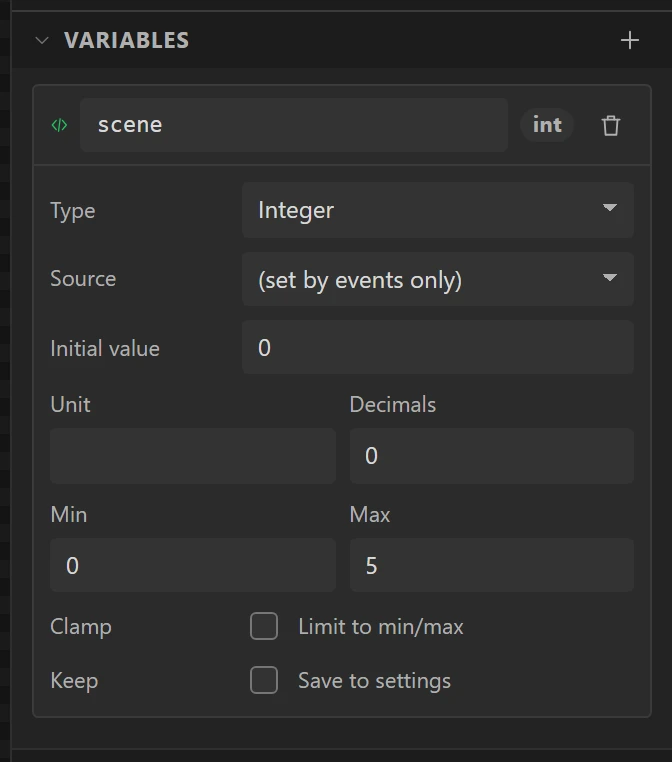
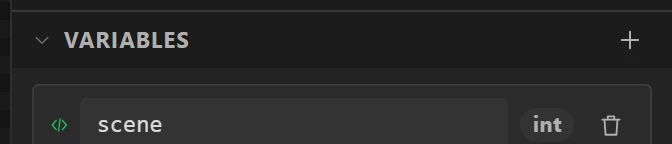
22 Make a variable called scene
Open the Data tab and the Variables section, and press +.
- Name it
scene. - Set Type to Integer.
- Leave Source on (set by events only) and Initial value on
0. - Set Max to
5.
0 means no scene has been chosen yet.
23 Have the key set it
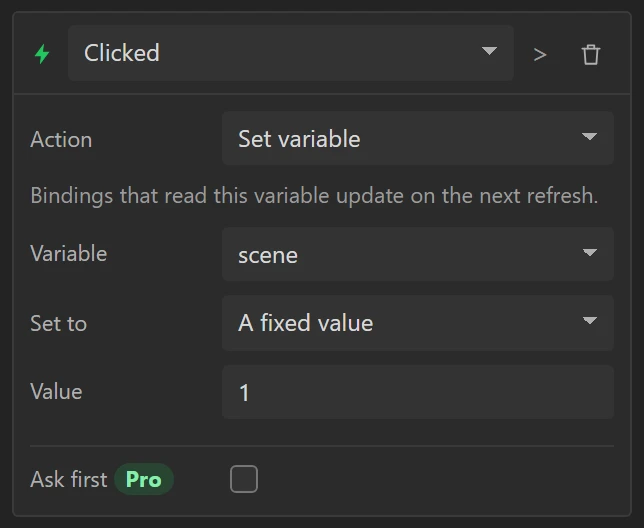
Back on the Inspector tab, select the key and open Events. Press Add event again: a widget can have as many as you like, and both of these run on one click.
- Trigger: Clicked.
- Action: Set variable, in the Hardware group.
- Variable: scene. Set to: A fixed value. Value:
1.
24 Light the key while scene is 1
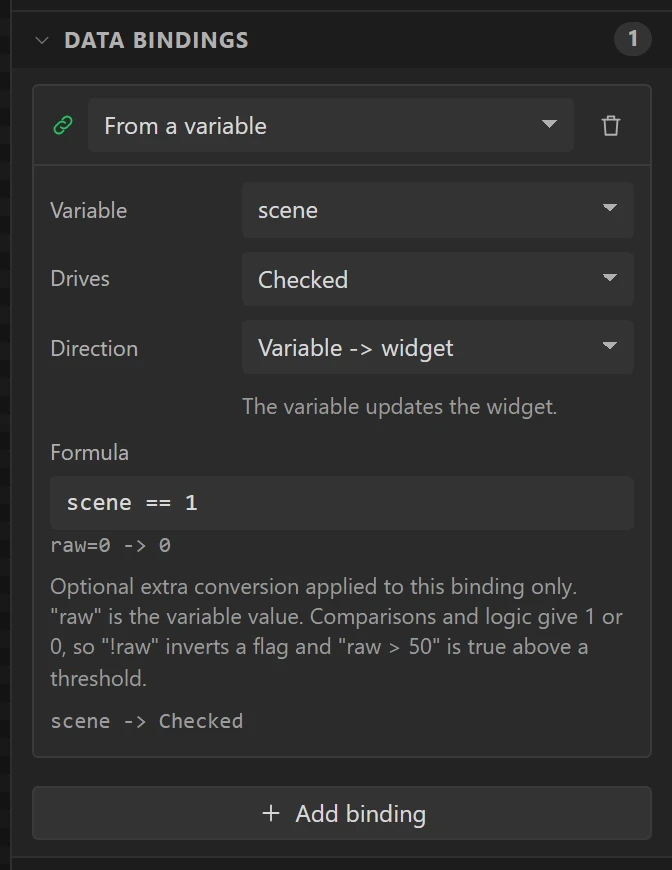
Open Data bindings and press Add binding. A binding keeps one thing about a widget in step with a variable.
- Leave the source on From a variable, and Variable on scene.
- Set Drives to Checked.
- Leave Direction on Variable -> widget.
- In Formula type
scene == 1.
A comparison gives 1 or 0, so the key is Checked - and drawn in the bright colours of step 18 - exactly while scene is 1.
Part 7: grey until a PC is connected
A key that lit up with nobody listening would leave the deck saying one thing and OBS doing another. So every key is disabled while no host is connected.
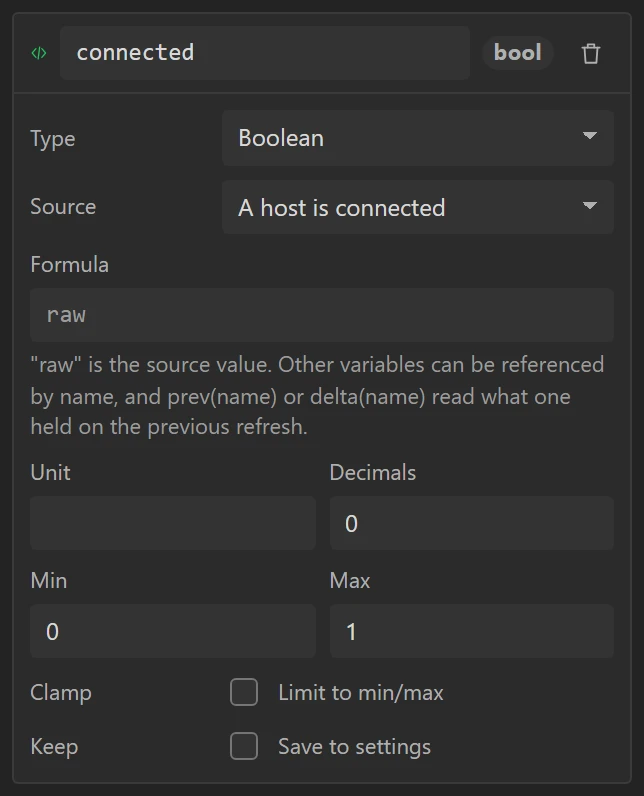
25 Make a variable that reads the connection
On the Data tab, add another variable.
- Name it
connected. - Set Type to Boolean.
- Set Source to A host is connected, in the Bluetooth group.
A variable with a source is read from the board, not set by events: this one is 1 while a PC is connected and 0 while none is.
26 Disable the key while it is 0
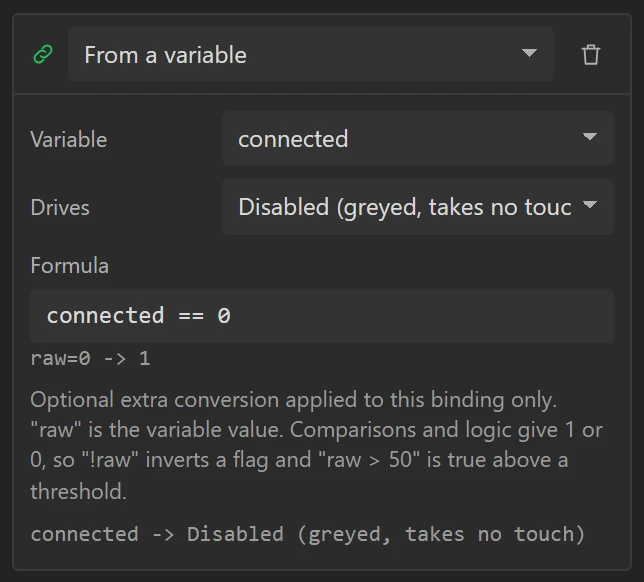
Select the key again and add a second binding.
- Variable: connected.
- Drives: Disabled (greyed, takes no touch).
- Formula:
connected == 0.
That is the first key finished: two events and two bindings. The Problems tab in the bottom panel should show no errors.
Part 8: five scenes
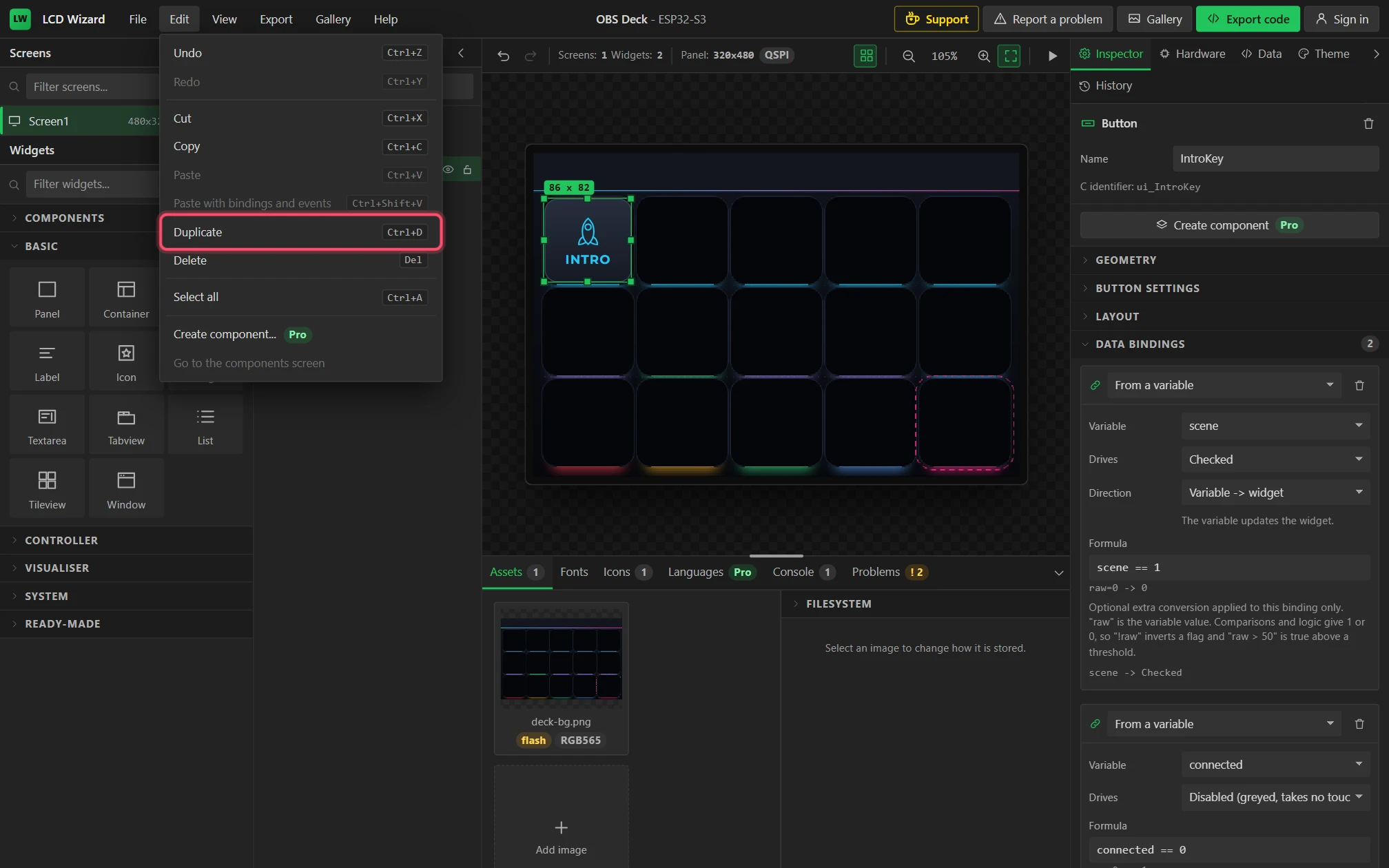
27 Duplicate the key
Select IntroKey and choose Edit > Duplicate, or press Ctrl + D. The copy has the original's look, its events and its bindings. Do it four times.
28 Change four things on each copy
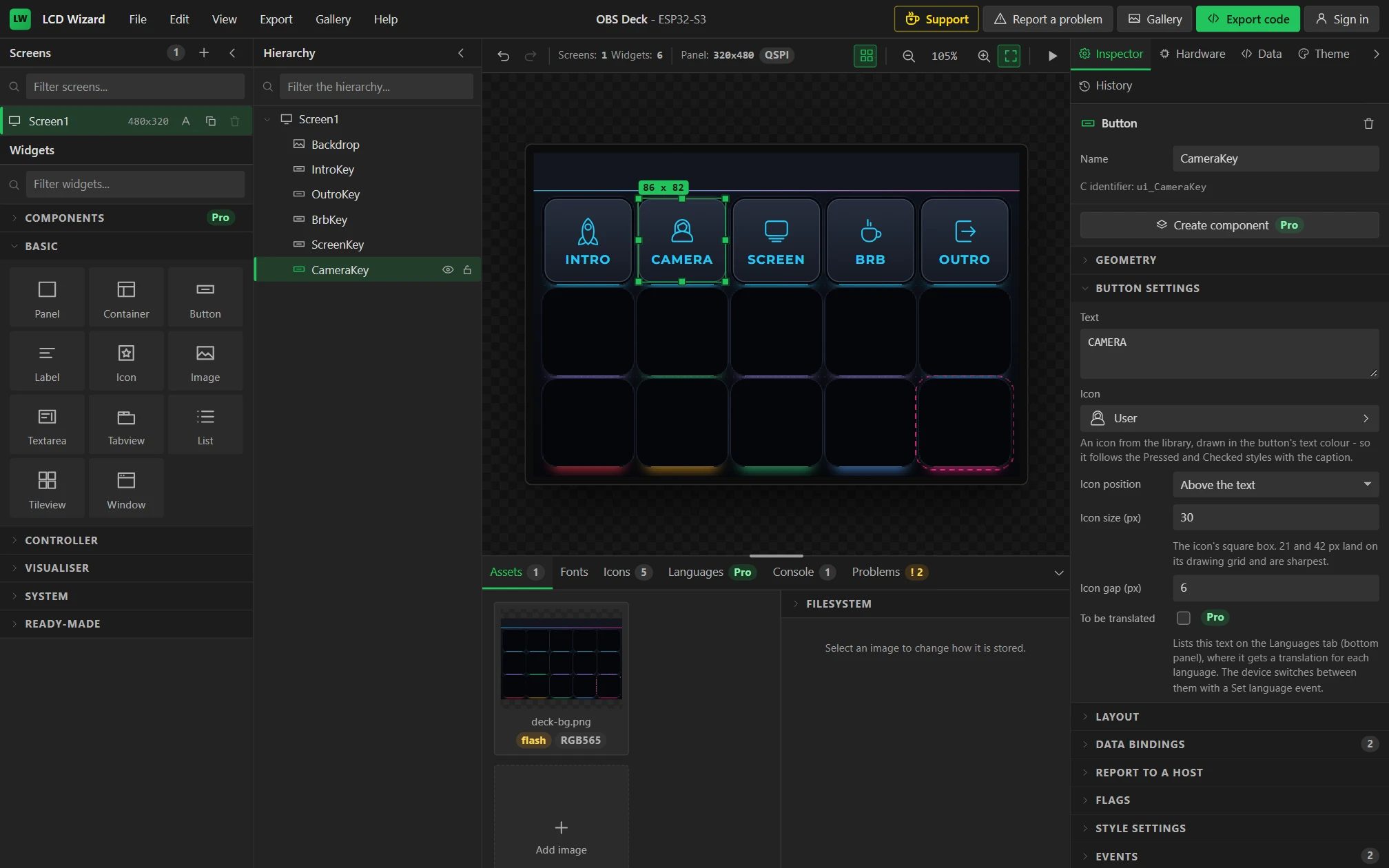
For each copy, set its Name and X (Geometry), its Text and Icon (Button settings), the Key and the Value in its two events, and the number in its Checked binding's Formula:
| Name | X | Text | Icon | Key (with Ctrl) | Set variable: Value | Formula |
|---|---|---|---|---|---|---|
CameraKey | 104 | CAMERA | User | F14 | 2 | scene == 2 |
ScreenKey | 197 | SCREEN | Display | F15 | 3 | scene == 3 |
BrbKey | 290 | BRB | Coffee | F16 | 4 | scene == 4 |
OutroKey | 383 | OUTRO | Exit right | F17 | 5 | scene == 5 |
Y stays at 46. The captions are a common set of scenes; use whichever five you have.
29 Check that one goes out when another lights
Press Preview and click CAMERA, then another key. The one you clicked last is lit and the others are not, and the Console lists each shortcut.
Preview takes a PC to be connected. To see the keys greyed, open Bluetooth in the Preview data drawer beside the screen and set It is to Waiting to be paired.
Part 9: the second row - keys that stay on, one that is held, one that is tapped
Not every key is a scene. There are three other kinds, and each is a small change to a copy of a scene key.
30 MUTE MIC: a key that stays on
Duplicate IntroKey. Name the copy MuteMicKey, set X 11 and
Y 136, the text MUTE MIC and the icon Microphone muted.
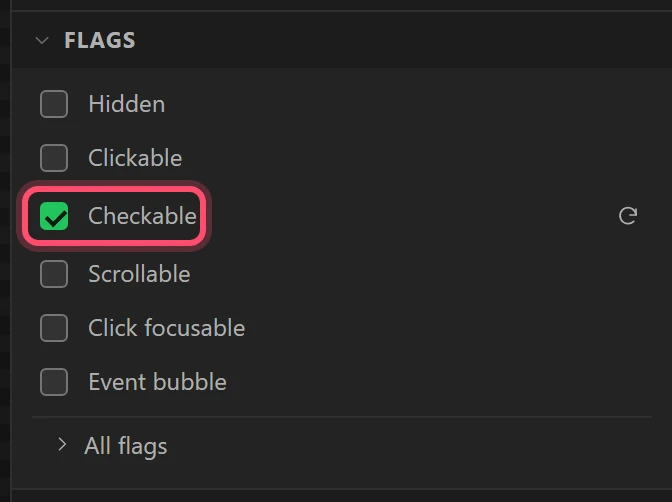
Open Flags and tick Checkable. A checkable button turns itself on with one touch and off with the next, which is what a mute key is.
It lights itself now, so in Data bindings delete the binding to scene (the bin on its card). Keep the one that drives Disabled.
31 Send one shortcut for on and another for off
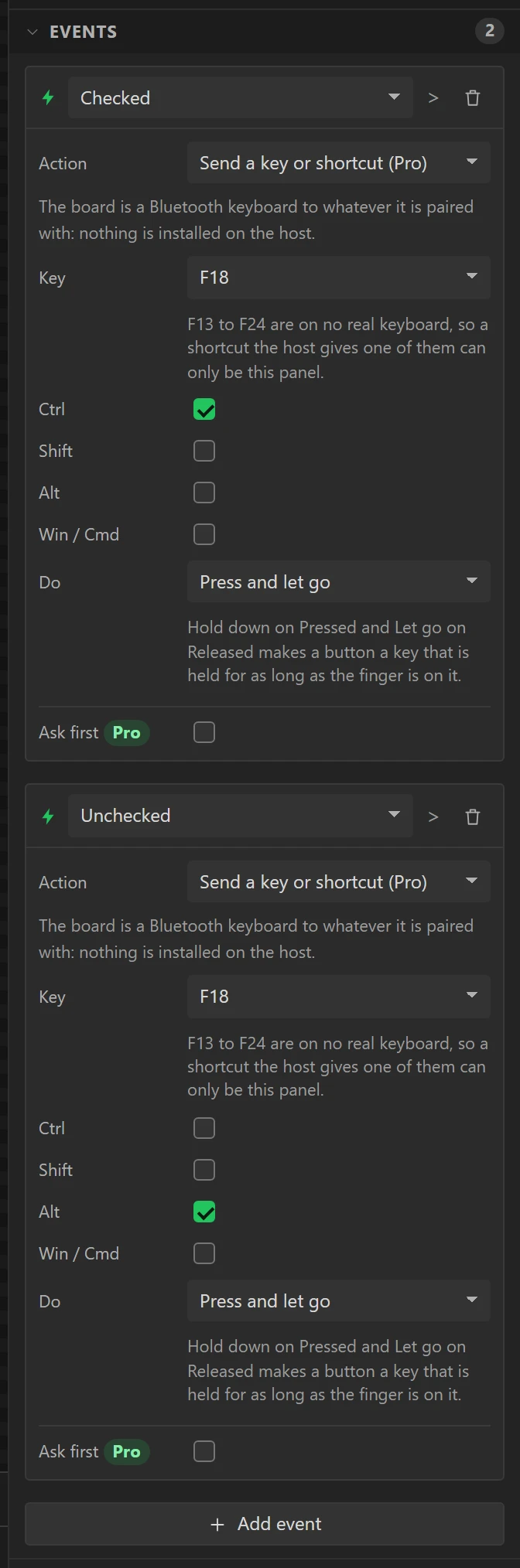
In Events, delete the Set variable event. Then:
- On the event that is left, change the trigger from Clicked to Checked and the Key to F18, with Ctrl ticked.
- Add an event: trigger Unchecked, Send a key or shortcut, F18, with Alt ticked and Ctrl not.
On and off are two shortcuts, never one that toggles. A keyboard only talks one way, so the deck cannot ask OBS whether the microphone is muted. With one shortcut that toggles, a single click of the mouse in OBS leaves the two disagreeing for the rest of the evening. With two, the lit key means "the last thing I sent was Mute", and the next press always sends Unmute.
32 Give it its own colours
In Style settings, with State on each of these in turn, change:
| State | Group and setting | Value |
|---|---|---|
| Default | Text, Color | #A78BFF |
| Pressed | Border, Color | #A78BFF |
| Checked | Background, Color | #FF7A52 |
| Background, Grad. color | #E0432A | |
| Border, Color | #FF7A52 | |
| Text, Color | #FFFFFF |
The colour of a key's text is also the colour of the light under its well in the backdrop.
33 TALK: a key that is held
Duplicate MuteMicKey. Name the copy TalkKey, set X 104, the text
TALK and the icon Microphone. Untick Checkable.
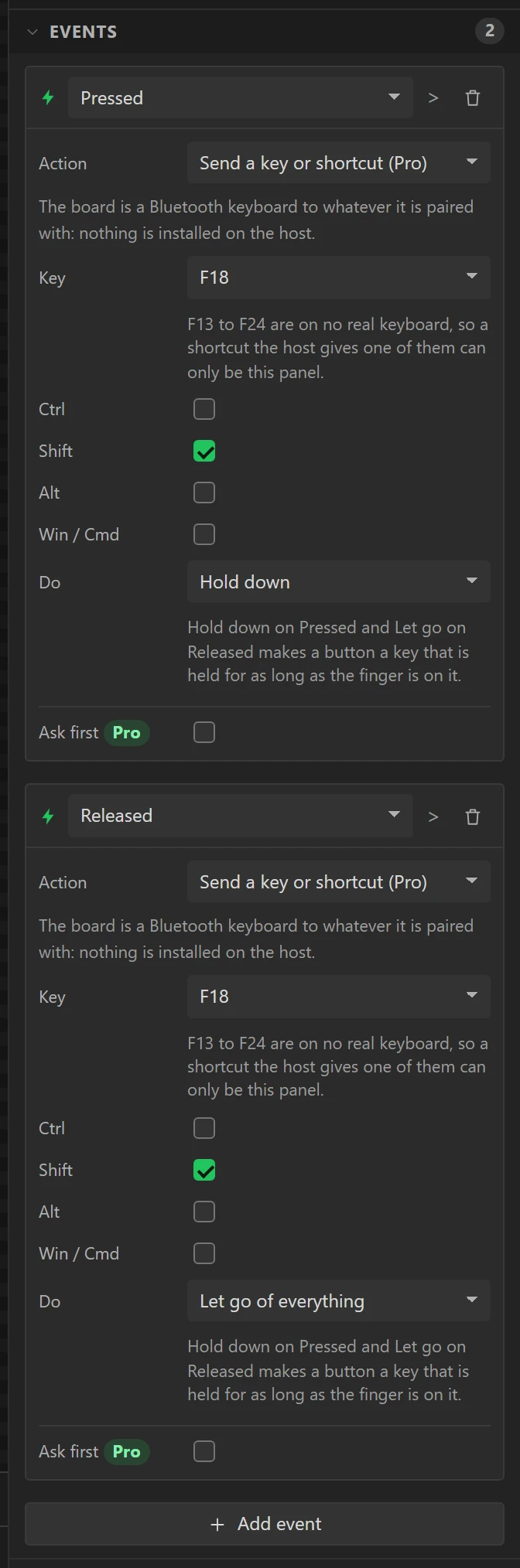
Change its two events:
- The first: trigger Pressed, F18 with Shift ticked only, and Do set to Hold down.
- The second: trigger Released, the same key, and Do set to Let go of everything.
The key is then down on the PC for exactly as long as the finger is on the glass: push-to-talk.
It never stays on, so its lit look belongs to Pressed. Set Default's text colour to
#3CE38A, and in Pressed: Background #5BF0A0 with Grad. color
#22B868, Border #5BF0A0 and Text #03170C.
34 The rest of the row
Three more, all at Y 136. MUTE PC and HIDE CAM are copies of MuteMicKey with a
new name, place, caption, icon and key. SNAP is a copy of a scene key with its Set variable event and its
scene binding deleted, and Shift in place of Ctrl: a single press.
| Name | X | Text | Icon | Text colour | It sends |
|---|---|---|---|---|---|
MutePcKey | 197 | MUTE PC | Volume muted | #A78BFF | Checked: Ctrl + F19. Unchecked: Alt + F19 |
HideCamKey | 290 | HIDE CAM | Eye closed | #A78BFF | Checked: Ctrl + F20. Unchecked: Alt + F20 |
SnapKey | 383 | SNAP | Capture | #5CA8FF | Clicked: Shift + F21 |
For SNAP, set the Pressed state's border colour to #5CA8FF as well.
Part 10: the third row - record, pause and GO LIVE
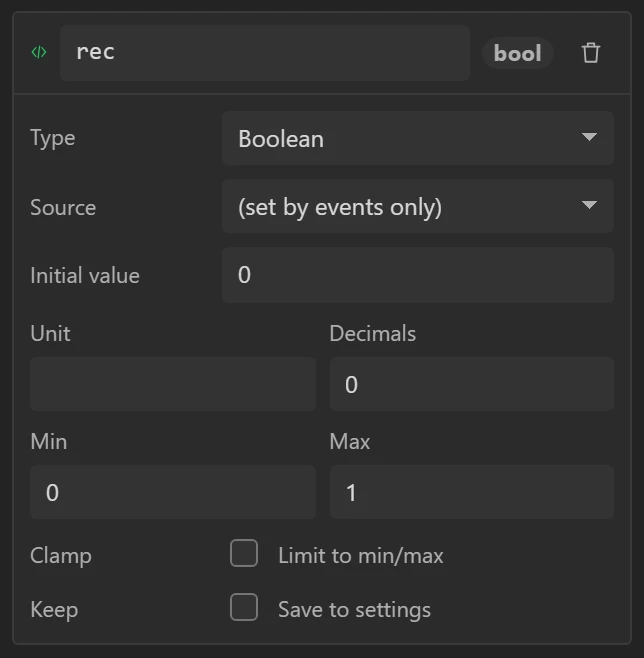
These keys depend on each other: PAUSE means nothing unless a recording is running, and stopping the recording should put PAUSE out. Three more variables say what the deck last asked for.
35 Three more variables
On the Data tab add rec, paused and live. Each is a
Boolean with Source left on (set by events only) and an initial value of
0.
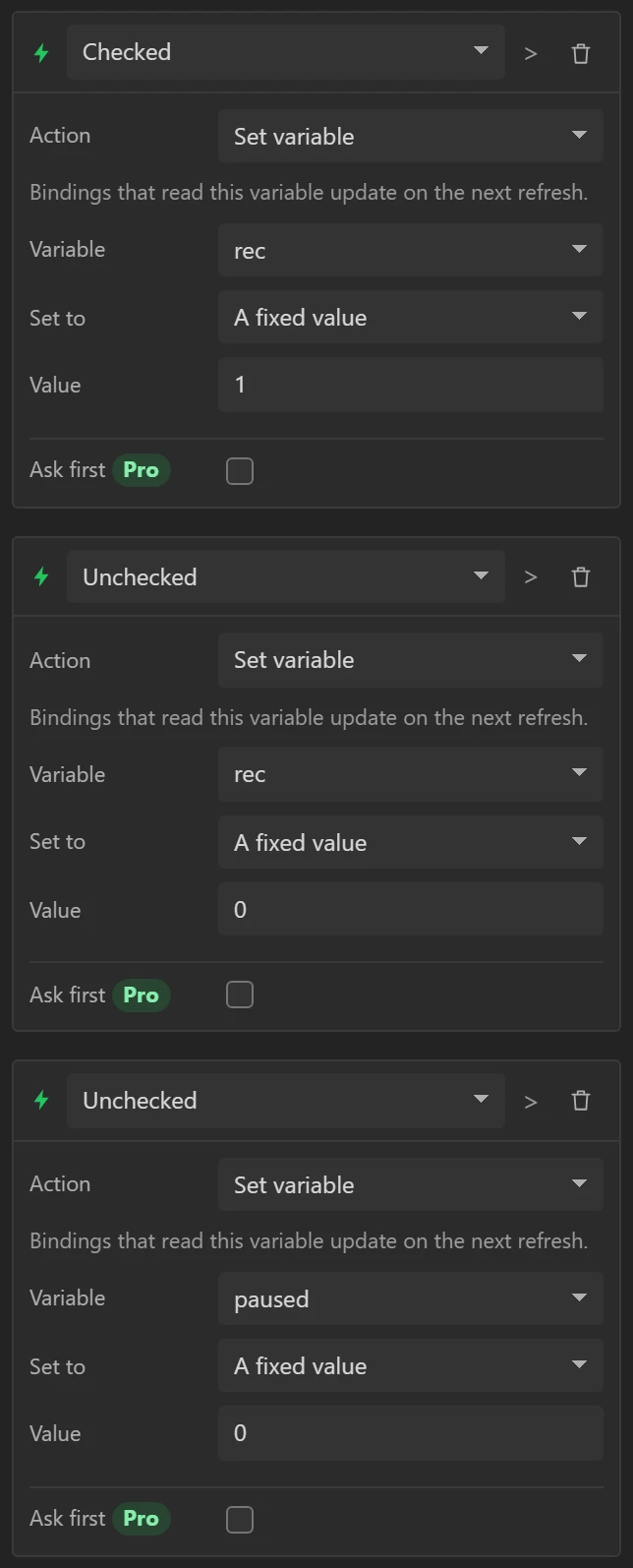
36 REC: a key that also sets variables
Duplicate MuteMicKey. Name the copy RecKey, set X 11 and
Y 226, the text REC and the icon Record. Change its key to
F23 in both events.
Then add three events, each with the action Set variable and A fixed value:
| Trigger | Variable | Value |
|---|---|---|
| Checked | rec | 1 |
| Unchecked | rec | 0 |
| Unchecked | paused | 0 |
Colours: Default text #FF3B4E, Pressed border #FF3B4E, and Checked
#FF5A6A to #D61F38 with a #FF5A6A border and
#FFFFFF text.
37 PAUSE: only while recording, and put out by Stop
Duplicate MuteMicKey again. Name the copy PauseKey, set X 104
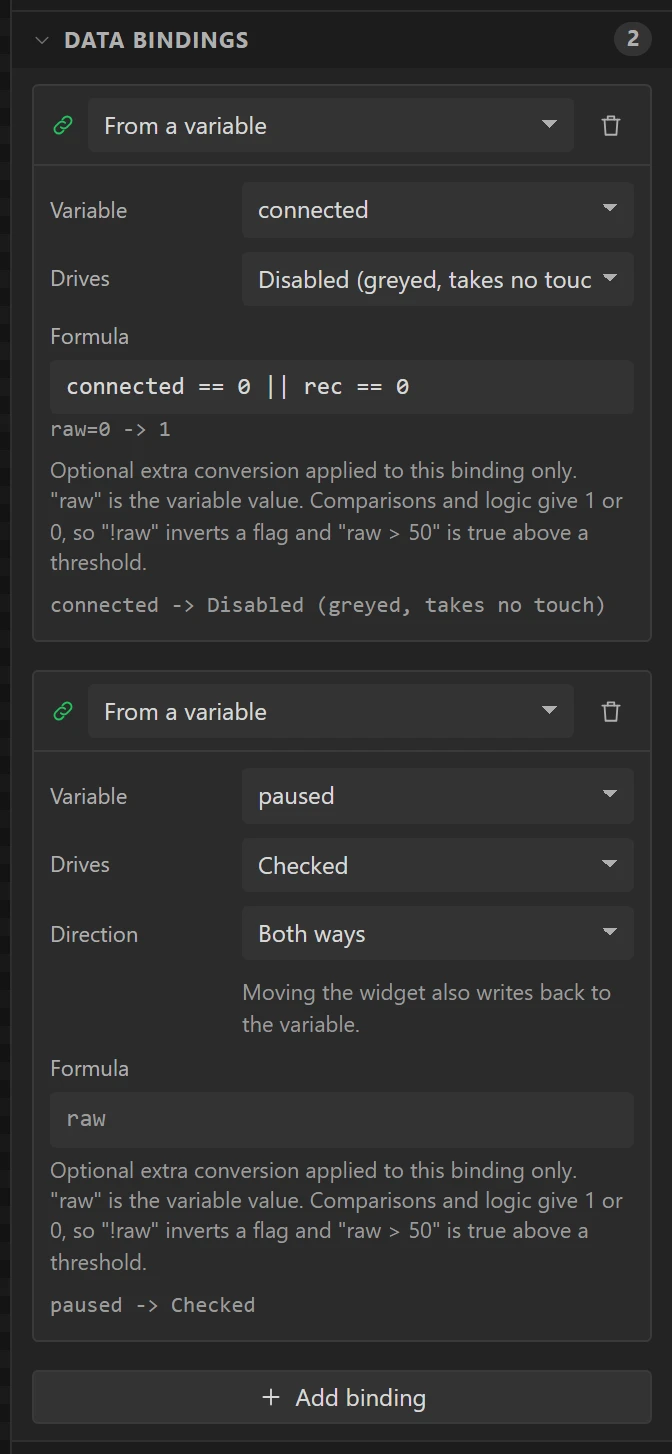
and Y 226, the text PAUSE, the icon Pause and the key F22.
Two bindings make it behave:
- On the binding that drives Disabled, change the Formula to
connected == 0 || rec == 0: greyed with no host, or with no recording. - Add a binding: Variable paused, Drives Checked, and Direction Both ways. Touching the key now writes paused, and when REC sets paused back to 0 the key goes out by itself.
Colours: Default text #FFB020, Pressed border #FFB020, and Checked
#FFC44D to #E8930C with a #FFC44D border and
#221300 text.
38 REPLAY and V-CAM
Both at Y 226. REPLAY is a copy of SnapKey; V-CAM is a copy of
MuteMicKey.
| Name | X | Text | Icon | Text colour | It sends | Checked colours |
|---|---|---|---|---|---|---|
ReplayKey | 197 | REPLAY | Undo history | #3CE38A | Clicked: Shift + F22 | - |
VcamKey | 290 | V-CAM | Video | #5CA8FF | Checked: Ctrl + F21. Unchecked: Alt + F21 | #7DBBFF to #2E7FE6, border #7DBBFF, text #04142A |
Set each one's Pressed border to its text colour.
39 GO LIVE: a key that wants a hold
Going live is the one key that costs something when a sleeve brushes it, so it takes a long press, both to start and to stop. A checkable button cannot do that - it toggles on any release - so GO LIVE is lit by a variable instead.
Duplicate IntroKey. Name the copy GoLiveKey, set X 383 and
Y 226, the text GO LIVE and the icon Cast.
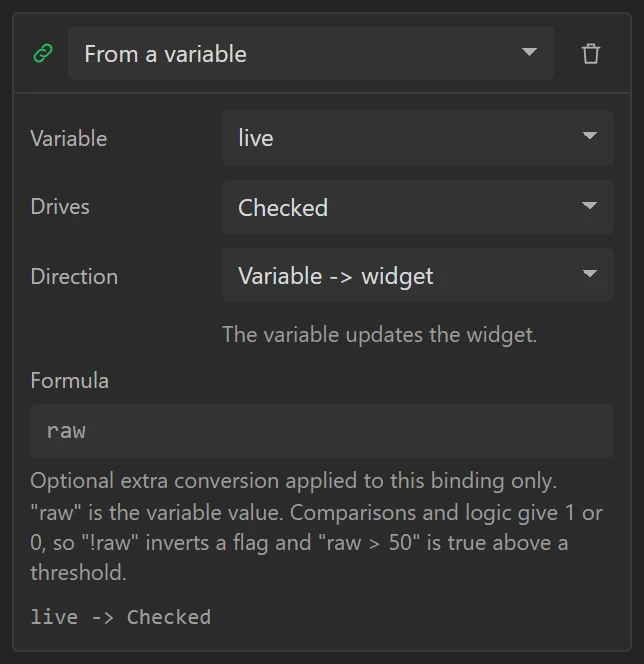
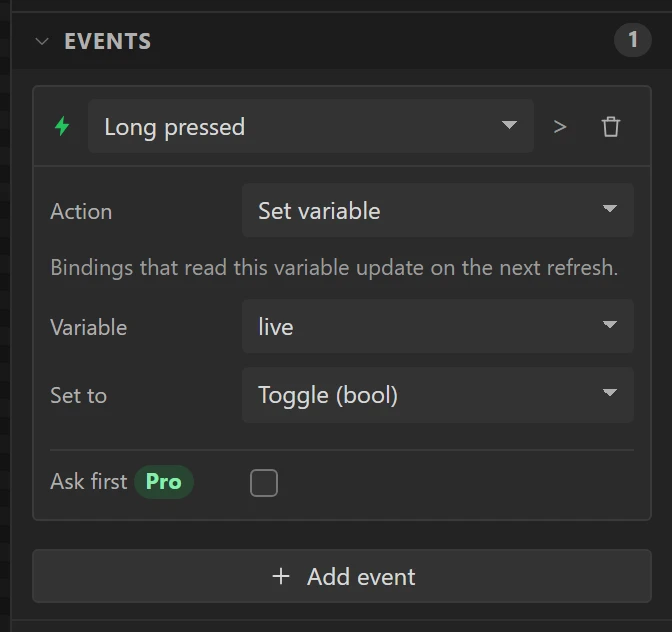
- In Events, delete the shortcut event. On the Set variable event change the trigger to Long pressed, the Variable to live and Set to to Toggle (bool).
- In Data bindings, on the Checked binding change the Variable to live and clear the Formula.
Colours: Default text #FF2D8A, Pressed border #FF2D8A, and Checked
#FF5C9E to #E0105F with a #FF5C9E border and
#FFFFFF text.
40 Send GO LIVE's shortcuts from two automations
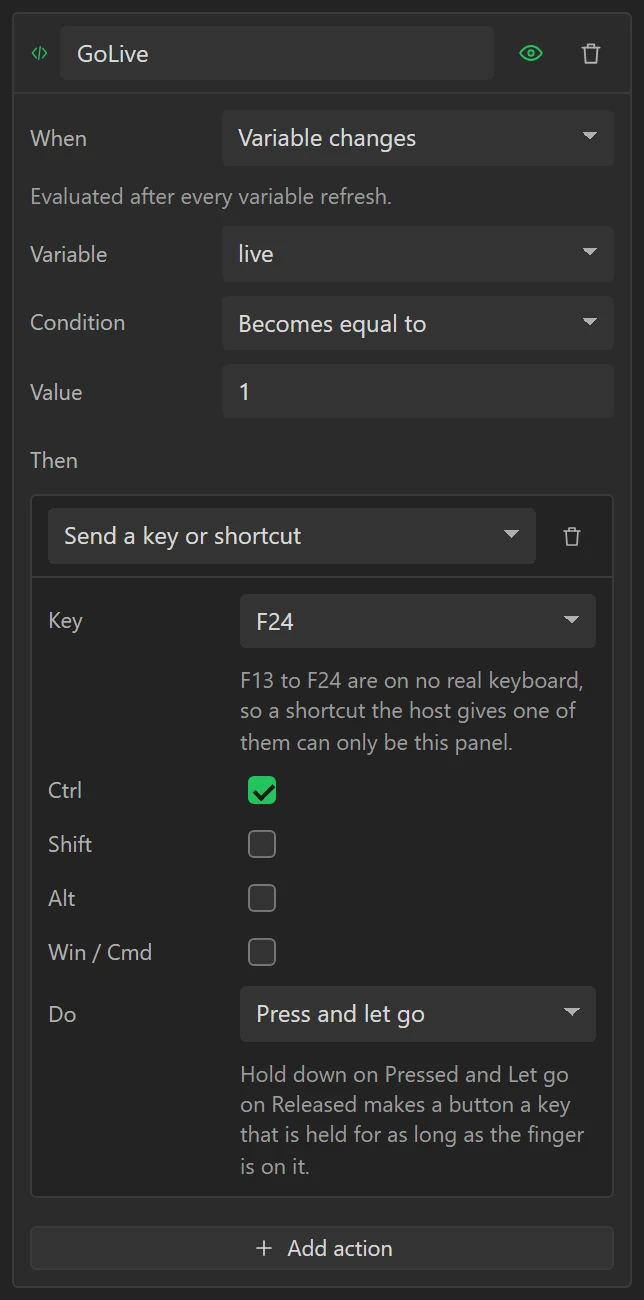
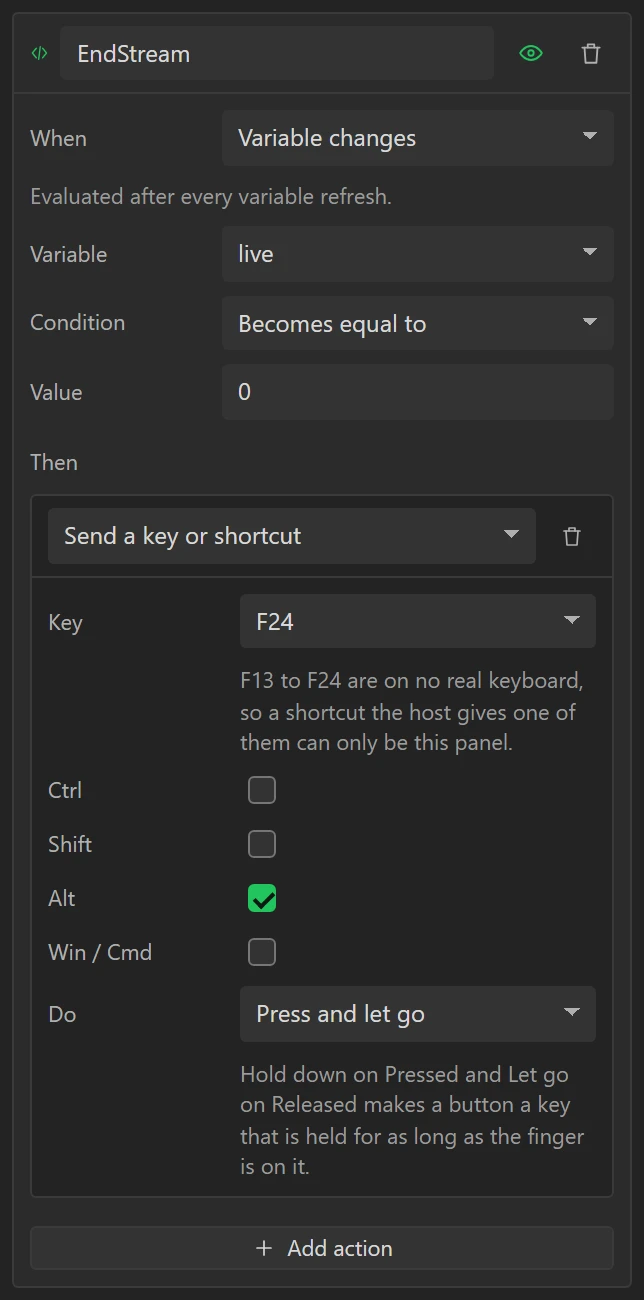
The key only flips a variable. What sends the shortcut is an automation: something that runs without a touch, here when the variable changes. On the Data tab open Automations, choose Variable changes in the list beside Add, and press Add. Make two:
| Name | Variable | Condition | Value | Then: Send a key or shortcut |
|---|---|---|---|---|
GoLive | live | Becomes equal to | 1 | F24 with Ctrl |
EndStream | live | Becomes equal to | 0 | F24 with Alt |
For each, press Add action under Then and choose Send a key or shortcut. Sending is an action, so anything that can fire an event can send a key: a variable here, and on a board with a rotary encoder a click of the knob.
Part 11: the tally bar
The bar across the top says what the deck believes is going on: whether a PC is connected, how long the recording has run, and whether the stream is live.
41 The unlit segments of a display
A real seven-segment display shows its unlit segments faintly, and a label behind each timer does the
same. Drag a Label from Basic onto the bar. Name it RecSegments, set its Geometry to
X 194, Y 8, Width 97, Height 21, and its text to
888:88. In Style settings set Text Color #3A4252, Font
Seven-segment Modern, Bold, 20 px, and Align Right.
It goes on first because a widget added later is drawn on top, and the timer has to be on top of it.
42 A timer, with nothing to wire
Open Ready-made in the Widgets list and drag a Timer onto the bar. Name it
RecTimer and give it exactly the label's box: X 194, Y 8,
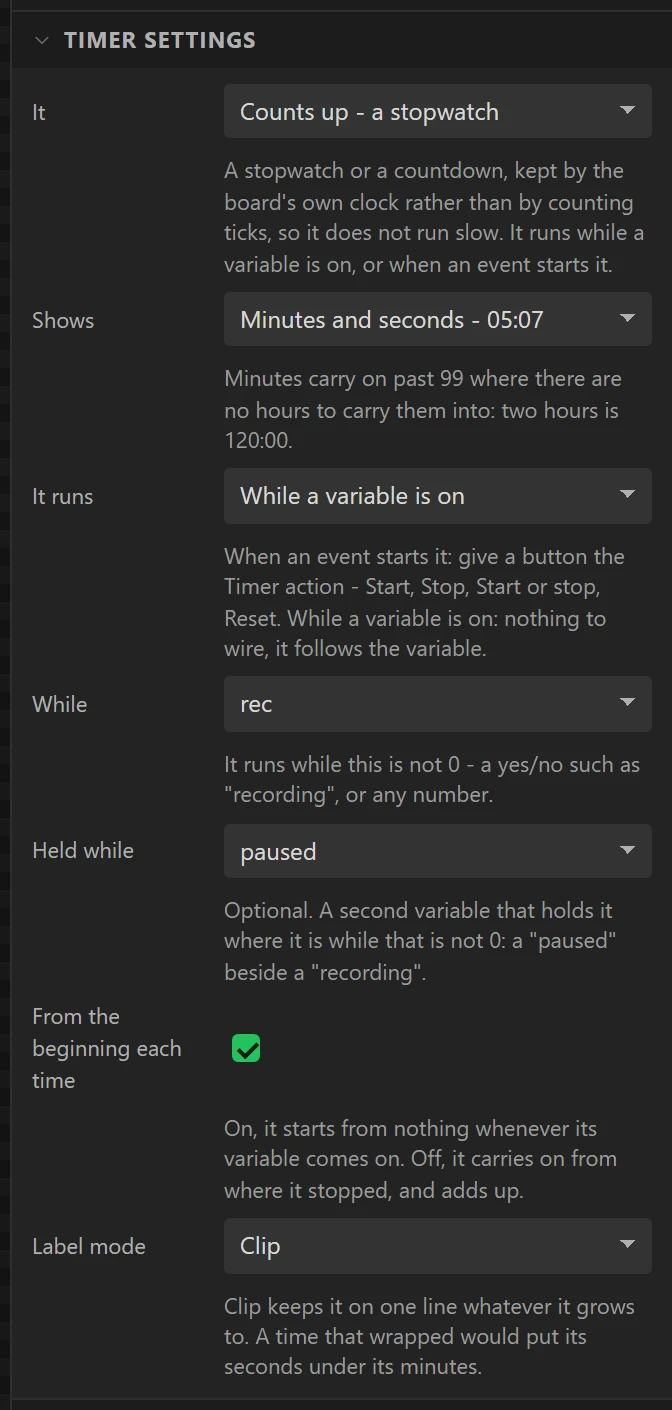
Width 97, Height 21. In Timer settings:
- It: Counts up - a stopwatch. Shows: Minutes and seconds - 05:07.
- It runs: While a variable is on.
- While: rec. Held while: paused.
- Leave From the beginning each time ticked.
That is the whole of it: the timer runs while rec is on, stands still while paused is, and starts from nothing with each recording. It keeps time by the board's own clock, so three hours of stream read as three hours.
In Style settings set Text Color #FF5A6A, the same Font and
Align as the label under it, and all four Paddings 0.
Then make the pair again for the stream, a label and a timer on top of it, both at X
372: LiveSegments, and LiveTimer with While set to
live, Held while left on (none) and the text colour #EEF2F7.
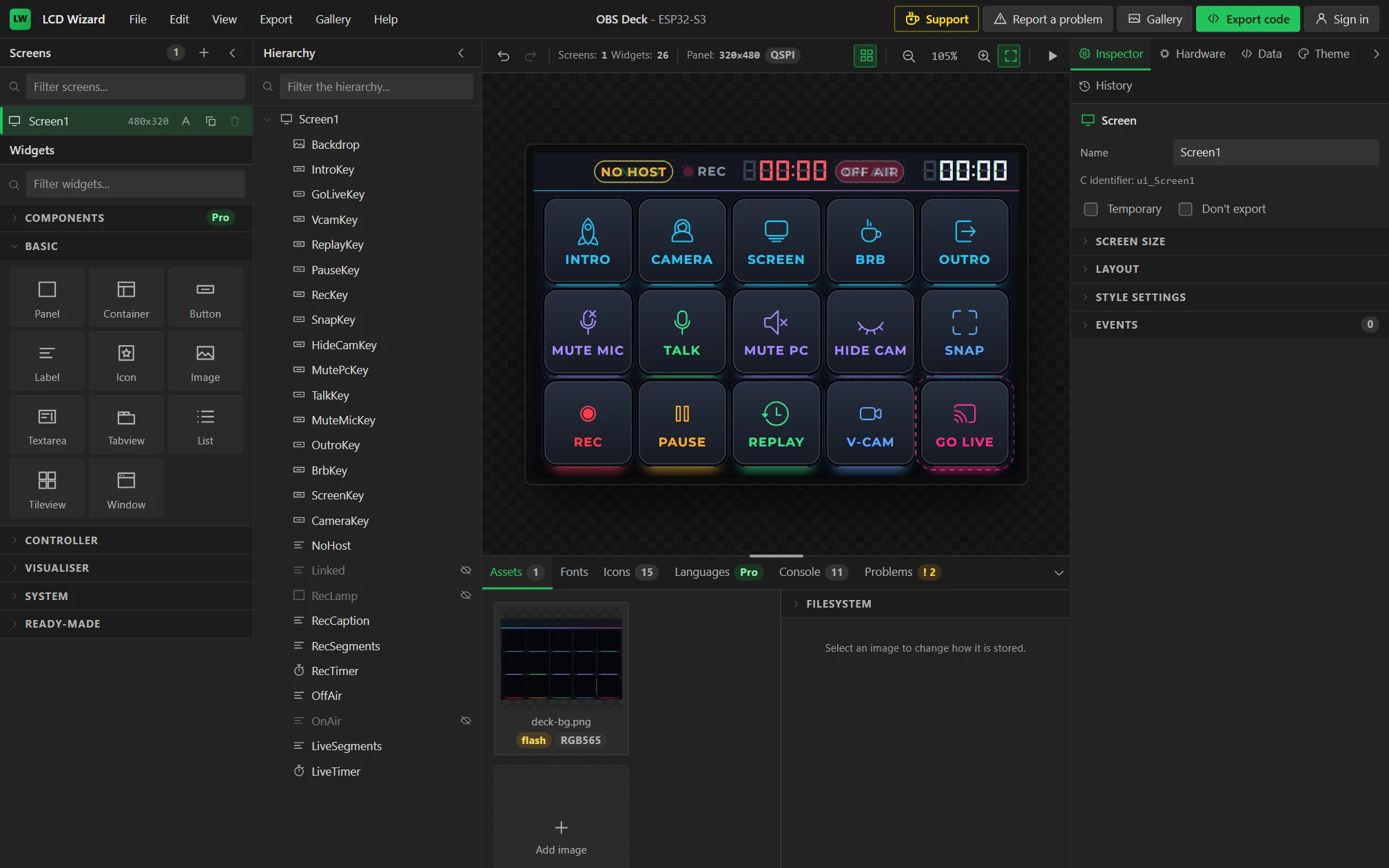
43 Lamps that come and go
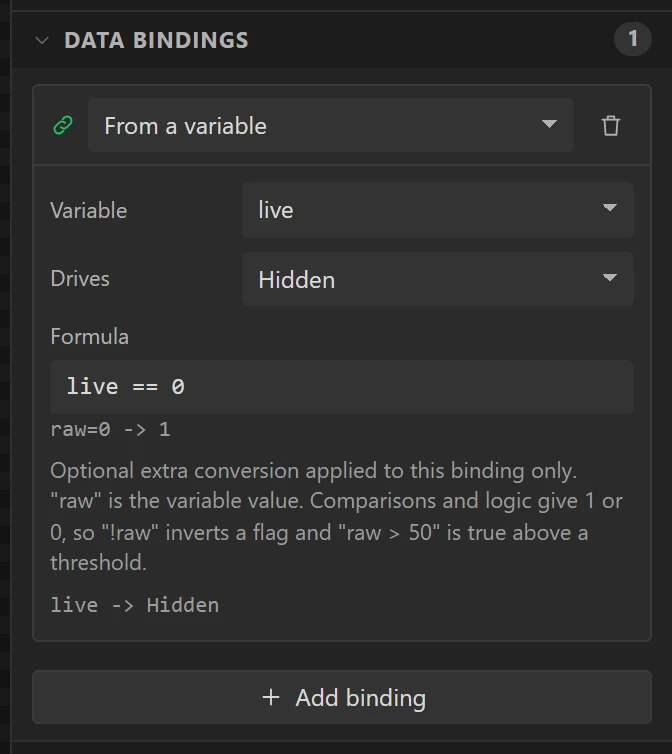
The rest of the bar is five labels and a small panel, each shown or hidden by a binding that drives
Hidden. All the text is Montserrat, Bold, 12 px with Letter space 1.
| Name | Widget | X, Y, W, H | Text | Hidden while |
|---|---|---|---|---|
NoHost | Label | 60, 8, 78, 22 | NO HOST | connected: connected != 0 |
Linked | Label | 60, 8, 78, 22 | LINKED | connected: connected == 0 |
RecLamp | Panel | 148, 14, 10, 10 | - | rec: rec == 0 |
RecCaption | Label | 162, 12, 30, 13 | REC | never |
OffAir | Label | 298, 8, 68, 22 | OFF AIR | live: live != 0 |
OnAir | Label | 298, 8, 68, 22 | ON AIR | live: live == 0 |
The four that are pills (NoHost, Linked, OffAir, OnAir) get a Border of Width 1, Misc
Radius 11, Text Align Center, and Padding Top 4 with the other three
0. Their colours:
| Name | Border | Text | Background |
|---|---|---|---|
| NoHost | #FFB020 | #FFB020 | none |
| Linked | #3CE38A | #3CE38A | none |
| OffAir | #3A4252 | #8791A4 | none |
| OnAir | #FF7A93 | #FFFFFF | #FF2D55, Opacity 255 |
RecCaption's text is #8791A4. RecLamp is a red dot: Background #FF3B4E, Radius
5, Border Width 0, all Paddings 0, and Clickable unticked in
Flags.
Tick Hidden in Flags for Linked, RecLamp and OnAir, so that they start out of sight: with nothing connected, nothing recording and nothing live, that is the truth.
Part 12: try the whole deck
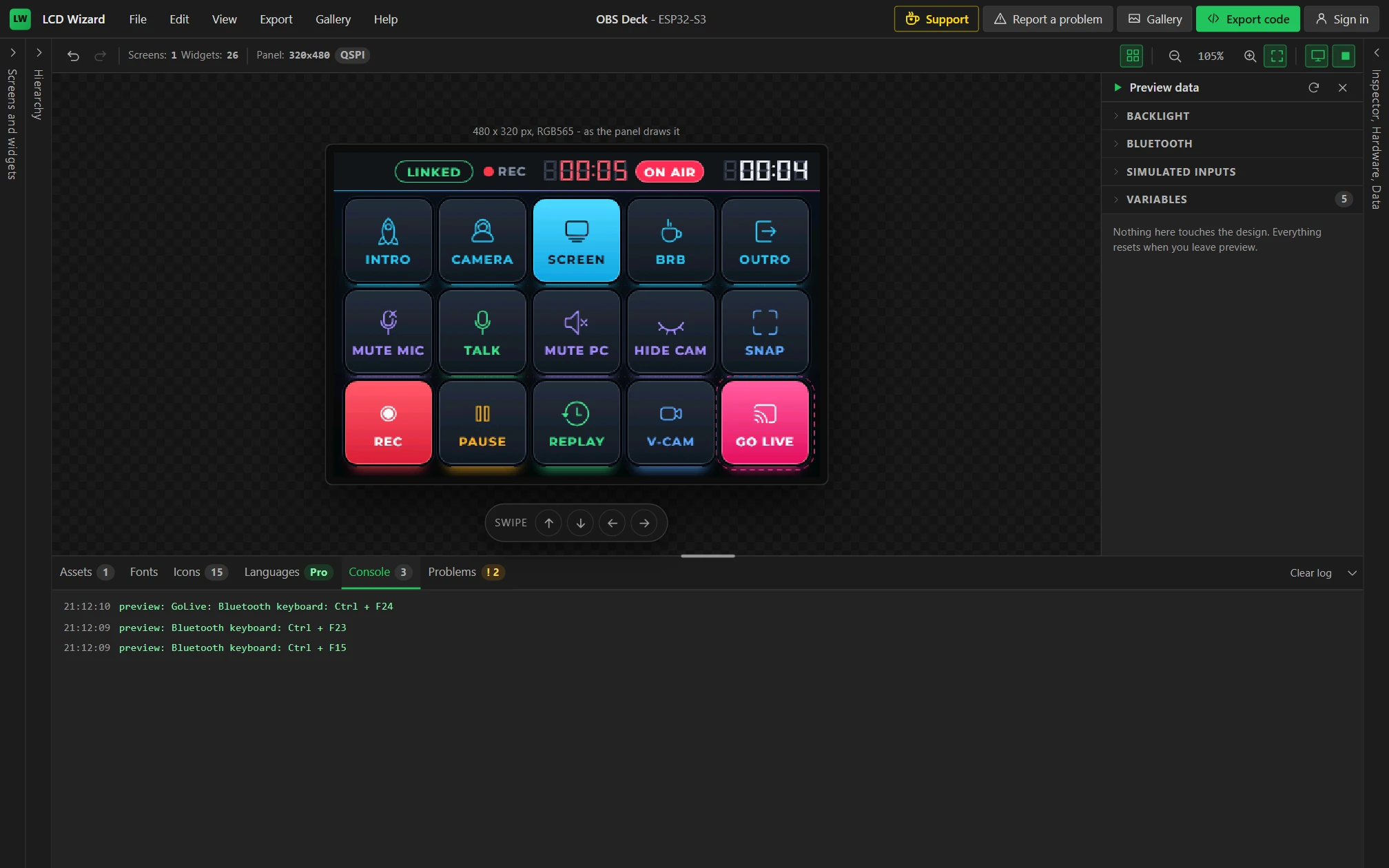
44 Record, pause and go live in Preview
Press Preview. Click a scene. Click REC: the lamp comes on and the red timer starts. Click PAUSE: it holds. Click REC again: PAUSE goes out by itself and the timer stops. Hold GO LIVE for about a second: ON AIR appears and the white timer starts.
You should see each shortcut in the Console as it would be sent, GO LIVE's marked with the name of its automation.
Part 13: generate the code
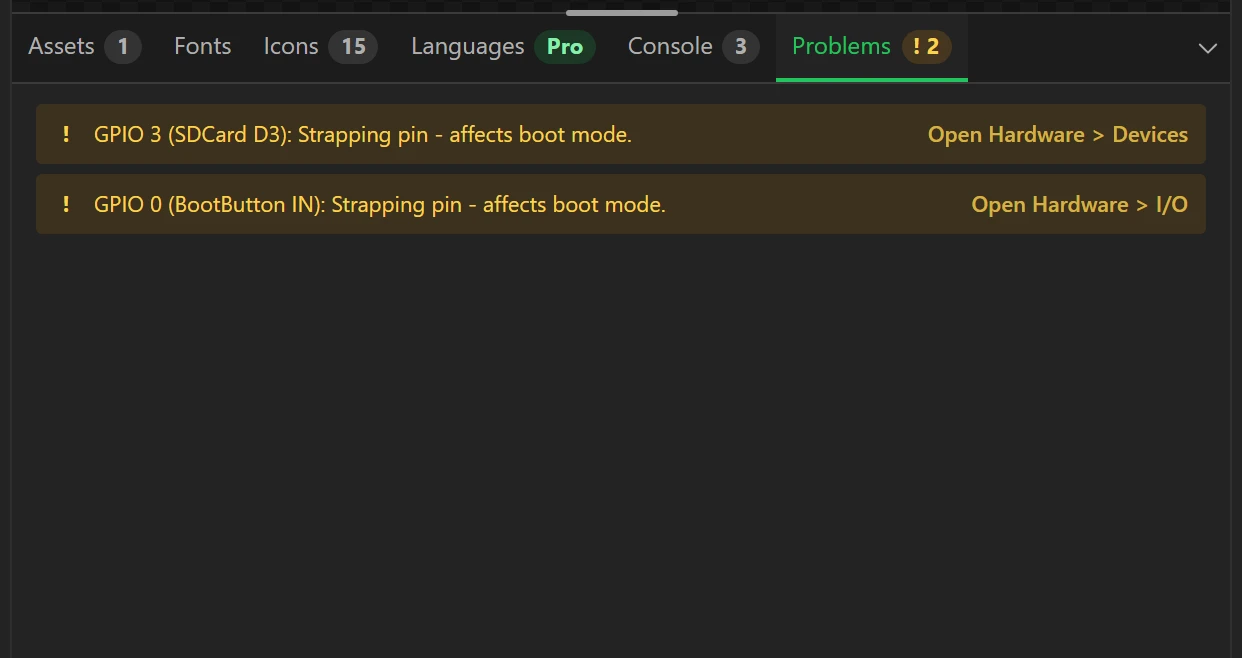
45 Read the Problems tab
Leave Preview and open Problems in the bottom panel. There should be no errors. Two warnings come with this board's own wiring - its SD card slot and its BOOT button are on pins the chip also reads at start-up - and neither is in the way of this design.
46 Press Export code
Press Export code at the top right. Generating needs an account, and the dialog first says which parts of the design are Pro: the Timer, on its two widgets, and the Bluetooth keyboard, on the keys that send. With Pro, press Generate code.
47 Download the project
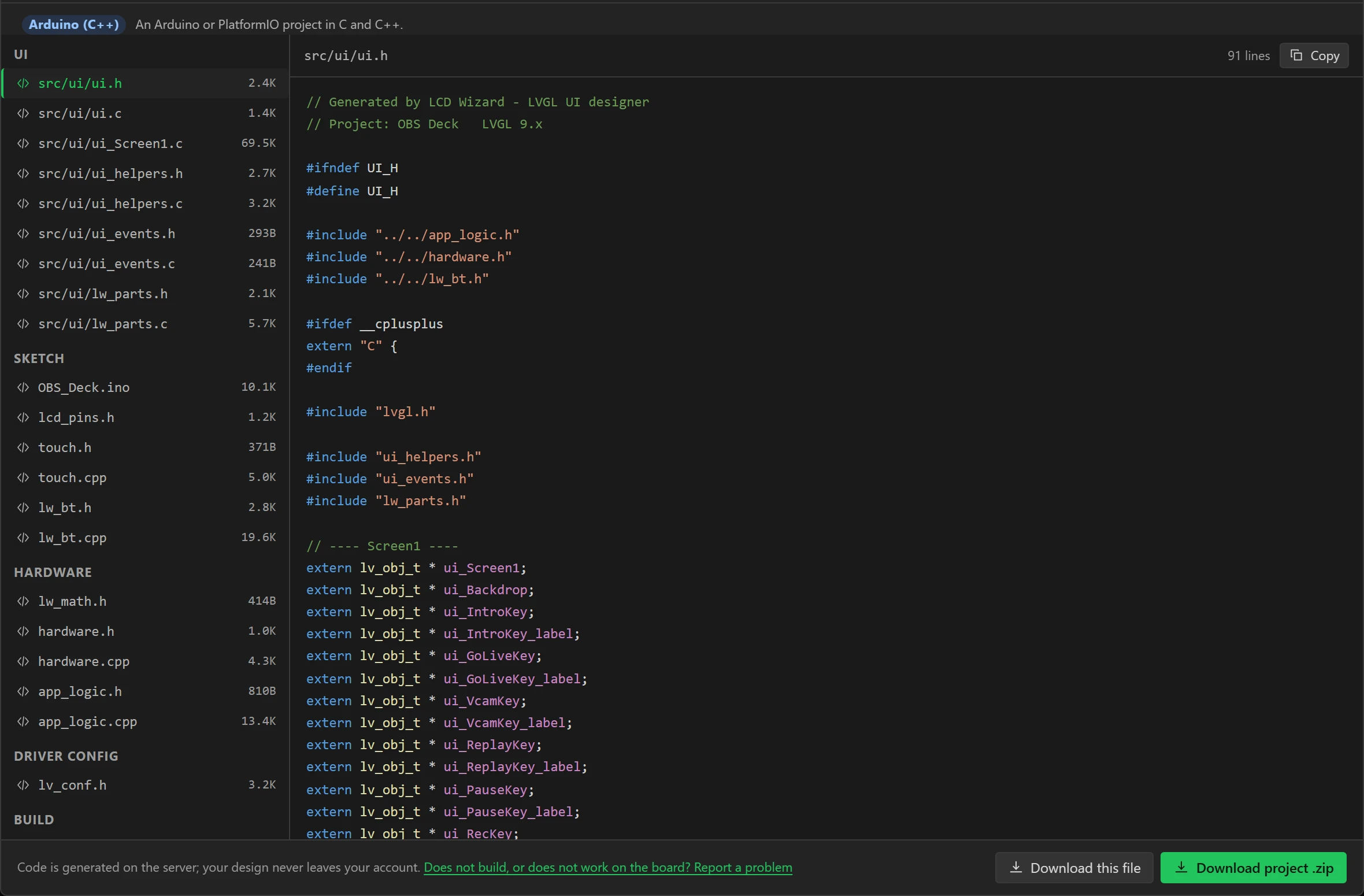
The dialog lists every file it wrote - 31 for this design - and shows any of them when clicked: the screen's own C, the sketch, the Bluetooth module, the fonts and the backdrop as a C array. Press Download project .zip.
Part 14: build it and put it on the board
48 Build and upload
Unzip the project. With PlatformIO, plug the board in, open a terminal in the folder and run:
pio run -t uploadThe first build fetches the libraries and takes a few minutes. With the Arduino IDE, open
OBS_Deck.ino from the folder, install the libraries that LIBRARIES.md lists, and
set the Tools menu as README.md says before pressing Upload.
Flashing and configuration has both routes in full.
The backdrop is compiled in, so there is no second upload for pictures.
You should see the deck on the panel with its keys greyed and NO HOST in the bar. If the screen stays dark after uploading, unplug the board and plug it in again once: this panel's reset is the board's own RESET button, not a pin the firmware can pulse.
49 Pair it with the PC
On the PC, add a Bluetooth device and choose OBS Deck. On Windows that is Settings > Bluetooth & devices > Add device > Bluetooth. There is no number to type. The bar changes from NO HOST to LINKED and the keys come to life.
If you ever erase the board and upload again, remove OBS Deck from the PC's Bluetooth devices and pair it afresh: the PC keeps a pairing the board no longer has.
Part 15: tell OBS which key does what
50 Fill in OBS's hotkeys by tapping the deck
In OBS open Settings > Hotkeys. Click the box beside an action and tap its key on the deck: OBS writes the shortcut in for you. A key with two shortcuts sends the second on its second tap - tap REC for Start Recording, click the Stop Recording box, tap REC again. For GO LIVE, hold the key each time. Or type them in from this table:
| Key on the deck | It sends | In OBS, Settings > Hotkeys, give that to |
|---|---|---|
| INTRO | Ctrl + F13 | Switch to scene, on your opening scene |
| CAMERA | Ctrl + F14 | Switch to scene, on your camera scene |
| SCREEN | Ctrl + F15 | Switch to scene, on your screen or game scene |
| BRB | Ctrl + F16 | Switch to scene, on your "be right back" scene |
| OUTRO | Ctrl + F17 | Switch to scene, on your closing scene |
| MUTE MIC | Ctrl + F18 on, Alt + F18 off | Mic/Aux > Mute, Mic/Aux > Unmute |
| TALK | Shift + F18, held for as long as the key is | Mic/Aux > Push-to-talk |
| MUTE PC | Ctrl + F19 on, Alt + F19 off | Desktop Audio > Mute, Desktop Audio > Unmute |
| HIDE CAM | Ctrl + F20 on, Alt + F20 off | Hide (your camera source), Show (your camera source) |
| SNAP | Shift + F21 | Screenshot Output |
| REC | Ctrl + F23 on, Alt + F23 off | Start Recording, Stop Recording |
| PAUSE | Ctrl + F22 on, Alt + F22 off | Pause Recording, Unpause Recording |
| REPLAY | Shift + F22 | Save Replay |
| V-CAM | Ctrl + F21 on, Alt + F21 off | Start Virtual Camera, Stop Virtual Camera |
| GO LIVE | Ctrl + F24 to start, Alt + F24 to stop. Hold the key. | Start Streaming, Stop Streaming |
Push-to-talk also needs Enable Push-to-talk ticked for the microphone under Settings > Audio. Hide and Show are listed under the scene a source is in, once for each source.
The deck and OBS can only disagree if you change something with the mouse. If they do, one press of the key puts it right: the next press always sends the opposite of what the deck last sent.
Making it yours
- Change what a key sends in its event: any key with Ctrl, Shift, Alt and Win, typed text, or a media key. The same fifteen keys run a video mixer, mute a call or fire editor macros; only the list you give the program changes.
- The gallery example adds a second screen that lists the hotkeys on the panel itself, reached by a KEYS button or a swipe. Open a copy to see how it is made.
- Bluetooth: keys, an HMI link and a speaker is the reference for the keyboard: typed text, the host's keyboard layout, media keys.
- Variables and bindings and Automations cover what Parts 6, 7 and 10 used.
- Tutorial: a two-way radio between two boards is the next one.