Spritesheets
One picture cut into frames on a grid, each frame named if you like, and named runs of them that a Sprite plays.
A spritesheet is an ordinary image on the Assets tab with one switch turned on. The designer cuts it into frames on a grid you set, and you can name each frame and make sequences of them: a walk, a jump, a shot. A Sprite shows one frame of the sheet at a time. Which frame or sequence is chosen by a press, an automation, a variable or the joystick. On the board the sheet is stored once, however many Sprites show it. Pro.
Making one
- Add the picture on the Assets tab, as any image: PNG, JPEG, GIF, WebP or BMP. A sheet with transparency wants RGB565A8.
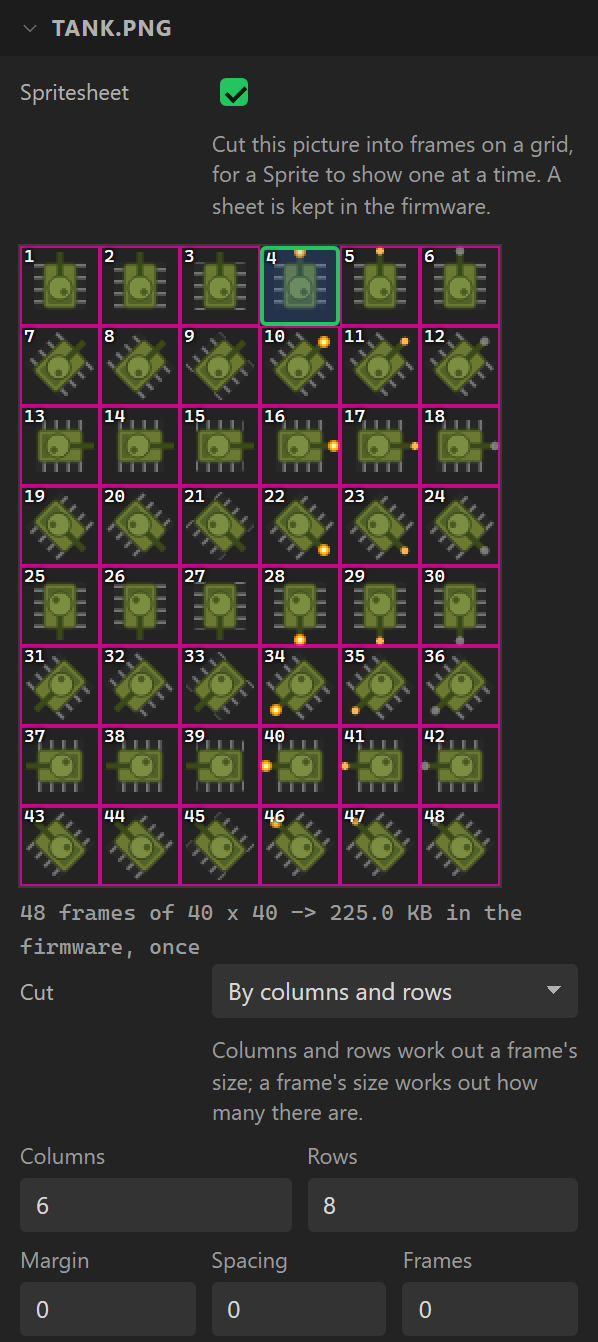
- Select it, and switch on Spritesheet. The designer makes a first guess from its shape (a strip of square frames is the commonest sheet there is) and draws the grid over the picture, a numbered cell for each frame.
- Set the grid. Cut by columns and rows works out a frame’s size; by a frame’s size works out how many fit. Margin is round the outside of the grid and Spacing between frames, in pixels, as sheet tools such as TexturePacker and Aseprite export them. Frames stops short of the grid’s last cells when the last row is not full; 0 is the whole grid.
- Click a cell to give that frame a name. Names are optional, and each must be different.
- Add the sequences under it.
Its settings
| Setting | Default | What it does |
|---|---|---|
| Spritesheet | off | Makes the image a sheet. Off, it is a picture again, and its names and sequences are dropped. |
| Cut | By columns and rows | Or by a frame’s size. |
| Columns, Rows | a guess | How the grid divides the picture. A frame’s size is what is left after the margin and spacing, divided by these. |
| Frame width, Frame height | the picture’s | With by a frame’s size: as many frames as fit. |
| Margin, Spacing | 0 | Round the outside, and between frames, in pixels. |
| Frames | 0 (all) | How many of the grid’s cells are frames, counted along each row from the top. |
| Name of frame | none | Click a cell to name it. A Sprite can be told to show a frame by its name. |
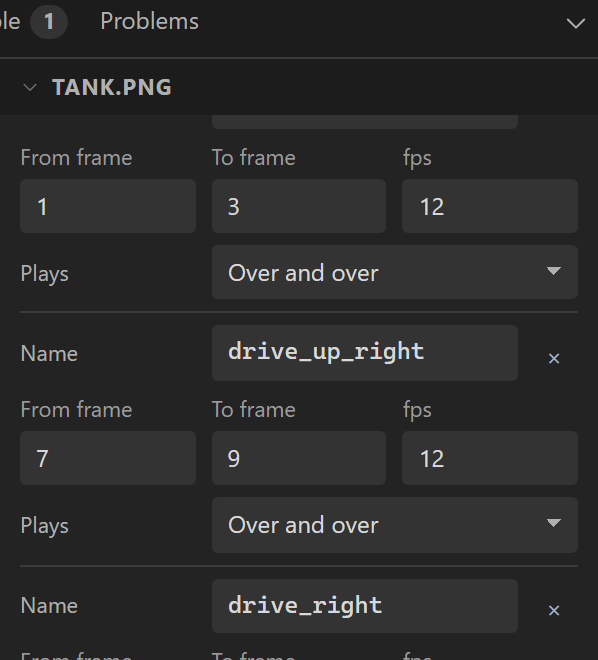
| Sequences | none | Each has a Name, From frame and To frame (counted from 1), fps (1 to 100) and how it Plays: over and over; once, staying on its last frame and sending the Sprite’s Sequence finished event; or there and back, over and over. A sequence of one frame is a picture that stays. |
| Colour format | RGB565 | As for any image. Every frame is packed in it. |
Frames are counted along each row from the top left, from 1. The Problems tab says when the grid does not fit the picture, when two frames or two sequences share a name, and when a sequence runs past the last frame.
On the board
A sheet is kept in the firmware, never on the filesystem: its Stored in says so,
and a sheet set to the filesystem by hand is refused. The export lays the sheet out again as its
frames one after the other, each a whole picture, in one array under
ui/images/. Every frame is a small image descriptor pointing at its own part of that
array, so showing another frame is giving the image another source: nothing is copied, and every
Sprite on the sheet shares the one array. Margin and spacing are dropped, so the sheet costs a
little less than its picture: width × height × 2 bytes a frame, or 3 with
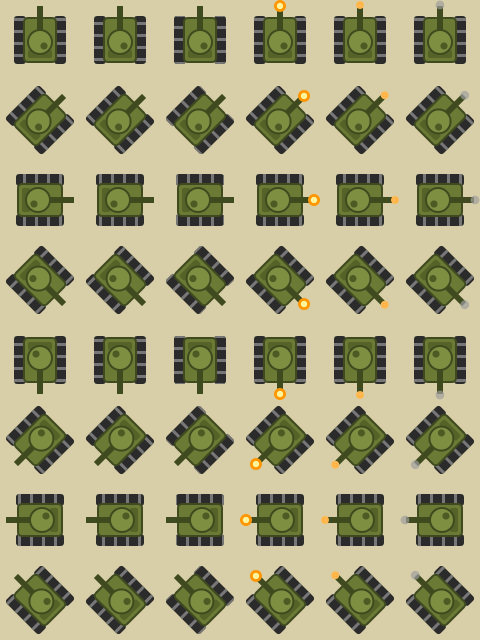
transparency. The tank above is 48 frames of 40 × 40 with transparency, 225 KB.
Because each frame is a whole picture of its own, a frame is drawn exactly as any image is, on LVGL 8 and 9 alike. A Sprite can be turned and scaled, but a sheet drawn facing each way (as the tank is) costs nothing at all to draw turned.
The MicroPython export writes the sheet as one file of the same bytes. It is read off the filesystem once, when the first Sprite on it is made, and kept in RAM (PSRAM on a board that has it). Each frame is a view onto it, never a copy. ESPHome has nothing a sheet of named frames fits, and a design with a Sprite is refused there with the reason.
Only a Sprite shows a sheet
An image that is a sheet goes to the board as its frames, so there is no whole picture of it for anything else to show. The Image, Image Button and background pickers leave sheets out, and the Problems tab says when a widget still names one. To show the whole sheet in an Image as well, add the picture a second time.
Example: a battle tank driven by a joystick
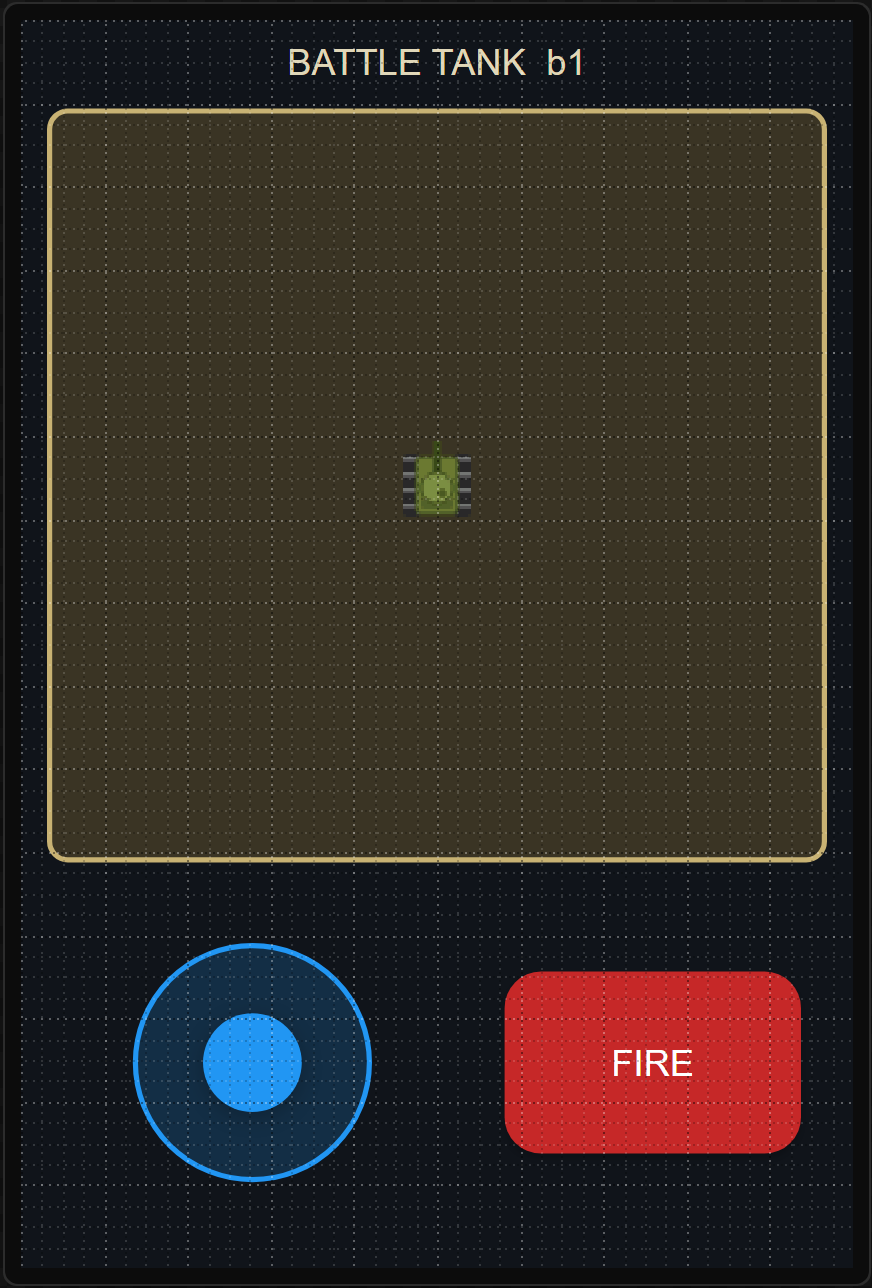
The sheet above, on a 3.5-inch board. A Joystick drives the tank round a pen in eight directions with its tracks rolling, and FIRE plays the shot. Everything is the designer’s own; there is no code of your own.
- Make
tank.pnga spritesheet of 6 columns and 8 rows. Its 24 sequences aredrive_up…drive_up_left(the three track frames of each row, 12 fps, over and over),fire_up… (the three shot frames, once) andrest_up… (each row’s first frame). - Drop a Joystick and bind its X, Y and
Angle out to
joyX,joyYandjoyAngle. - Drop a Sprite in a panel, choose
tank.png, and bind its X and Y totankXandtankYand its Sequence playing, by its number toseqNo. - An automation every 20 ms sets
movingto(joyX != 0 || joyY != 0), movestankXandtankYwith the stick, keepsdiratfloor((joyAngle + 22.5) / 45) % 8while it moves (0 is up, round clockwise), and setsseqNoto the fire, drive or rest sequence for that way. - FIRE’s Pressed sets
firingto 1, and the Sprite’s Sequence finished sets it back to 0.
The other way in is the Play frames action, from any
event: a key’s Clicked can play walk_left while a
Set variable beside it moves the Sprite’s bound X, which is a Pac-Man in two
actions.