Preview and simulation
Driving the design with made-up sensor readings before the hardware exists.
The Play button in the toolbar turns the canvas from a drawing into a working screen. Widgets become operable, events run, bindings run, and a drawer opens with the inputs the firmware would be reading. It is the fastest way to find out whether the logic does what you meant before anything is compiled.
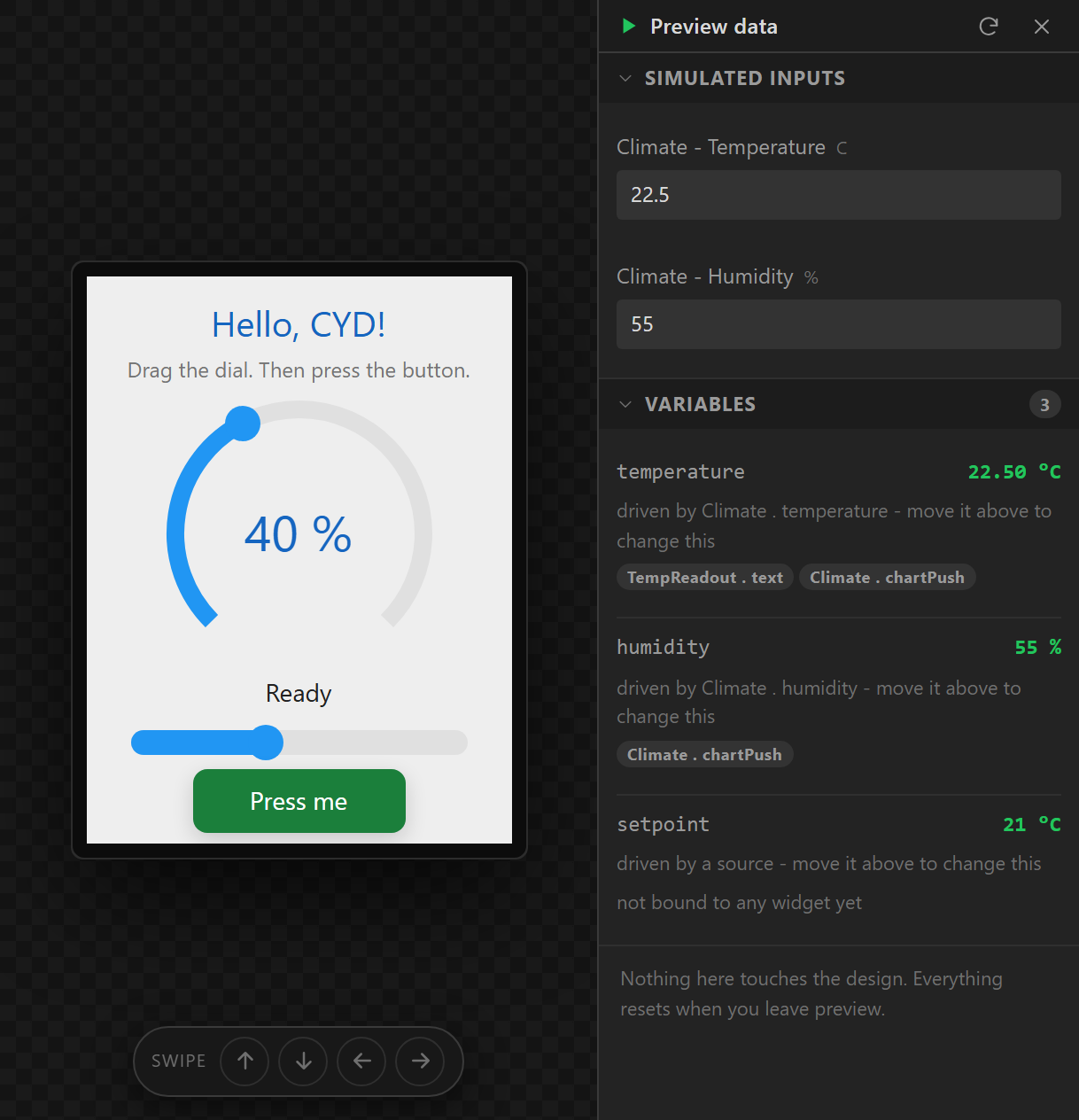
As the panel draws it
Preview also switches the canvas to the panel's own pixels. The screen is drawn at its real resolution - 320x240, 800x480, whatever the board has - its colours reduced to what the panel stores (RGB565 on almost every board, so light greys pick up a faint tint and gradients band), and scaled up without smoothing, so one square is one pixel of the device. It is the difference between a mock-up and what you will see when the board boots: text at 12 px is as chunky here as it is there, and a hairline border either survives the panel's colour depth or it does not.
The LCD pixels button in the toolbar, beside Play, turns it off for a smooth preview; the caption under the panel says the resolution and colour format being drawn. Below 100% zoom the view averages pixels instead of dropping them, so a big panel on a small canvas stays readable.
What becomes operable
Sliders and arcs drag to a value - a range slider moves whichever of its two knobs you press nearer to, and a reverse arc counts from its end, as they do on the device. Switches and checkboxes toggle. Dropdowns and rollers cycle through their options. Spinboxes step. Tabviews switch tabs.
Buttons - and anything else you click - are drawn in their Pressed style for as long as the mouse button is down, and fire their events in the device's order: Pressed on the way down; Long pressed after 400 ms, then Long pressed repeat every 100 ms while held; and on release, Released, Short clicked (unless it was a long press) and Clicked. A widget with the Checkable flag toggles its Checked state on release, so it stays in its Checked style and fires Value changed, then Checked or Unchecked - the same fan-out a switch gets.
The data drawer
On a board with a backlight the drawer opens with Backlight: the simulated level, and a slider to move it. The whole screen dims with the level - its opacity follows it, fading toward the black of the device frame, as a dimmed panel does - starting at the Display tab's Default %. A backlight that can only switch (on an I/O expander, or with PWM off) shows full brightness at any level above 0.
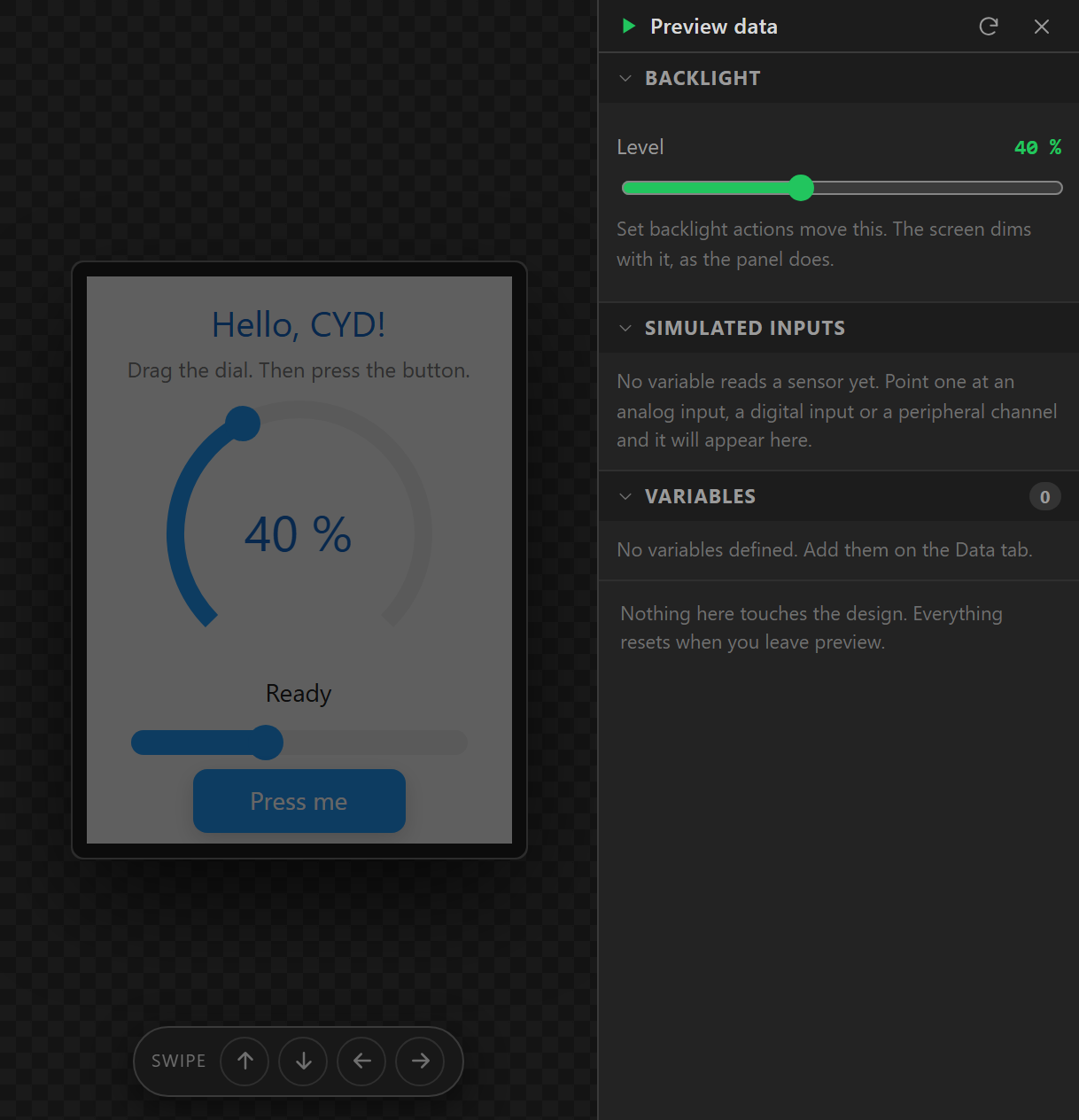
Below that are two halves. Simulated inputs lists every hardware source the project reads - each peripheral channel, analog input and digital input - with a control to set its value, since the browser has no sensors. Variables shows every variable's live value as the formulas compute it, in the variable's unit and decimals. Reset simulated values puts the inputs back to their defaults; the drawer can be hidden and shown again from its header, and sits beside the canvas rather than over it, so zoom-to-fit adapts.
Move the simulated BME280 temperature and a bound label re-formats. Drag a two-way-bound slider on the canvas and its variable changes in the drawer.
Order of operations, and why a slider snaps back
The preview mirrors the firmware exactly: your interaction is applied first, then read
bindings on top. A Variable → widget binding therefore overwrites what you just dragged
on the next tick - which looks like a bug until you remember that bindings_apply()
does the same thing on the device every refresh. A slider that should hold its position wants a
Both ways binding, and then the preview shows it holding.
Events run
Click a button and its Clicked actions really happen: the screen changes with no animation
but to the right target, a flag toggles and a panel appears, a slider increments, a variable is
set. A Set backlight action dims or brightens the whole
screen: a brightness slider sets the level as you drag it, Brighter and Dimmer buttons step it and
stop at their floor, and every widget the level is read from moves to show it - as
ui_backlight.cpp does on the board. Each change is logged to the Console tab.
Actions the browser cannot honour - Play Animation, Switch Theme, Write to peripheral, Set
digital output - are logged there with what they would have done.
Swipes
A mouse cannot swipe. A pad at the bottom of the canvas has the four directions; each arrow sends that gesture to the screen and to every widget listening for it, and each arrow shows a count of the handlers it would reach, so a dead arrow reads as dead rather than looking broken. A fifth control sends Gesture (any).
Nothing sticks
Everything the preview changes is held in a separate overlay - values, checked states, the current screen, hidden flags, colours and opacities set by actions, the backlight level - and the overlay is discarded when you press Play again. Nothing you do in preview dirties the project, lands on the undo stack or changes a widget's stored value.
Automations run where a browser can know what triggers them: on startup, on a timer and when a variable changes. Those that watch a pin, an analog reading or a rotary encoder do not.
What it cannot tell you
Whether the wiring is right, whether the panel is inverted, whether the touch axes are swapped (a resistive panel measures that itself when it calibrates on the board), whether the backlight really dims, whether the draw buffer fits, whether the sensor answers on that address. The troubleshooting page is for the first boot; the preview is for the logic.