Tutorial: build a two-way radio from two ESP32 boards
Two touchscreen boards that talk to each other like walkie-talkies, with no router, no phone and no wiring: built from an empty project one step at a time.
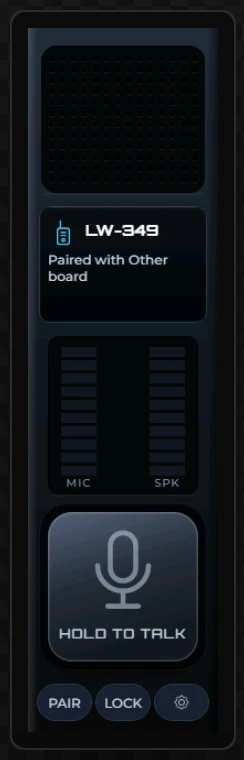
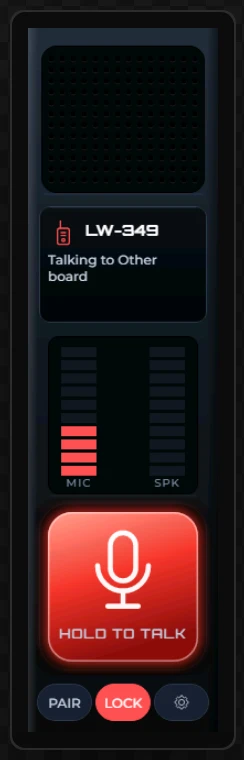
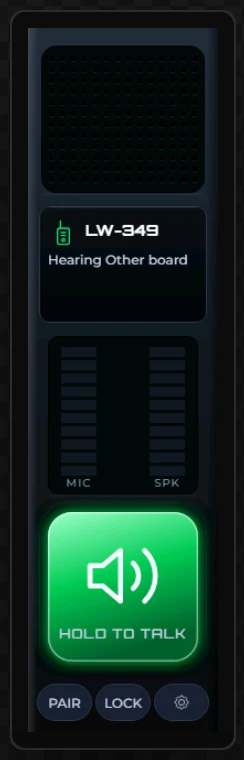
This is the gallery's two-way radio handset, rebuilt from nothing on Waveshare's 3.49-inch bar. Hold the key and what the board's microphones hear comes out of the other board's speaker, over ESP-NOW: the ESP32's own radio link, board to board, with nothing in between.
The radio itself is three steps (Part 2). The rest of the tutorial gives it the face of a handset - a key that lights red while you talk and green while you listen, two level meters, a settings screen - and on the way uses variables, bindings, pictures over widgets and automations.
Every step below was carried out in the designer to take its picture, and the design that came out of them was generated and compiled for the board: 1.89 MB of firmware. The handset it rebuilds has run on this board, paired and talking in both directions with a second board.
What is free and what is Pro. Building this design and trying it in Preview are free and need no account. Generating its code is part of Pro, because the Two-way radio widget and its two actions are Pro parts. The export dialog says so before anything is charged (step 29).
What you need
- Two Waveshare ESP32-S3-Touch-LCD-3.49 boards and a USB-C cable. The board's own audio is all the radio uses - an ES8311 codec for the speaker and an ES7210 for its two microphones - so there is nothing to wire.
- PlatformIO or the Arduino IDE, to build and upload what the designer generates. Flashing and configuration covers both.
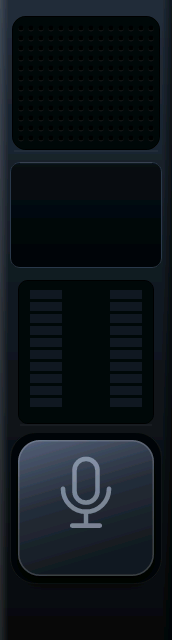
- Four pictures, 30 KB together: face.png (the handset's body), cap_talk.png and cap_hear.png (the key, lit red and lit green), and gaps.png (the gaps between a meter's segments).
Allow about three quarters of an hour for the design and ten minutes for each build. If you would rather start from the finished thing, open the example and press Open a copy.
Part 1: a new project
1 Start a project for Arduino
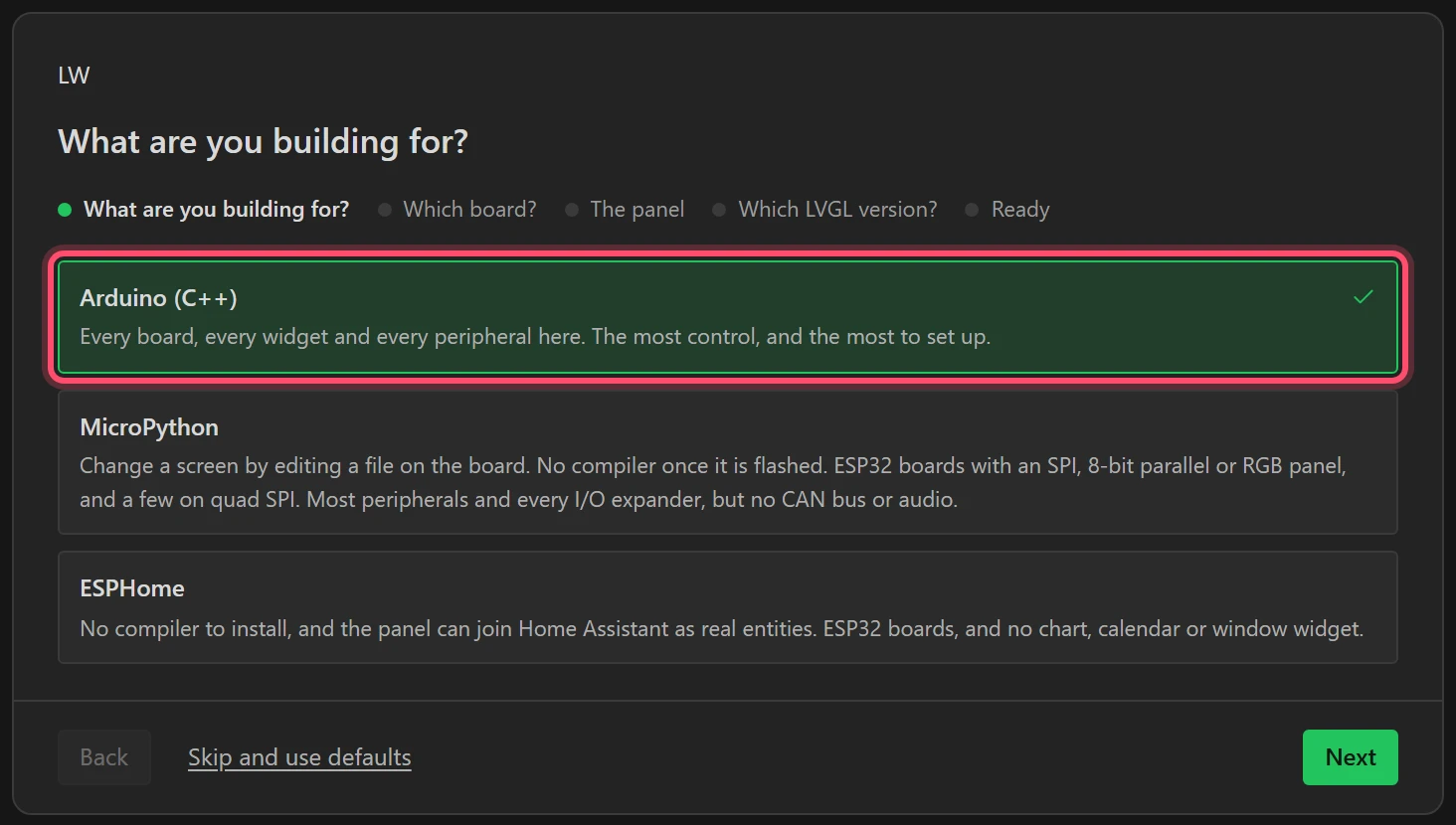
Open the designer. On a first visit the setup wizard is already there; otherwise choose File > New project. For What are you building for? choose Arduino (C++) and press Next. The Two-way radio is in the Arduino export only.
2 Choose the board
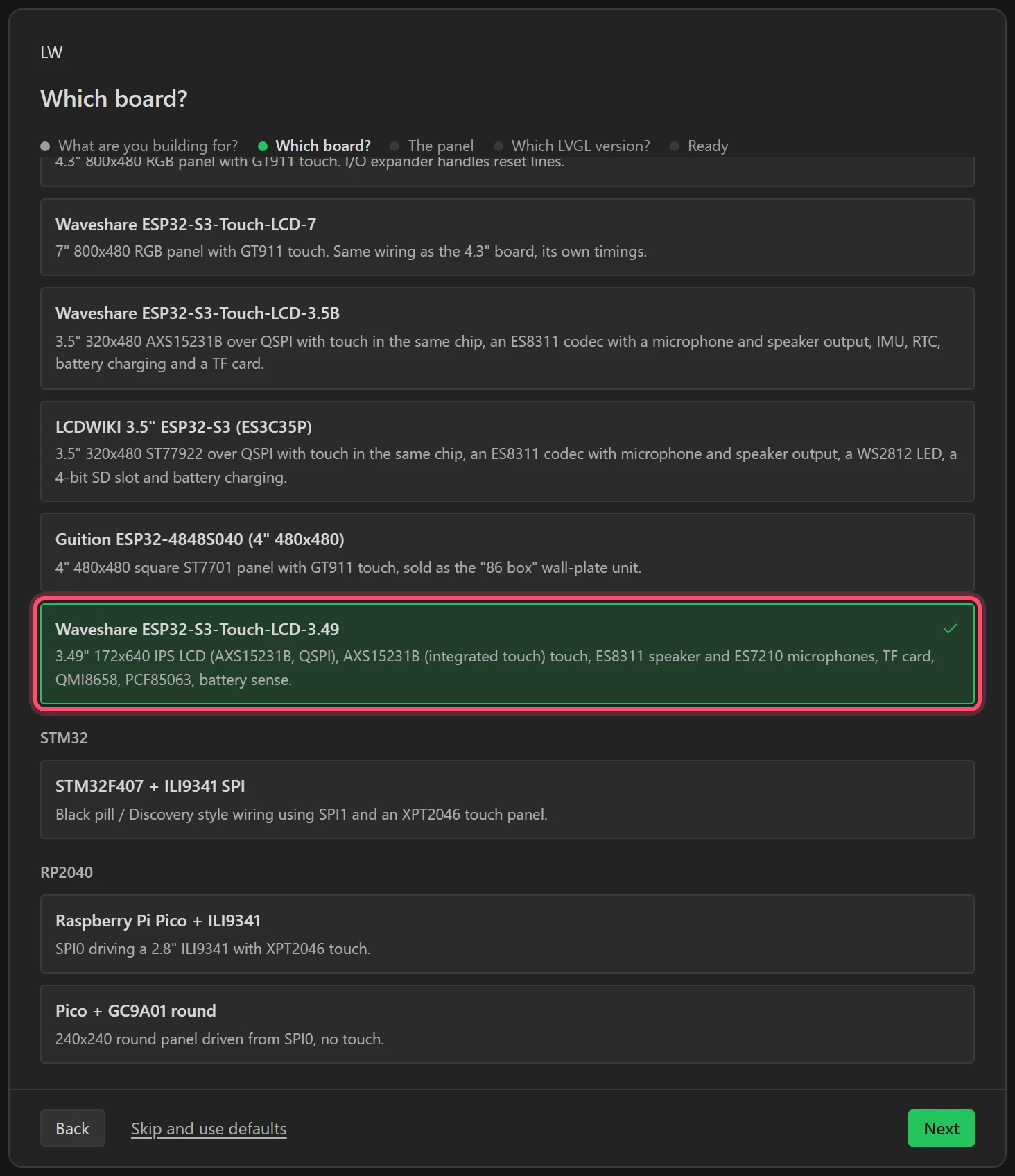
Under All-in-one boards choose Waveshare ESP32-S3-Touch-LCD-3.49. Choosing a board fills in every pin, the panel, the touch chip, the codec and the microphones. Press Next.
3 Leave the panel upright
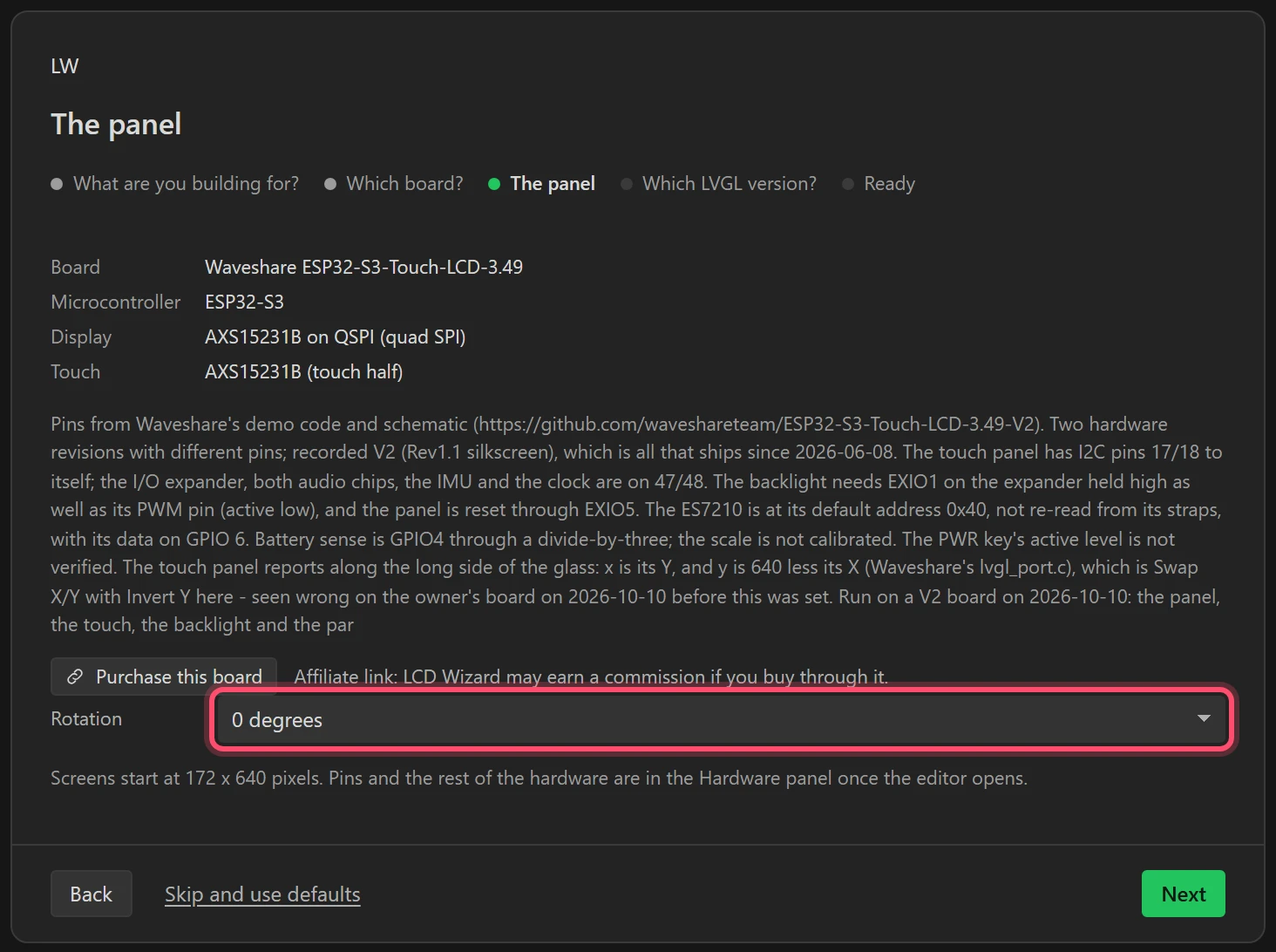
Leave Rotation at 0 degrees: the handset is drawn 172 x 640, taller than it is wide, and held like a walkie-talkie. Press Next.
4 Keep LVGL 9
LVGL 9 is already chosen. Press Next.
5 Name it and start empty
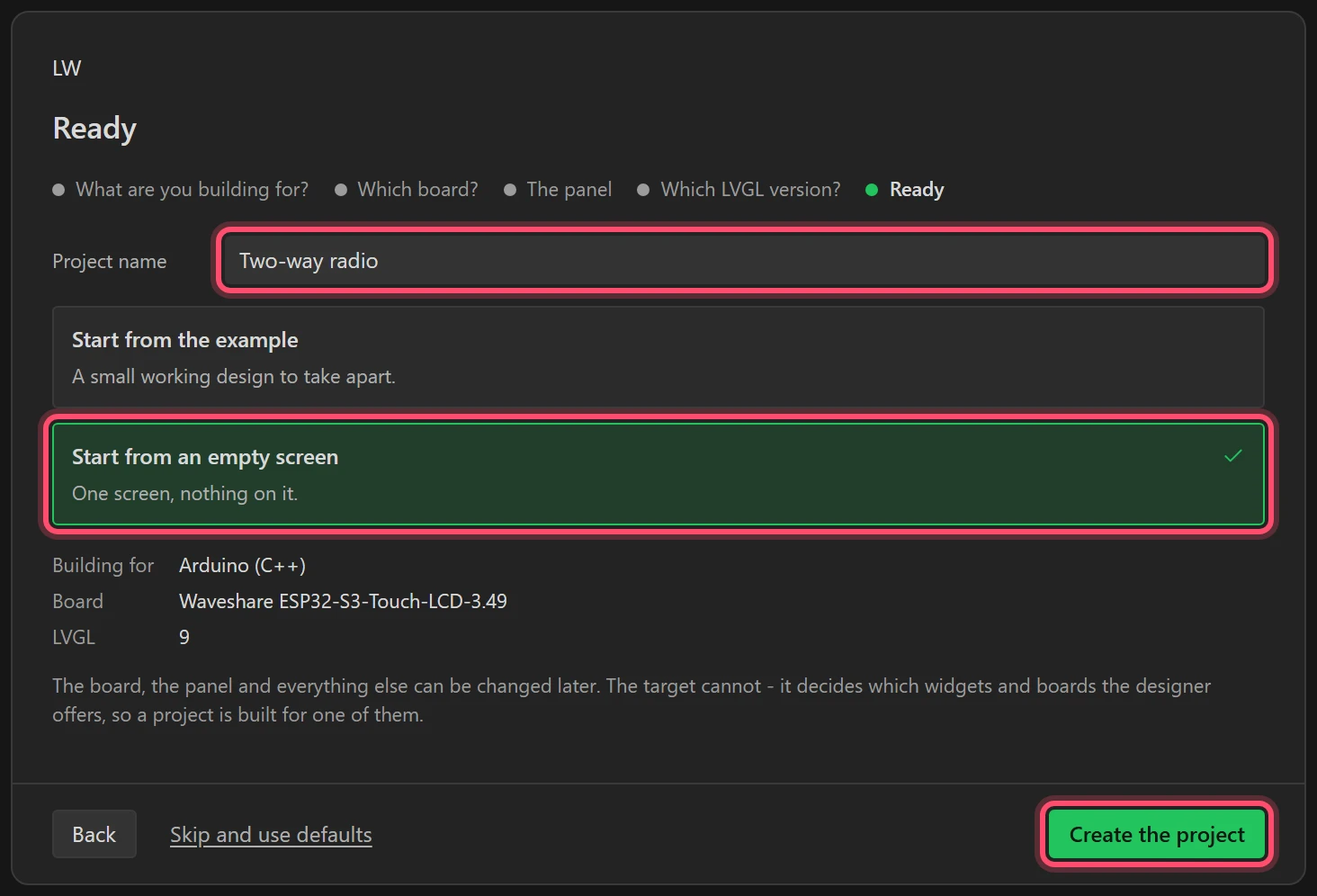
Type Two-way radio for the project name, choose Start from an empty screen, and
press Create the project.
6 Look round the designer
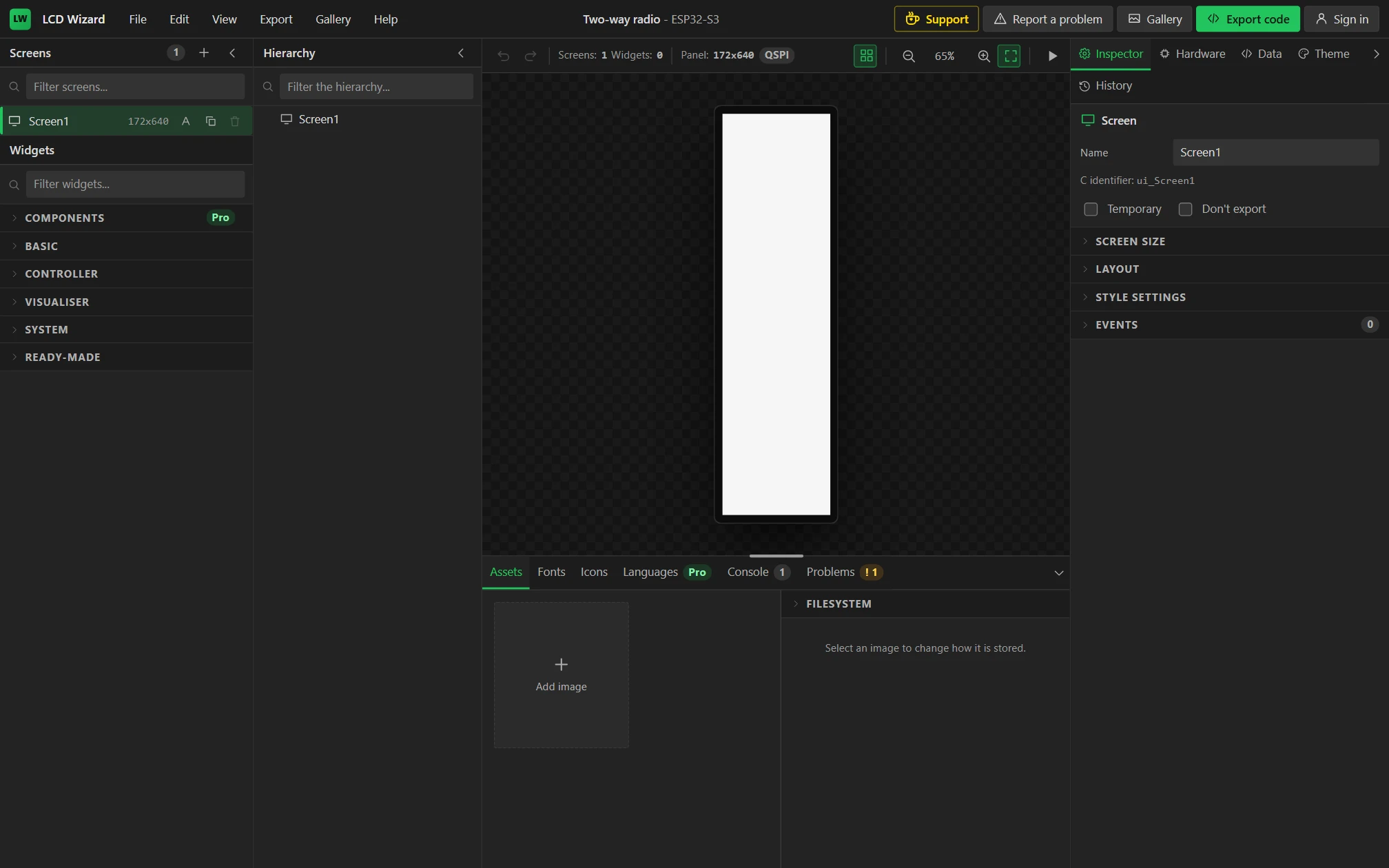
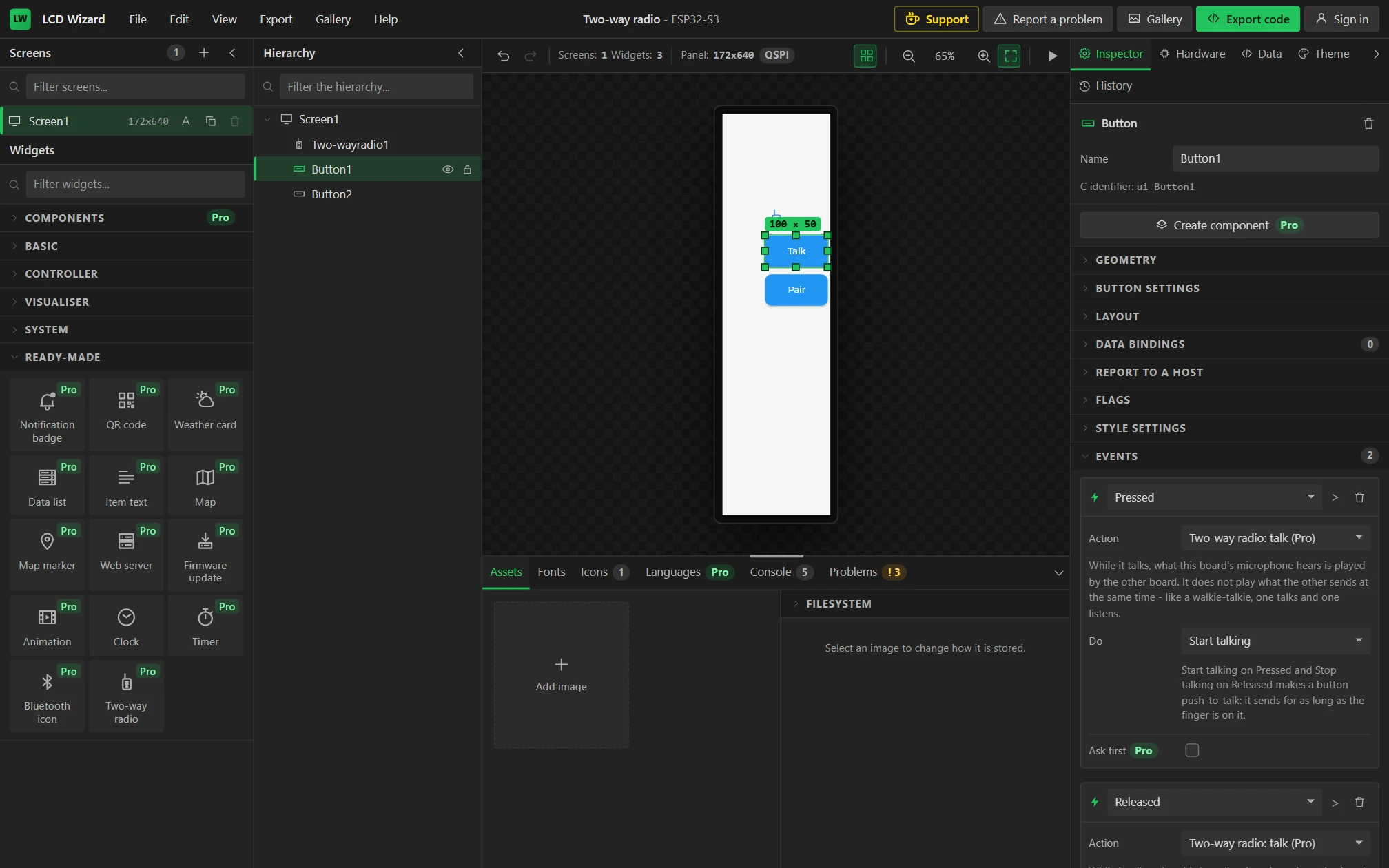
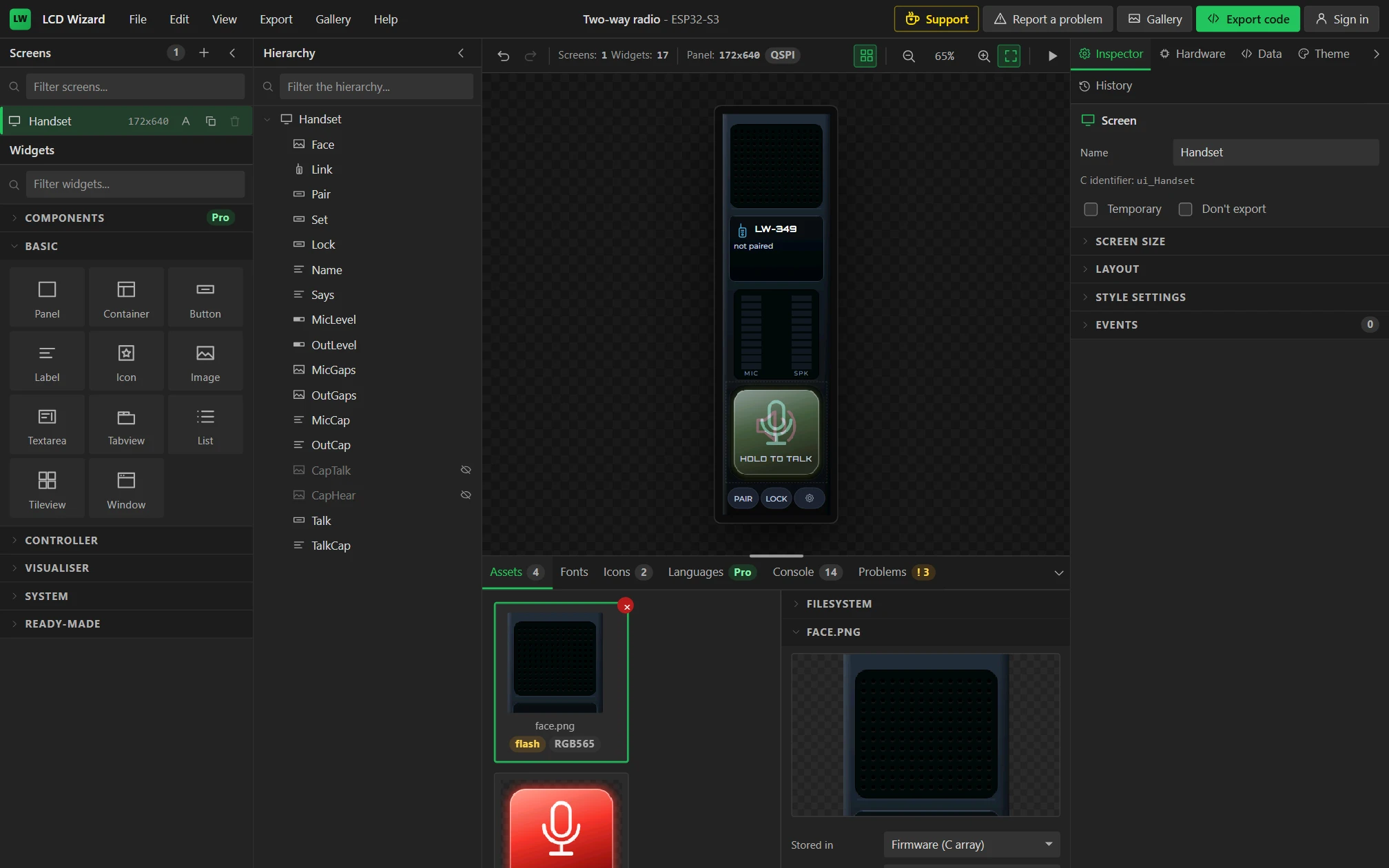
The screen is in the middle. Widgets are on the left, with the Hierarchy of what is on the screen beside them. On the right are the tabs this tutorial uses most: Inspector (the selected widget), Hardware and Data. Along the bottom are Assets, the Console and Problems. Your work is saved in the browser as you go.
Part 2: a working radio in three steps
7 Drop a Two-way radio onto the screen
Open Ready-made in the Widgets list and drag Two-way radio onto the screen.
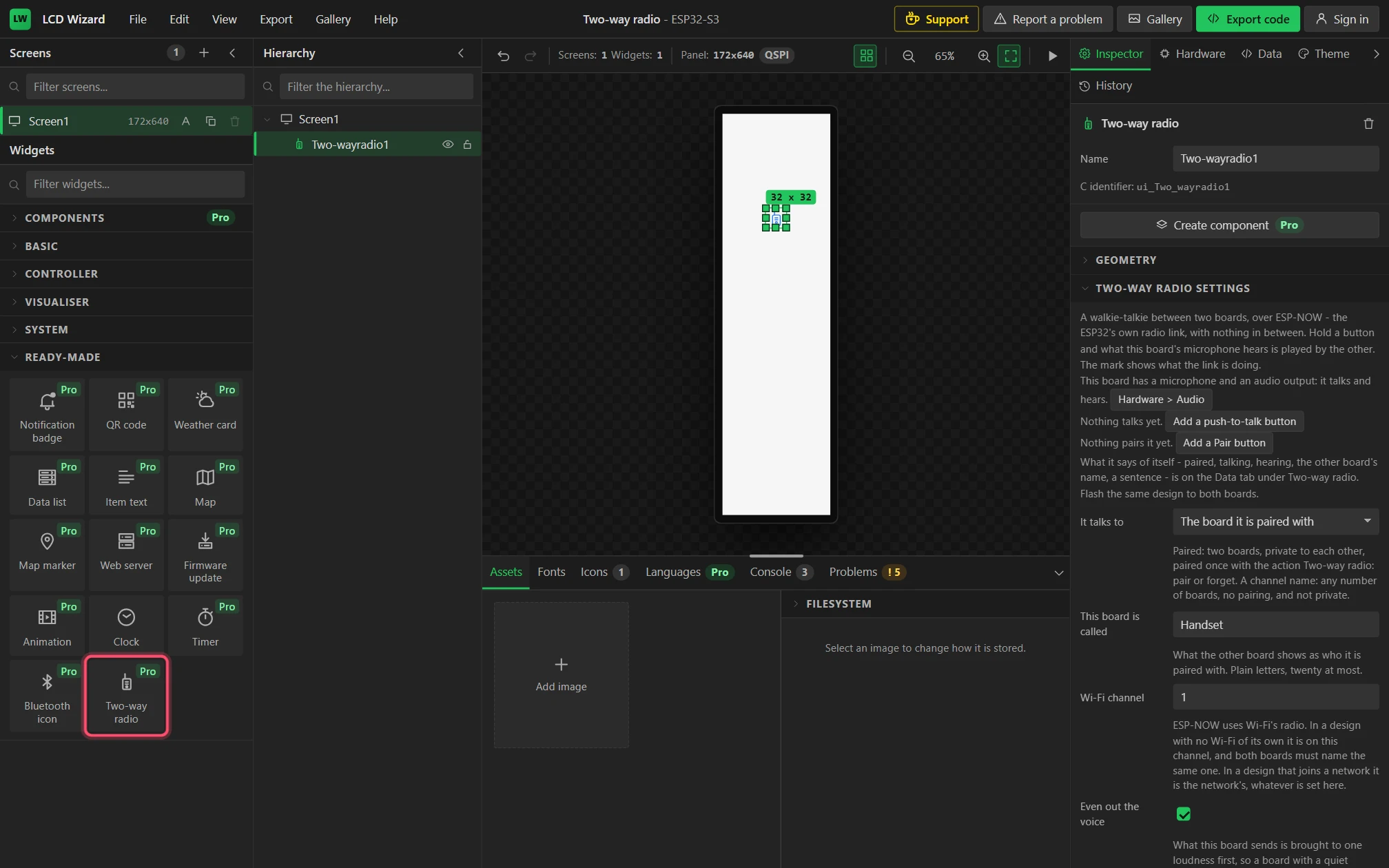
What lands is small: a handset mark that takes the colour of what the link is doing. The widget is also where the radio's settings are, and the Inspector opens on them.
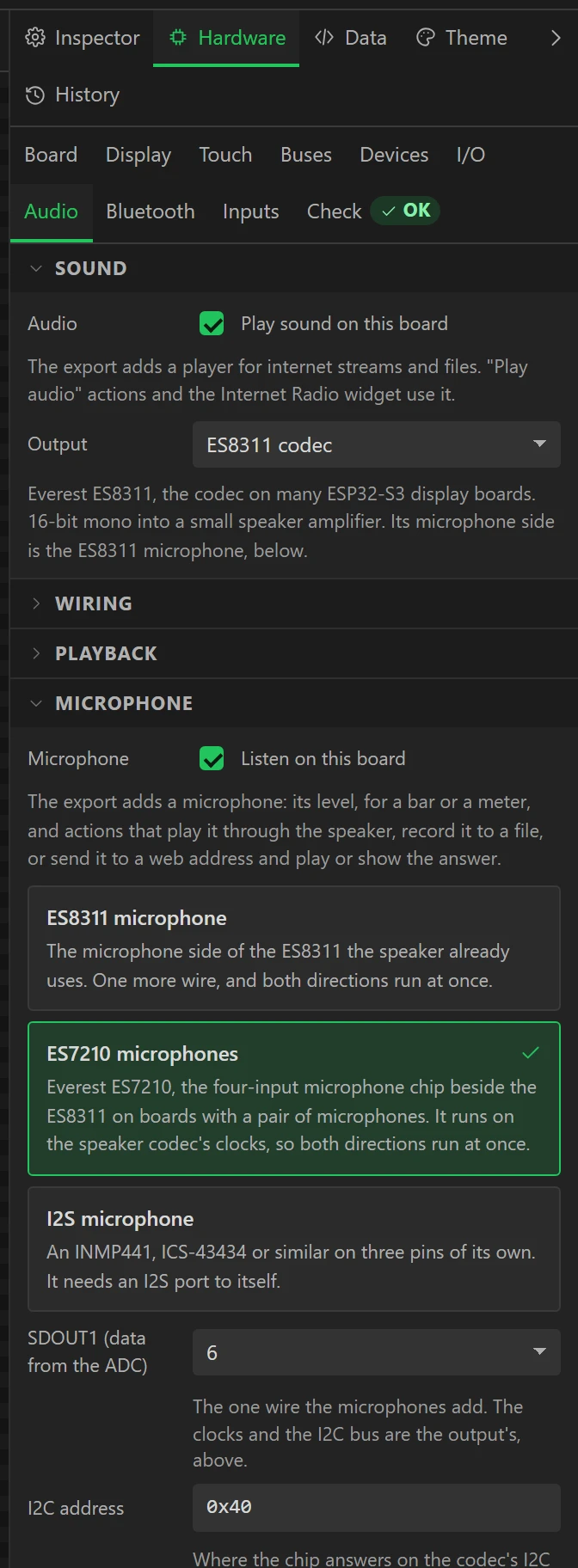
The drop did one more thing. Open Hardware, then Audio: Play sound on this board is ticked with the board's ES8311 codec, and Listen on this board with its ES7210 microphones. The radio needs both halves, the board has both, and neither had to be set up.
8 Add a push-to-talk button and a Pair button
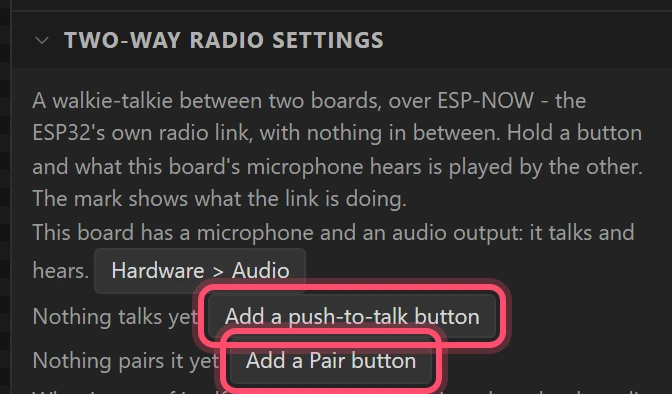
Back on the Inspector tab, with the mark selected, Two-way radio settings begins by saying what is still missing: Nothing talks yet and Nothing pairs it yet.
- Press Add a push-to-talk button. A button called Talk appears.
- Click the mark again, and press Add a Pair button.
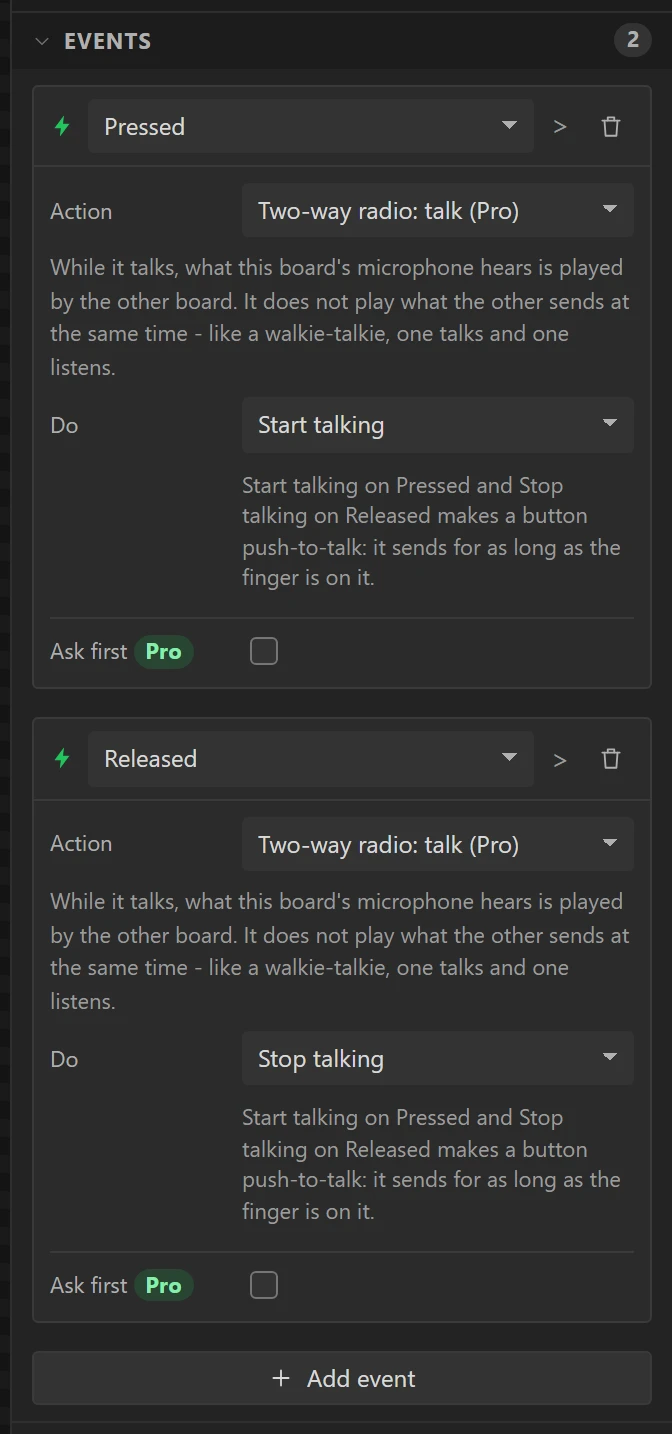
Both arrive wired. Select the Talk button and open Events to see how: on Pressed it runs Two-way radio: talk with Start talking, and on Released the same action with Stop talking. That pair is all push-to-talk is. The Pair button runs Two-way radio: pair or forget on Clicked.
9 Try it in Preview
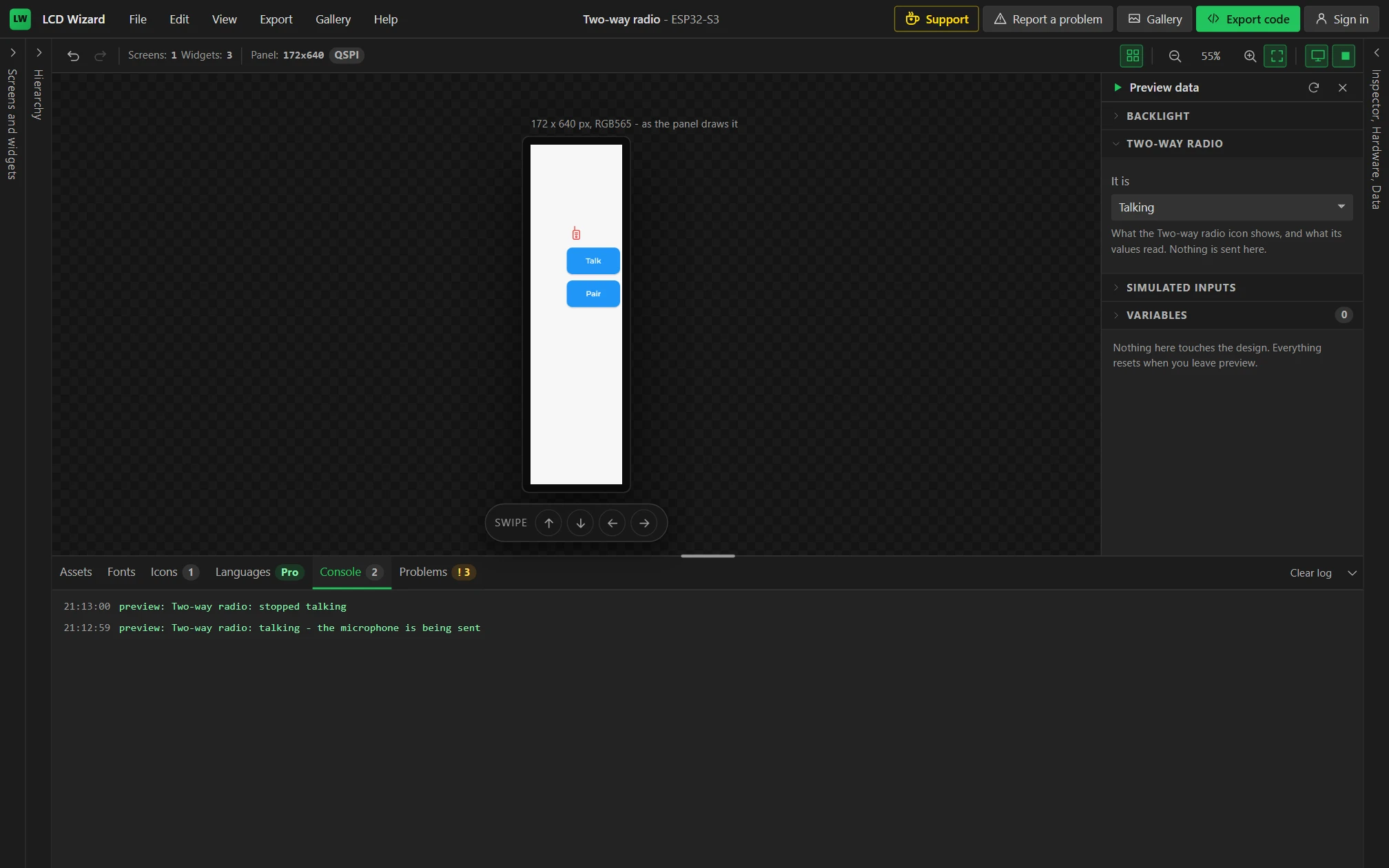
Press Preview, the play button above the canvas. Press and hold Talk, then let go.
You should see preview: Two-way radio: talking - the microphone is being
sent in the Console, then preview: Two-way radio: stopped talking, and the mark red
while the button is held.
There is no second board in a browser, so the drawer on the right stands in for one: under Two-way radio, It is sets what the link is doing, and the mark shows each state in its colour. Press Preview again to leave.
That is a working radio. Generate it now (Part 7), put it on two boards, press Pair on both and hold Talk, and one board's voice comes out of the other. Everything from here to Part 6 is its face.
Part 3: the face of a handset
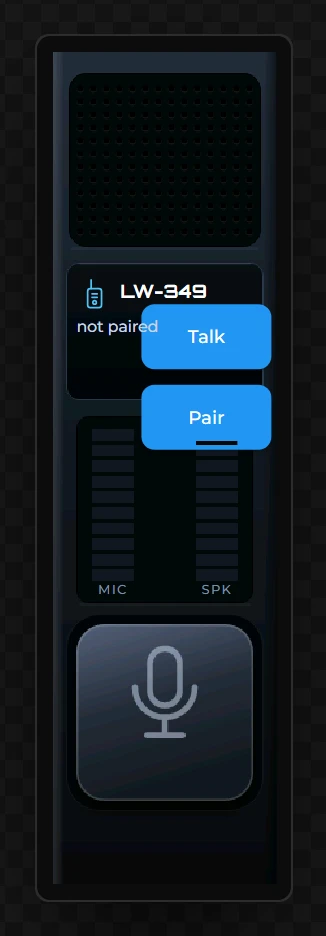
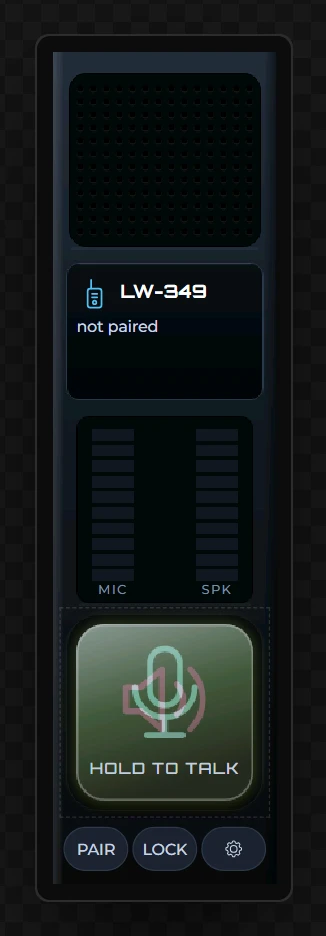
The handset is ordinary widgets over a picture. The picture is the body: a speaker grille, a window, a well for two meters and the cap of a key. Nothing in it is text, and nothing in it moves; what moves is drawn on top by widgets that follow the radio.
10 Name the screen and make it dark
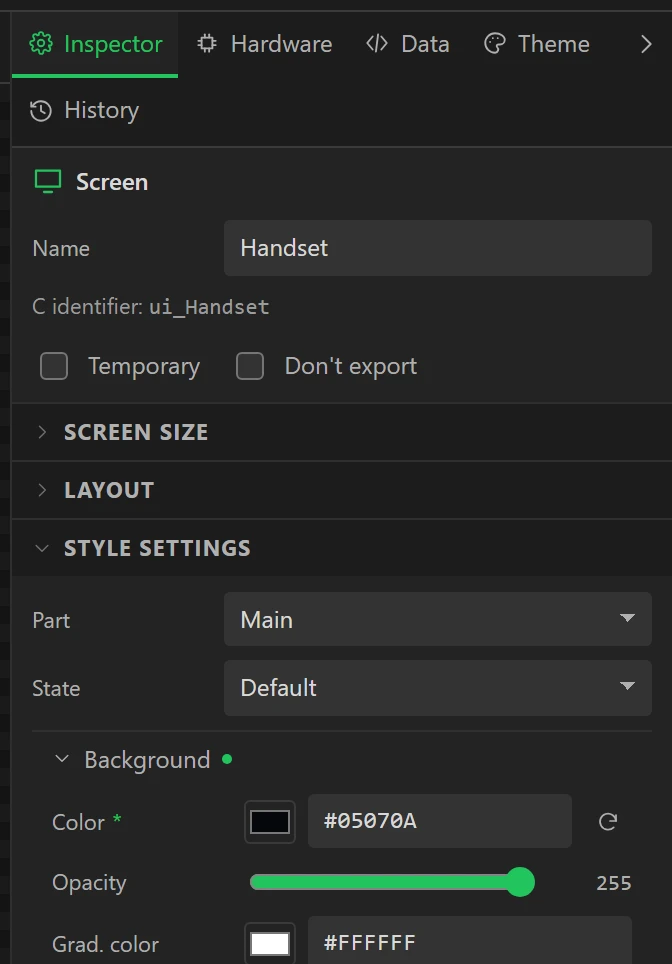
Click Screen1 in the Hierarchy, so the Inspector shows the screen. Set Name to
Handset. Open Style settings, then Background, and set Color to
#05070A.
A green dot beside a group, and a star beside a setting, mark what you have changed. Only those are written into the code.
11 Add the four pictures
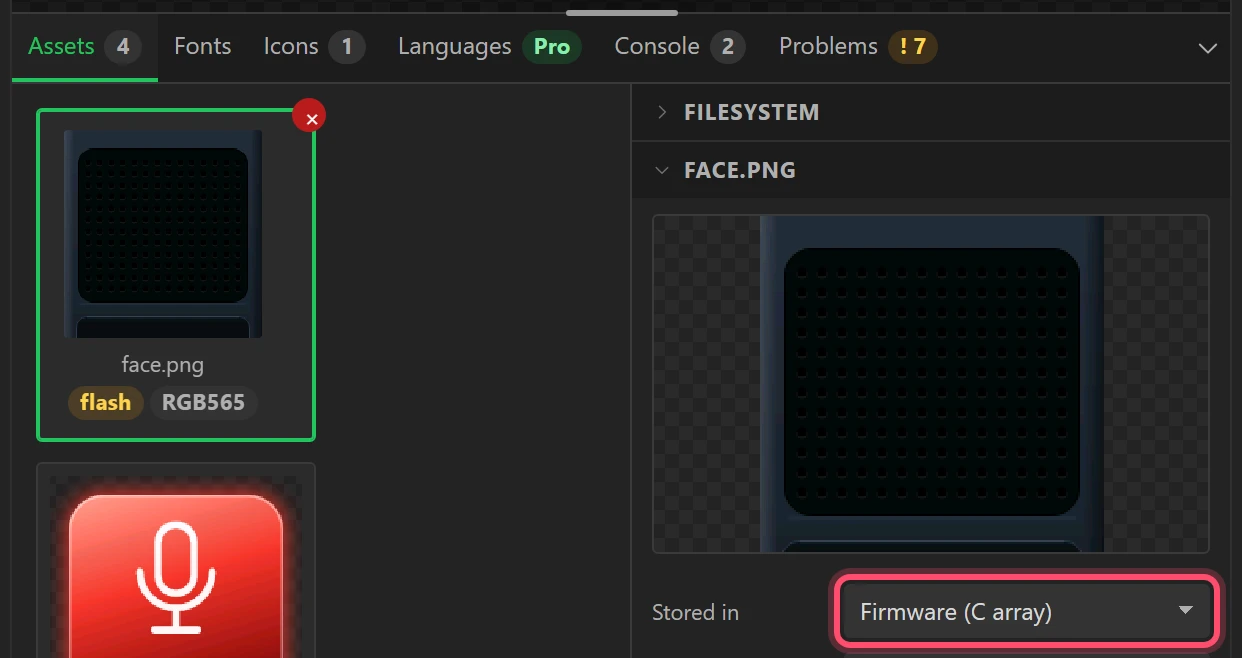
In the bottom panel, on the Assets tab, press Add image and choose the four pictures you downloaded. Click each tile in turn and set Stored in to Firmware (C array), so that there is no second upload for pictures. Colour format should read RGB565 for face.png and RGB565A8 for the other three, which have see-through parts.
12 Put the body on the screen, at the back
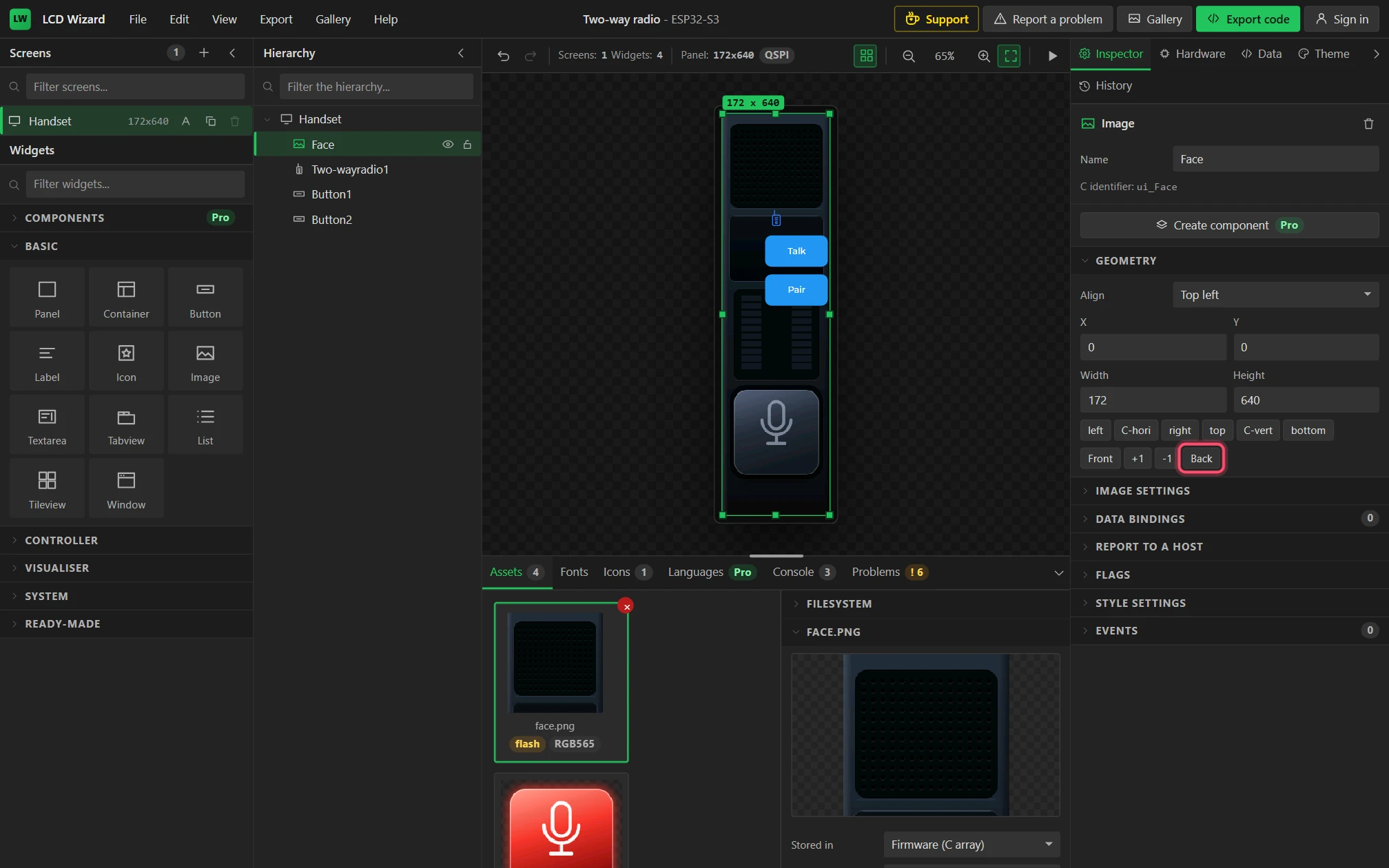
Open Basic in the Widgets list and drag Image onto the screen. In the Inspector:
- Set Name to
Face. - Open Image settings and set Asset to face.png. The widget takes the picture's size, 172 x 640.
- Open Geometry, set X and Y to
0, and press Back.
A widget added later is drawn over the ones before it. The mark and the two buttons were there first, so without Back the body would cover them.
13 Place the mark and choose its colours
Select the radio's mark - TwoWayRadio1 in the Hierarchy. Set Name to Link,
and in Geometry X 18, Y 172. In Two-way radio settings:
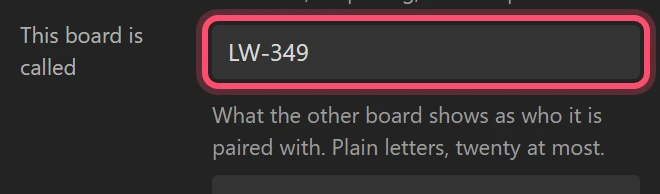
- This board is called:
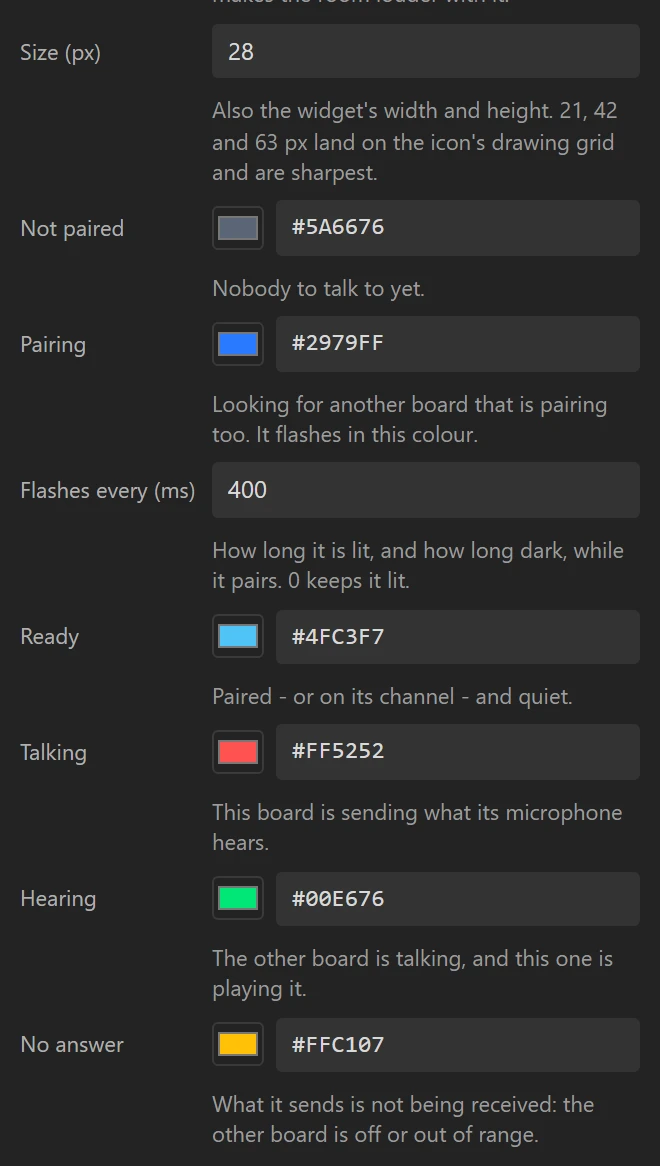
LW-349. It is what the other board shows as who it is paired with. - Size:
28. - The colours, one for each thing the link can be doing:
| Setting | Value | When |
|---|---|---|
| Not paired | #5A6676 | Nobody to talk to yet |
| Pairing | #2979FF | Looking for the other board; it flashes |
| Flashes every | 400 | Milliseconds lit, and dark |
| Ready | #4FC3F7 | Paired and quiet |
| Talking | #FF5252 | This board is sending |
| Hearing | #00E676 | The other board is talking |
| No answer | #FFC107 | The other board is off or out of range |
Leave It talks to on The board it is paired with, Wi-Fi channel on 1
and Even out the voice ticked.
14 Make five variables that read the radio
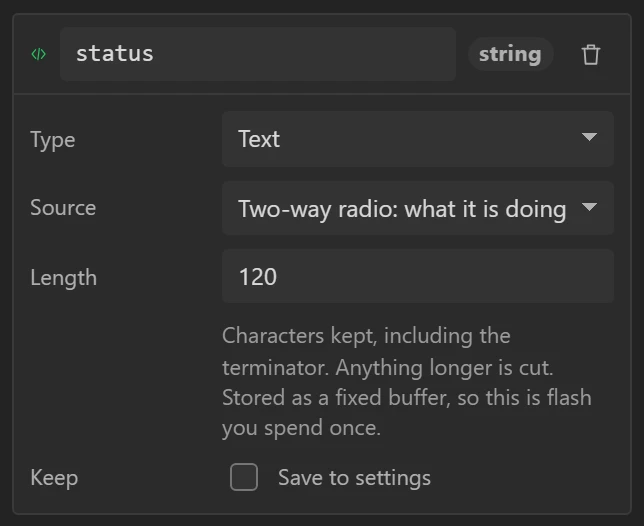
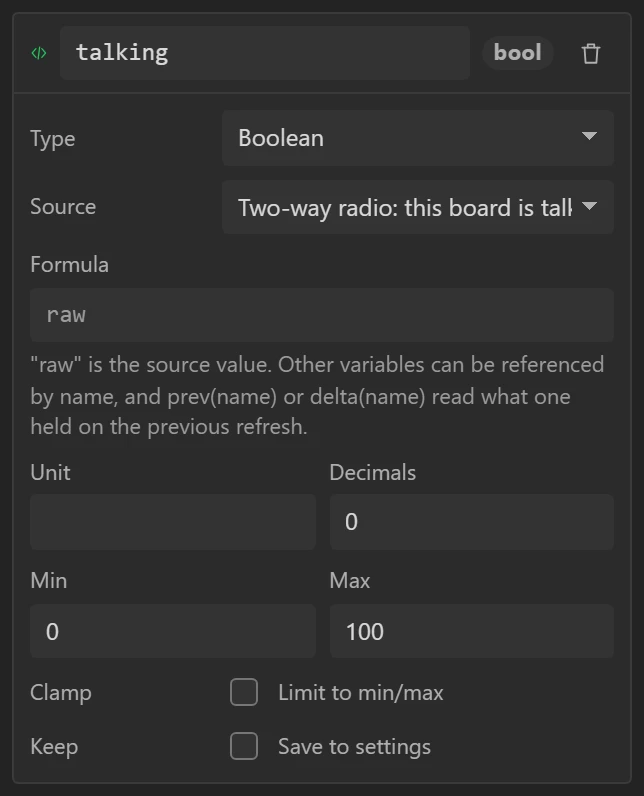
What the radio says of itself reaches a widget through a variable. Open the Data tab and the Variables section, and press + five times. For each, set the name, then Type, then Source:
| Name | Type | Source |
|---|---|---|
status | Text | Two-way radio: what it is doing |
talking | Boolean | Two-way radio: this board is talking |
hearing | Boolean | Two-way radio: the other board is talking |
micLevel | Integer | Microphone level (%) |
outLevel | Integer | Level, left (%) |
Set Length to 120 on status: it holds a sentence. A variable with a
source is read from the firmware many times a second; nothing in the design sets it.
15 The board's name, and what the link is doing
Back on the Inspector tab, drag two Labels from Basic into the window under the grille:
| Name | X, Y, W, H | Text | Text colour | Font |
|---|---|---|---|---|
Name | 52, 176, 78, 20 | LW-349 | #FFFFFF | Orbitron, Bold, 14 px |
Says | 18, 203, 136, 62 | not paired | #C9D4E3 | Montserrat, 12 px |
The text is in Label settings; colour and font are under Style settings, Text.
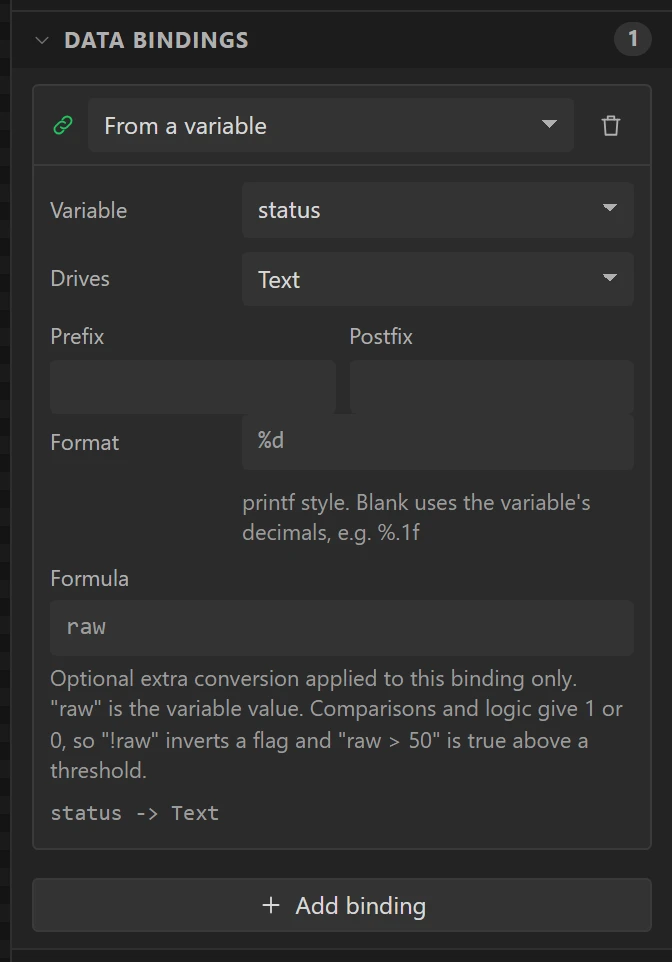
Then select Says, open Data bindings and press Add binding. Leave it on From a variable, set Variable to status and Drives to Text.
On the board the label now says whatever is true: Not paired. Press Pair on both boards., Paired with LW-349, Talking to LW-349, Hearing LW-349.
16 Two meters, in whole segments
Open Visualiser in the Widgets list and drag a Bar into the well. Name it
MicLevel and set its Geometry to X 30, Y 290, Width 32,
Height 117: taller than it is wide, so it fills from the bottom. In Style settings:
| Part | Group and setting | Value |
|---|---|---|
| Main | Background, Opacity | 0 |
| Misc, Radius | 0 | |
| Padding, all four | 0 | |
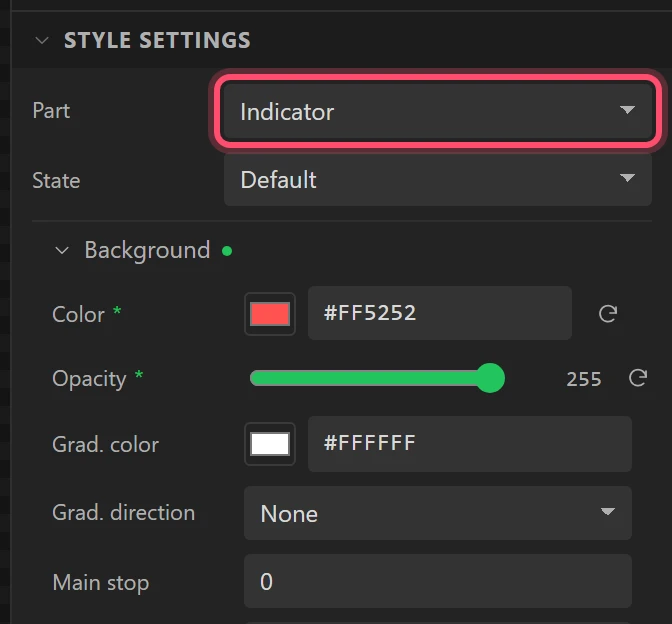
| Indicator | Background, Color | #FF5252 |
| Background, Opacity | 255 | |
| Misc, Radius | 0 |
Part, at the top of Style settings, chooses which piece of the widget you are styling: the track is Main and the lit column is Indicator. In Flags, untick Clickable and Scrollable.
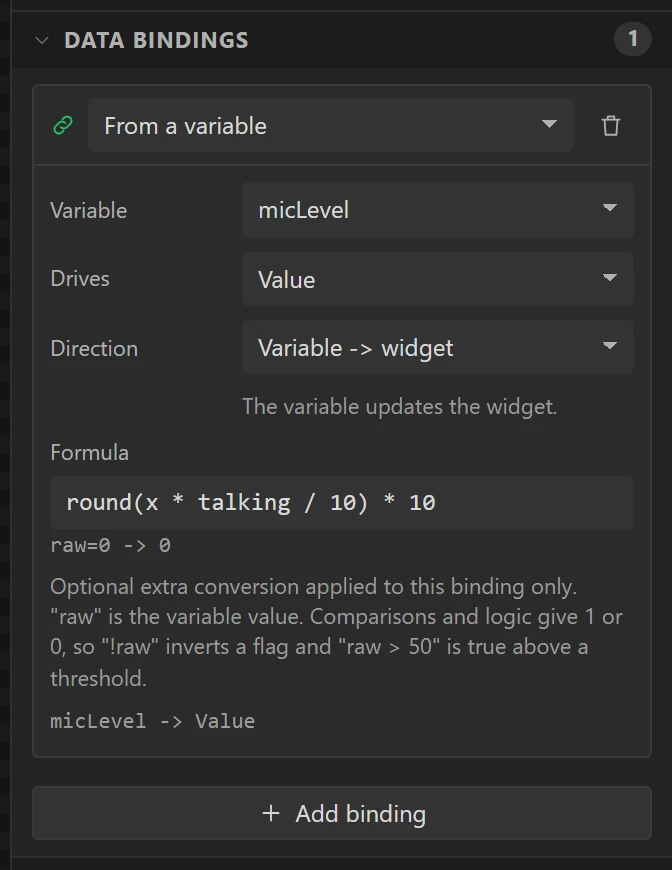
Add a binding: Variable micLevel, Drives Value, and for Formula:
round(x * talking / 10) * 10In a formula x is the variable's value and any other variable can be named. Rounding to
tens makes the column always end in a gap, so whole segments light. Multiplying by talking
keeps the meter still unless this board is sending: the microphones are always listening, and a meter
that moved while nobody was talking would say the wrong thing.
Make the second the same way: OutLevel at X 110, Indicator colour
#00E676, bound to outLevel with the formula round(x / 10) * 10.
Now the segments. Drag two Images over the bars, both with Asset gaps.png:
MicGaps at X 30, Y 290 and OutGaps at X
110, Y 290. The picture is see-through except for dark lines, so a plain bar
under it reads as ten square segments.
Last, two captions, both Labels in Montserrat 10 px, colour #7E8DA3, Align
Center, Letter space 1: MicCap saying MIC at
24, 408, 44, 13, and OutCap saying SPK at
104, 408, 44, 13.
17 A key that lights red, and green
The body's key is grey. Two pictures of the same key lit lie over it, and each is shown only while its variable is on.
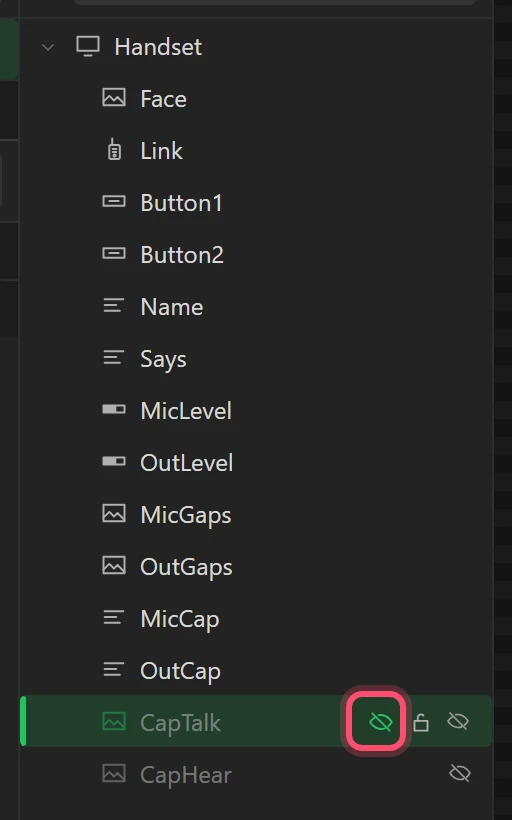
- Drag an Image onto the key. Name it
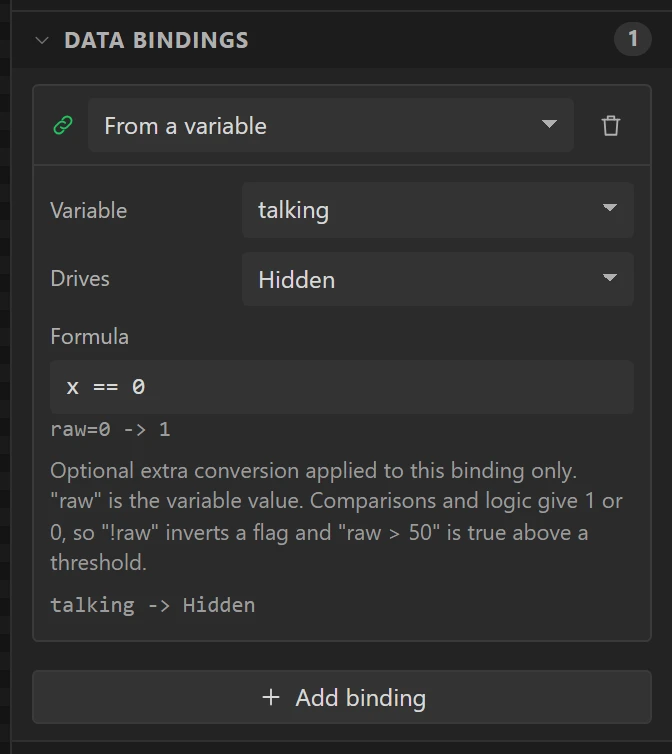
CapTalk, set Asset to cap_talk.png and its Geometry to X6, Y428. - Add a binding: Variable talking, Drives Hidden, Formula
x == 0. Hidden while talking is 0, so shown while this board talks. - Click the eye beside CapTalk in the Hierarchy, so that it starts out of sight.
- Do the same again for
CapHear: cap_hear.png, the same place, bound to hearing, hidden to start with.
A hidden widget is drawn faintly while you design, so it can still be found and selected.
18 Put the Talk button over the key, with nothing drawn
The button made in step 8 becomes the touch area over the key. Select Button1 and:
- Set Name to
Talk, and in Button settings clear its Text. - In Geometry set X
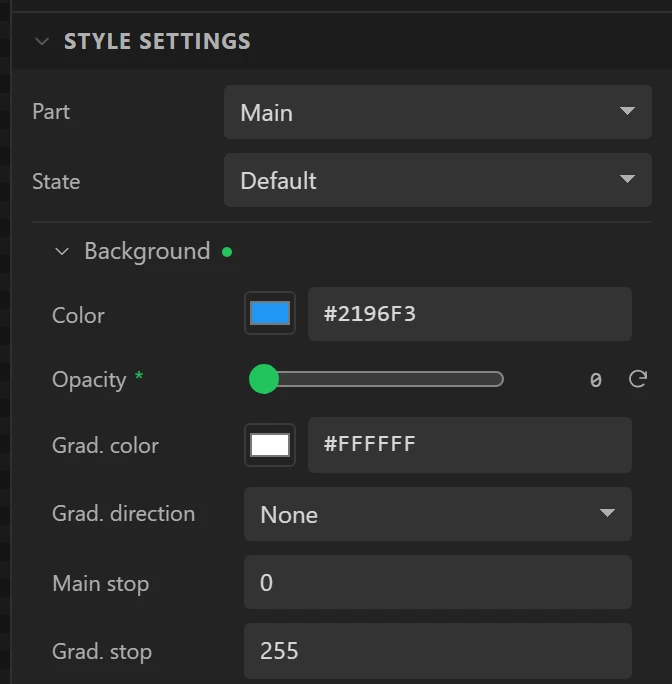
18, Y440, Width136, Height136, and press Front so that it is over the pictures. - In Style settings, on the Main part:
| State | Group and setting | Value |
|---|---|---|
| Default | Background, Opacity | 0 |
| Border, Width | 0 | |
| Shadow, Width | 0 | |
| Misc, Radius | 22 | |
| Pressed | Background, Color | #FFFFFF |
| Background, Opacity | 26 |
Its two events stay as they were. The button draws nothing until it is pressed, when it puts a faint white over the key.
Then a Label across the foot of the key: TalkCap, at 16, 544, 140, 16,
saying HOLD TO TALK in Orbitron 12 px, colour #C3CFDF, Align
Center, Letter space 1. A label takes no touch, so a press on it reaches the
button underneath.
19 PAIR, LOCK and a gear along the bottom
Select Button2, the Pair button from step 8. Name it Pair, set its text to
PAIR and its Geometry to 8, 596, 50, 34. Style its Main part:
| State | Group and setting | Value |
|---|---|---|
| Default | Background, Color | #1A2230 |
| Border, Color and Width | #2C3848, 1 | |
| Shadow, Width | 0 | |
| Text, Color and Font | #C9D4E3, Montserrat 12 px | |
| Misc, Radius | 17 | |
| Pressed | Background and Text colours | #2979FF, #FFFFFF |
| Checked | Background, Border and Text colours | #FF5252, #FF5252, #FFFFFF |
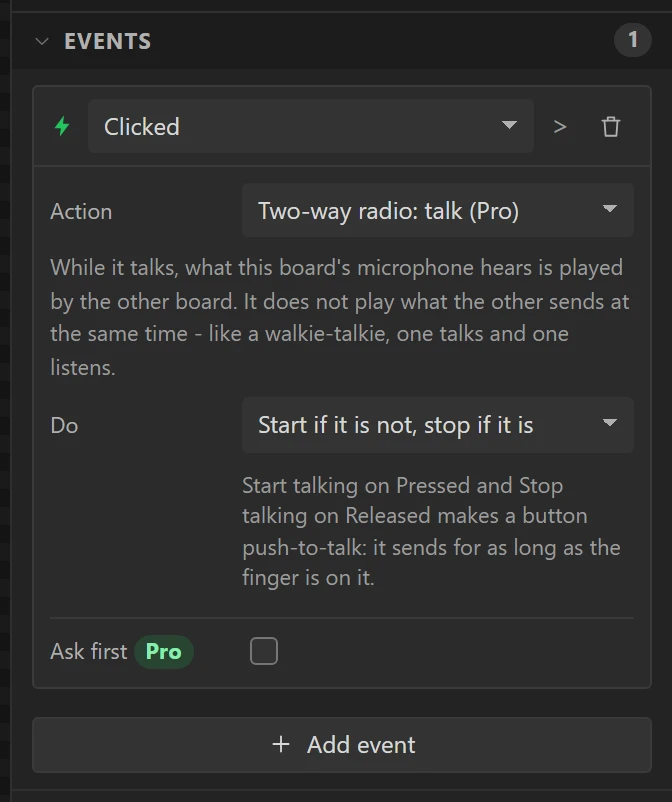
With Pair selected press Ctrl + D twice. A copy keeps the look and the event, so change what differs:
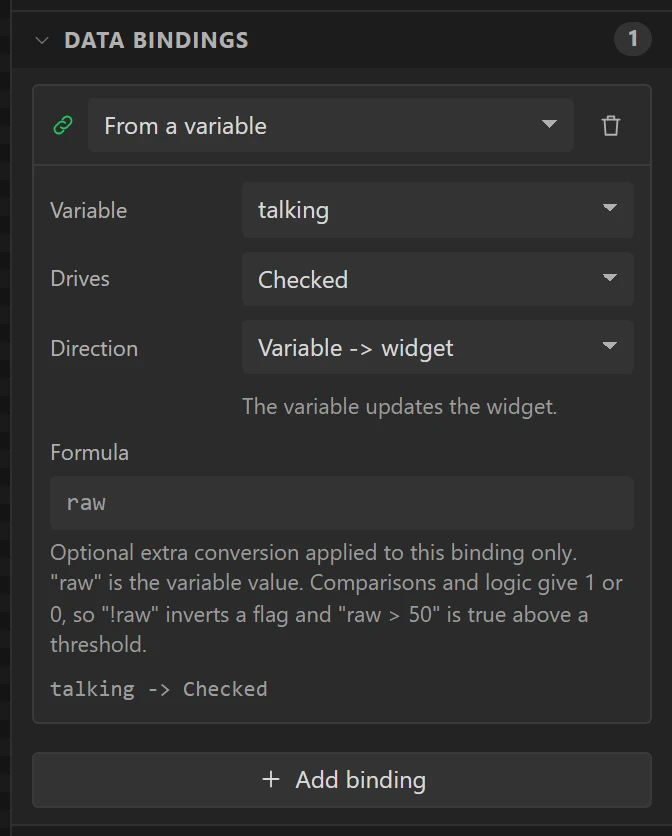
Lock, at X61, textLOCK. In its event change Action to Two-way radio: talk and Do to Start if it is not, stop if it is: one tap talks, the next stops. Add a binding with Variable talking driving Checked, and the key is lit red for as long as the board is sending, however that was started.Set, at X114, with no text, Icon settings and Icon size18. Remove its event with the bin; it gets its own in step 26.
Part 4: the board's own button talks too
20 Two automations on the BOOT button
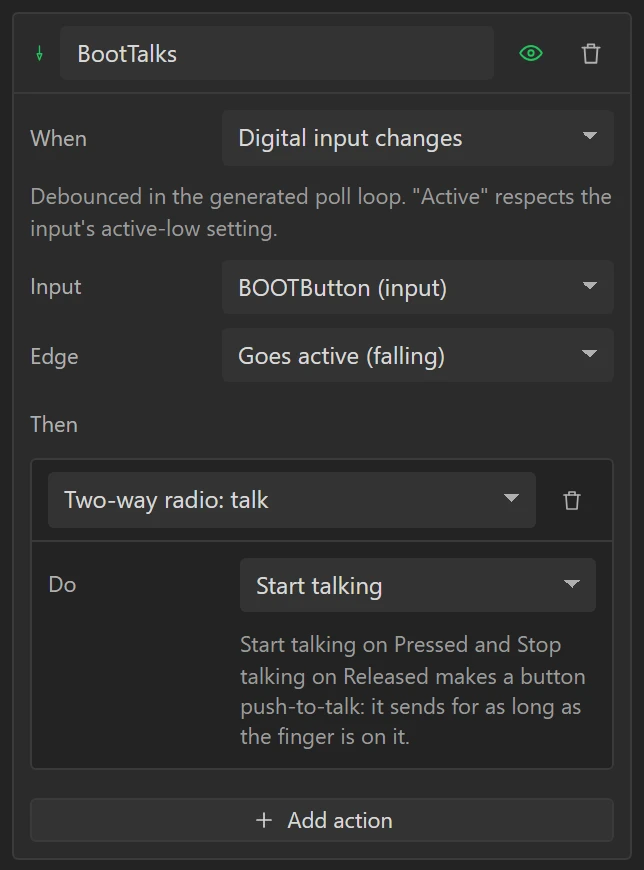
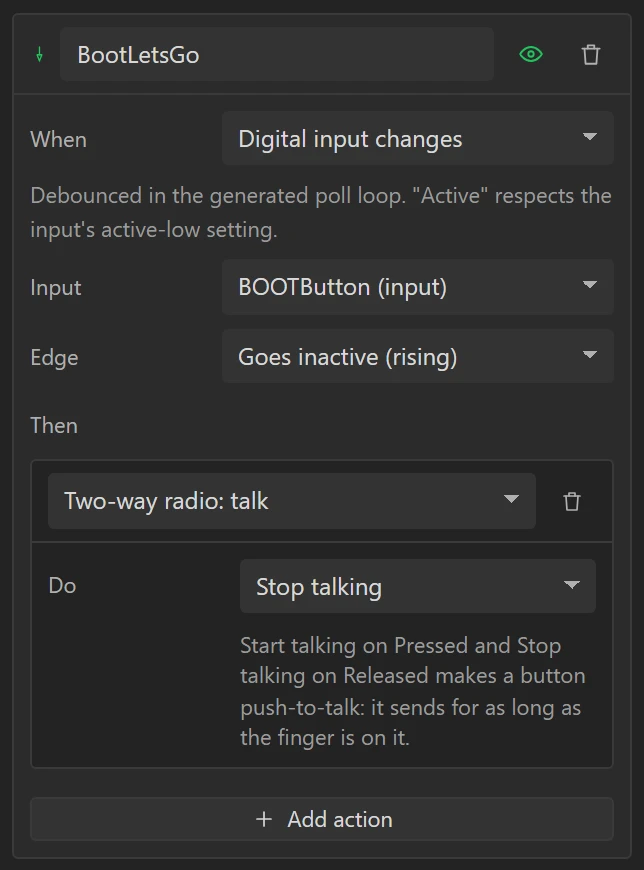
An automation runs actions without a touch. The board preset already knows its BOOT button as an input, so it can be a push-to-talk with the screen in a pocket. On the Data tab open Automations, choose Digital input changes in the list beside Add, and press Add. Make two, and for each press Add action under Then and choose Two-way radio: talk:
| Name | Input | Edge | Do |
|---|---|---|---|
BootTalks | BOOTButton (input) | Goes active (falling) | Start talking |
BootLetsGo | BOOTButton (input) | Goes inactive (rising) | Stop talking |
Talking is an action, so anything that can fire an event can talk: a key on the glass, a button on the board, a timer, a sensor crossing a threshold.
Part 5: a second screen for the settings
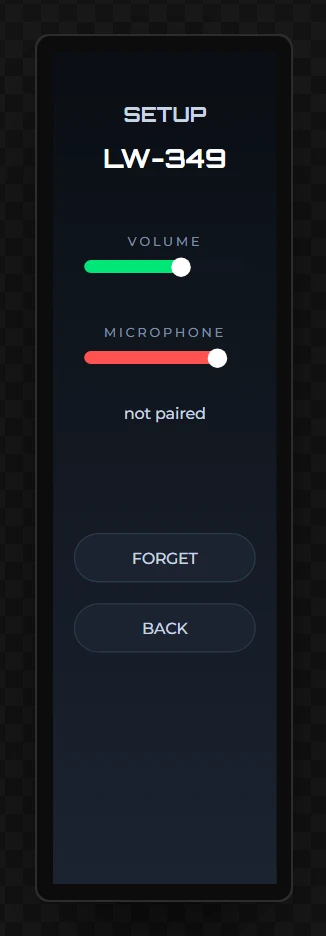
21 Add a screen called Setup
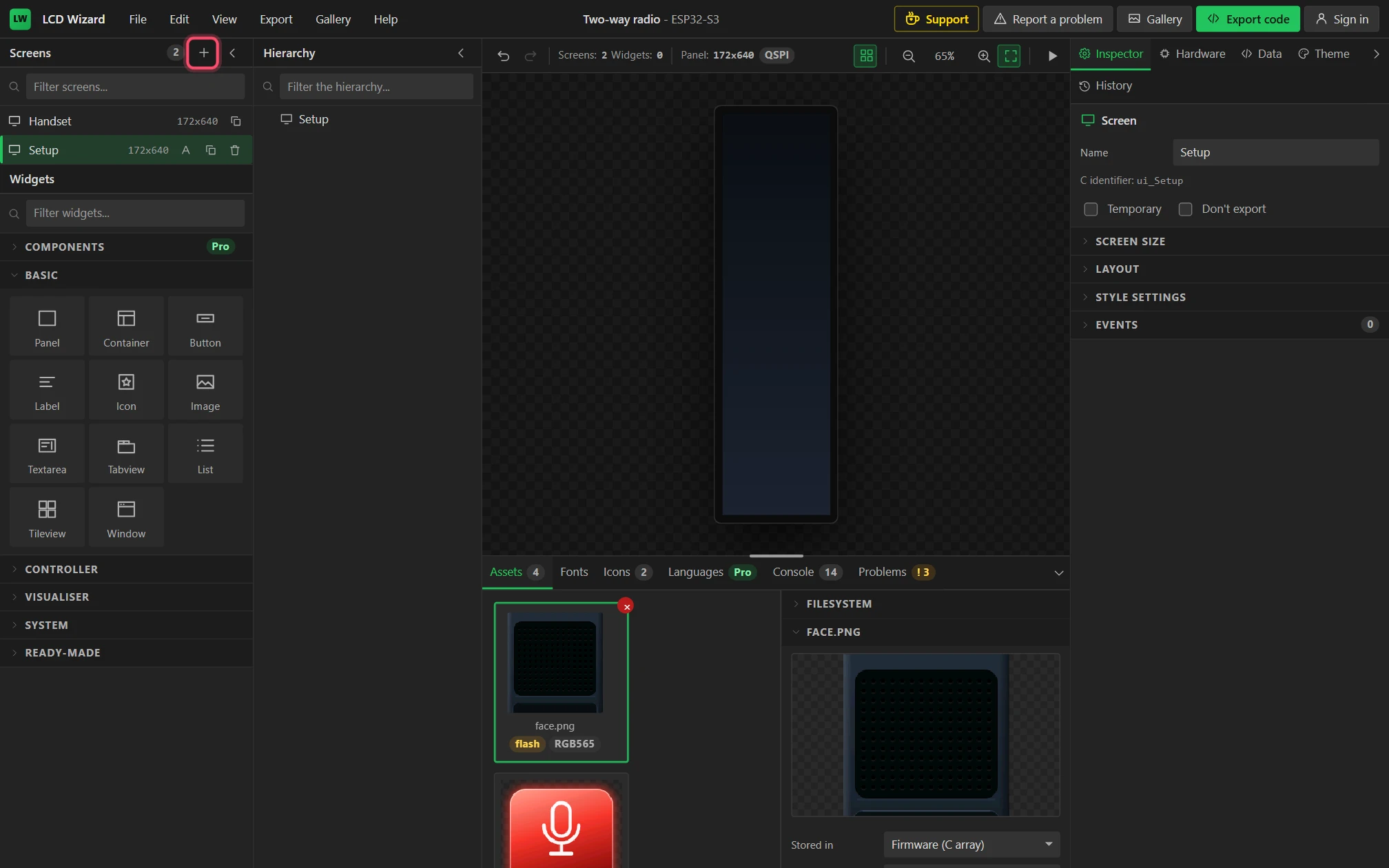
Press + beside Screens, top left. Set the new screen's Name to Setup.
In Style settings, Background, set Color #0A0E14, Grad. color
#1B2330 and Grad. direction Vertical.
22 Its five labels
All five are centred (Align Center):
| Name | X, Y, W, H | Text | Font | Text colour |
|---|---|---|---|---|
SetTitle | 16, 40, 140, 22 | SETUP | Orbitron, Bold, 16 px | #C9D4E3 |
SetName | 16, 70, 140, 26 | LW-349 | Orbitron, Bold, 20 px | #FFFFFF |
VolCap | 16, 140, 140, 14 | VOLUME | Montserrat 10 px, Letter space 2 | #7E8DA3 |
MicCap | 16, 210, 140, 14 | MICROPHONE | Montserrat 10 px, Letter space 2 | #7E8DA3 |
SetSays | 16, 270, 140, 70 | not paired | Montserrat 12 px | #C9D4E3 |
Give SetSays the binding Says has: Variable status, Drives Text. A name has to be unique on its own screen only, which is why there can be a MicCap on each.
23 A slider for the volume, by an event
Open Controller in the Widgets list and drag a Slider under VOLUME. Name it
Volume, set its Geometry to 24, 160, 124, 10 and its Value to
60. Style its three parts:
| Part | Group and setting | Value |
|---|---|---|
| Main | Background, Color; Misc, Radius | #10161F, 6 |
| Indicator | Background, Color; Misc, Radius | #00E676, 6 |
| Knob | Background, Color; Padding, all four | #FFFFFF, 5 |
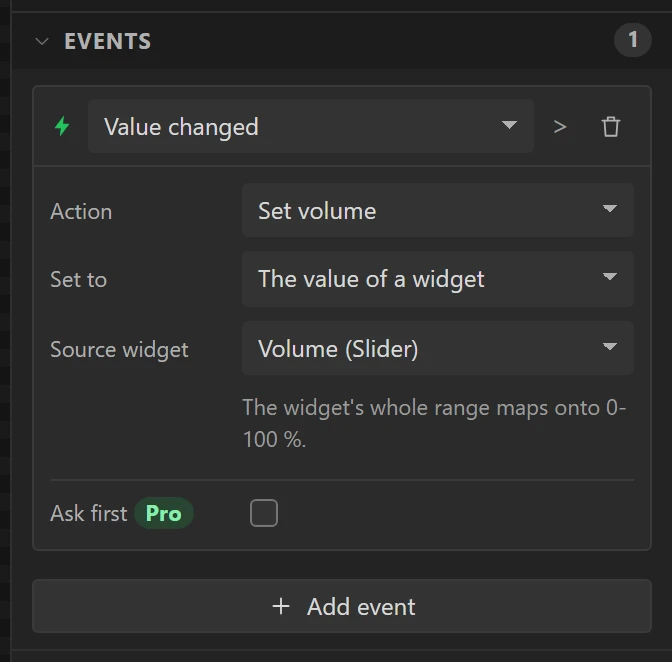
Open Events and press Add event. Set the trigger to Value changed, Action to Set volume, Set to to The value of a widget and Source widget to Volume (Slider).
24 A slider for the microphone, by a binding
Duplicate the slider (Ctrl + D). Name the copy
Sensitivity, move it to Y 230, set its Value to 83 and its
Indicator colour to #FF5252, and remove the event it was copied with.
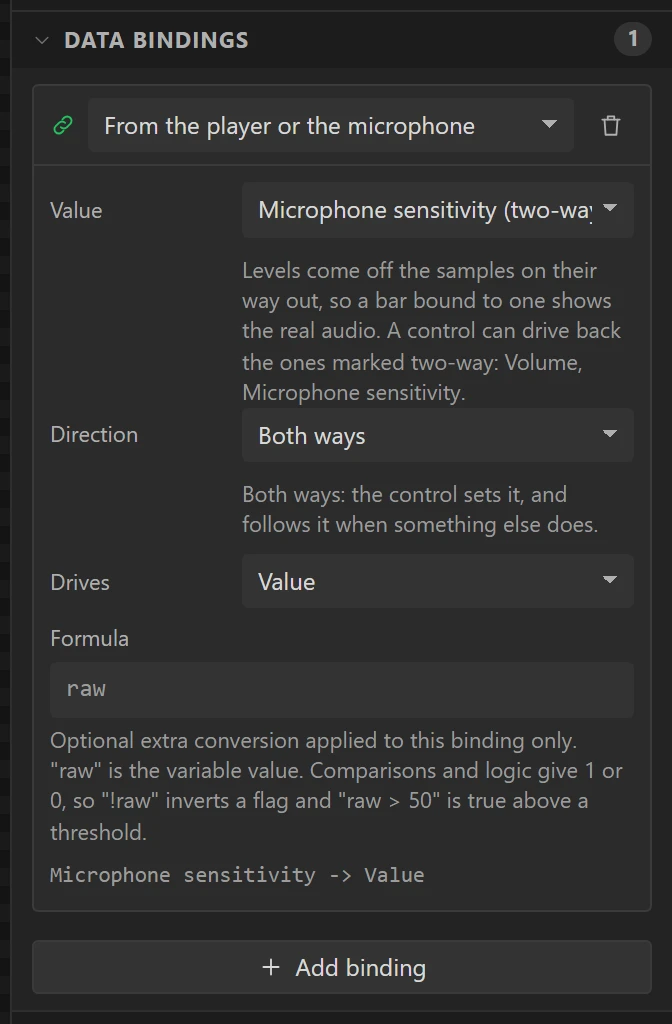
Open Data bindings and press Add binding. At the top of the binding choose From the player or the microphone, set Value to Microphone sensitivity and Direction to Both ways.
Both ways means the slider sets the sensitivity and also shows it: on the board it starts wherever the microphones' gain is, with nothing to keep in step. Either slider could have been made either way; this screen shows both.
25 FORGET and BACK
Two Buttons, styled as the keys in step 19 with a Radius of 19:
| Name | X, Y, W, H | Text | On Clicked |
|---|---|---|---|
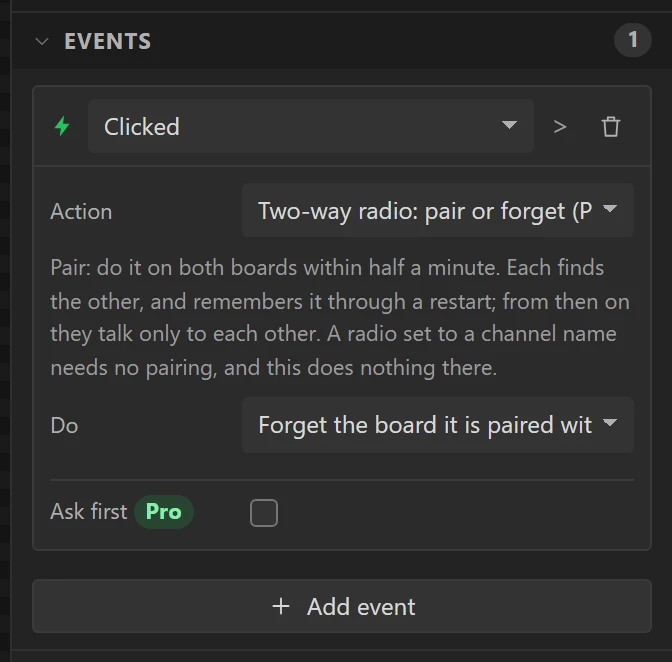
Forget | 16, 370, 140, 38 | FORGET | Two-way radio: pair or forget, Do: Forget the board it is paired with |
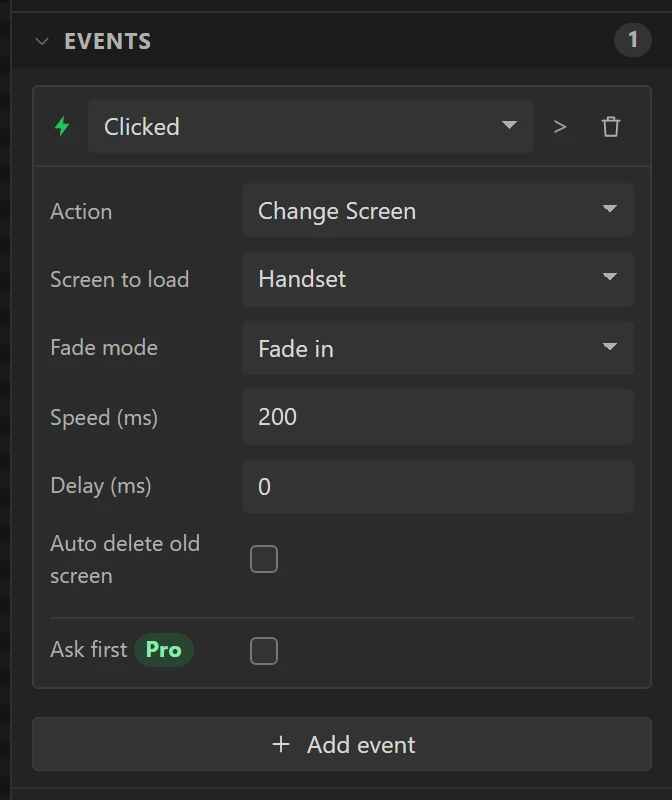
Back | 16, 424, 140, 38 | BACK | Change Screen, Screen to load: Handset, Fade mode: Fade in, Speed: 200 |
The quick way to the style: copy Pair on the Handset screen (Ctrl + C), come back to Setup and paste it (Ctrl + V). A paste brings the look and leaves the events behind.
26 Have the gear open Setup
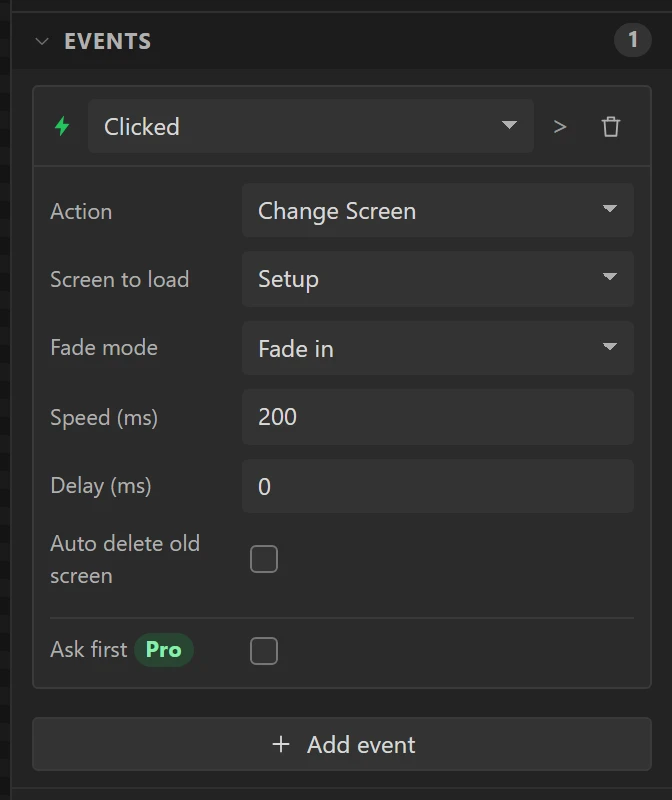
Click Handset in the Screens list and select the gear key, Set. Open Events, press
Add event, and set Clicked, Change Screen, Screen to load: Setup,
Fade mode: Fade in, Speed: 200.
It had to wait until now: a screen can only be chosen once it exists.
Part 6: try the handset
27 Talk, lock and listen in Preview
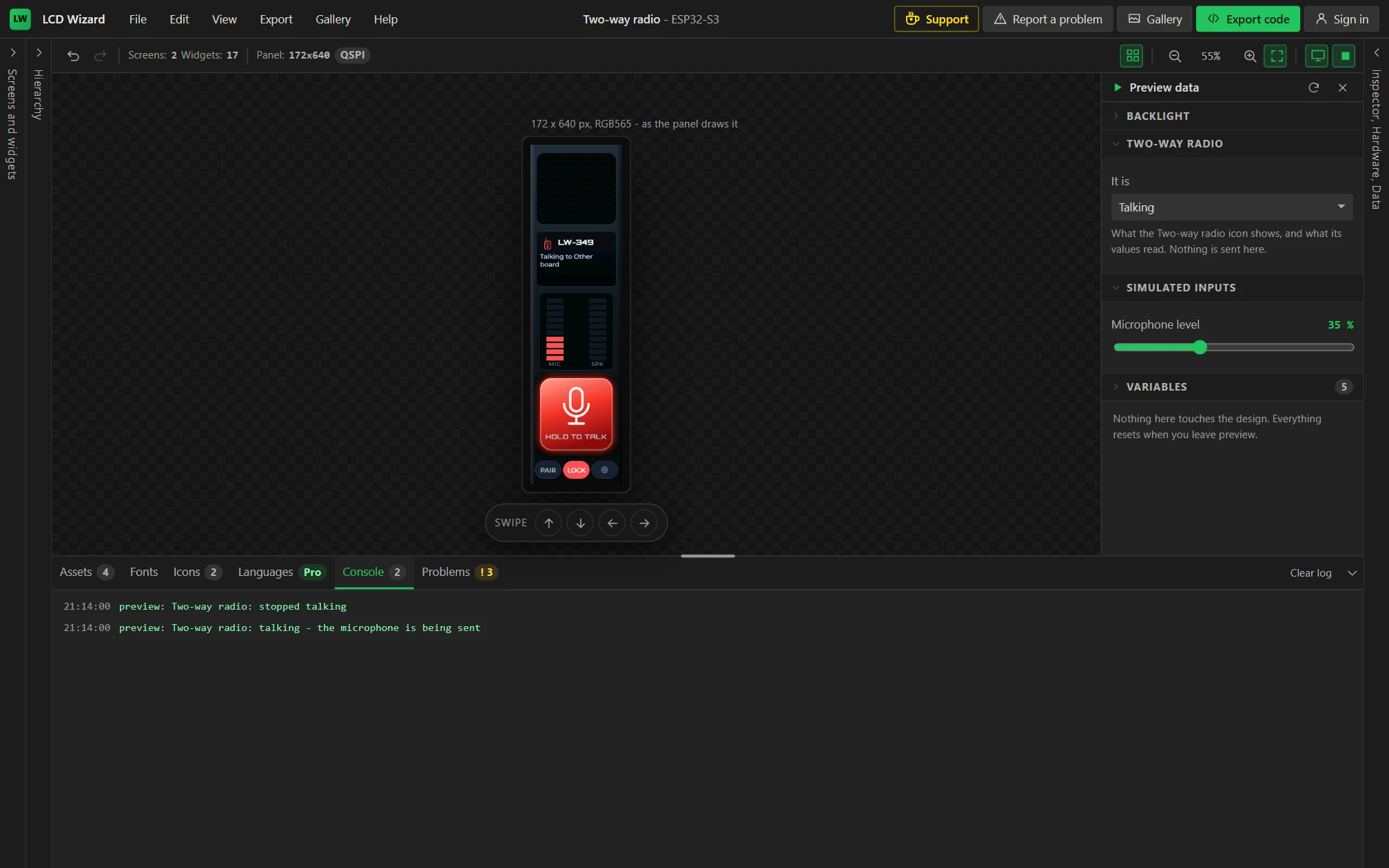
Press Preview. In the drawer, open Two-way radio and Simulated inputs.
- Hold the big key. It turns red, the mark turns red, LOCK lights and the line under the name reads Talking to Other board. Let go and it all goes back.
- Click LOCK: it stays talking until LOCK is clicked again. While it does, drag Microphone level in the drawer and watch the MIC meter follow in whole segments.
- Set It is to Hearing: the key turns green with a speaker on it. That is the other board talking.
- Click the gear, try FORGET and BACK. PAIR on the handset pairs it again.
You should see each thing the radio would do named in the Console. Nothing is sent from a browser.
Part 7: generate the code
28 Read the Problems tab
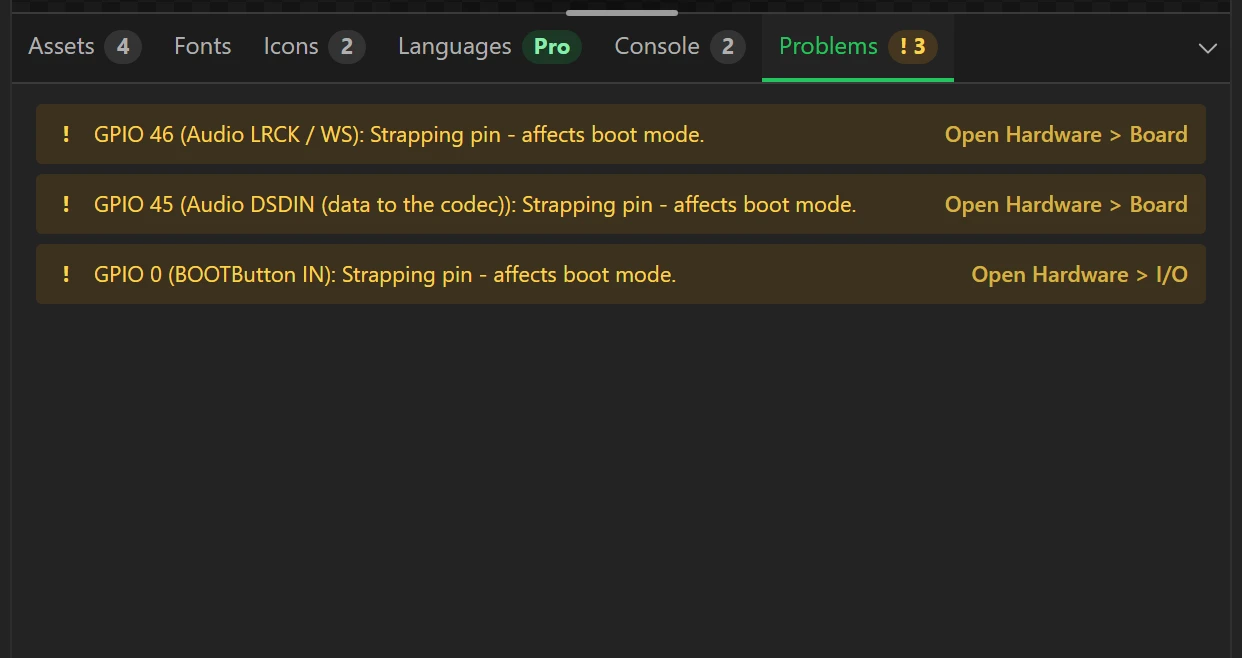
Leave Preview and open Problems in the bottom panel. There should be no errors. Three warnings come with the board's own wiring - two of its audio lines and its BOOT button are on pins the chip also reads as it starts - and none is in the way of this design.
29 Press Export code
Press Export code at the top right. Generating needs an account, and the dialog first says which parts of the design are Pro: the Two-way radio, and its two actions on the widgets and automations that use them. With Pro, press Generate code.

30 Download the project
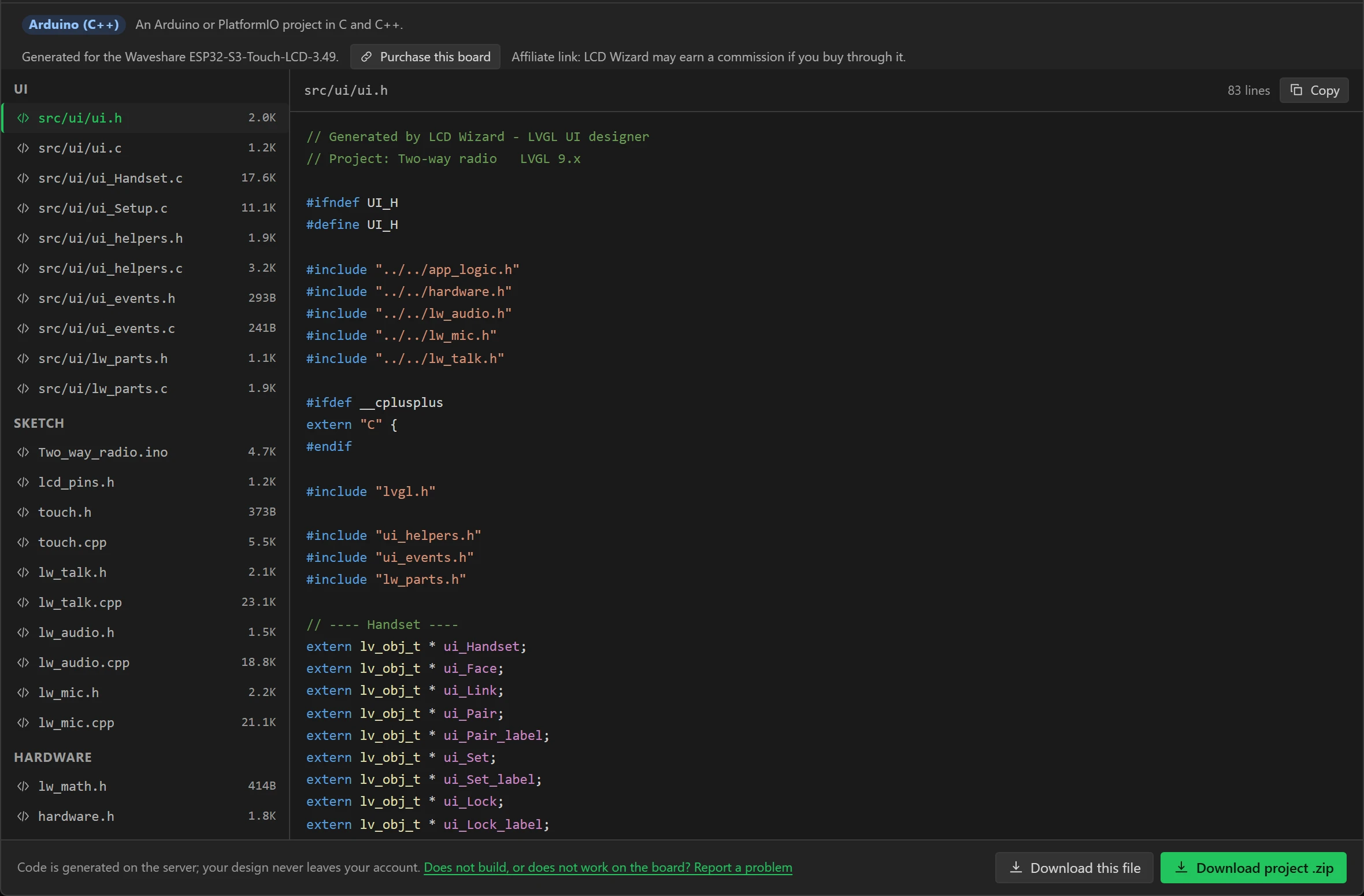
The dialog lists every file it wrote - 42 for this design - and shows any of them when clicked.
lw_talk.cpp is the radio: the link, the pairing and the voice. lw_mic.cpp and
lw_audio.cpp are the microphones and the speaker, and the four pictures are C arrays. Press
Download project .zip.
Part 8: two boards
31 Build it, and upload it to both
Unzip the project. With PlatformIO, plug in the first board, open a terminal in the folder and run:
pio run -t uploadThen unplug it, plug in the second and run the same again: both boards take the same firmware. The
first build fetches the libraries and takes a few minutes. With the Arduino IDE, open
Two_way_radio.ino from the folder, install the libraries that LIBRARIES.md
lists, and set the Tools menu as README.md says before pressing Upload.
Flashing and configuration has both routes in full.
You should see the handset on each panel, the mark grey, and Not paired. Press Pair on both boards. under the name.
Both boards are now called LW-349. That works; if you would like each to show the other by a name of its own, change This board is called (step 13) and generate again before uploading the second.
32 Pair them
Press PAIR on one board, then on the other, within half a minute. Each mark flashes blue and the line reads Pairing: press Pair on the other board.
You should see both marks settle on light blue and both lines read Paired with LW-349.
The pairing is kept in flash, so it is done once: switch the boards off and on and they are still a pair. FORGET, on the Setup screen, undoes it, and so does erasing a board's flash.
33 Talk
Hold the key on one board - or its BOOT button - and speak. Its key is red and its MIC meter moves; the other board's key turns green, its SPK meter moves, and your voice comes out of its speaker about a tenth of a second later. Let go, and the other board can answer. One talks and one listens, as on any walkie-talkie: a board does not play what it is sent while its own key is down.
- With both boards on one desk the talking board's microphones hear the other board's speaker. Turn the volume down on the Setup screen, or carry one into the next room - which is the test worth doing anyway.
- An amber mark and Talking, but LW-349 is not answering mean the other board is off or out of range.
- If one end is faint, raise MICROPHONE on the board that is talking, or VOLUME on the one that is listening. The radio already evens out what it sends (Even out the voice, step 13).
Making it yours
- More than two. Set the widget's It talks to to Every board on the same channel name and every board with the same words under Channel name hears every other, with no pairing. A channel is not private; a pair is, in the way a walkie-talkie is.
- A different second board. Any ESP32 board with a speaker and a microphone can be the other end. The gallery has this radio drawn for Waveshare's round 1.46-inch board as a round handset, and the two have been run as a pair.
- A receiver only. A board with a speaker and no microphone can still be paired, and listens.
- The two-way radio is the reference: pairing and what it is worth, the Wi-Fi channel, range, and every value a design can read.
- Variables and bindings and Automations cover what Parts 3 and 4 used.
- Tutorial: a stream deck for OBS is the other one.