Tutorial: a blocky pixel-art radio for the Cheap Yellow Display
An internet radio drawn like a game's item window, for the original ESP32-2432S028R. It plays through the board's own speaker connector.
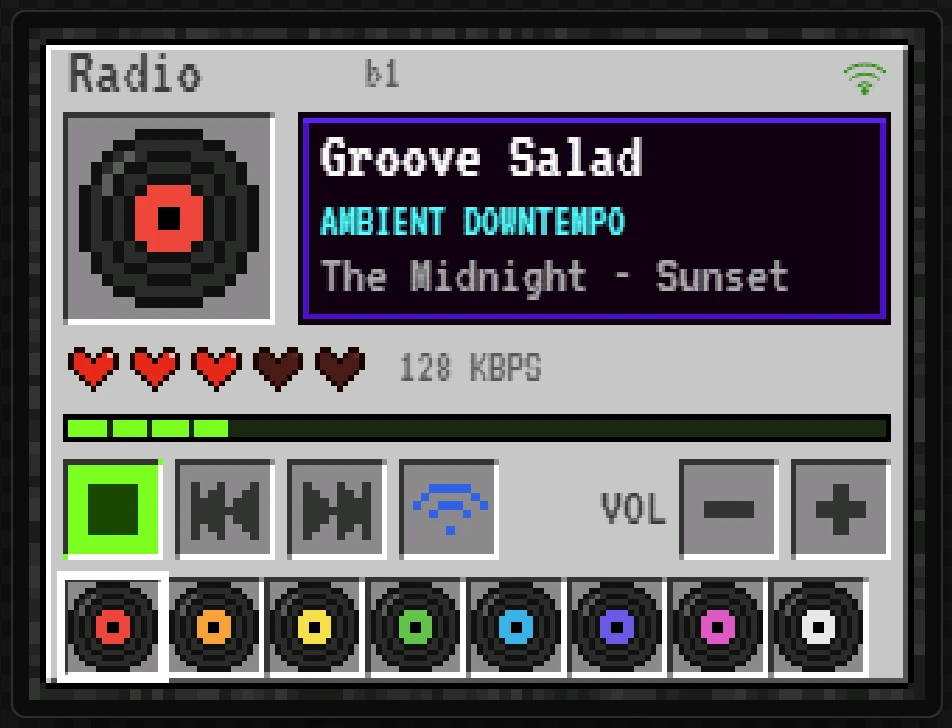
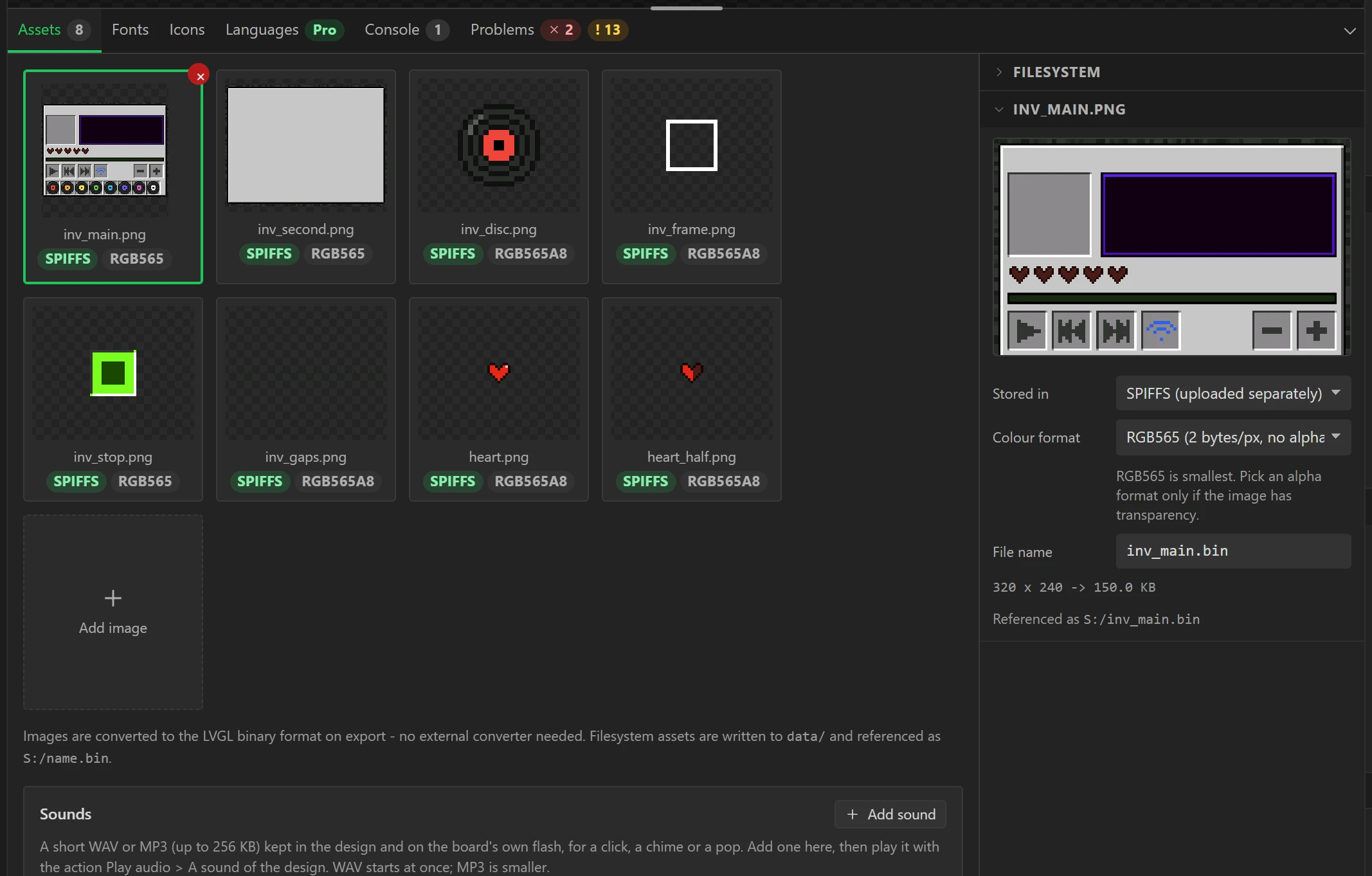
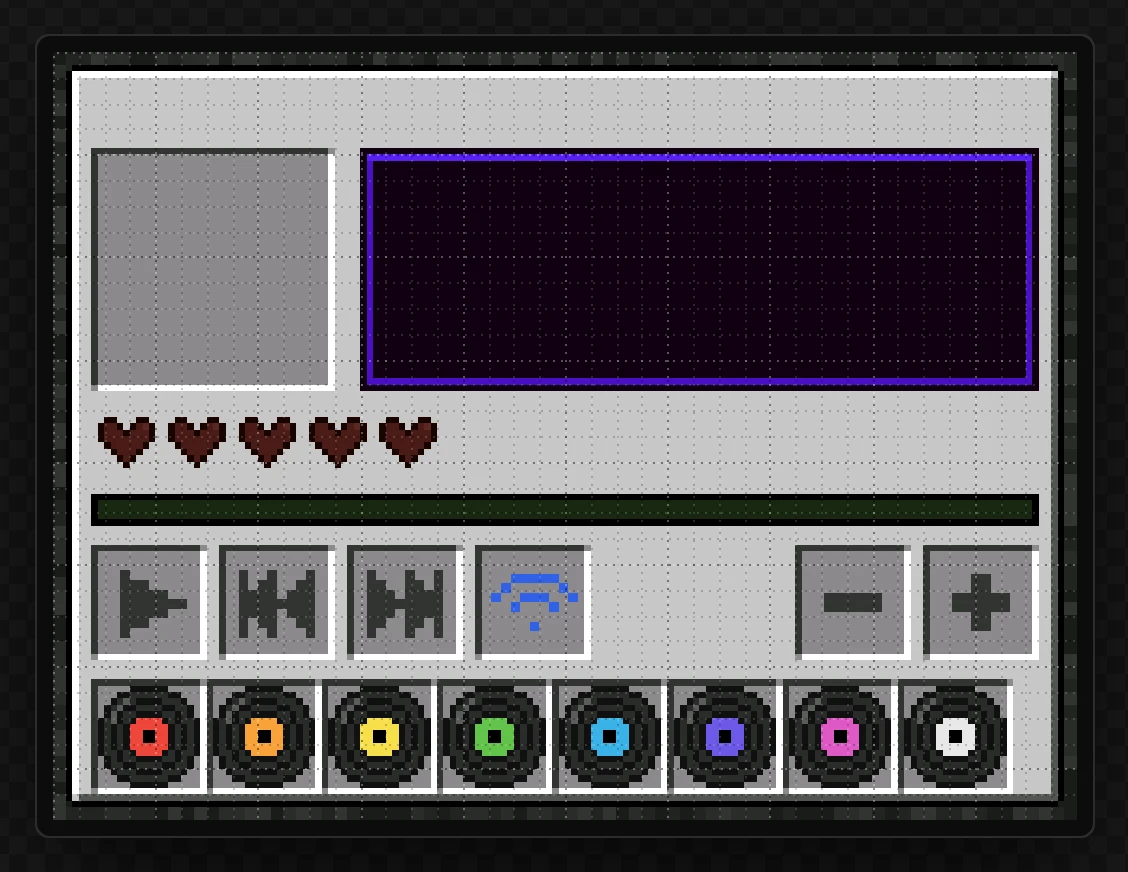
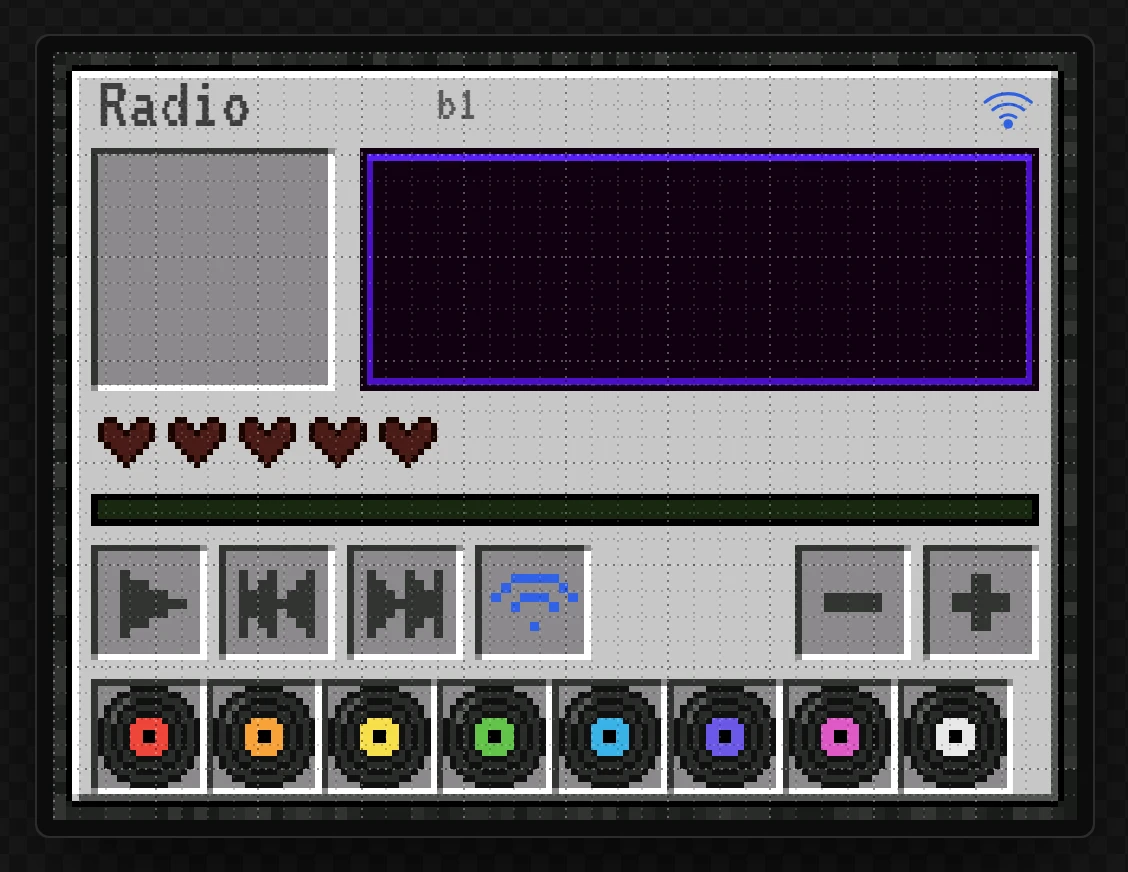
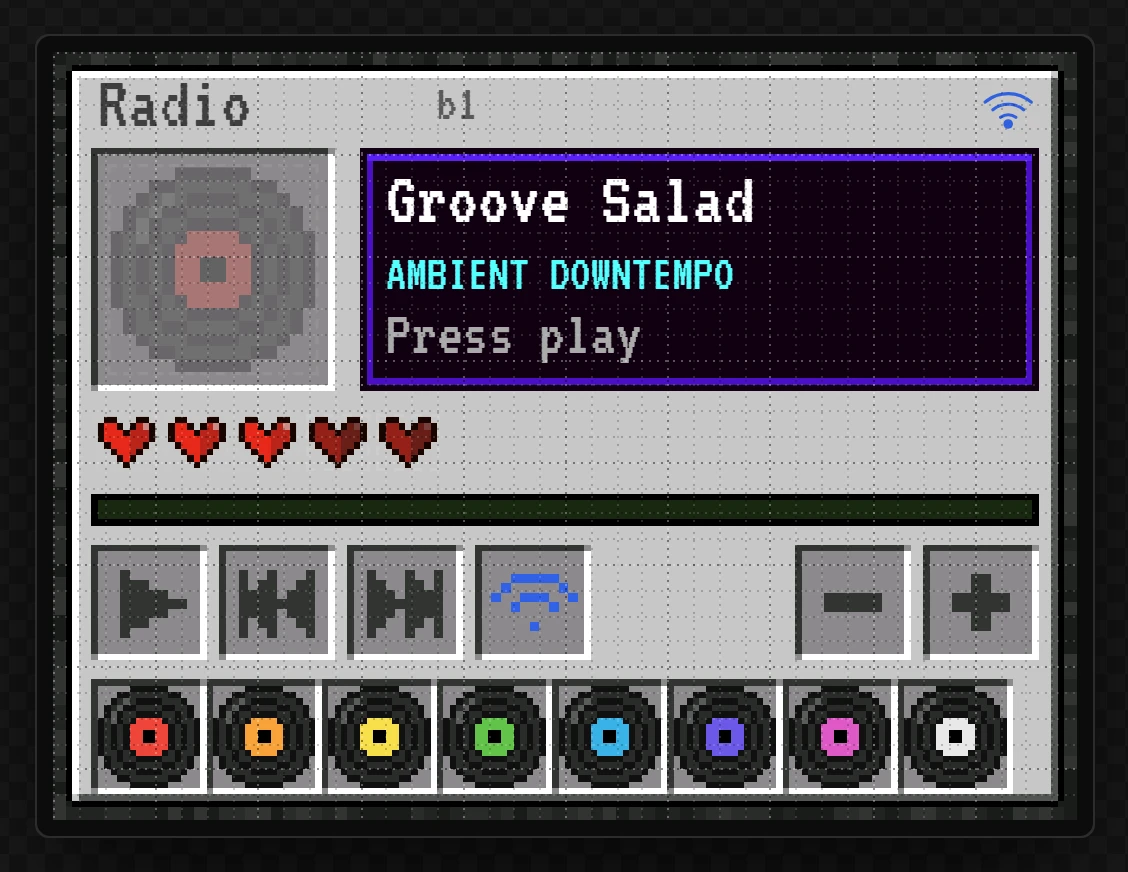
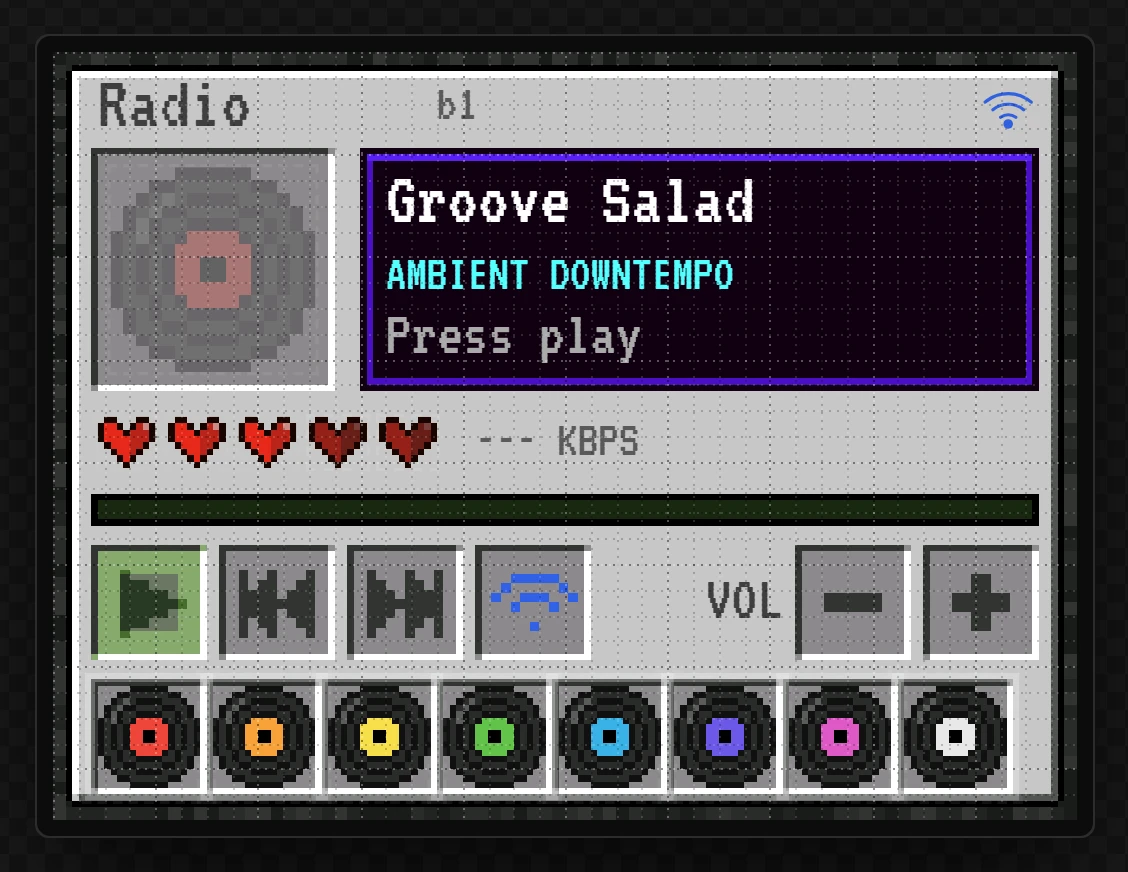
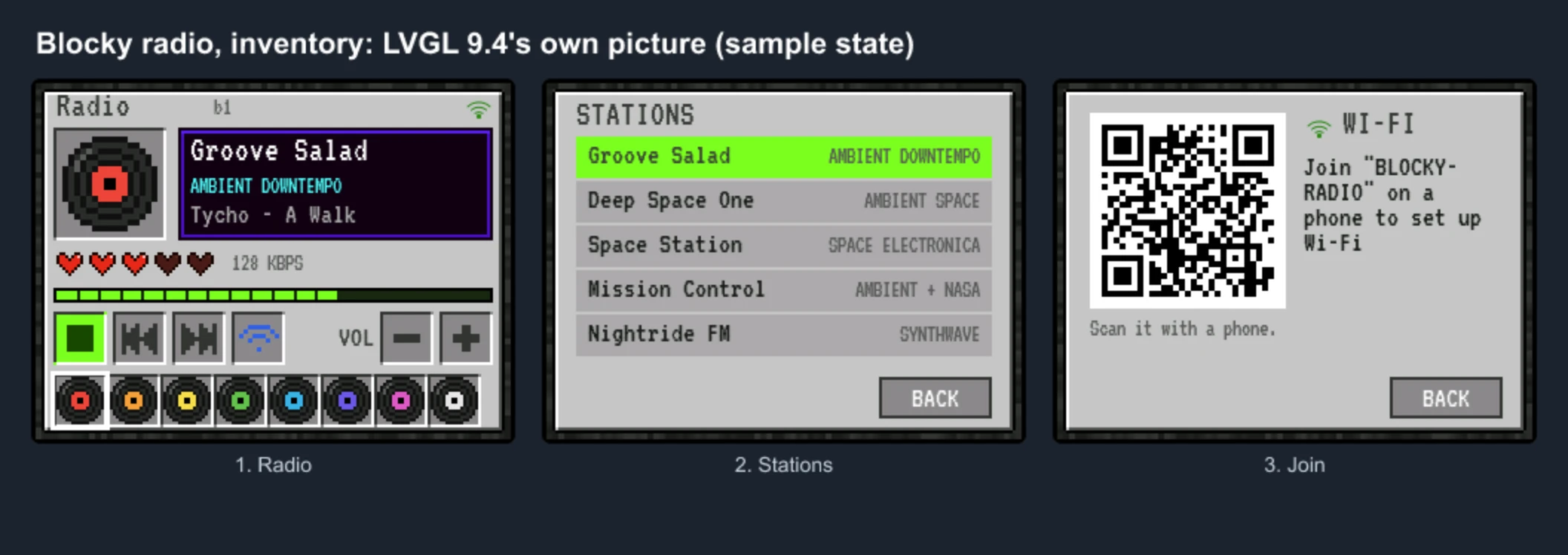
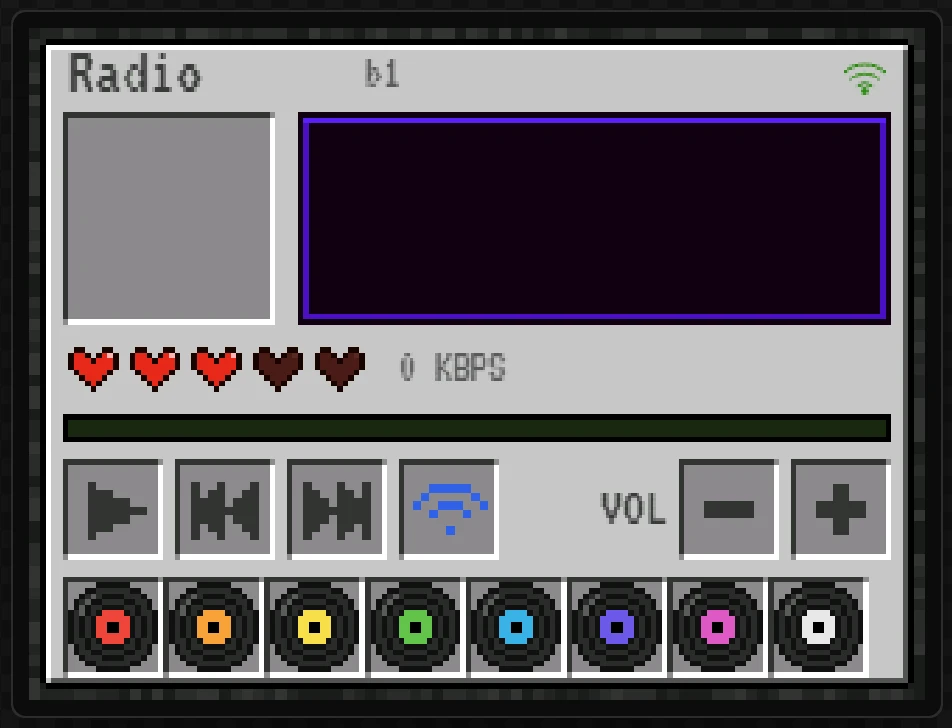
The disc in the big slot turns up while a station plays. The purple tooltip names the station, its genre and the track. Five hearts are the volume, and a finger slides along them. The green bar is the sound level. Under it are play, previous and next, a Wi-Fi slot that opens the screen for setting up Wi-Fi, and VOL - and +. Along the bottom, eight coloured discs are eight stations, and the one playing has a white frame. Wi-Fi is set up from a phone, so the board never needs a keyboard.
Every step in the designer was carried out to take its picture, and the design that came out of the steps was compared with the one it rebuilds, generated, and compiled for the board. The last four steps, on the board itself, are words; the ready-made image of step 51 has played on a Sunton ESP32-2432S028R.
Free to build. Nothing in this design is part of Pro. You need a free account, because generating code needs one.
Why it has no Bluetooth. This radio was first made to play to a Bluetooth speaker too. On a real CYD that does not work: with Wi-Fi running, the chip has too little memory left to start Bluetooth Classic, and the board crashes. Playing to a Bluetooth speaker needs a classic ESP32 with PSRAM, a WROVER module, and the CYD has no PSRAM. So this version plays through the board's own speaker connector, and step 9 makes room for the player.
It plays on a real board. The ready-made image in step 51 has played on a Sunton ESP32-2432S028R, through the board's own speaker connector. If you build it yourself, tell us on the forum how it went.
What you need
- An ESP32-2432S028R, the original Cheap Yellow Display, and a micro-USB cable. Lookalikes are wired differently: choose your own board in step 3 if it is not this one.
- A small speaker for the board's speaker connector.
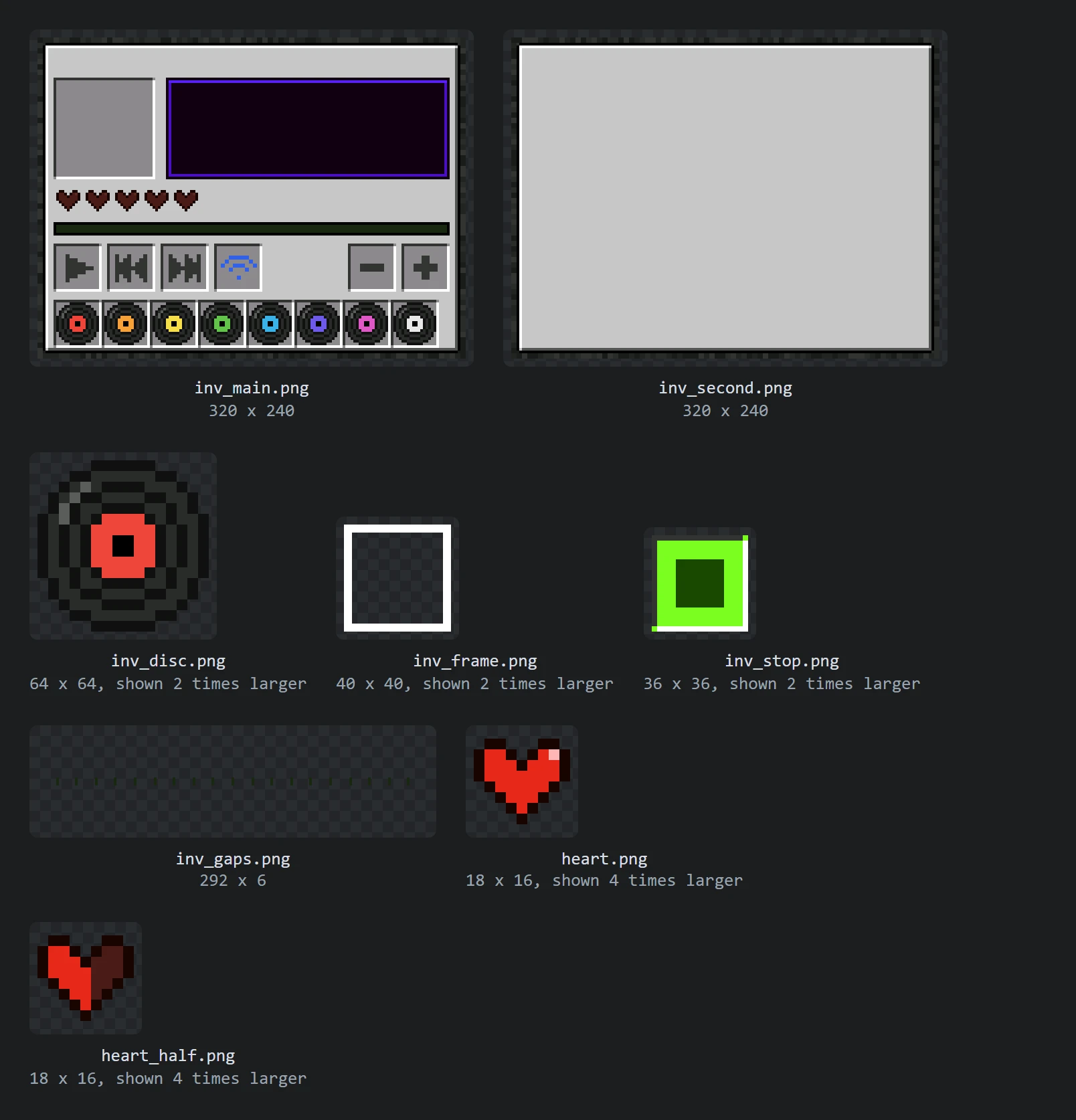
- A phone, to tell the board your Wi-Fi network.
- The eight pictures the design uses: blocky-radio-pictures.zip (6 KB). They are pixel art drawn for this radio. Unzip them somewhere you can find again.
- PlatformIO or the Arduino IDE, to build what the designer generates. Or skip building and flash the ready-made image.
Allow about an hour for the design. If you would rather look at the finished thing first, every widget is listed with its numbers in the build sheet at the end.
Part 1: a project for the Cheap Yellow Display
1 Sign in
Open the designer and press Sign in at the top right. A free account is enough. The export at the end asks for one.

2 Start a project for Arduino
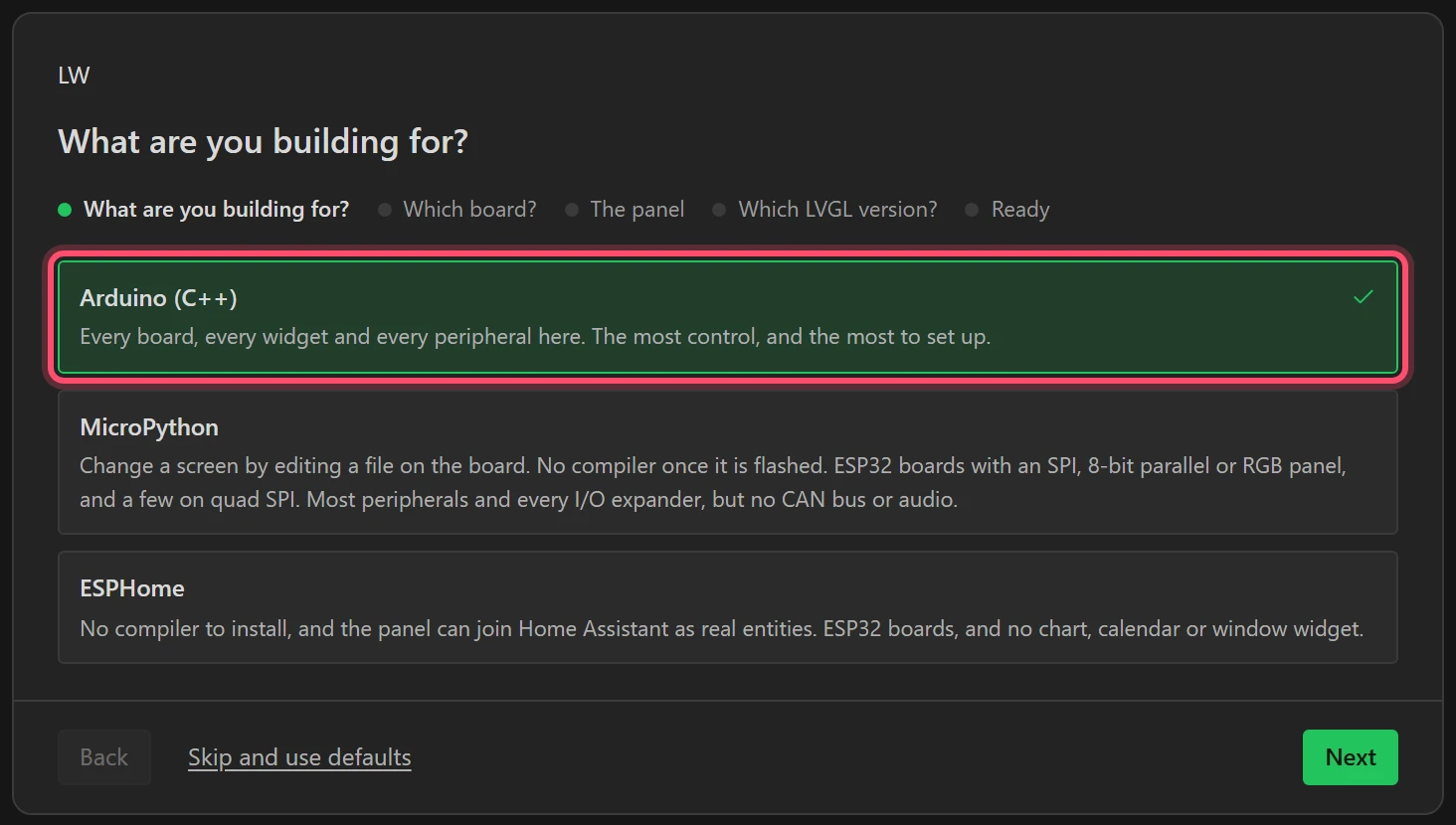
On a first visit the setup wizard is already open; otherwise choose File > New project. For What are you building for? choose Arduino (C++) and press Next. The audio player and WiFi by phone are in the Arduino export.
3 Choose the board
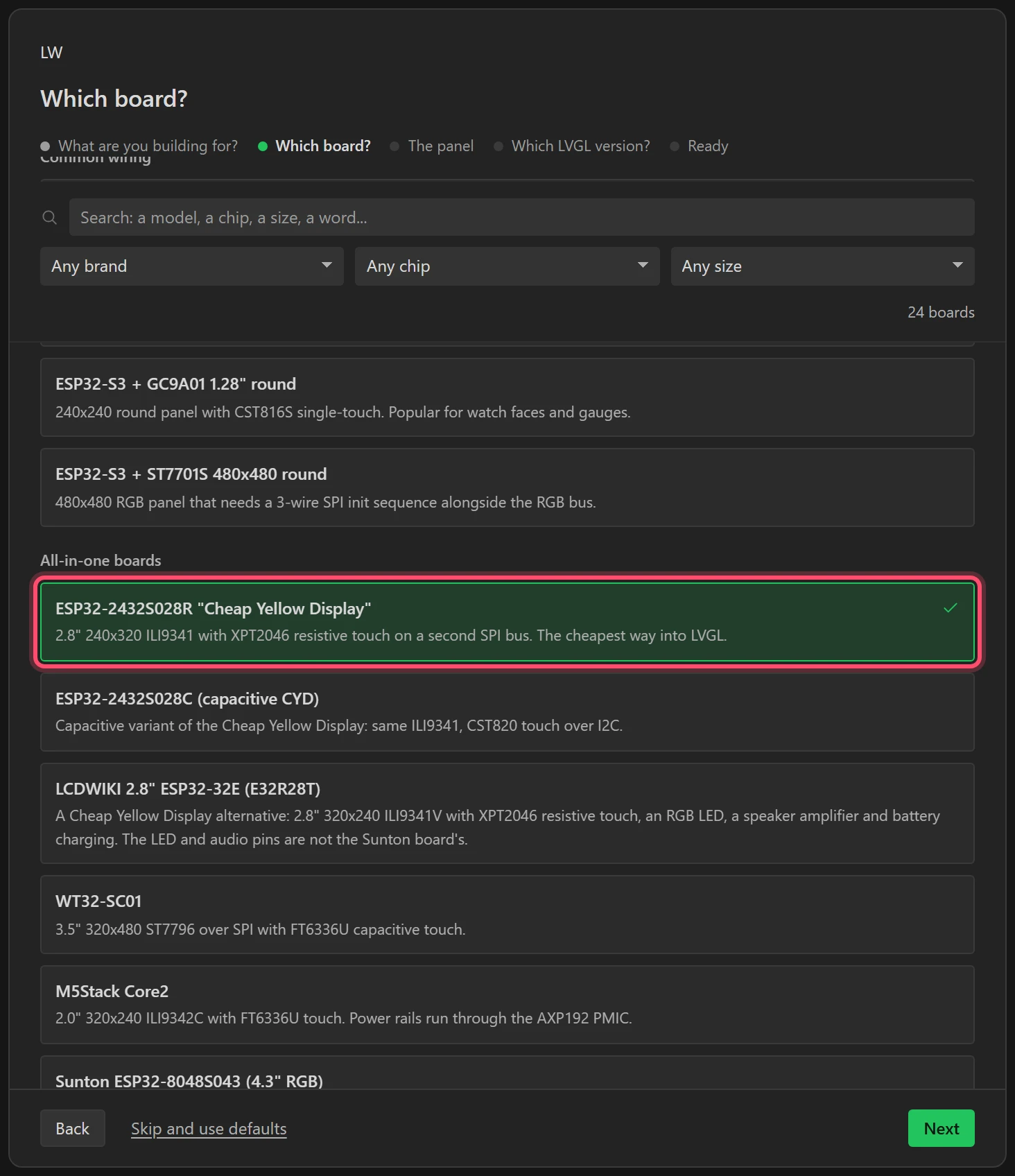
Choose ESP32-2432S028R "Cheap Yellow Display". That fills in every pin, the ILI9341 panel and the XPT2046 touch chip. Press Next.
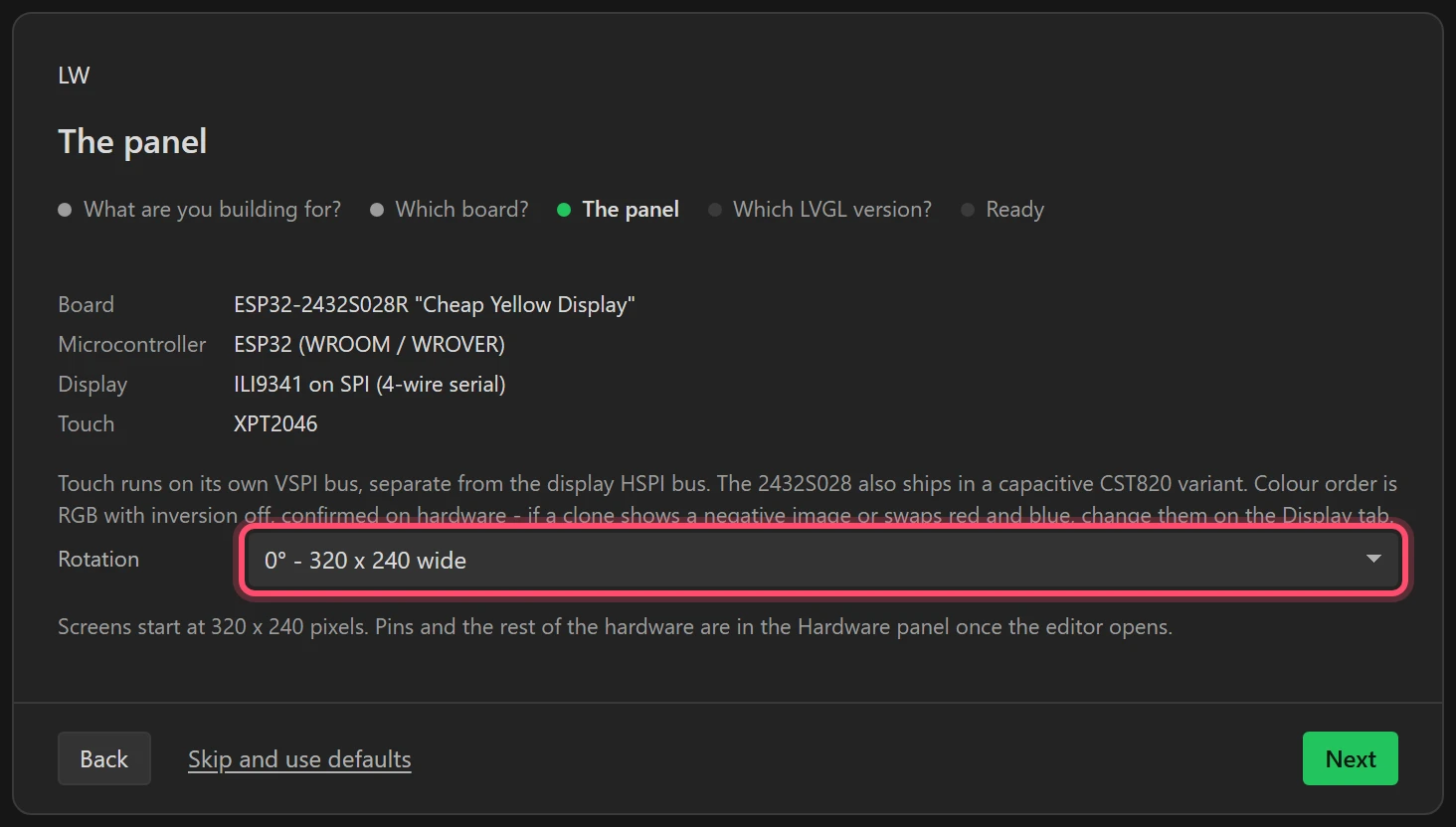
4 Keep the panel wide
Leave Rotation at 0° - 320 x 240 wide, and press Next.
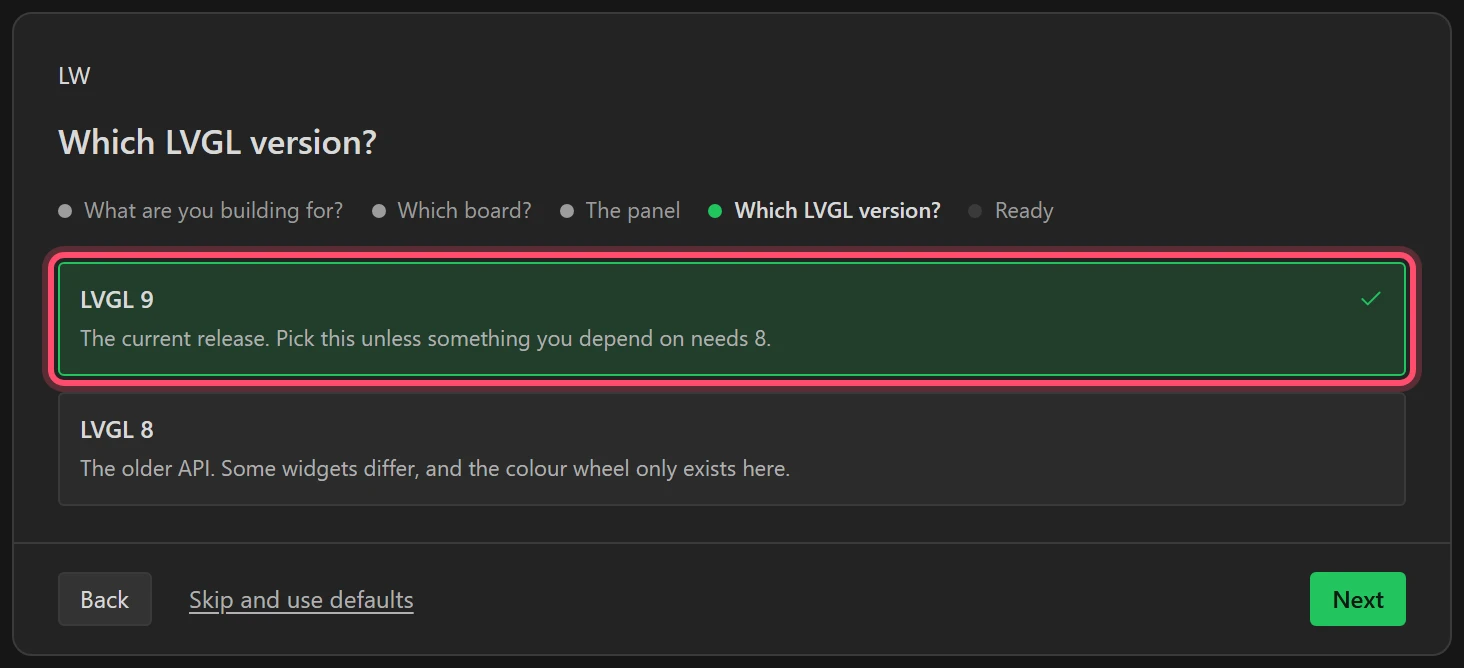
5 Keep LVGL 9
LVGL 9 is already chosen. Press Next.
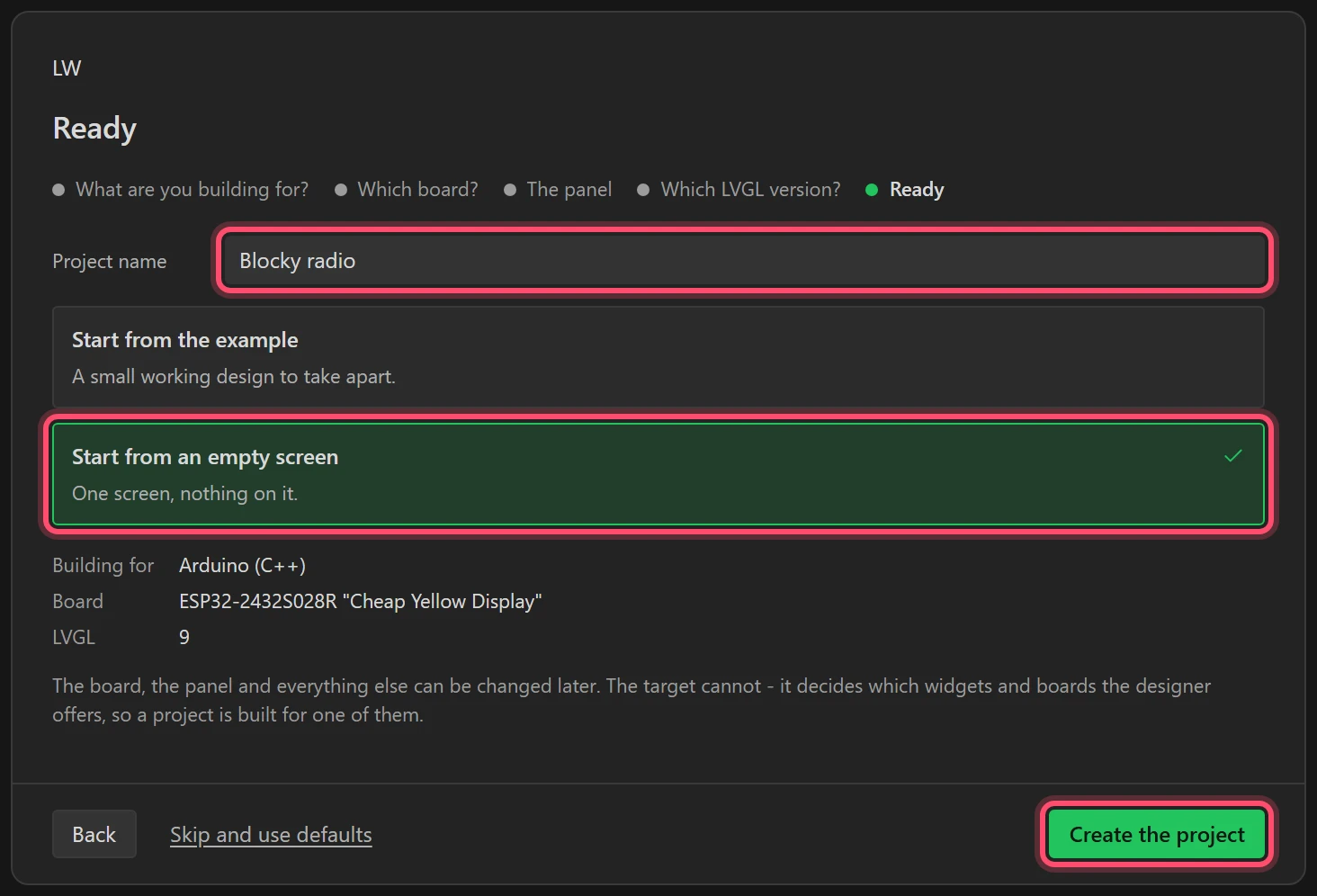
6 Name it and start empty
Type Blocky radio for the name, choose Start from an empty screen, and press
Create the project.
7 Look round the designer
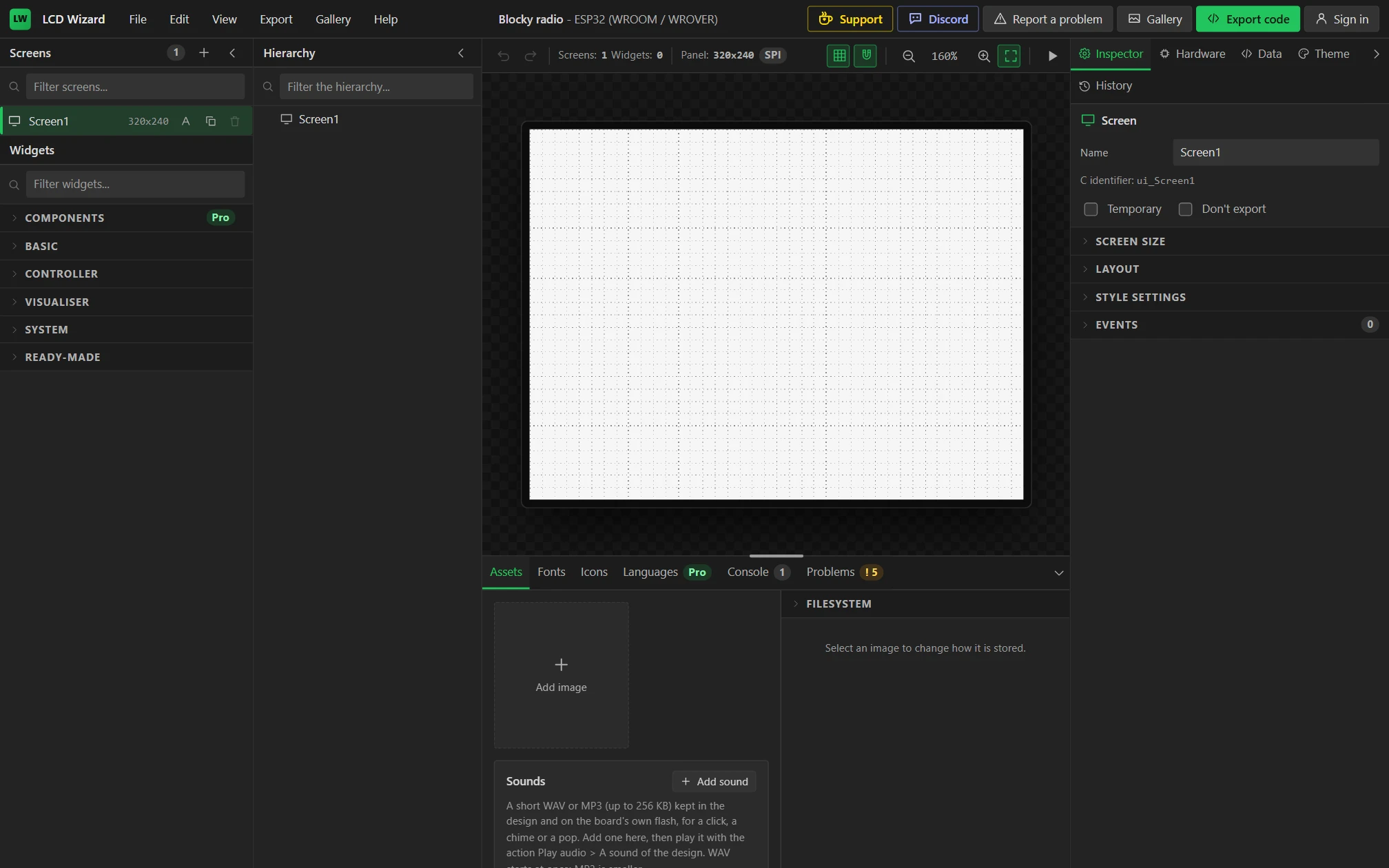
The screen is in the middle, at 320 x 240. Screens and Widgets are on the left, with the Hierarchy beside them. On the right are Inspector, Hardware, Data and Theme. Along the bottom are Assets, the Console and Problems. The design is saved in your browser as you go.
Part 2: the sound, and room for the player
8 Switch the sound on
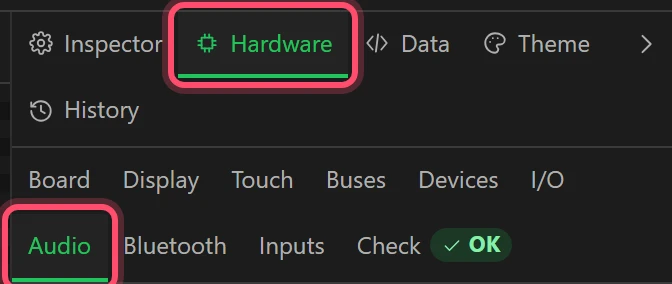
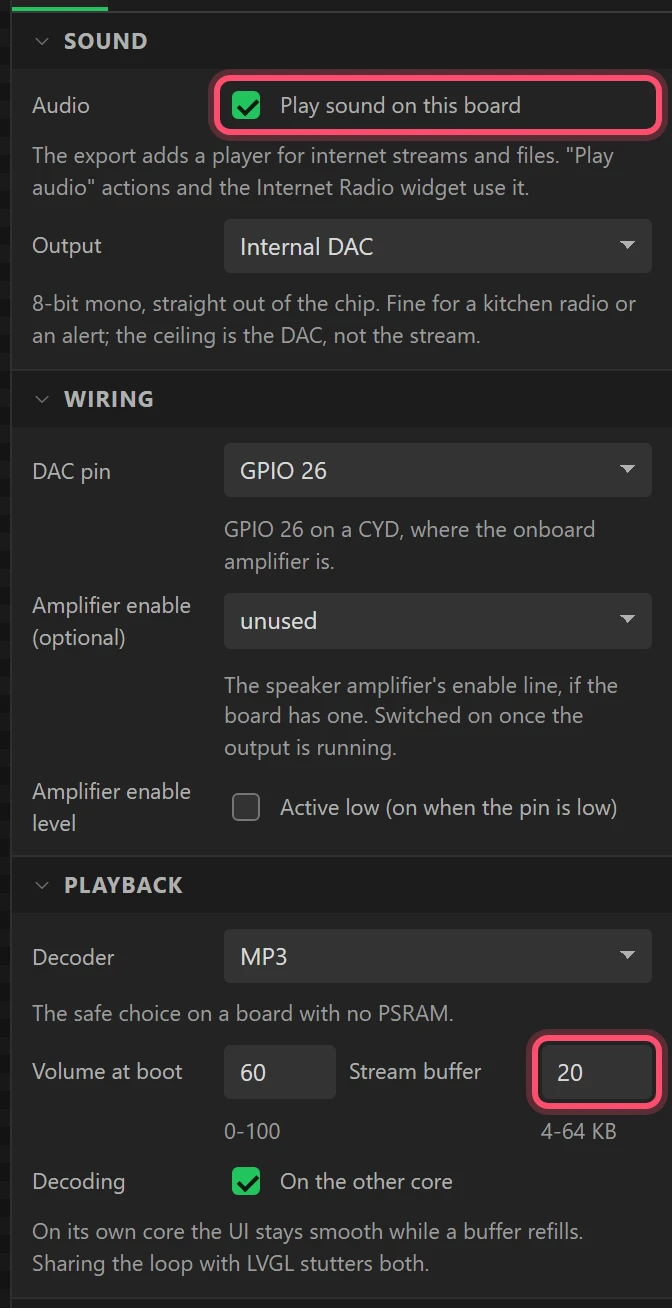
Open Hardware, then Audio in its second row of tabs. Open the Sound section and tick Play sound on this board.
- Output is Internal DAC, and under Wiring the DAC pin is GPIO 26: the board's amplifier and its speaker connector. Leave both.
- Under Playback, set Stream buffer to
20. A buffer a little bigger than the default rides out the gaps in a station over Wi-Fi. - Leave Decoder at MP3, Volume at boot at
60and Decoding on the other core.
9 Draw ten lines at a time
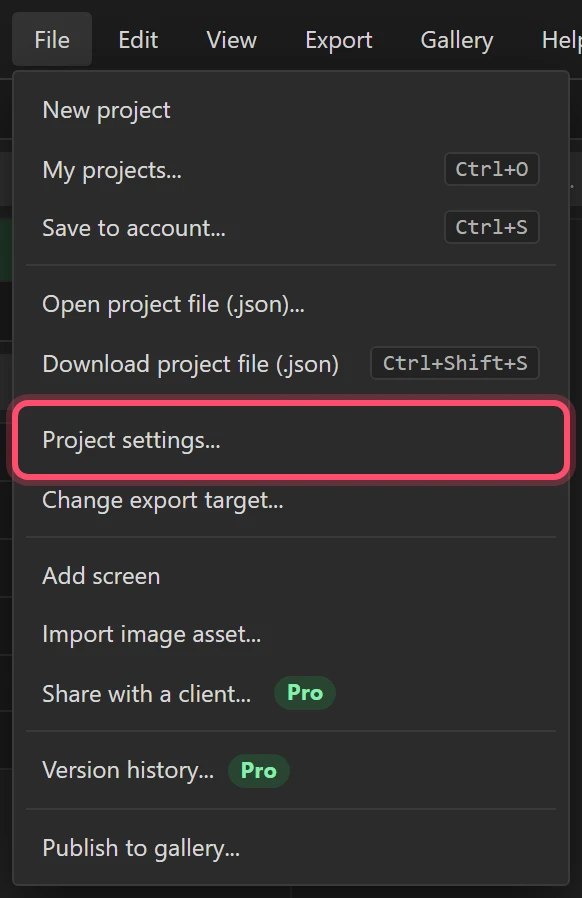
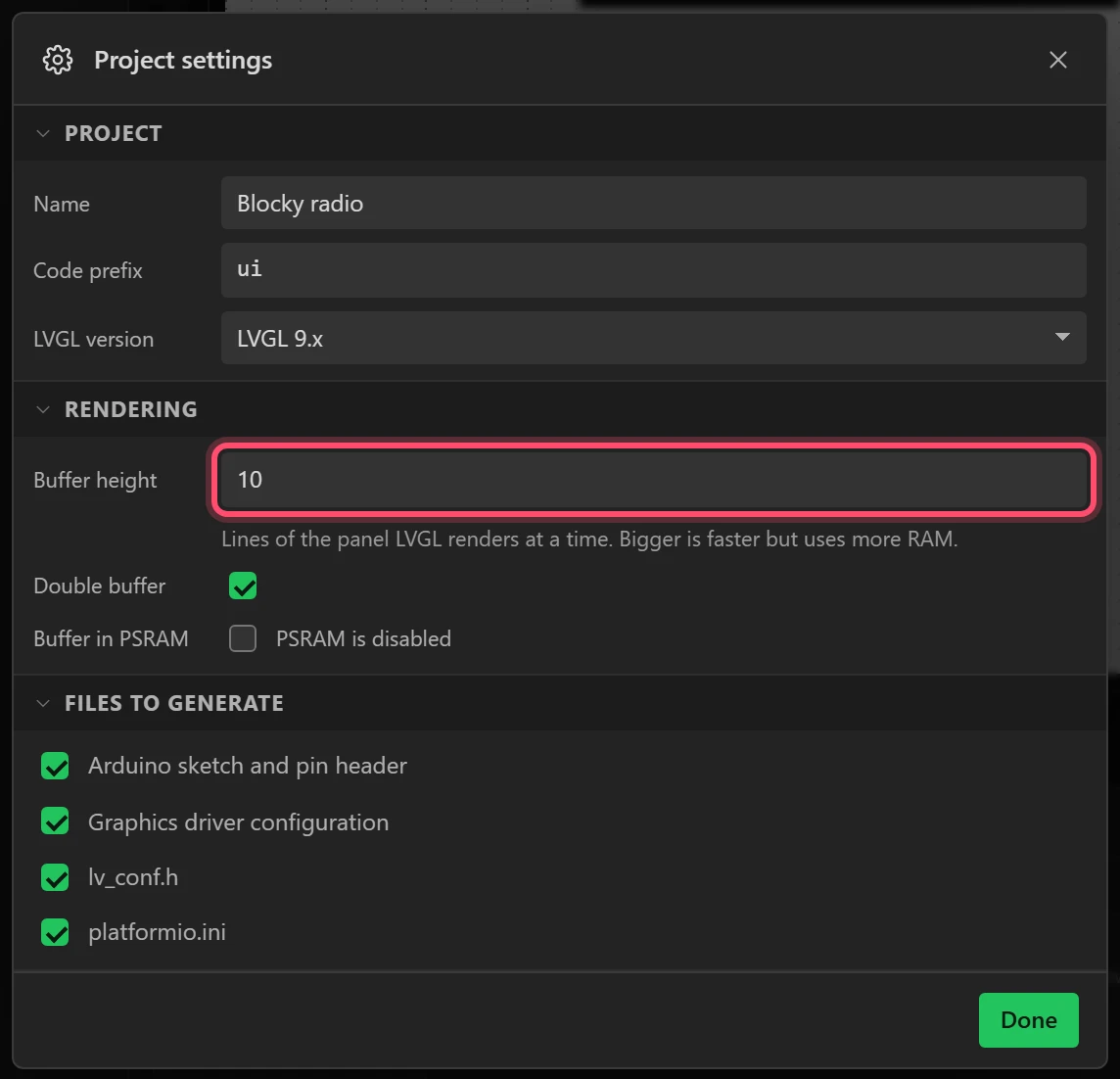
Open File > Project settings... and, under Rendering, set Buffer height to
10. Leave Double buffer ticked, and press Done.
LVGL draws the screen in strips, and keeps two of them in the chip's own memory. At the 40 lines a new project starts with, the two take 50 KB. At 10 lines they take 12.5 KB. This board has no PSRAM, and the 37 KB this frees is what the player needs beside Wi-Fi: its 20 KB stream buffer, the MP3 decoder and the connection to the station. Smaller strips draw a little slower, which a radio does not miss.
Part 3: the pictures
10 Add the eight pictures
In the bottom panel, on the Assets tab, press Add image and choose
inv_main.png. Do the same for the other seven, in this order: inv_second.png,
inv_disc.png, inv_frame.png, inv_stop.png, inv_gaps.png,
heart.png, heart_half.png. Keep the file names: the code names each picture
after its file.
The designer gives each one a Colour format from its pixels. A picture with see-through parts gets RGB565 + A8, and the rest get plain RGB565. Leave what it chooses.
11 Keep them in the firmware
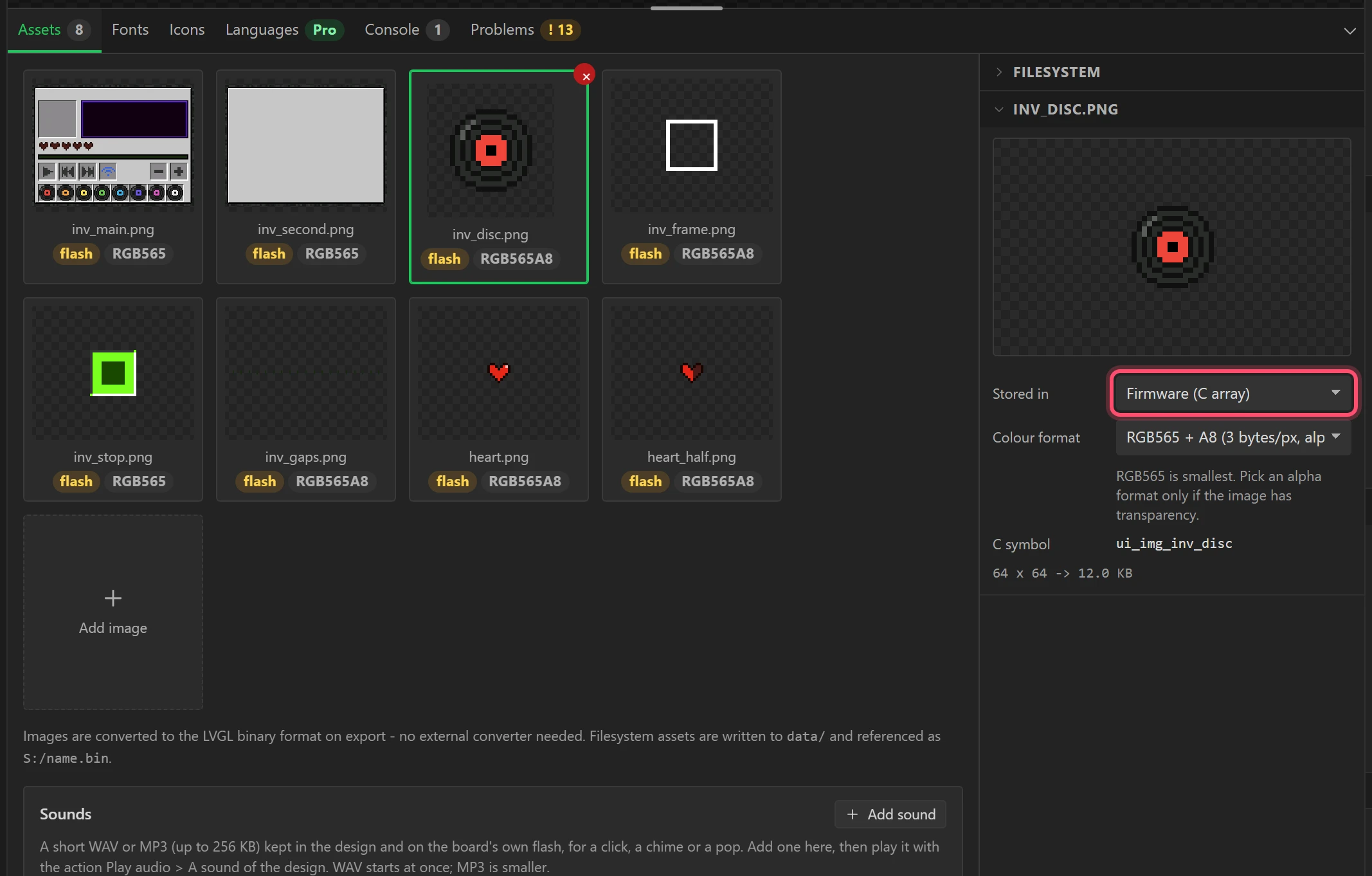
Click each picture in turn and set Stored in to Firmware (C array). Until you do, the Problems tab shows two errors: a picture on the filesystem is decoded into LVGL's memory every time it is drawn, and on this board that memory is 48 KB, so the two 150 KB backdrops would never appear. In the firmware they are drawn from flash, where the board has room.
Part 4: three screens
12 Name the first screen Radio, and make it black
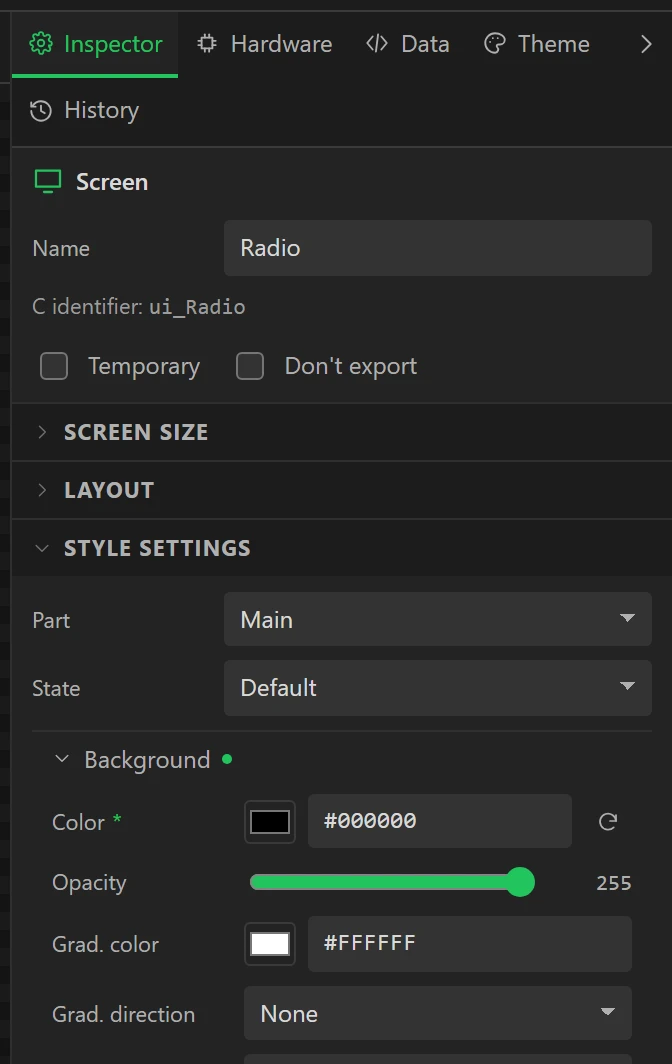
Click Screen1 in the Hierarchy, so the Inspector shows the screen. Set Name to
Radio. Open Style settings, then Background, and set Color to
#000000. The backdrop covers it, and black is what shows for the moment before it is drawn.
13 Add two more
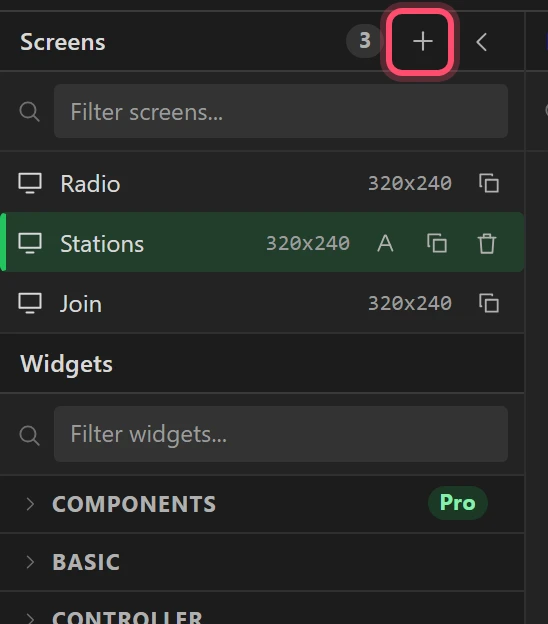
Press + beside Screens twice. Name the new screens Stations and
Join, in that order, and make each one's background #000000 as in step 12. A
screen is renamed with the A beside it, or with Name in the Inspector.
They are made now because the radio's keys open them, and a key can only open a screen that exists.
Part 5: the station list
The stations come first, because the discs on the radio screen each play one. Click Stations in the Screens list.
14 The backdrop
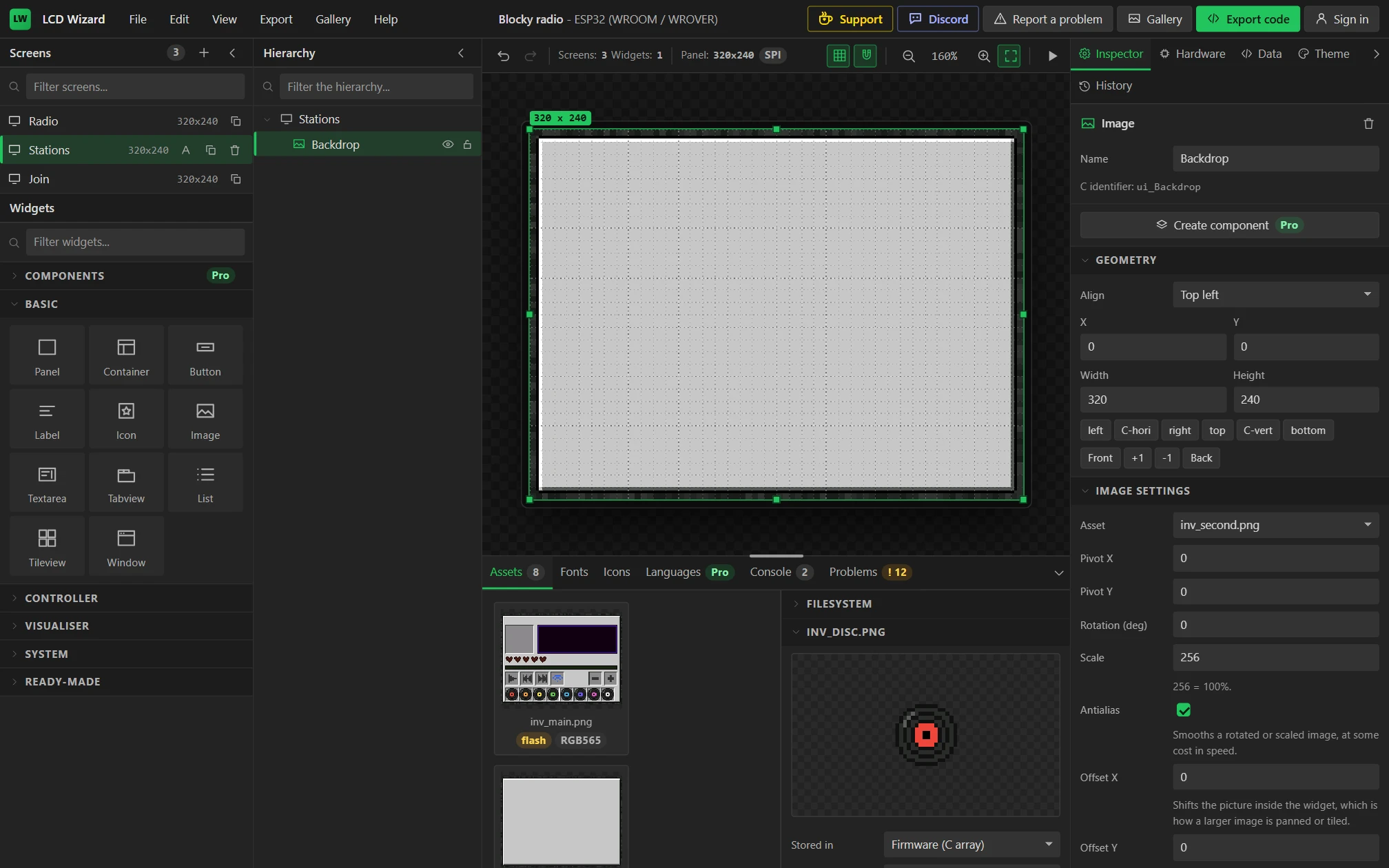
Open Basic in the Widgets list and drag Image onto the screen. In the Inspector set
Name to Backdrop, open Image settings and set Asset to
inv_second.png. The widget takes the picture's size, 320 x 240. Open Geometry and set
X and Y to 0. Then open Flags and untick Clickable and
Scrollable: a picture takes no touch. Do that for every picture in this design.
15 A title in the pixel font
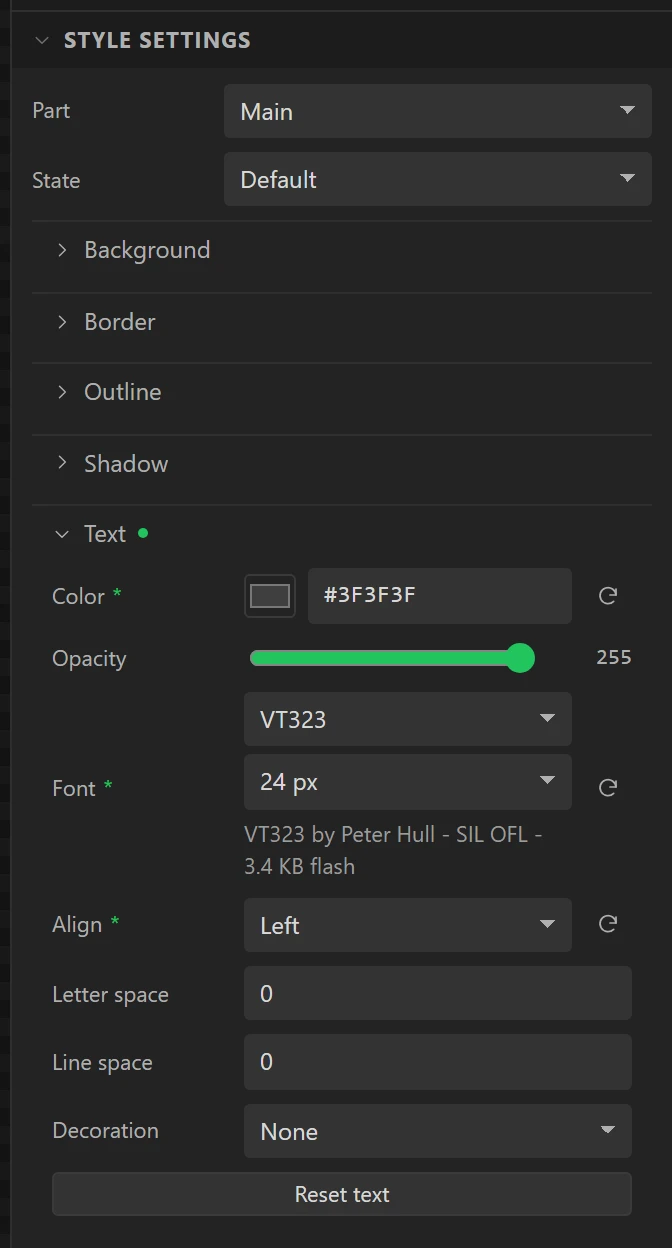
Drag a Label onto the screen. Name it ListTitle, set Text to
STATIONS, and in Geometry set X 20, Y 12, Width
200, Height 22. In Style settings, open Text: Color
#3F3F3F, Font VT323 at 24 px, Align Left.
VT323 is the pixel font every word on this radio is in, at 16, 20 or 24 px. A quick way to the next label is to copy this one (Ctrl+C, then Ctrl+V) and change its text, place and size.
16 Drop an Internet Radio
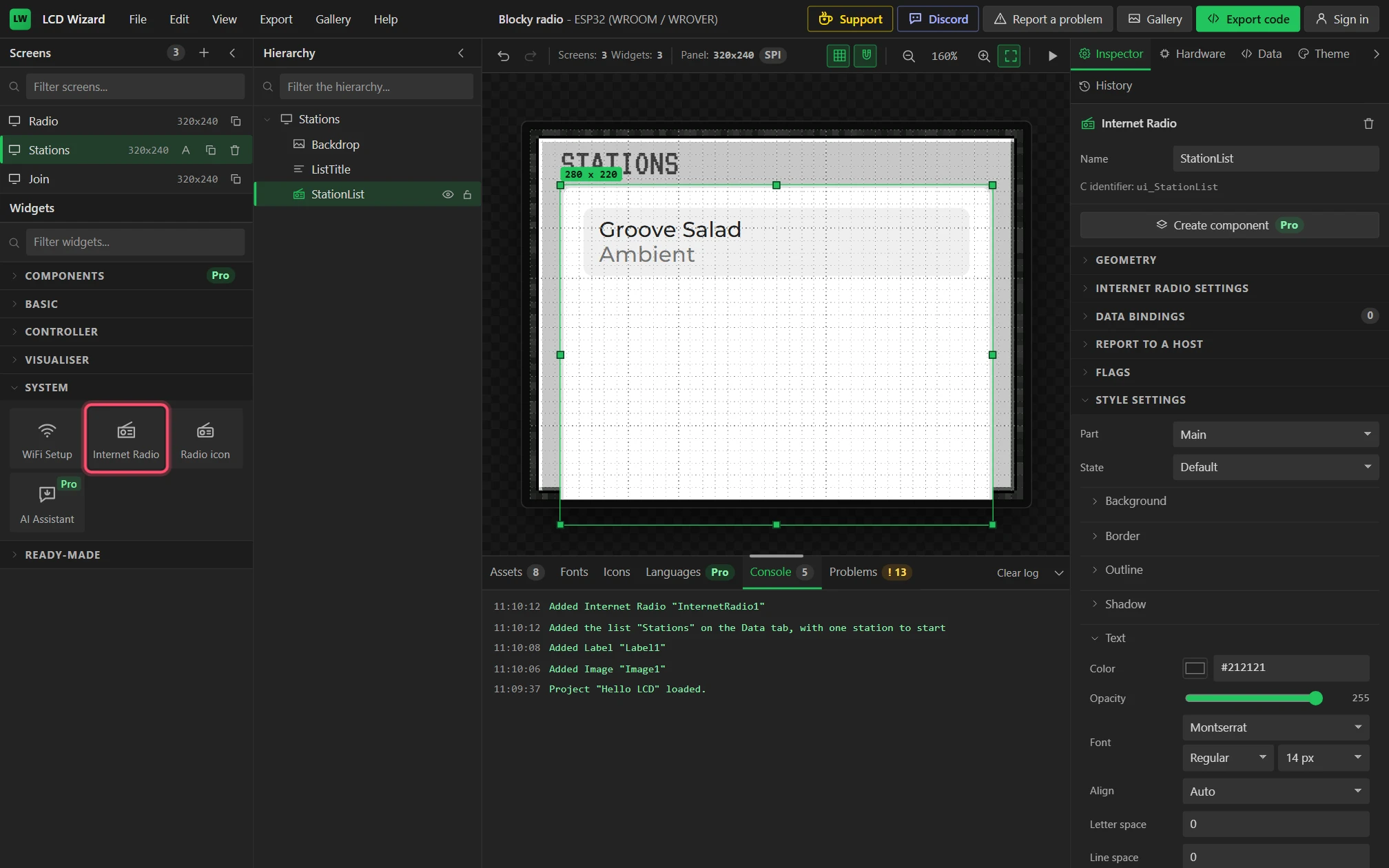
Open System in the Widgets list and drag Internet Radio onto the screen. It needs a
player and something to play, so dropping it makes a list called Stations on the Data tab with one
station in it, Groove Salad. The Console says so. Name the widget StationList.
17 Put in the eight stations
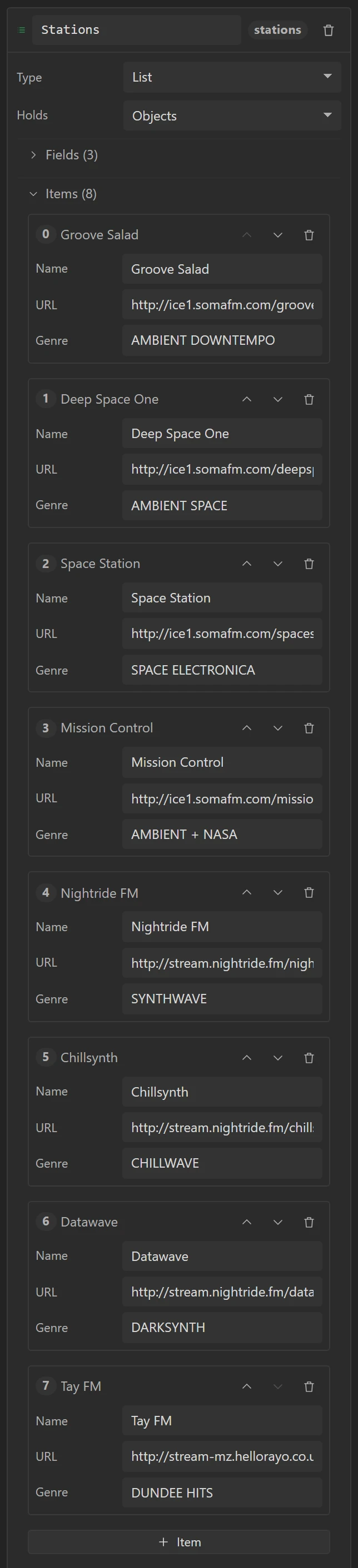
Open Data on the right and the Stations list in Variables. Under Items,
change Groove Salad's Genre to AMBIENT DOWNTEMPO. Then press + Item seven times
and fill in each one's Name, URL and Genre, in this order:
- Groove Salad,
http://ice1.somafm.com/groovesalad-128-mp3, AMBIENT DOWNTEMPO - Deep Space One,
http://ice1.somafm.com/deepspaceone-128-mp3, AMBIENT SPACE - Space Station,
http://ice1.somafm.com/spacestation-128-mp3, SPACE ELECTRONICA - Mission Control,
http://ice1.somafm.com/missioncontrol-128-mp3, AMBIENT + NASA - Nightride FM,
http://stream.nightride.fm/nightride.mp3, SYNTHWAVE - Chillsynth,
http://stream.nightride.fm/chillsynth.mp3, CHILLWAVE - Datawave,
http://stream.nightride.fm/datawave.mp3, DARKSYNTH - Tay FM,
http://stream-mz.hellorayo.co.uk/tayfm.mp3?aw_0_1st.skey=1602676850&aw_0_1st.playerid=BMUK_ukrp, DUNDEE HITS
They are plain http MP3 streams, which a board with no PSRAM plays best: a secure connection would cost memory this board does not have. The order matters: the discs on the radio screen are these stations, first to last.
18 Place the list and set its look
Back on Inspector, with StationList selected, set Geometry to X 20, Y
36, Width 280, Height 156.
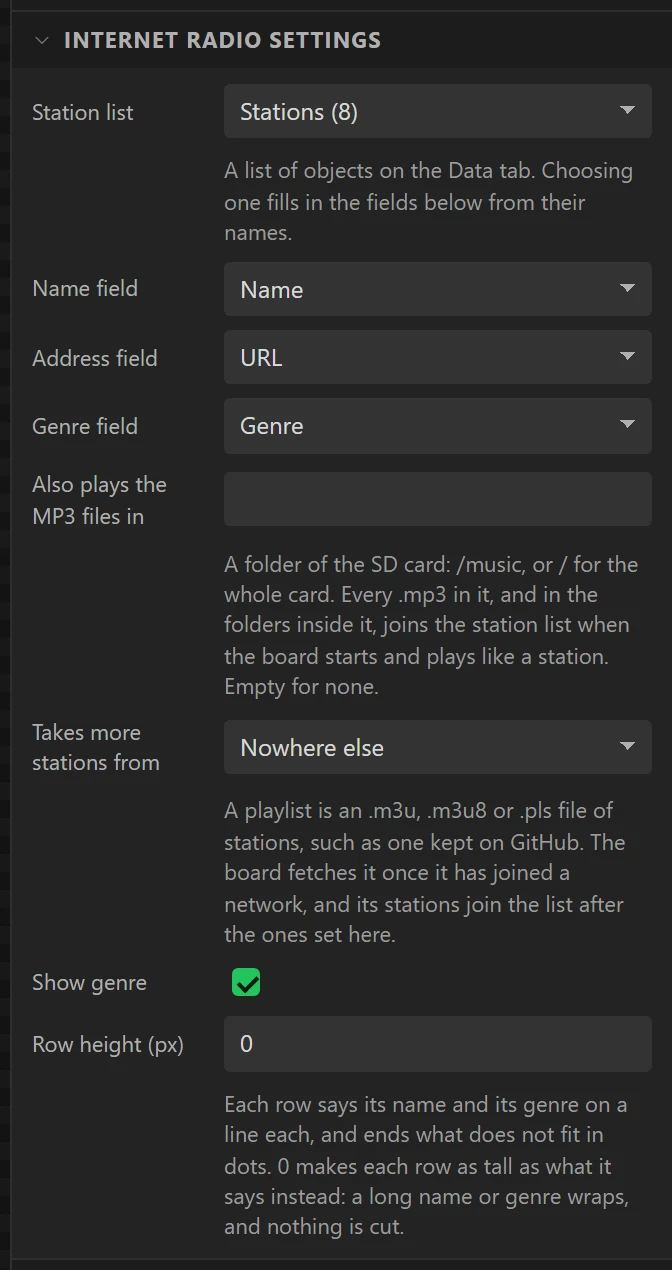
Open Internet Radio settings. Station list is Stations (8), with
Name field Name, Address field URL and Genre field Genre. Leave Also plays the MP3
files in empty, Takes more stations from at Nowhere else and Show genre ticked,
and set Row height to 0, so a row is as tall as what it says.
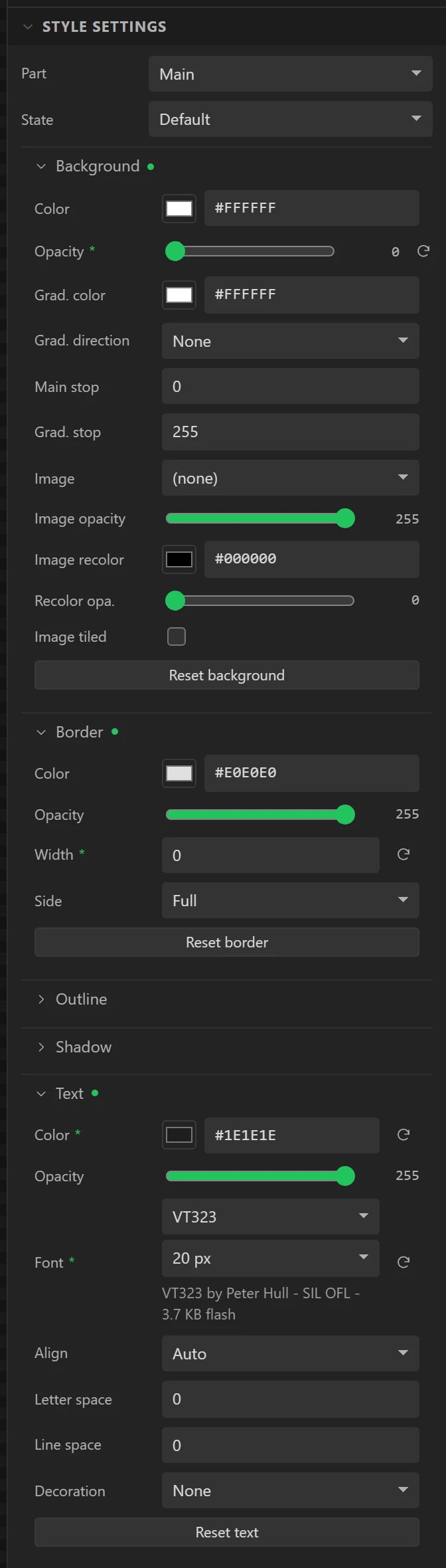
In Style settings: Background Opacity 0, Border Width 0,
Text Color #1E1E1E in VT323 at 20 px, and all four Padding values
0.
19 Go back to the radio when a station is chosen
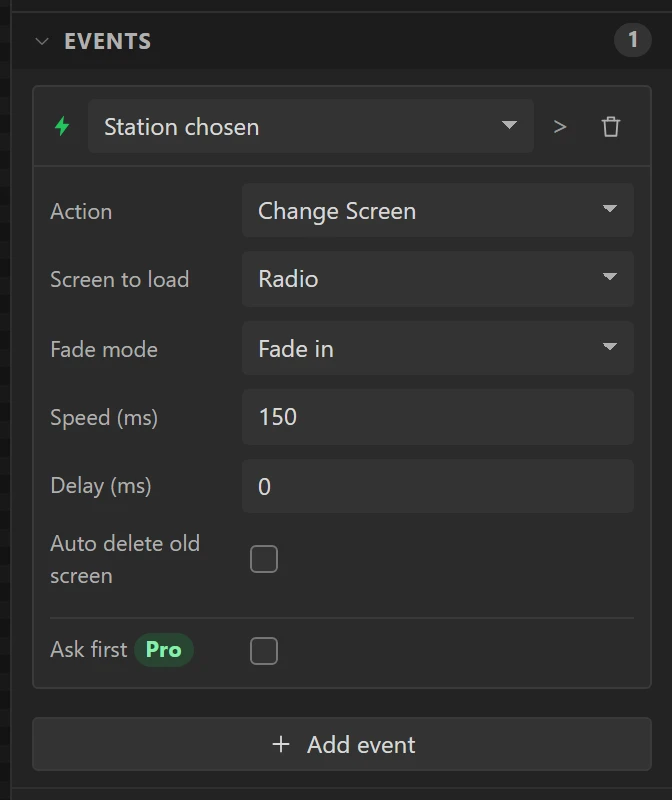
Open Events and press Add event. Set the trigger to Station chosen, the
Action to Change Screen, Screen to load to Radio, Fade mode to
Fade in and Speed to 150. Touching a station plays it, and this takes you back
to the radio to see it.
20 A BACK key in the game's grey
Drag a Button onto the screen. Name it ListBack, set its Text to
BACK, and place it at X 224, Y 198, Width 76, Height
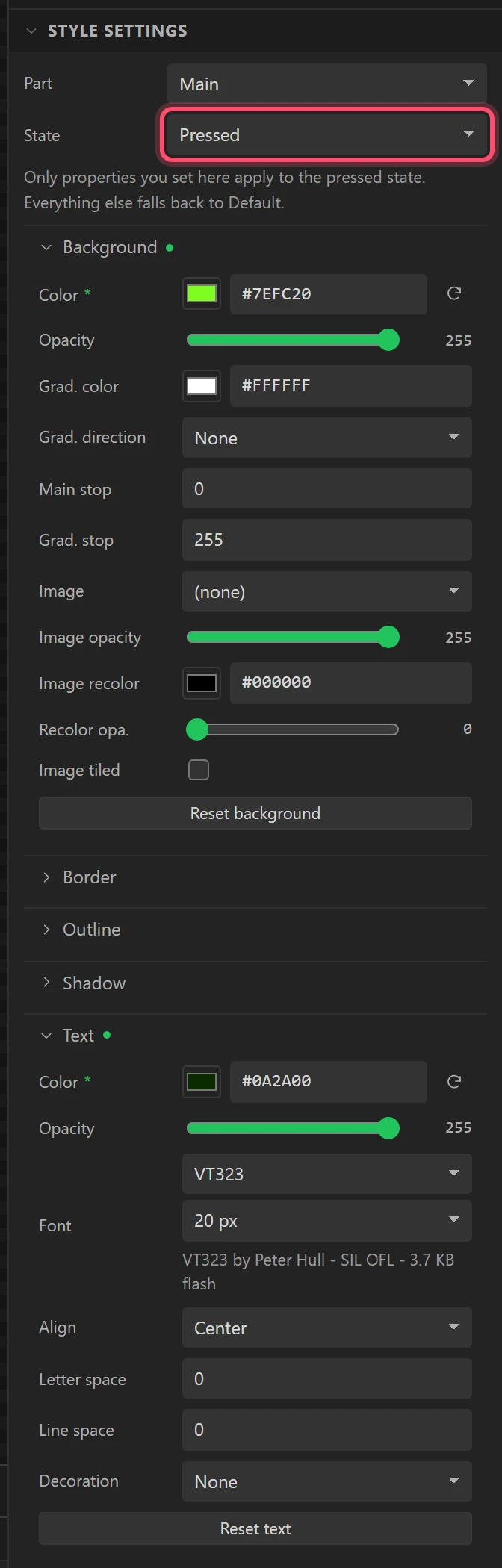
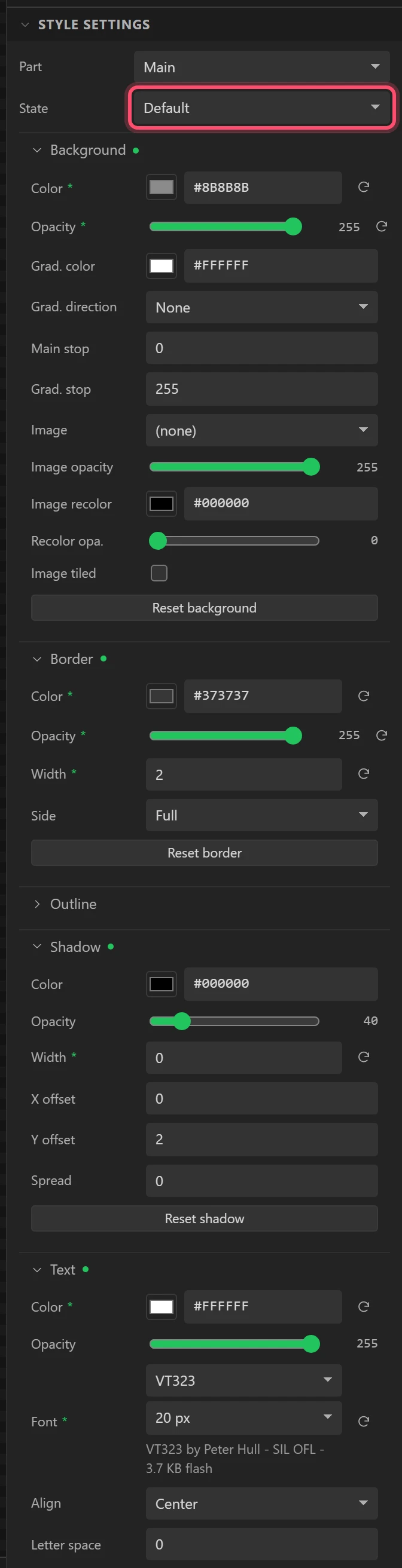
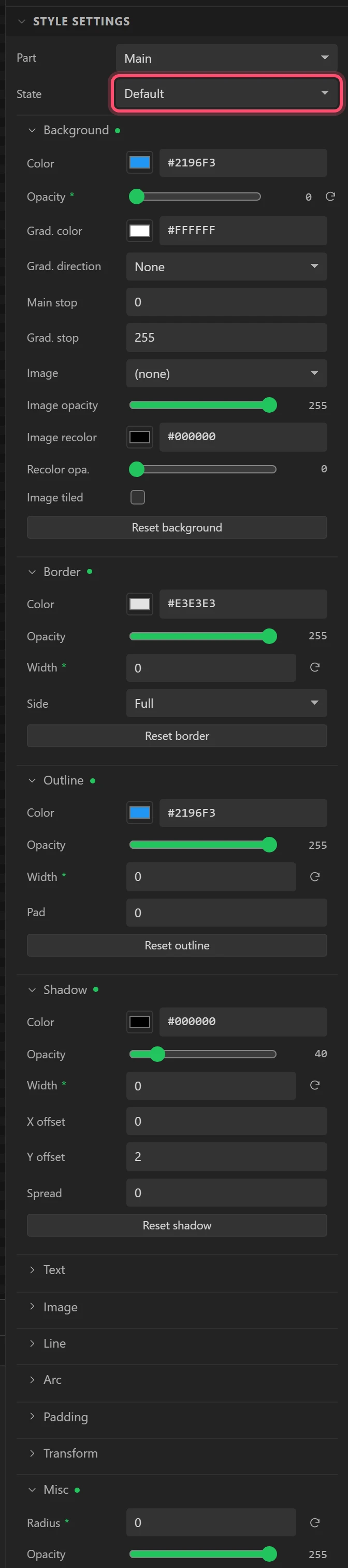
28. Its look takes two states, chosen with State at the top of Style settings:
- Default: Background
#8B8B8Bat Opacity 255; Border#373737at 255, Width2; Shadow Width0; Text#FFFFFFin VT323 20 px; Misc Radius0. - Pressed: Background
#7EFC20, Text#0A2A00.
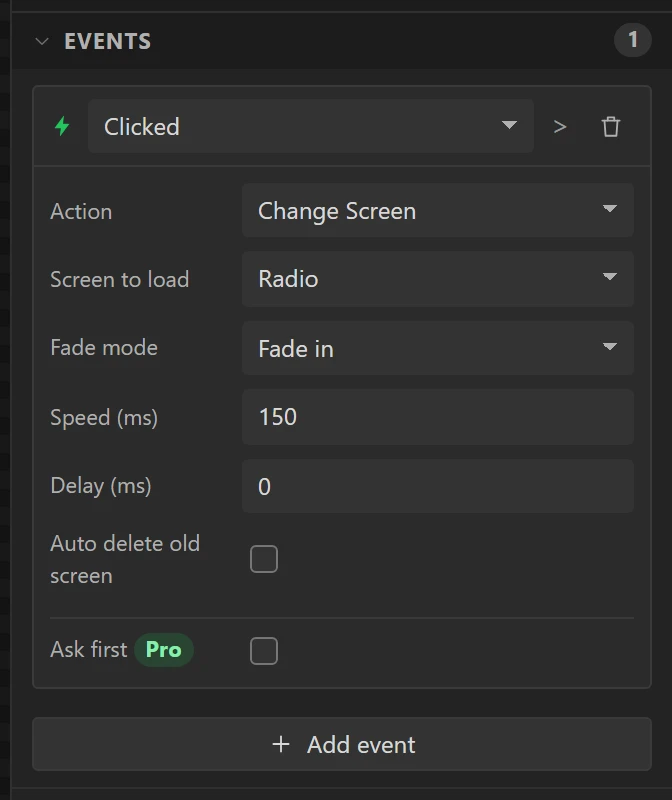
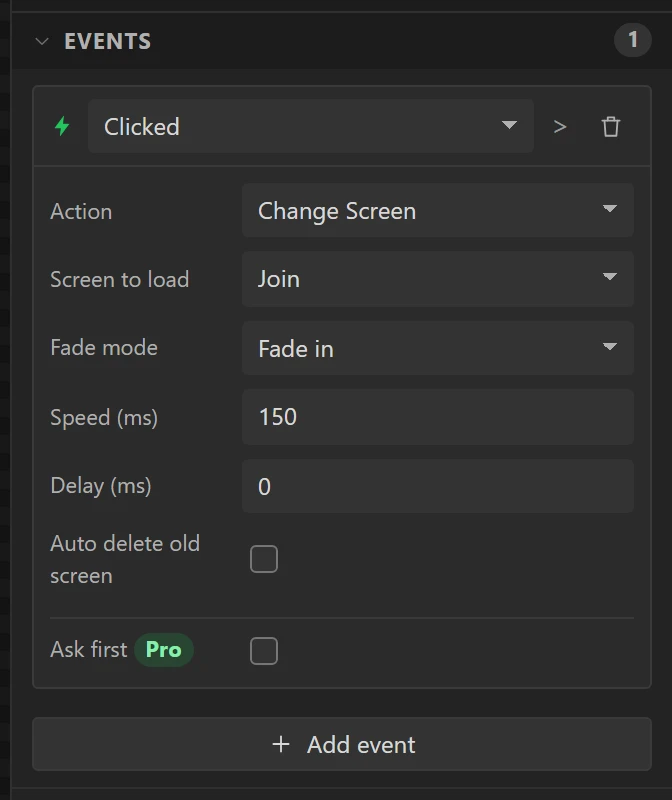
Then Events: Clicked, Change Screen, Radio, Fade in, 150.
The Join screen's BACK key is a copy of this one.
21 The Stations screen, done
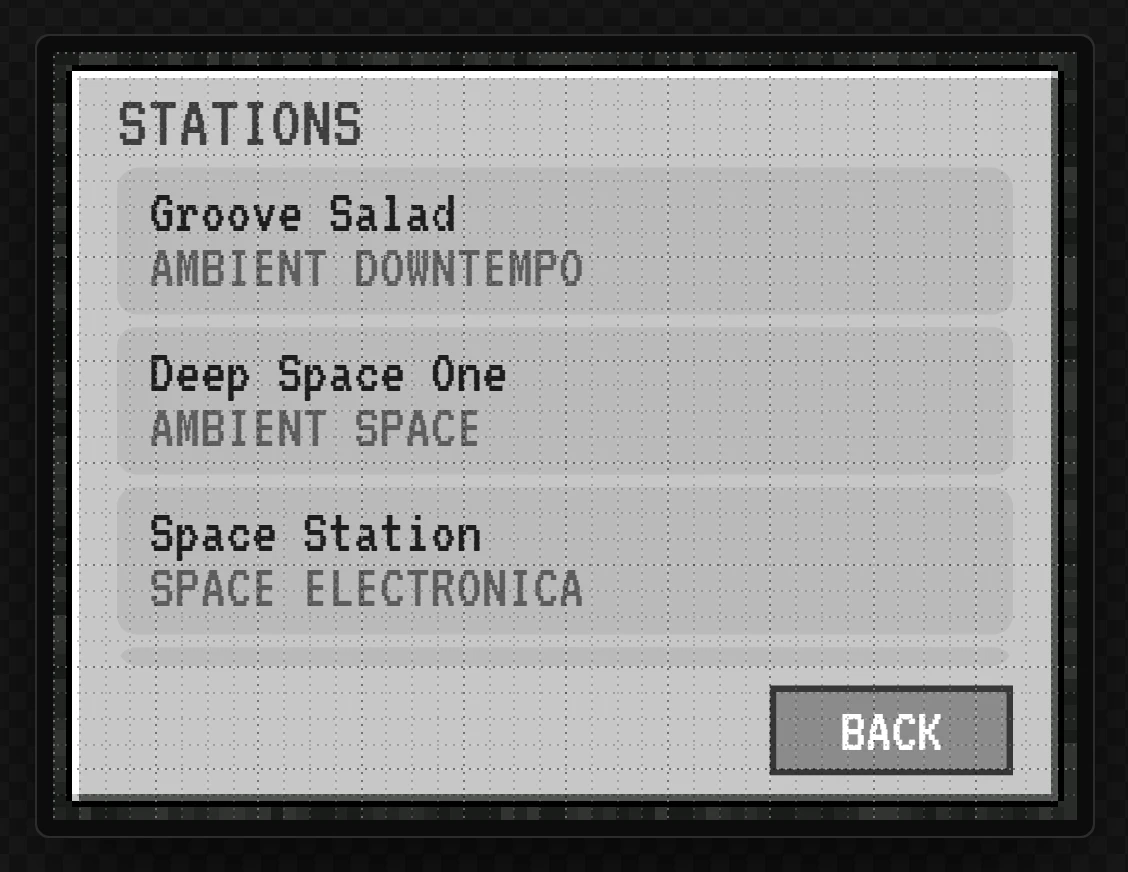
Click an empty part of the canvas. The list draws its stations from the Data tab, each with its genre.
Part 6: the radio screen, and its Wi-Fi mark
Click Radio in the Screens list. This screen has 48 widgets, and most of them are invisible keys laid over the picture.
22 The item window
Drag an Image onto the screen, name it Face, set its Asset to
inv_main.png and its X and Y to 0. Untick Clickable and Scrollable
under Flags.
The picture has every slot, the empty row of hearts, the level's dark channel and the eight discs already drawn. The widgets go on top.
23 Its name, and the build number
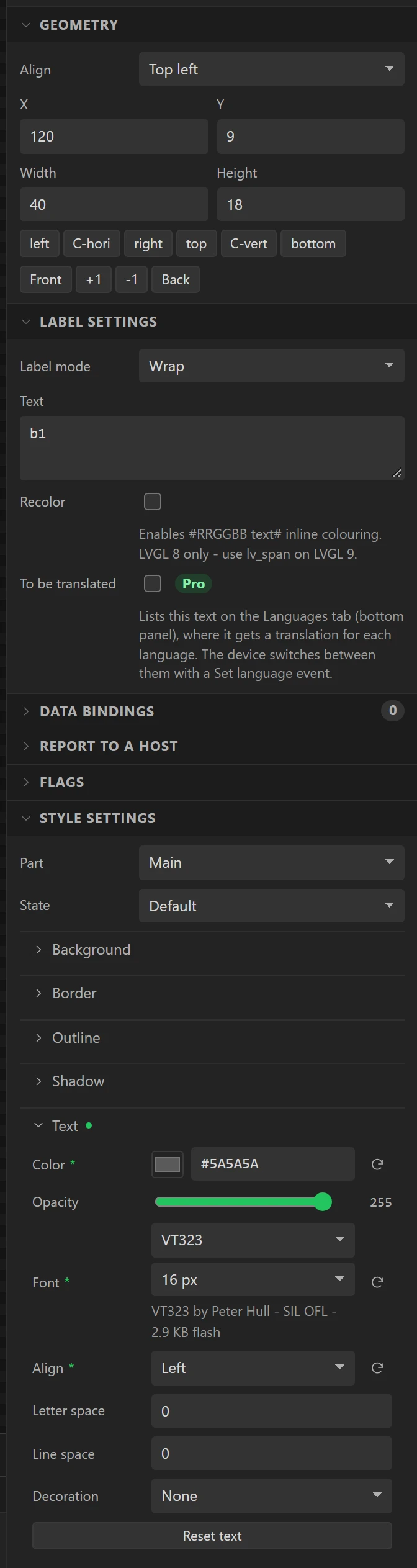
Two labels. Brand says Radio at X 14, Y 6, 120 x 22, in VT323 24 px,
#3F3F3F. Tag says b1 at X 120, Y 9, 40 x 18, in VT323 16 px,
#5A5A5A. Both are aligned Left.
The build number is worth keeping: change it each time you upload, and you can see which build is on the board.
24 WiFi by phone
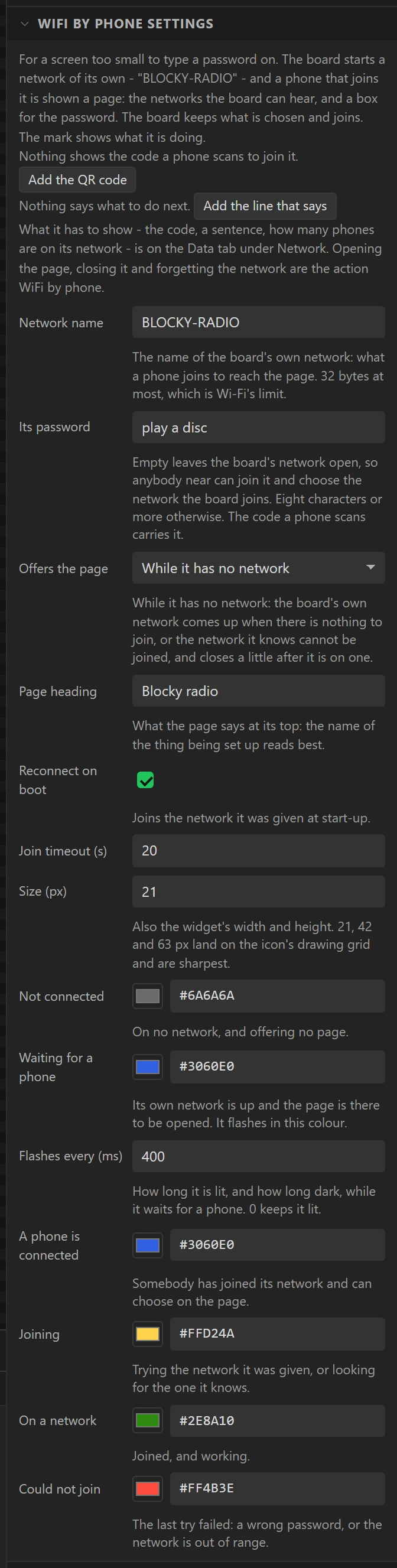
Open Ready-made and drag WiFi by phone to the top right corner. Name it
WifiSetup, place it at X 288, Y 7, and set its Size to
21. In WiFi by phone settings:
- Network name
BLOCKY-RADIO, Its passwordplay a disc. - Offers the page While it has no network; Page heading
Blocky radio; Reconnect on boot ticked; Join timeout20. - The colours: Not connected
#6A6A6A, Waiting for a phone and A phone is connected#3060E0, Flashes every400, Joining#FFD24A, On a network#2E8A10, Could not join#FF4B3E.
With no network the board starts one of its own. A phone that joins it is shown a page that lists the networks the board can hear and asks for the password. Dropping the widget also adds the two settings it keeps the network in. The mark follows Wi-Fi by itself, in the colour of what it is doing: it needs no event and no binding.
25 An invisible key over the mark
A mark takes no touch, so a Button with nothing drawn goes over it. Drag a Button onto the
screen and name it OpenWifi. Clear its Text, and place it at X 284, Y 4, 30 x 26.
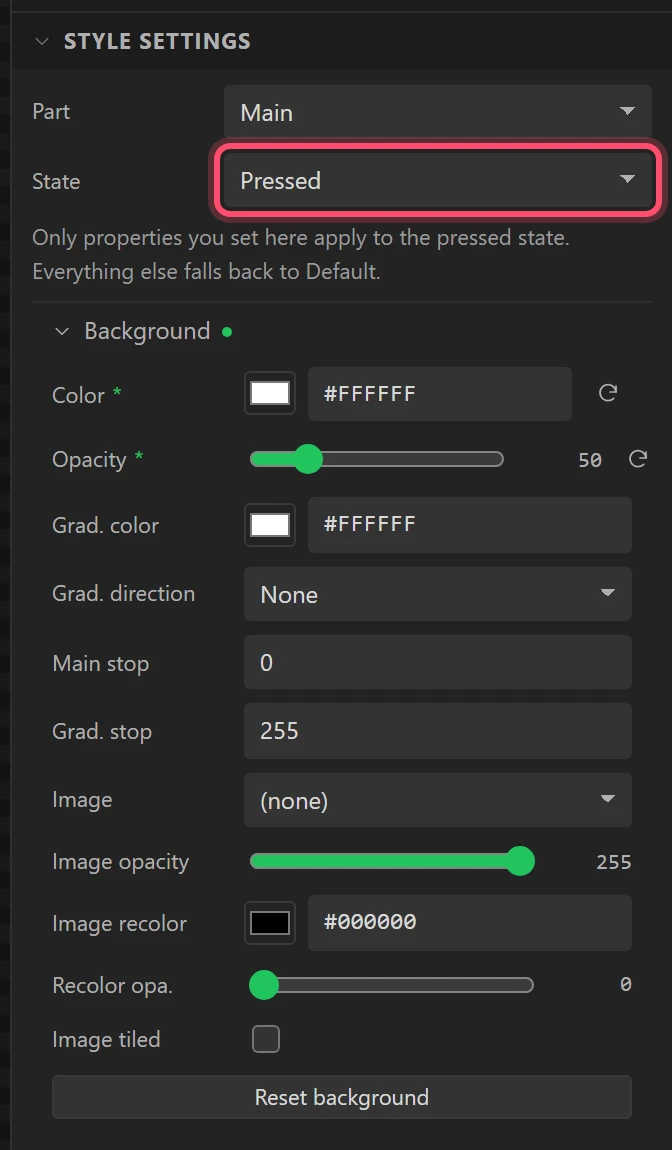
In Style settings, Default: Background Opacity 0, Border, Outline and Shadow Width
0, Misc Radius 0. Pressed: Background #FFFFFF at Opacity
50, so a touch shows. Events: Clicked, Change Screen, Join, Fade in,
150.
Every other invisible key on this screen is a copy of OpenWifi: select it, press Ctrl+C, then Ctrl+V. A plain paste brings no event, so each copy is given its own.
Part 7: four variables
26 What Wi-Fi says
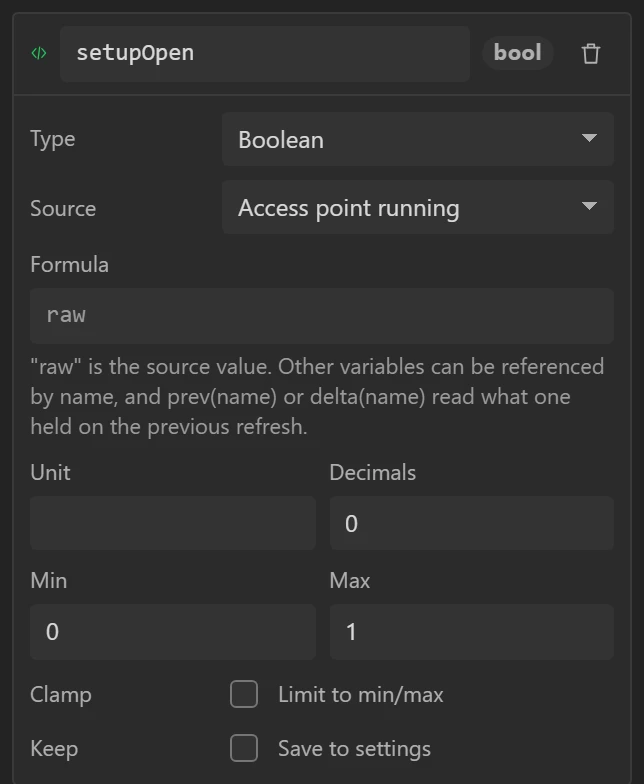
Open Data. In Variables, press + for each of these, type its name, choose its Type, then its Source:
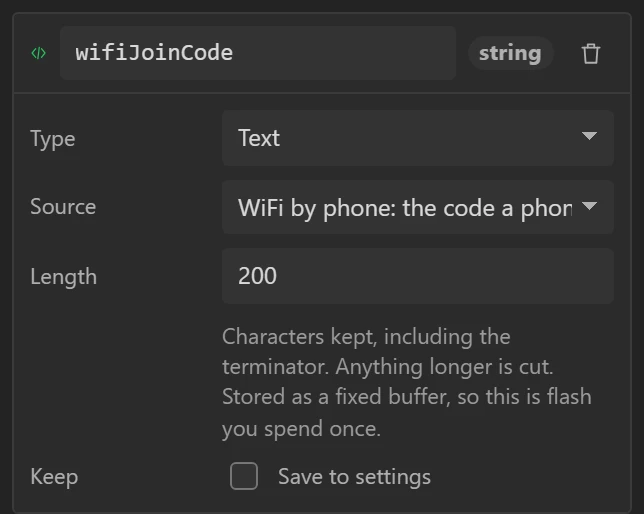
wifiJoinCode, Text, Length200: WiFi by phone: the code a phone scanswifiSays, Text, Length224: WiFi by phone: what to do nextsetupOpen, Boolean: Access point runningonline, Boolean: Connected
For the two Booleans set Decimals 0, Min 0 and Max
1. The WiFi by phone sources are offered only once the design has a WiFi by phone widget,
which is why this part comes after step 24.
Part 8: the rest of the radio screen
Back on Inspector, still on the Radio screen.
27 The disc, shown while it plays
Drag an Image into the big slot. Name it Disc, Asset inv_disc.png, at X 18,
Y 36. Untick Clickable and Scrollable.
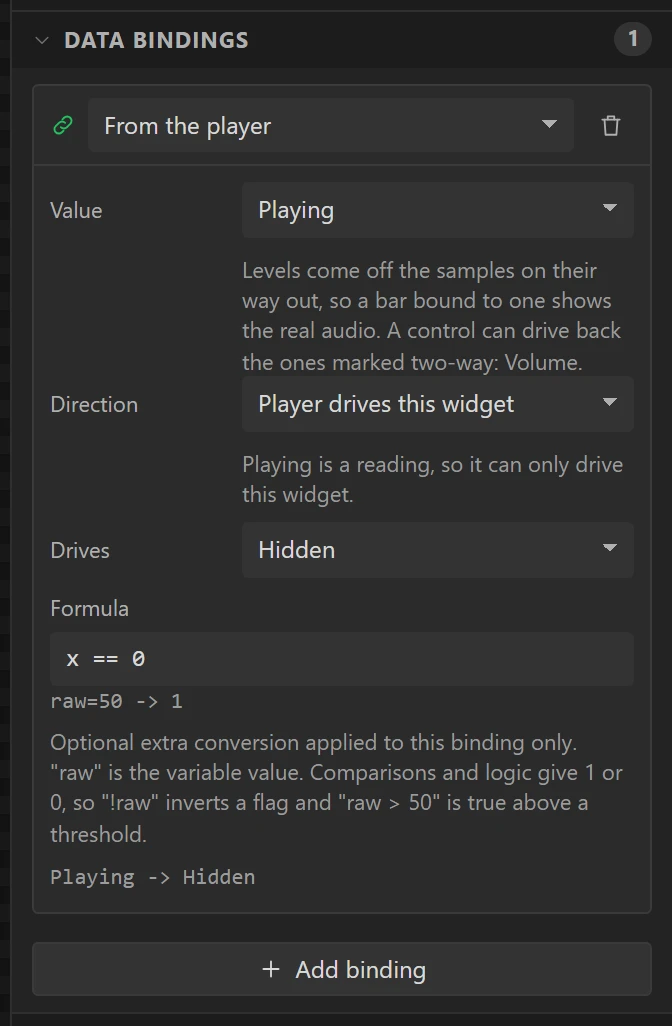
Open Data bindings and press Add binding: From the player, Value Playing,
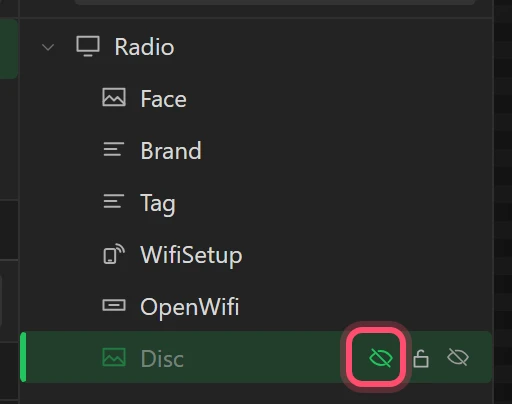
Drives Hidden, Formula x == 0. It is hidden whenever nothing plays.
Close its eye in the Hierarchy too, so that it starts hidden, as the board does at power-up.
28 The station, its genre and the track
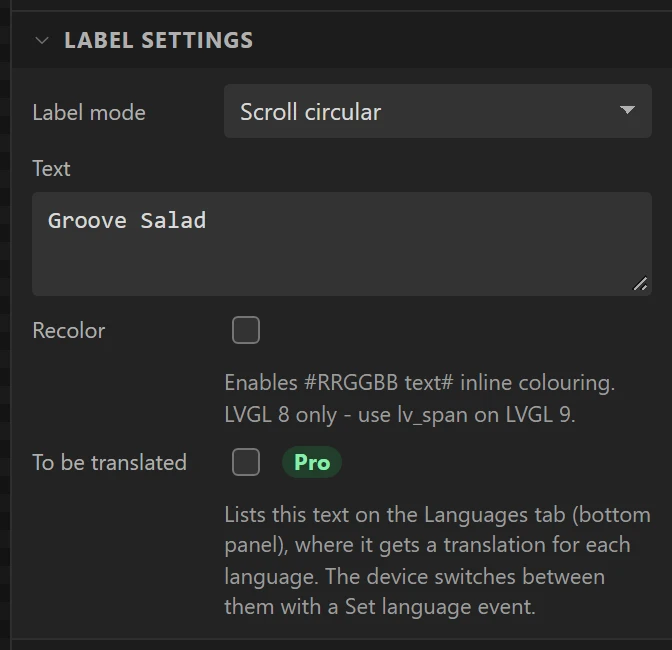
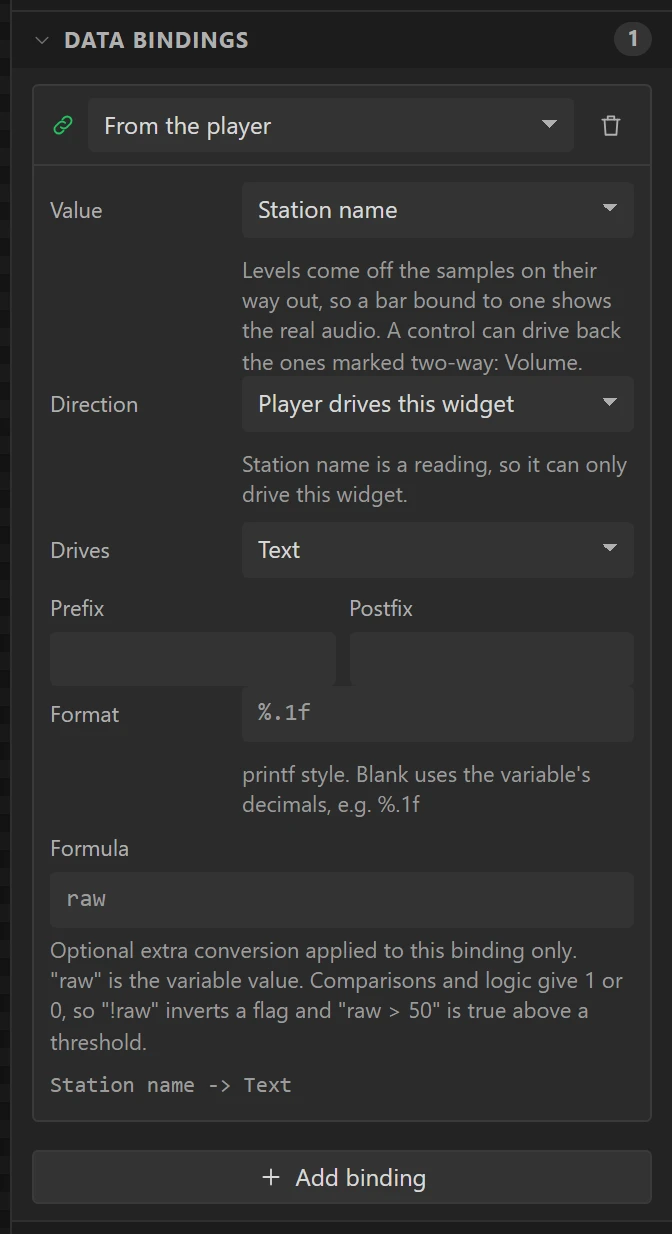
Three labels in the purple tooltip, each bound From the player to Text:
Station, X 104, Y 36, 196 x 26: Station name. VT323 24 px,#FFFFFF, Label mode Scroll circular, TextGroove Salad.Genre, X 104, Y 62, 196 x 18: Station genre. VT323 16 px,#55FFFF, Label mode Dot, TextAMBIENT DOWNTEMPO.Title, X 104, Y 80, 196 x 20: Track title. VT323 20 px,#AAAAAA, Label mode Scroll circular, TextPress play.
All three are aligned Left. The text typed in is only what the canvas shows: on the board each label says what the player says.
29 Touch the tooltip for the stations
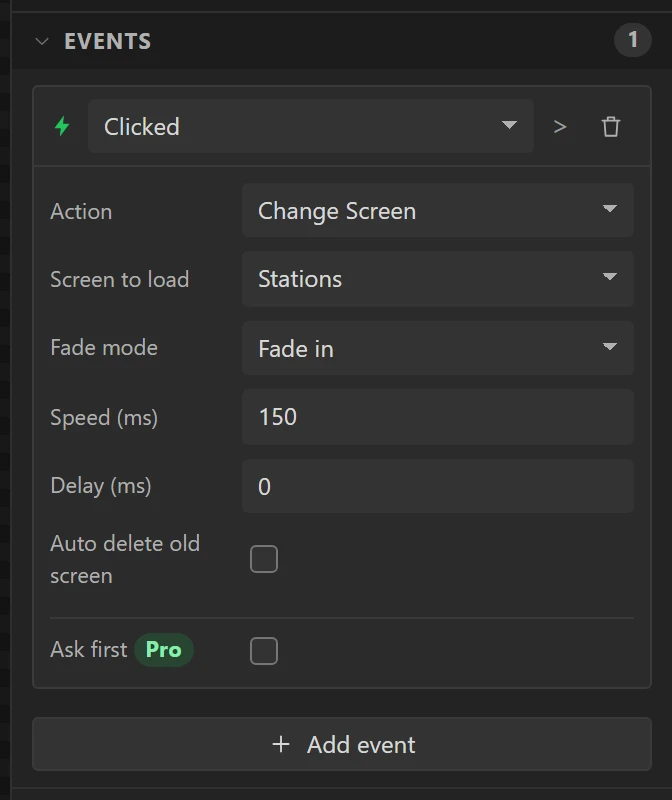
Select OpenWifi, press Ctrl+C, then Ctrl+V. Name the copy OpenStations, place it over the
whole tooltip at X 96, Y 30, 212 x 76, and give it the event Clicked, Change Screen,
Stations.
30 A heart and a half heart
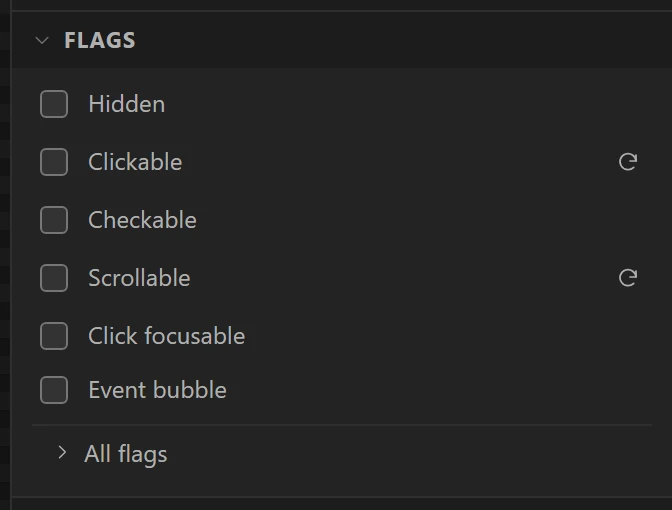
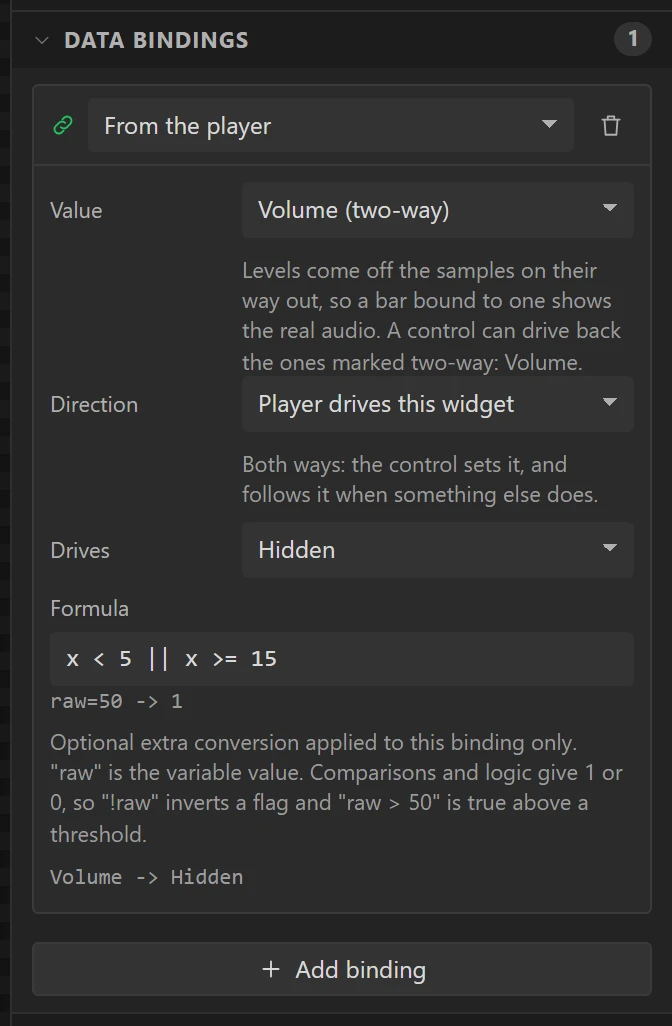
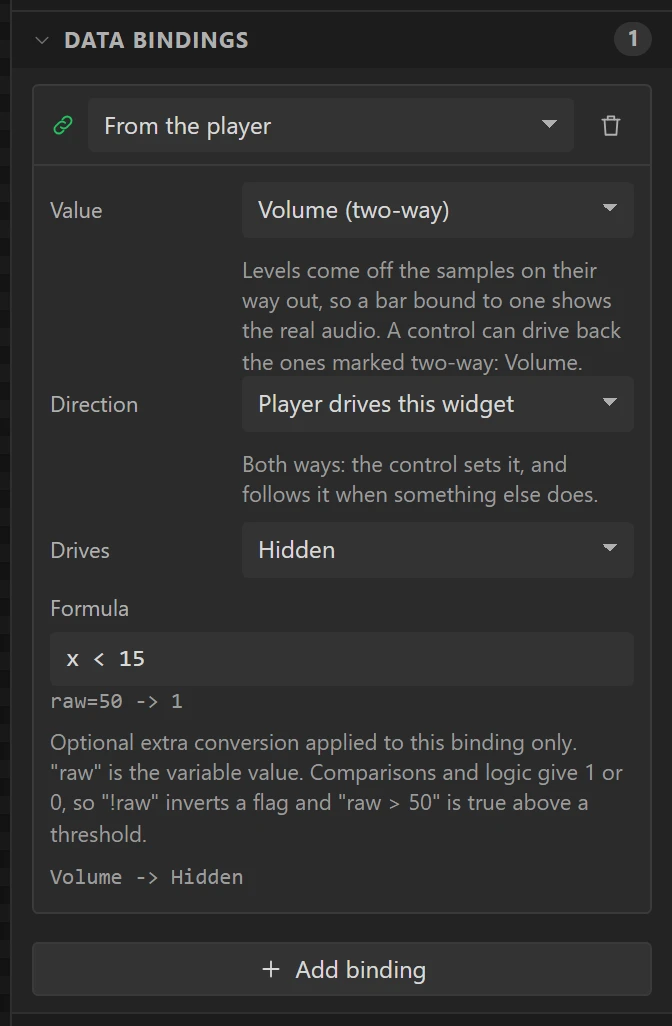
Each heart is two pictures in one place: a full heart and a half heart. Two Images, both at X 14, Y 114, both with Clickable and Scrollable off:
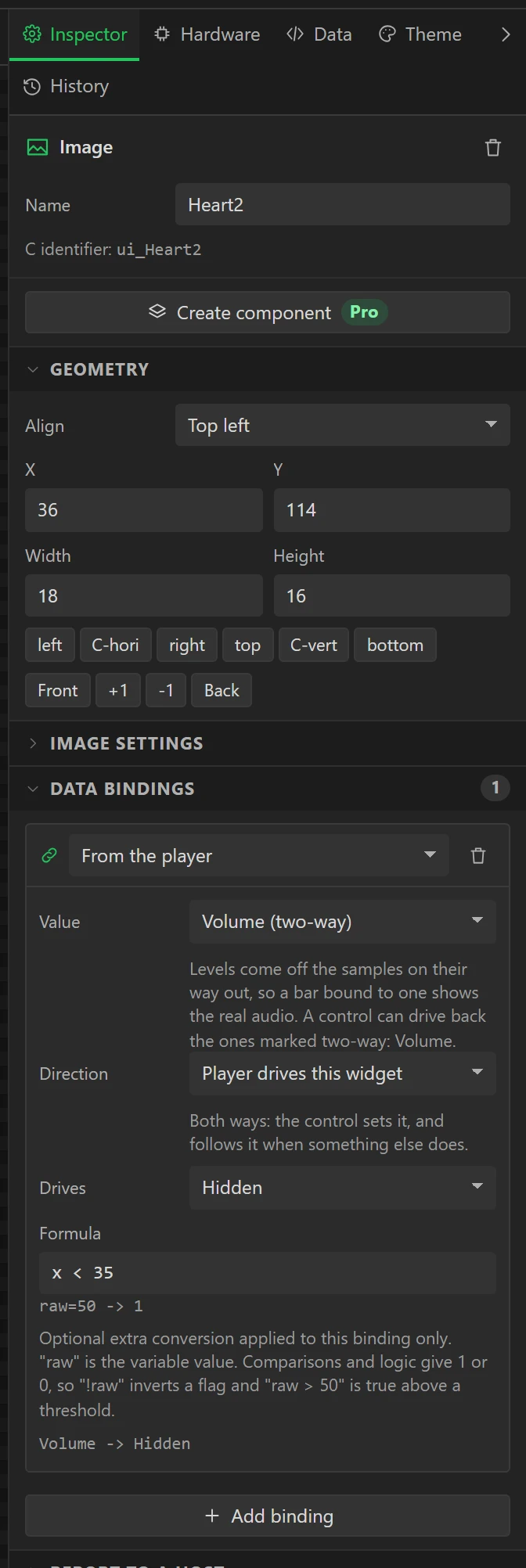
Heart1, heart.png, bound From the player, Volume, Drives Hidden, Formulax < 15.HalfHeart1, heart_half.png, the same with Formulax < 5 || x >= 15. Close its eye in the Hierarchy.
So the first heart is half full from a volume of 5, full from 15. The empty hearts are in the picture behind them.
31 Four more pairs, by copying
Select Heart1 and HalfHeart1 together (click one, Ctrl+click the other in the Hierarchy), press Ctrl+C, then Ctrl+Shift+V: paste with Shift keeps their bindings. The copies arrive 12 px down and to the right. For each pair:
- Name them
Heart2andHalfHeart2, and set X36, Y114. - Change the formulas to
x < 35andx < 25 || x >= 35.
Copy the new pair the same way for the rest:
- Heart3 at X
58:x < 55andx < 45 || x >= 55. - Heart4 at X
80:x < 75andx < 65 || x >= 75. - Heart5 at X
102:x < 95andx < 85 || x >= 95.
Close the eye on Heart4 and Heart5: at the starting volume of 60 the board shows three full hearts.
32 A volume slider nobody sees
Drag a Slider over the hearts. Name it Volume, at X 10, Y 108, 114 x 28, with Min
0, Max 100 and Value 60. Under Flags untick Scrollable.
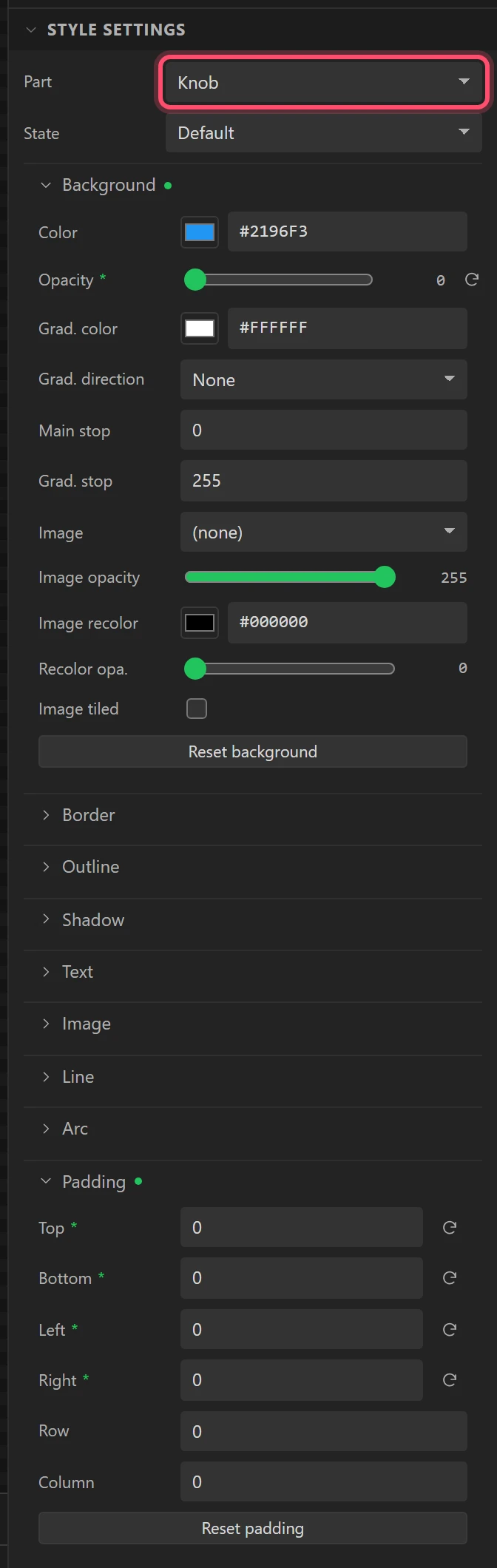
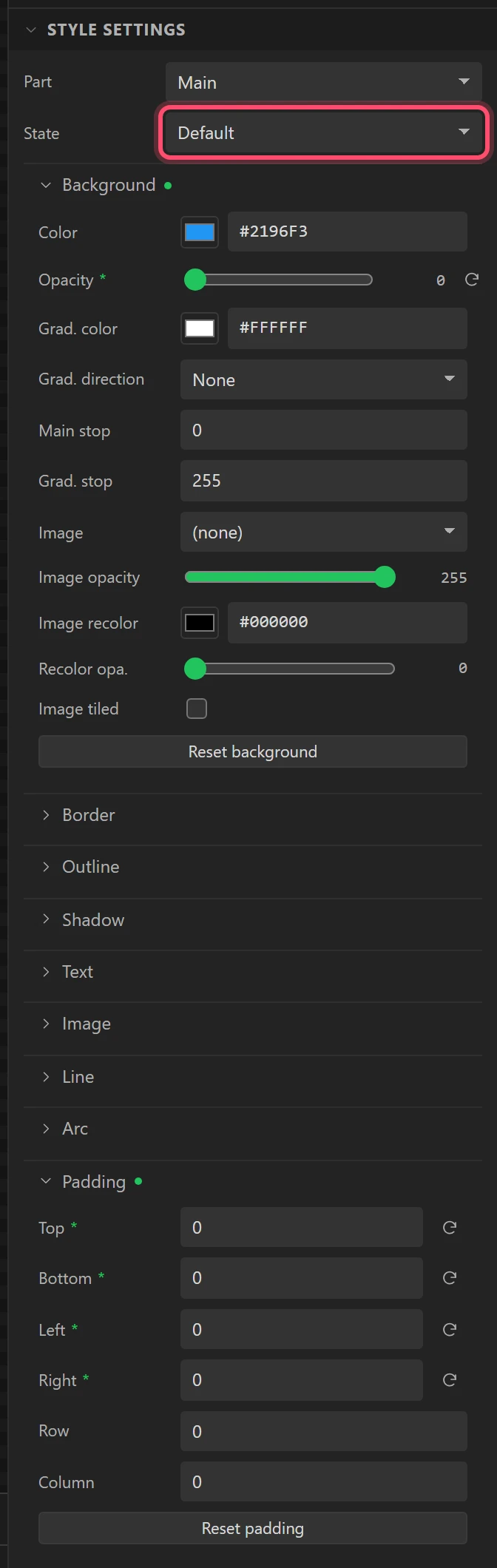
Make every part of it invisible. Main: Background Opacity 0, Radius 0, all four Padding 0. Indicator: Background Opacity 0. Knob: Background Opacity 0, all four Padding 0. The Part select is above State.
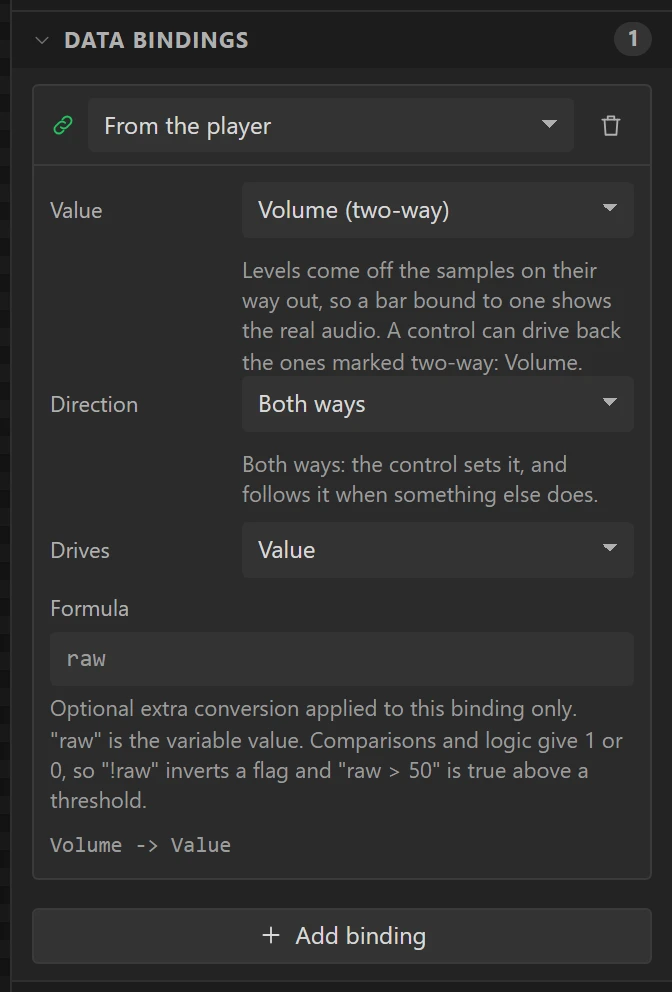
Bind it From the player, Volume, Drives Value, Direction Both ways. Sliding along the hearts sets the volume, and a change from anywhere else, the VOL keys say, moves the hearts.
33 The bitrate
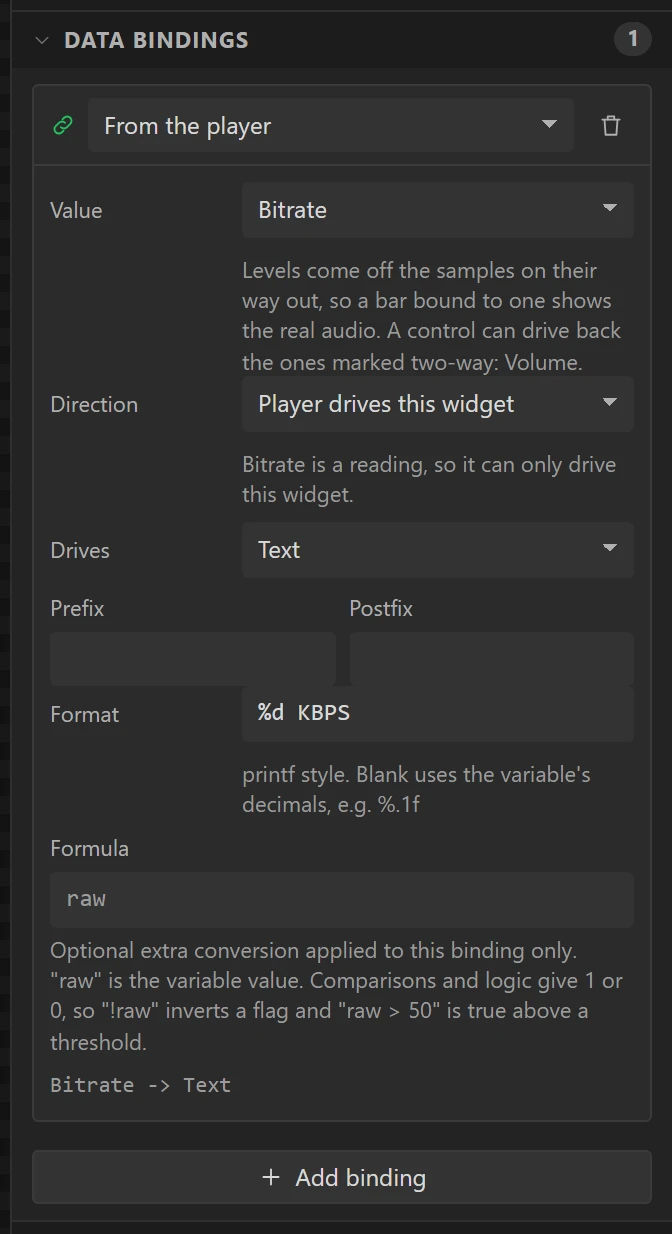
A label Rate at X 132, Y 114, 100 x 18, in VT323 16 px, #5A5A5A, saying
--- KBPS. Bind it From the player, Bitrate, Drives Text, Format
%d KBPS.
34 The level, in whole segments
Drag a Bar into the dark channel. Name it Level, at X 14, Y 140, 292 x 6, Min 0,
Max 20, Value 0. Untick Clickable and Scrollable.
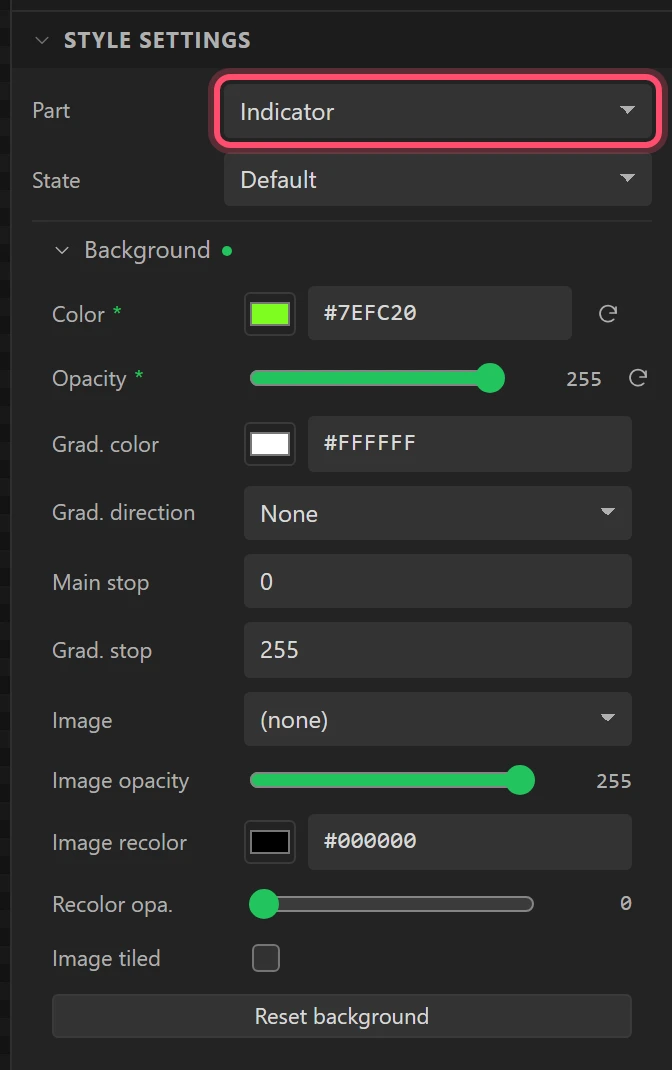
Main: Background Opacity 0, Radius 0, Padding 0 all round. Indicator: Background
#7EFC20 at 255, Radius 0.
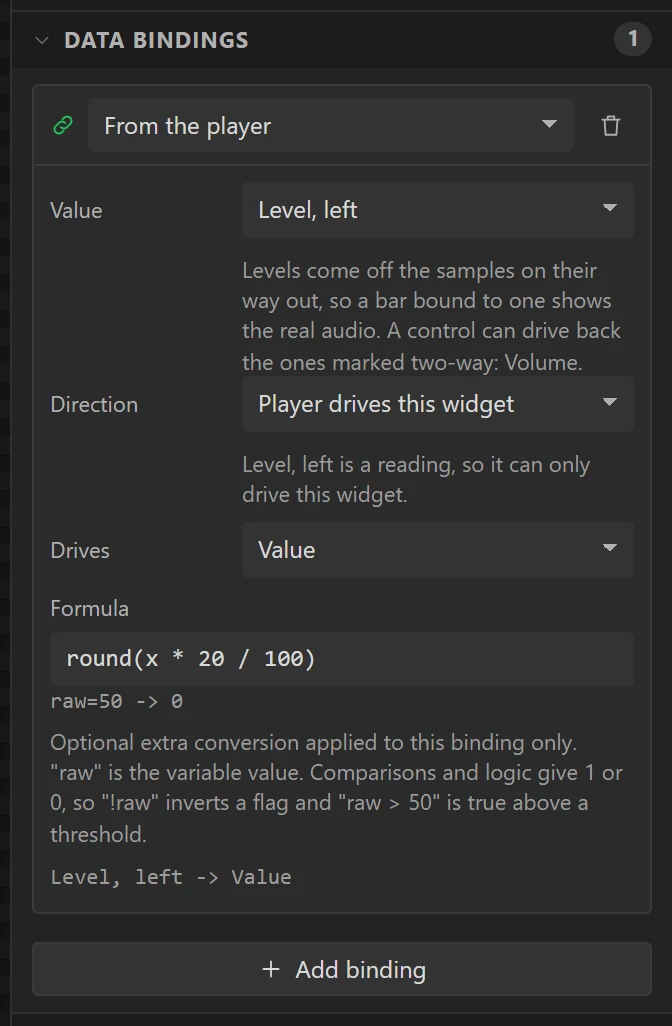
Bind it From the player, Level, left, Drives Value, Formula
round(x * 20 / 100): twenty steps for a level of 0 to 100.
Then an Image LevelGaps on top, inv_gaps.png, also at X 14, Y 140, with
Clickable and Scrollable off. It draws the gaps between segments, so the bar lights a segment at a
time.
35 Play, previous, next, and the Wi-Fi slot
First an Image PlayLit, inv_stop.png, at X 12, Y 154, bound From the player,
Playing, Hidden, x == 0, eye closed. It lights the play slot green, with a stop
square on it, while a station plays.
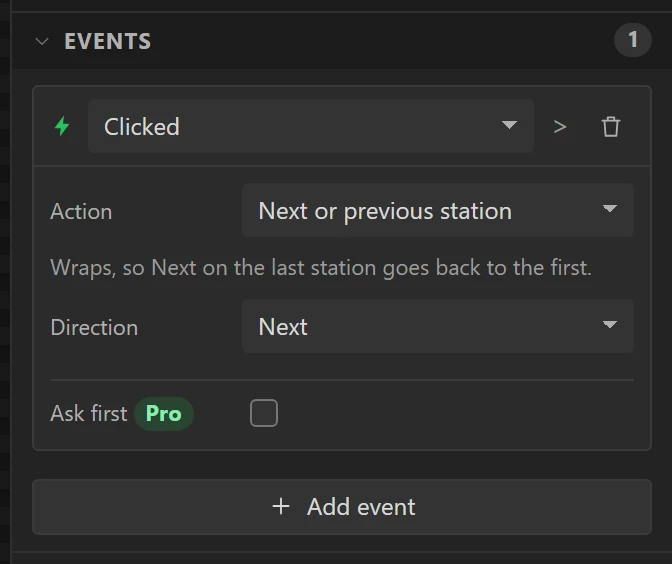
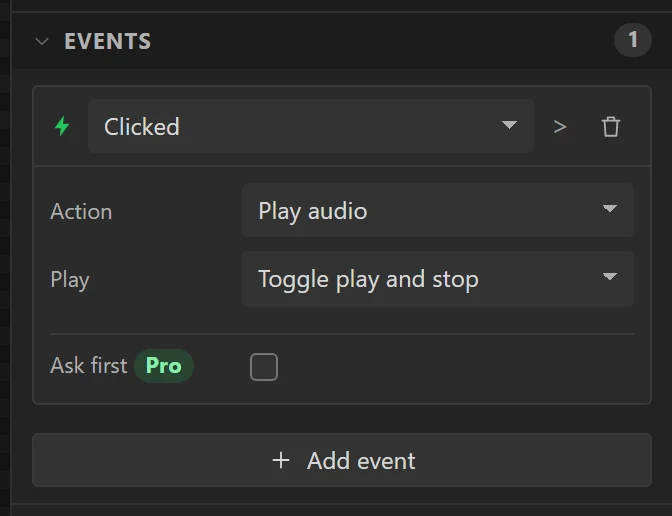
Then select OpenWifi, press Ctrl+C (the clipboard holds hearts since step 31), and paste four copies with Ctrl+V, each 36 x 36 at Y 154:
Playat X 12: Play audio, Play Toggle play and stop.Previousat X 52: Next or previous station, Direction Previous.Nextat X 92: the same, Direction Next.WifiKeyat X 132, over the Wi-Fi slot: Change Screen, Join, Fade in, 150.
Toggle with nothing playing starts the first station on the list.
36 VOL - and +
A label VolCap at X 182, Y 163, 46 x 20, saying VOL, in VT323 20 px,
#3F3F3F, aligned Right.
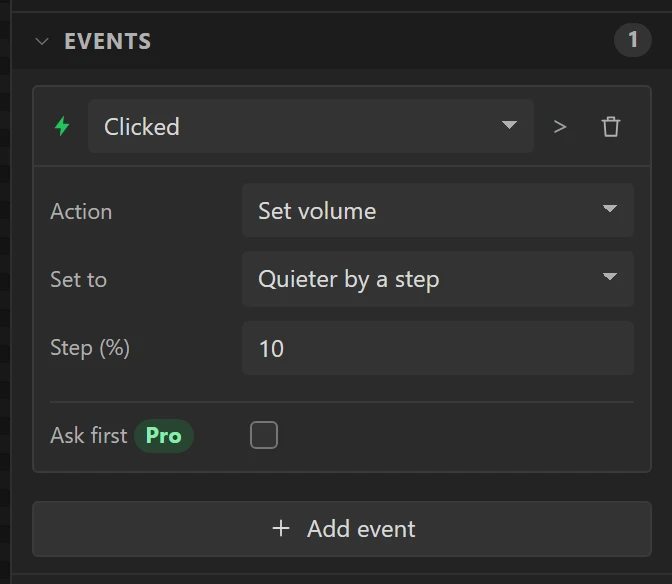
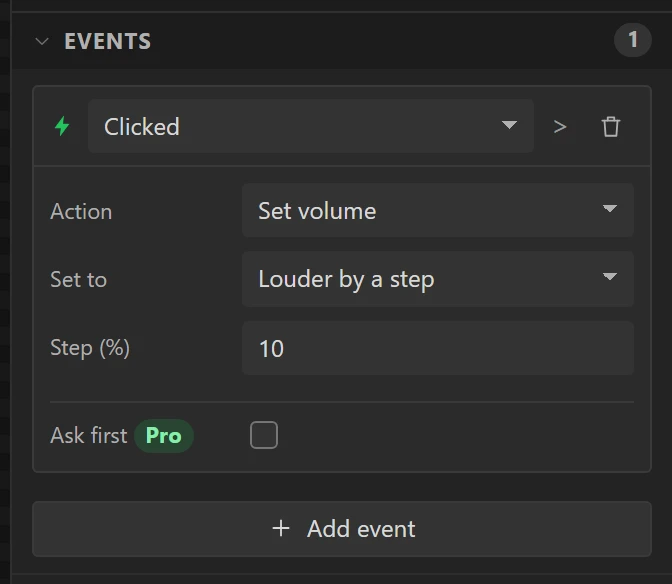
Then two more copies of OpenWifi, 36 x 36 at Y 154: Quieter at X 232, over the
- slot, and Louder at X 272, over the + slot. Each gets Clicked,
Set volume: Set to Quieter by a step for Quieter and Louder by a step for Louder,
with Step 10. The hearts follow the volume, so each press moves them half a heart.
37 The first disc in the bottom row
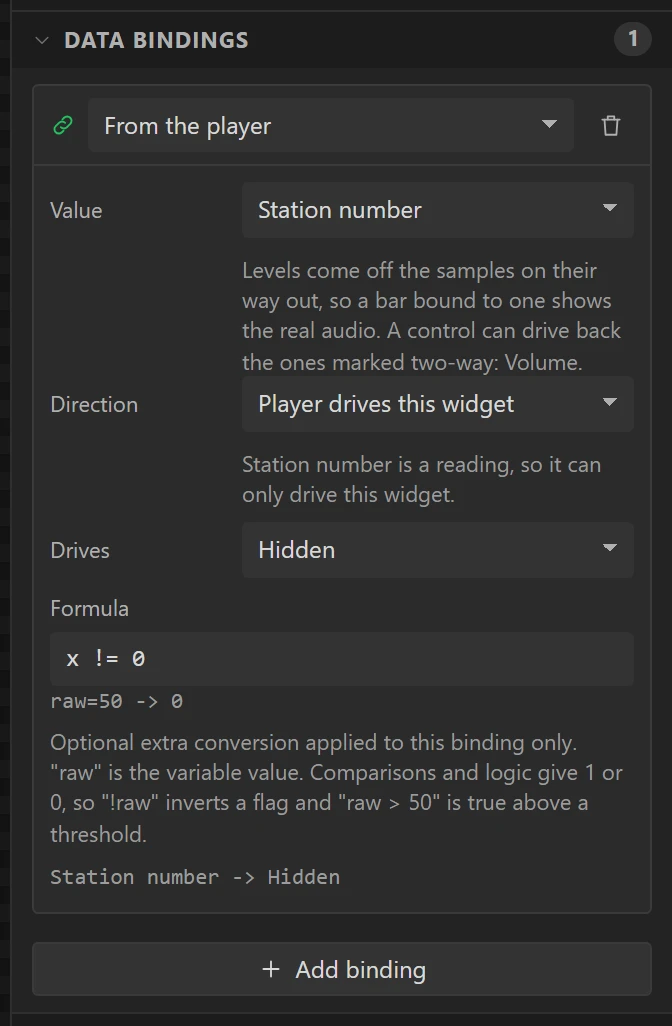
An Image HotbarFrame1, inv_frame.png, at X 10, Y 194, Clickable and Scrollable
off, eye closed. Bind it From the player, Station number, Drives Hidden, Formula
x != 0: it frames the first disc while the first station plays.
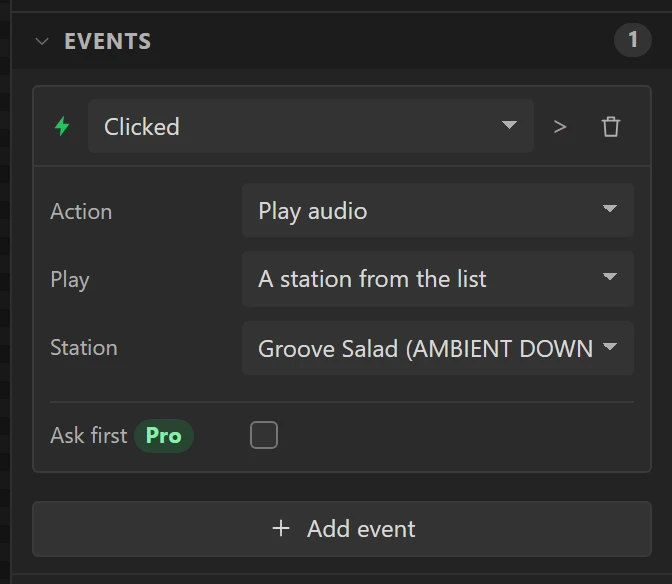
Then a copy of OpenWifi, Hotbar1, at X 12, Y 196, 36 x 36: Play audio, Play A
station from the list, Station Groove Salad.
38 Seven more discs
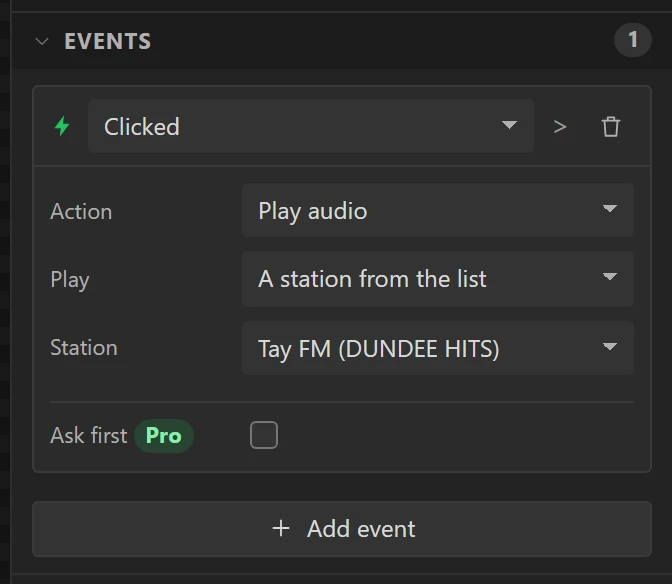
Select HotbarFrame1 and Hotbar1, Ctrl+C, Ctrl+Shift+V. For each copy, move both 36 px along, change the frame's formula to the next station number, and the key's station to the next on the list:
| Frame | X | Formula | Key | X | Station |
|---|---|---|---|---|---|
| HotbarFrame2 | 46 | x != 1 | Hotbar2 | 48 | Deep Space One |
| HotbarFrame3 | 82 | x != 2 | Hotbar3 | 84 | Space Station |
| HotbarFrame4 | 118 | x != 3 | Hotbar4 | 120 | Mission Control |
| HotbarFrame5 | 154 | x != 4 | Hotbar5 | 156 | Nightride FM |
| HotbarFrame6 | 190 | x != 5 | Hotbar6 | 192 | Chillsynth |
| HotbarFrame7 | 226 | x != 6 | Hotbar7 | 228 | Datawave |
| HotbarFrame8 | 262 | x != 7 | Hotbar8 | 264 | Tay FM |
The frames stay at Y 194 and the keys at Y 196.
39 The radio screen, done
Click an empty part of the canvas. The Hierarchy has 48 widgets, and the screen looks like the picture it started as, with the name, the mark, the tooltip's words, VOL and three hearts on it. The hidden ones are drawn faintly while you design.
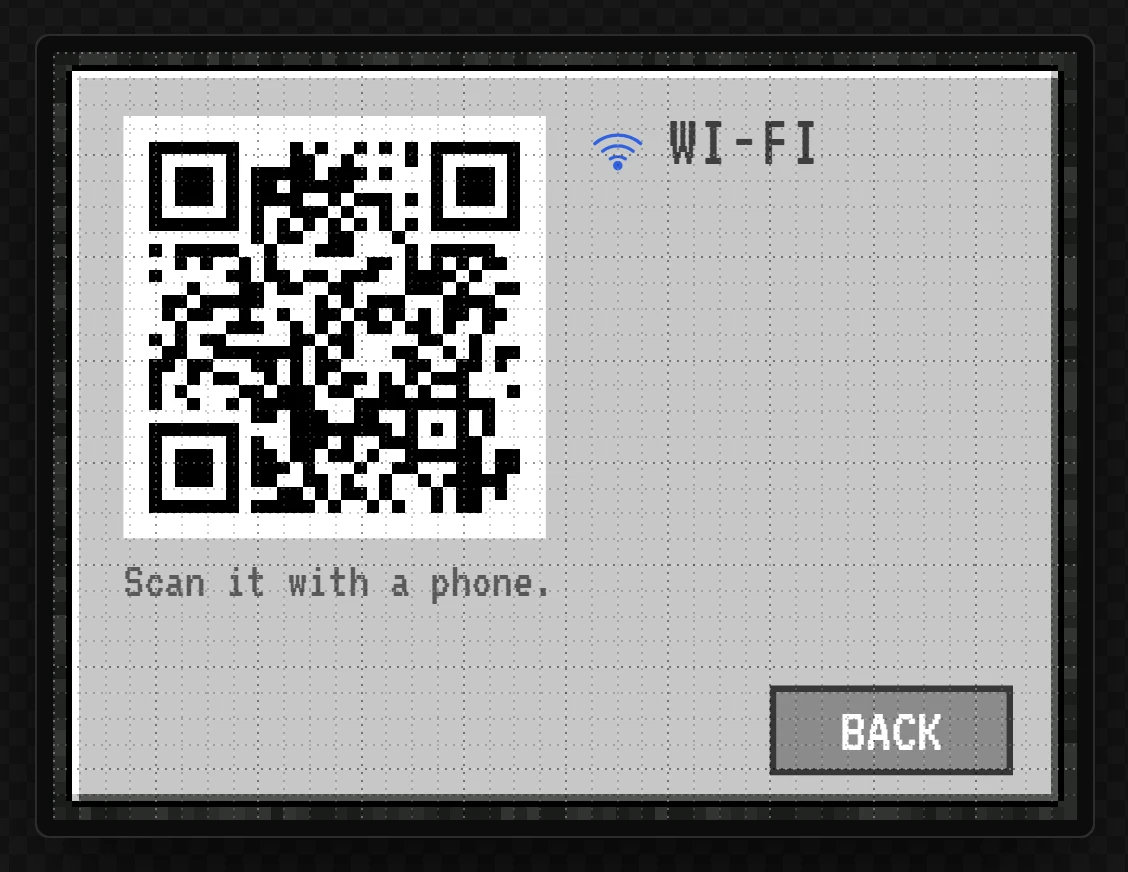
Part 9: the Wi-Fi screen
Click Join in the Screens list.
40 The code a phone scans
The Image Backdrop again, inv_second.png at 0, 0.
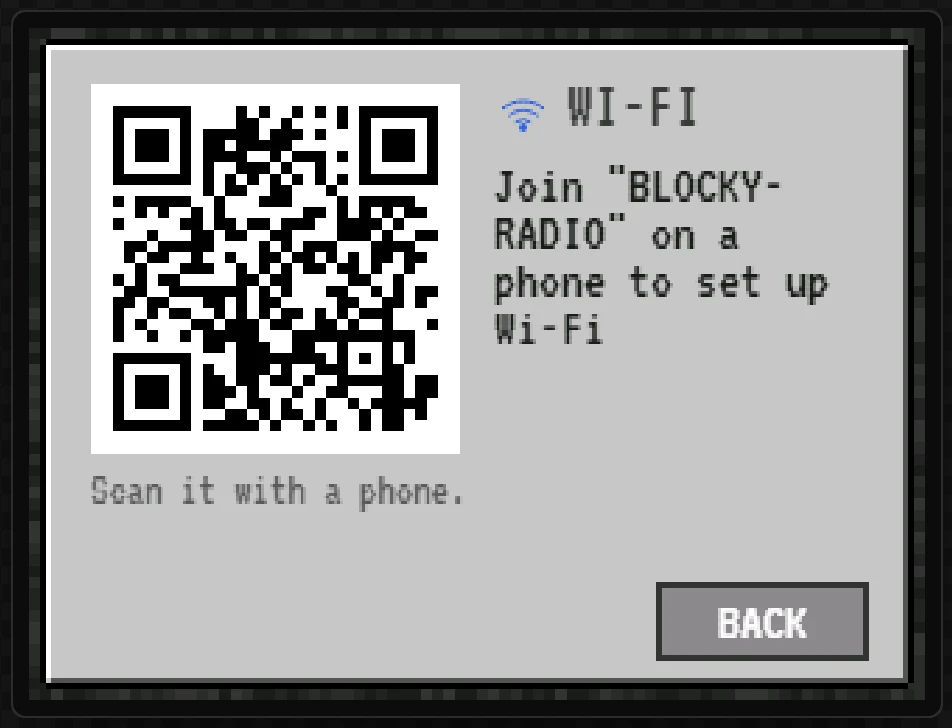
Then drag QR code from Ready-made. Name it JoinCode, at X 22, Y 20, 132 x 132.
Set Says to WIFI:T:WPA;S:BLOCKY-RADIO;P:play a disc;;, Dark
#000000, Light #FFFFFF, Margin 6. Then bind its
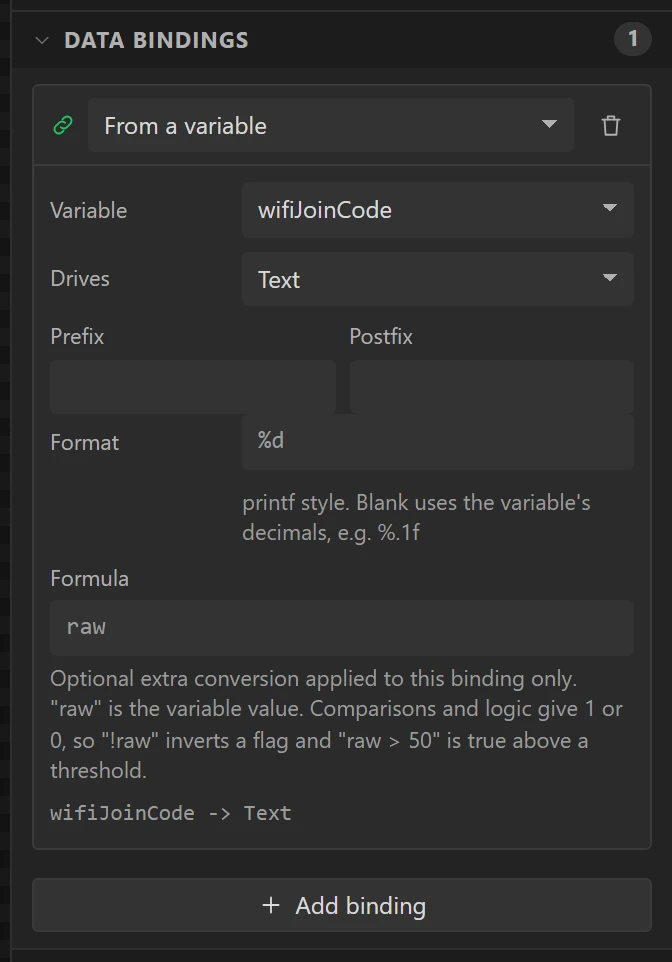
Text to the variable wifiJoinCode, so that on the board it shows the code WiFi by phone
makes. What it says here is only what the canvas draws.
The tile says Pro. A QR code that shows WiFi by phone's code is free, and once the binding is set the export no longer counts it.
41 What to do next, and BACK
- A second WiFi by phone,
WifiSetup, at X 166, Y 20, set as in step 24. - A label
JoinTitle,WI-FI, X 192, Y 18, 110 x 22, VT323 24 px,#3F3F3F. - A label
JoinSayswith no text, X 166, Y 48, 132 x 80, VT323 20 px,#1E1E1E, bound to wifiSays, Drives Text. - A label
JoinHint,Scan it with a phone., X 22, Y 158, 186 x 20, VT323 16 px,#5A5A5A. - The BACK key: go to the Stations screen, select ListBack and press Ctrl+C, come back to Join and
press Ctrl+Shift+V, so it brings its event, back to the Radio screen. It lands where it was, at
X 224, Y 198. Name it
JoinBack.
Part 10: two automations
42 Show the code when there is no network
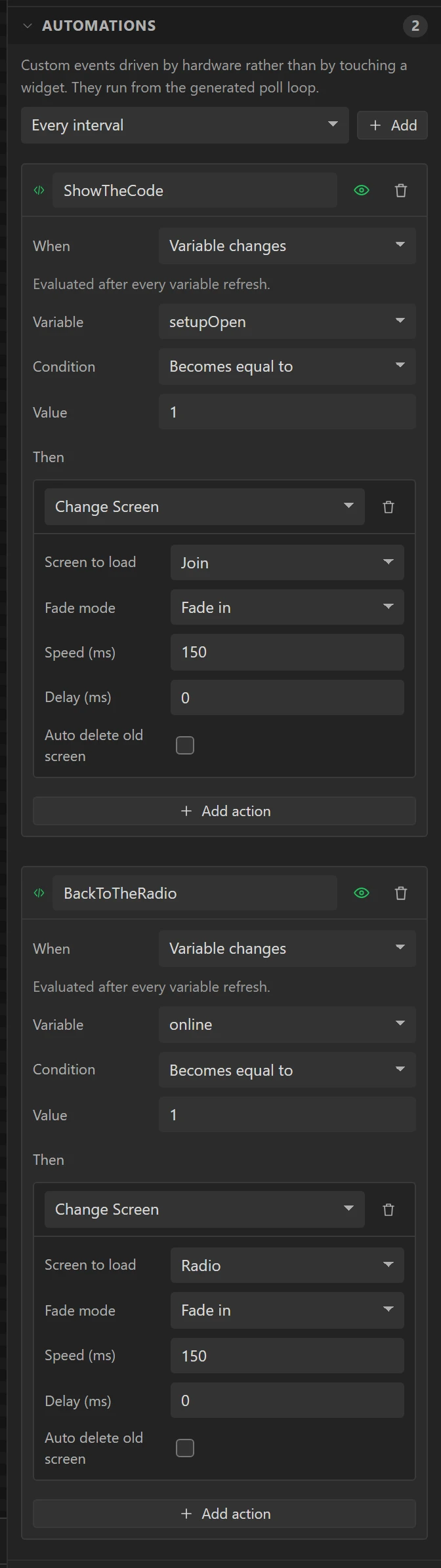
Open Data and the Automations section. Choose Variable changes in the select and press Add, twice.
ShowTheCode: Variable setupOpen, Condition Becomes equal to, Value1. Then Add action: Change Screen, Join, Fade in, 150.BackToTheRadio: Variable online, Becomes equal to1. Then Change Screen, Radio, Fade in, 150.
So a board with no network shows the code by itself, and goes back to the radio once a phone has given it one.
Part 11: try it in Preview
43 It starts with the code
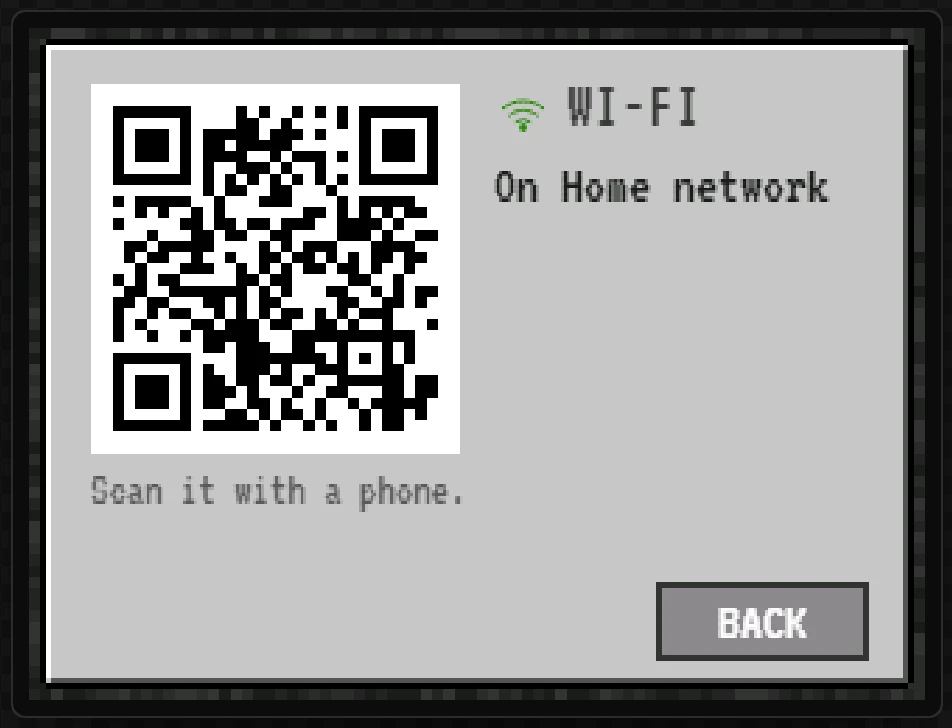
Press Preview, the triangle at the top of the canvas. In Preview nobody has given the board a network, so the WiFi by phone mark waits for a phone, ShowTheCode runs and the Join screen comes up. The Console names each automation as it runs.
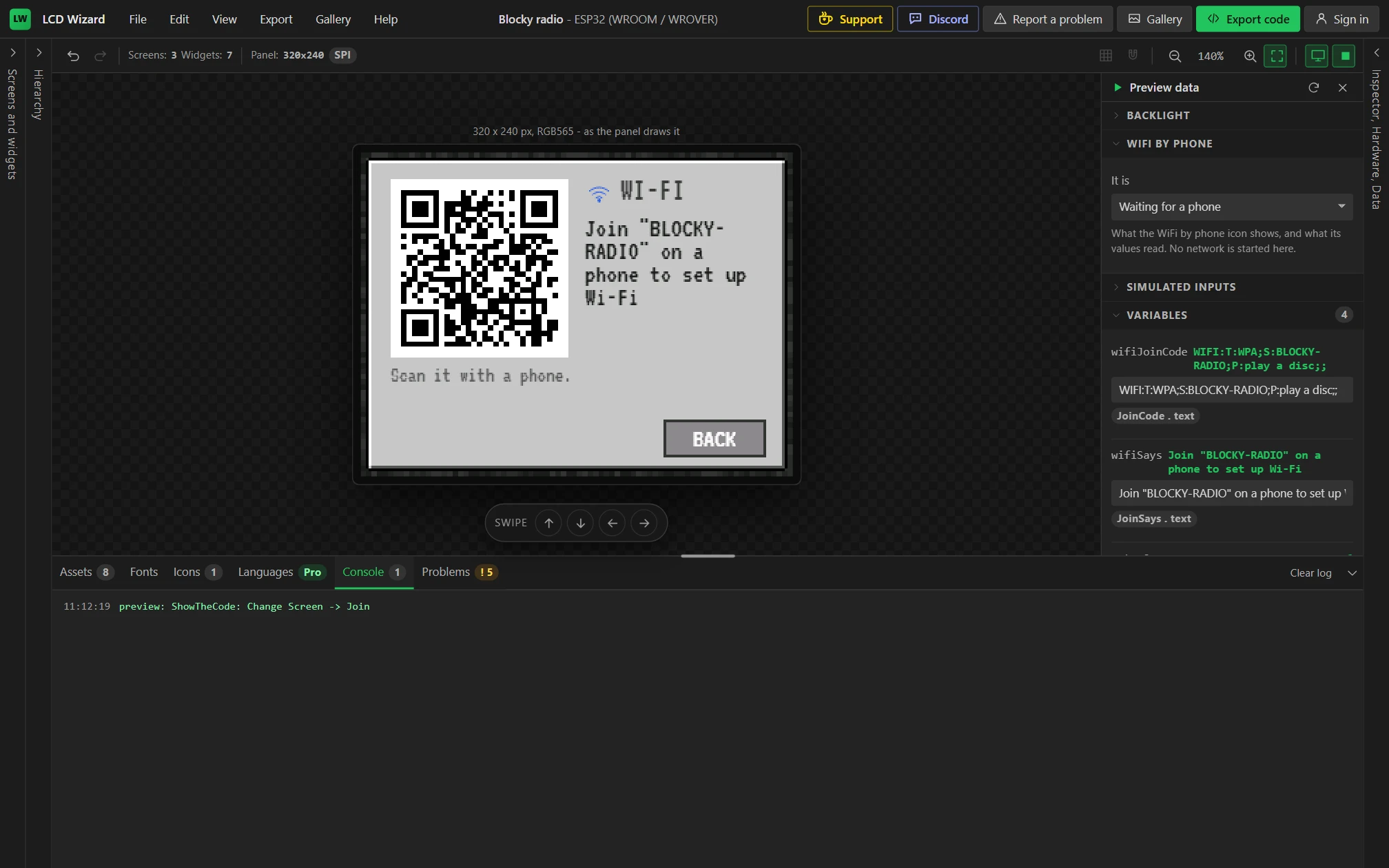
44 Join a network, and play
In the drawer on the right, open WiFi by phone and set It is to On a network: BackToTheRadio takes you to the radio, and the mark turns green. Then click the play slot. The disc appears, the play slot lights green, the tooltip names Groove Salad and the level moves.
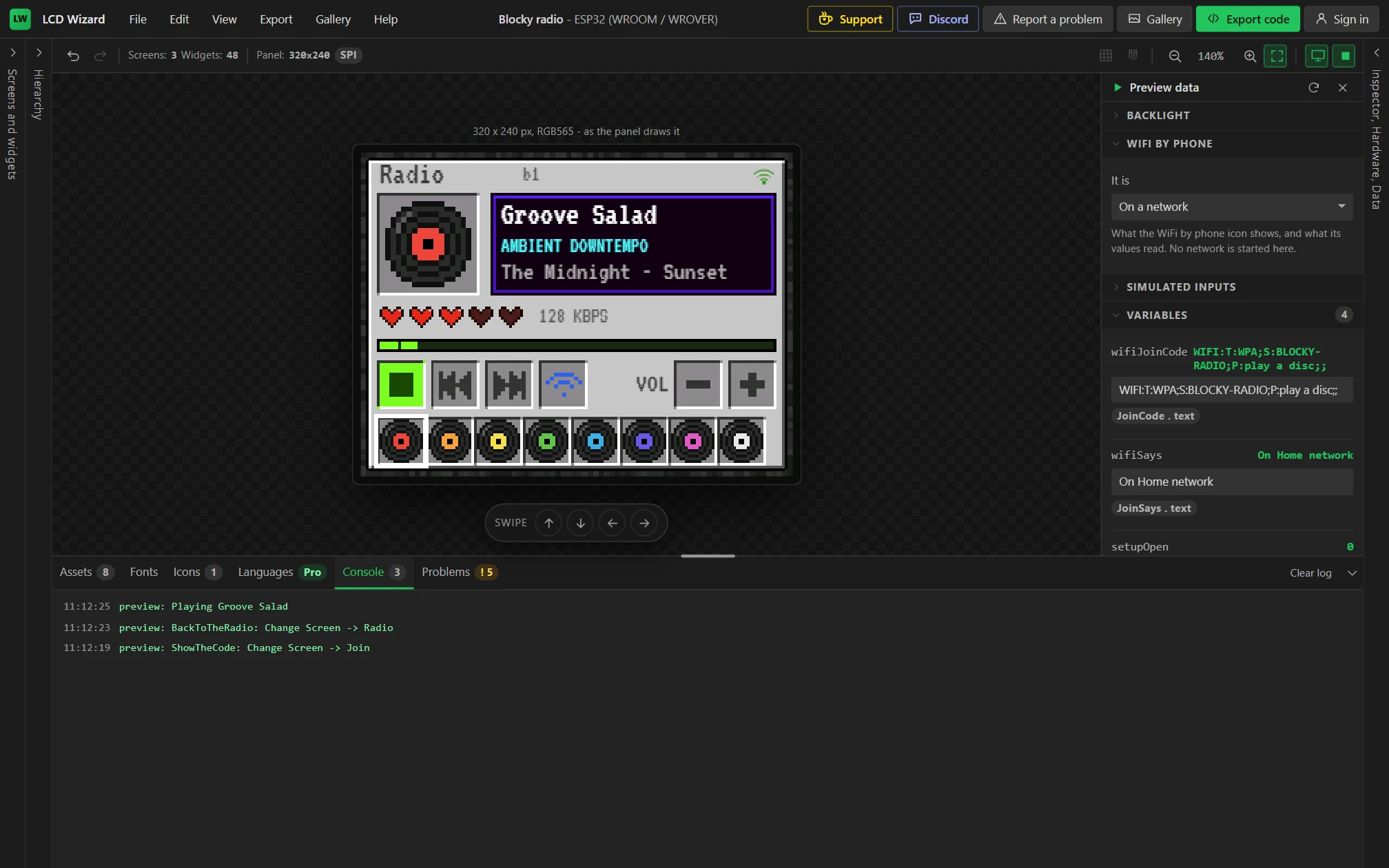
45 Choose a disc, and turn it up
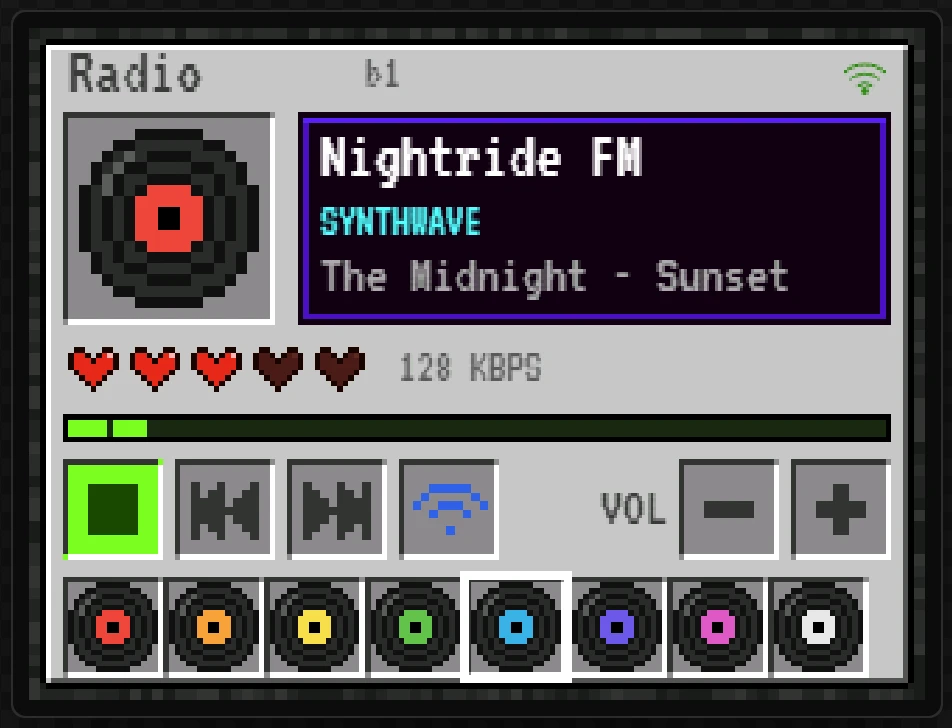
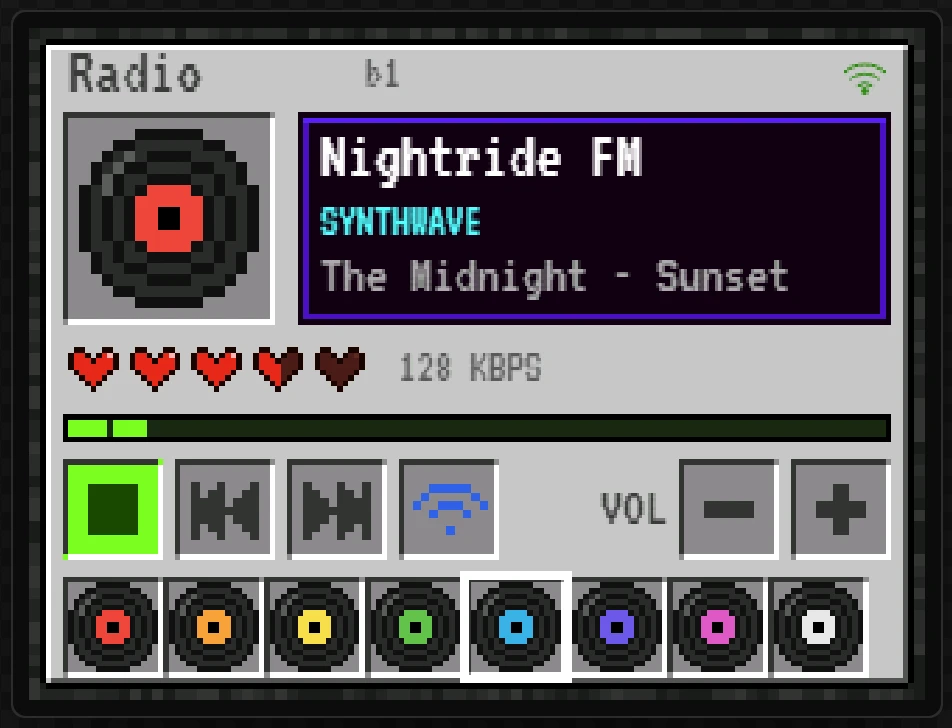
Click the fifth disc: Nightride FM plays and its disc is framed. Click + beside VOL: the volume goes from 60 to 70, and the fourth heart fills by half.
46 The Wi-Fi slot
Click the Wi-Fi slot. The Join screen opens, saying the board is on a network. Leave Preview with the triangle.
Part 12: generate the code
47 Read the Problems tab
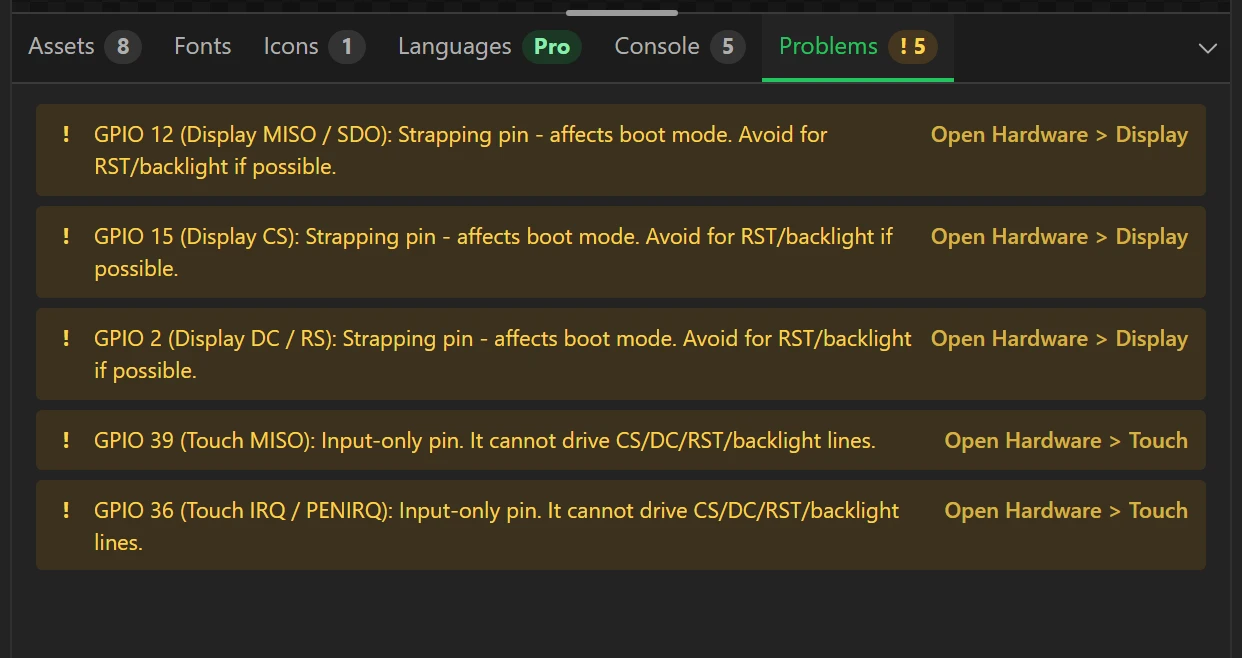
Open Problems in the bottom panel. There should be no errors. The five warnings are about the board's own wiring: three of its display pins are pins the chip reads as it starts, and two touch pins are input only.
48 Export code
Press Export code at the top right. The dialog checks the design again: no errors. Nothing in this design is Pro, so the dialog names no Pro parts, and any account can generate it. Press Generate code at the bottom right.


49 Download the project
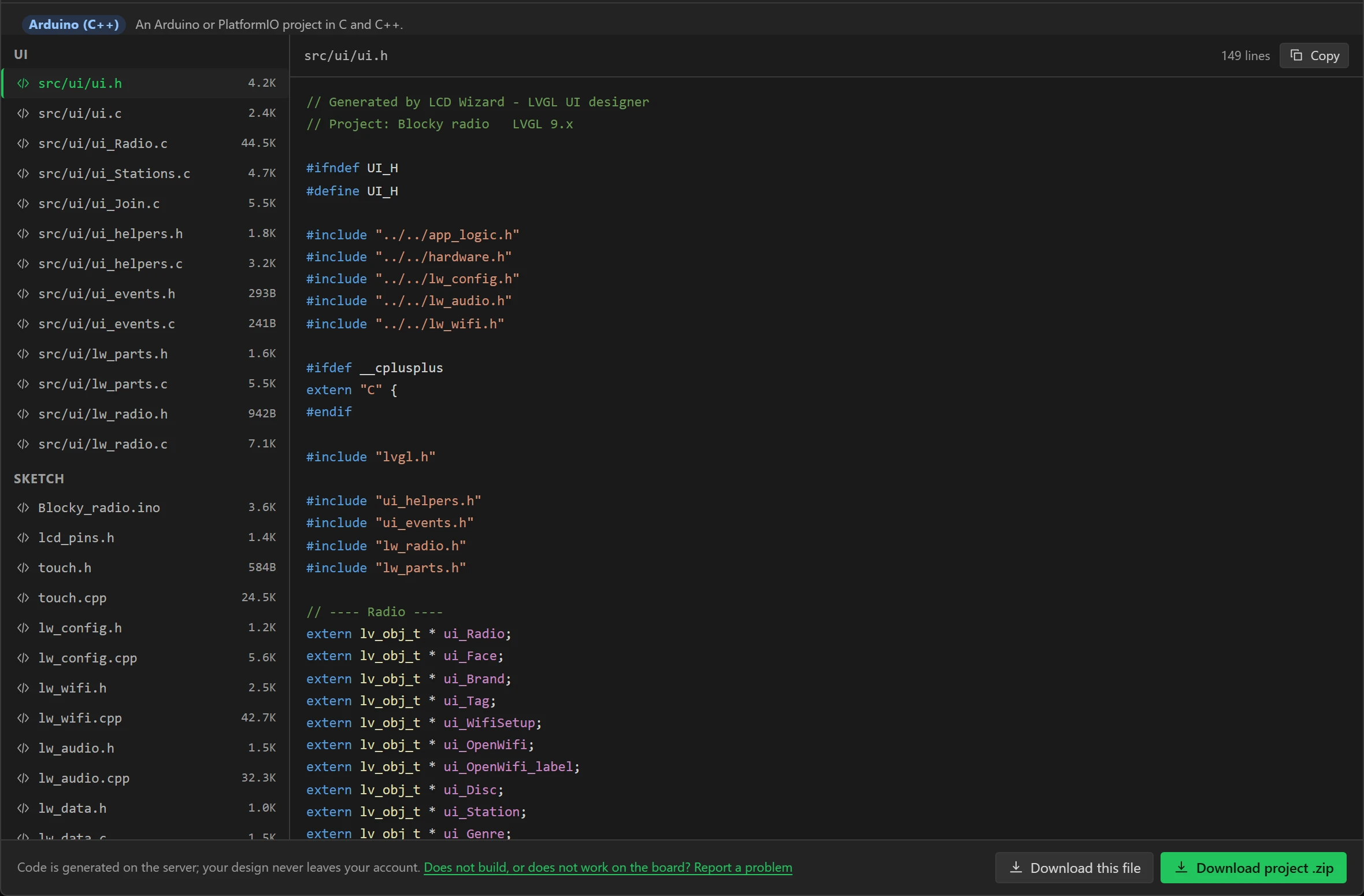
The dialog lists every file it wrote. lw_audio.cpp is the player, lw_wifi.cpp
is WiFi by phone, and the eight pictures and three sizes of VT323 are C files under src/ui.
Press Download project .zip.
Part 13: onto the board
50 Build it and upload it
Unzip the project and plug in the board. With PlatformIO, open a terminal in the folder and run:
pio run -t uploadThe first build fetches the libraries and takes a few minutes. With the Arduino IDE, open
Blocky_radio.ino from the folder, install the libraries LIBRARIES.md lists, set
the Tools menu as README.md says, and press Upload.
Flashing and configuration has both routes in full. The firmware is
1.9 MB, 61 per cent of the 3 MB the board gives it, and it uses 104 KB of the chip's 320 KB of RAM
before it starts. The board makes its own touch calibration file the first time it starts.
You should see the board ask you to touch the corners of the screen once, for the touch calibration, and then the Wi-Fi screen.
51 Or flash the ready-made image
The image is this tutorial's design, built and merged into one file: blocky-radio-sunton-cyd-b1.bin (4 MB, build b1). It is for the ESP32-2432S028R only, and plays through the board's own speaker connector.
- Open esptool-js in Chrome or Edge, plug in the board and press Connect. Choose the board's port. If none is listed, hold the board's BOOT button while you plug it in.
- Press Erase Flash.
- Set Flash Address to
0x0, choose the file, and press Program. - When it says it is done, press the board's RST button, or unplug it and plug it in.
You should see the touch calibration, then the Wi-Fi screen, and "b1" small beside the word Radio on the radio screen once you get there.
52 Give it your Wi-Fi
After the touch calibration the board shows the code, since it has no network yet. Scan it with the
phone's camera and join BLOCKY-RADIO (password play a disc). The phone opens a page
listing the networks the board can hear. Choose yours and type its password. The board should join and
go to the radio screen by itself, and remember the network through a restart.
53 A speaker, and play
Plug a small speaker into the board's speaker connector. Press play, or touch a disc. The sound comes from the chip's own 8-bit converter through the board's little amplifier: fine for a kitchen radio, and not hi-fi.
You should see the disc in the big slot, the play slot lit green, the station's name in the tooltip and the level moving, and hear the station. VOL - and + step the volume, and the hearts follow.
Making it yours
- Your own stations. Change the list in step 17. A disc plays the station at its place in the list, so keep eight, or change the bottom row with them.
- More stations than discs. Next and previous walk the whole list, and the Stations screen shows all of it.
- A lookalike board. Choose it in step 3 instead. The design is the same; the pins are the board's.
- A Bluetooth speaker. Hardware > Bluetooth, Plays to a Bluetooth speaker (A2DP), makes a board play to one. With Wi-Fi beside it, that needs a classic ESP32 with PSRAM, a WROVER module: a CYD has no PSRAM, and runs out of memory. It compiles, and no speaker has heard it yet.
- Audio covers the player, the stations and every value it gives a design. Bluetooth covers playing to a speaker, and Network covers WiFi by phone.
- The other tutorials: a stream deck for OBS and a two-way radio.
The build sheet
Every picture, station, variable and widget of the design, with its numbers, written from the design file itself. A setting left at what the designer gives it is not listed.
The pictures
| File | Size | Stored in | Colour format |
|---|---|---|---|
inv_main.png | 320 x 240 | Firmware (C array) | RGB565 |
inv_second.png | 320 x 240 | Firmware (C array) | RGB565 |
inv_disc.png | 64 x 64 | Firmware (C array) | RGB565A8 |
inv_frame.png | 40 x 40 | Firmware (C array) | RGB565A8 |
inv_stop.png | 36 x 36 | Firmware (C array) | RGB565 |
inv_gaps.png | 292 x 6 | Firmware (C array) | RGB565A8 |
heart.png | 18 x 16 | Firmware (C array) | RGB565A8 |
heart_half.png | 18 x 16 | Firmware (C array) | RGB565A8 |
The stations (Data tab, the Stations list)
| Name | URL | Genre | |
|---|---|---|---|
| 0 | Groove Salad | http://ice1.somafm.com/groovesalad-128-mp3 | AMBIENT DOWNTEMPO |
| 1 | Deep Space One | http://ice1.somafm.com/deepspaceone-128-mp3 | AMBIENT SPACE |
| 2 | Space Station | http://ice1.somafm.com/spacestation-128-mp3 | SPACE ELECTRONICA |
| 3 | Mission Control | http://ice1.somafm.com/missioncontrol-128-mp3 | AMBIENT + NASA |
| 4 | Nightride FM | http://stream.nightride.fm/nightride.mp3 | SYNTHWAVE |
| 5 | Chillsynth | http://stream.nightride.fm/chillsynth.mp3 | CHILLWAVE |
| 6 | Datawave | http://stream.nightride.fm/datawave.mp3 | DARKSYNTH |
| 7 | Tay FM | http://stream-mz.hellorayo.co.uk/tayfm.mp3?aw_0_1st.skey=1602676850&aw_0_1st.playerid=BMUK_ukrp | DUNDEE HITS |
The variables (Data tab)
| Name | Type | Source |
|---|---|---|
wifiJoinCode | Text, length 200 | Network > WiFi by phone: the code a phone scans |
wifiSays | Text, length 224 | Network > WiFi by phone: what to do next |
setupOpen | Boolean | Network > Access point running |
online | Boolean | Network > Connected |
Screen Radio
Background Background > Color #000000. Widgets in the order they are added, which is the order they are drawn in: each is drawn over the ones before it.
| Name | Widget | X, Y, W, H | Settings, look, binding, event |
|---|---|---|---|
Face | Image | 0, 0, 320, 240 | Asset inv_main.pngFlag clickable offFlag scrollable off |
Brand | Label | 14, 6, 120, 22 | Text RadioStyle Main, Default: Text > Font VT323, 24 px, Text > Color #3F3F3F, Text > Align Left |
Tag | Label | 120, 9, 40, 18 | Text b1Style Main, Default: Text > Font VT323, 16 px, Text > Color #5A5A5A, Text > Align Left |
WifiSetup | WiFi by phone | 288, 7, 21, 21 | Network name BLOCKY-RADIOIts password play a discPage heading Blocky radioSize 21Not connected #6A6A6AWaiting for a phone #3060E0Flashes every 400A phone is connected #3060E0Joining #FFD24AOn a network #2E8A10Could not join #FF4B3E |
OpenWifi | Button | 284, 4, 30, 26 | Text empty Style Main, Default: Background > Opacity 0, Misc > Radius 0, Border > Width 0, Shadow > Width 0, Outline > Width 0Style Main, Pressed: Background > Color #FFFFFF, Background > Opacity 50Event: Clicked → Change Screen: Screen to load Join |
Disc | Image | 18, 36, 64, 64 | Hidden with the eye in the Hierarchy Asset inv_disc.pngFlag clickable offFlag scrollable offBinding: Hidden from the player: Playing, Formula x == 0 |
Station | Label | 104, 36, 196, 26 | Label mode Scroll circularText Groove SaladStyle Main, Default: Text > Font VT323, 24 px, Text > Color #FFFFFF, Text > Align LeftBinding: Text from the player: Station name |
Genre | Label | 104, 62, 196, 18 | Label mode DotText AMBIENT DOWNTEMPOStyle Main, Default: Text > Font VT323, 16 px, Text > Color #55FFFF, Text > Align LeftBinding: Text from the player: Station genre |
Title | Label | 104, 80, 196, 20 | Label mode Scroll circularText Press playStyle Main, Default: Text > Font VT323, 20 px, Text > Color #AAAAAA, Text > Align LeftBinding: Text from the player: Track title |
OpenStations | Button | 96, 30, 212, 76 | Text empty Style Main, Default: Background > Opacity 0, Misc > Radius 0, Border > Width 0, Shadow > Width 0, Outline > Width 0Style Main, Pressed: Background > Color #FFFFFF, Background > Opacity 50Event: Clicked → Change Screen: Screen to load Stations |
Heart1 | Image | 14, 114, 18, 16 | Asset heart.pngFlag clickable offFlag scrollable offBinding: Hidden from the player: Volume, Formula x < 15 |
HalfHeart1 | Image | 14, 114, 18, 16 | Hidden with the eye in the Hierarchy Asset heart_half.pngFlag clickable offFlag scrollable offBinding: Hidden from the player: Volume, Formula x < 5 || x >= 15 |
Heart2 | Image | 36, 114, 18, 16 | Asset heart.pngFlag clickable offFlag scrollable offBinding: Hidden from the player: Volume, Formula x < 35 |
HalfHeart2 | Image | 36, 114, 18, 16 | Hidden with the eye in the Hierarchy Asset heart_half.pngFlag clickable offFlag scrollable offBinding: Hidden from the player: Volume, Formula x < 25 || x >= 35 |
Heart3 | Image | 58, 114, 18, 16 | Asset heart.pngFlag clickable offFlag scrollable offBinding: Hidden from the player: Volume, Formula x < 55 |
HalfHeart3 | Image | 58, 114, 18, 16 | Hidden with the eye in the Hierarchy Asset heart_half.pngFlag clickable offFlag scrollable offBinding: Hidden from the player: Volume, Formula x < 45 || x >= 55 |
Heart4 | Image | 80, 114, 18, 16 | Hidden with the eye in the Hierarchy Asset heart.pngFlag clickable offFlag scrollable offBinding: Hidden from the player: Volume, Formula x < 75 |
HalfHeart4 | Image | 80, 114, 18, 16 | Hidden with the eye in the Hierarchy Asset heart_half.pngFlag clickable offFlag scrollable offBinding: Hidden from the player: Volume, Formula x < 65 || x >= 75 |
Heart5 | Image | 102, 114, 18, 16 | Hidden with the eye in the Hierarchy Asset heart.pngFlag clickable offFlag scrollable offBinding: Hidden from the player: Volume, Formula x < 95 |
HalfHeart5 | Image | 102, 114, 18, 16 | Hidden with the eye in the Hierarchy Asset heart_half.pngFlag clickable offFlag scrollable offBinding: Hidden from the player: Volume, Formula x < 85 || x >= 95 |
Volume | Slider | 10, 108, 114, 28 | Value 60Style Main, Default: Background > Opacity 0, Misc > Radius 0, Padding > Top 0, Padding > Bottom 0, Padding > Left 0, Padding > Right 0Style Indicator, Default: Background > Opacity 0Style Knob, Default: Background > Opacity 0, Padding > Top 0, Padding > Bottom 0, Padding > Left 0, Padding > Right 0Flag scrollable offBinding: Value from the player: Volume, both ways |
Rate | Label | 132, 114, 100, 18 | Text --- KBPSStyle Main, Default: Text > Font VT323, 16 px, Text > Color #5A5A5A, Text > Align LeftBinding: Text from the player: Bitrate, Format %d KBPS |
Level | Bar | 14, 140, 292, 6 | Max 20Value 0Style Main, Default: Background > Opacity 0, Misc > Radius 0, Padding > Top 0, Padding > Bottom 0, Padding > Left 0, Padding > Right 0Style Indicator, Default: Background > Color #7EFC20, Background > Opacity 255, Misc > Radius 0Flag clickable offFlag scrollable offBinding: Value from the player: Level, left, Formula round(x * 20 / 100) |
LevelGaps | Image | 14, 140, 292, 6 | Asset inv_gaps.pngFlag clickable offFlag scrollable off |
PlayLit | Image | 12, 154, 36, 36 | Hidden with the eye in the Hierarchy Asset inv_stop.pngFlag clickable offFlag scrollable offBinding: Hidden from the player: Playing, Formula x == 0 |
Play | Button | 12, 154, 36, 36 | Text empty Style Main, Default: Background > Opacity 0, Misc > Radius 0, Border > Width 0, Shadow > Width 0, Outline > Width 0Style Main, Pressed: Background > Color #FFFFFF, Background > Opacity 50Event: Clicked → Play audio: Play Toggle play and stop |
Previous | Button | 52, 154, 36, 36 | Text empty Style Main, Default: Background > Opacity 0, Misc > Radius 0, Border > Width 0, Shadow > Width 0, Outline > Width 0Style Main, Pressed: Background > Color #FFFFFF, Background > Opacity 50Event: Clicked → Next or previous station: Direction Previous |
Next | Button | 92, 154, 36, 36 | Text empty Style Main, Default: Background > Opacity 0, Misc > Radius 0, Border > Width 0, Shadow > Width 0, Outline > Width 0Style Main, Pressed: Background > Color #FFFFFF, Background > Opacity 50Event: Clicked → Next or previous station: Direction Next |
WifiKey | Button | 132, 154, 36, 36 | Text empty Style Main, Default: Background > Opacity 0, Misc > Radius 0, Border > Width 0, Shadow > Width 0, Outline > Width 0Style Main, Pressed: Background > Color #FFFFFF, Background > Opacity 50Event: Clicked → Change Screen: Screen to load Join |
VolCap | Label | 182, 163, 46, 20 | Text VOLStyle Main, Default: Text > Font VT323, 20 px, Text > Color #3F3F3F, Text > Align Right |
Quieter | Button | 232, 154, 36, 36 | Text empty Style Main, Default: Background > Opacity 0, Misc > Radius 0, Border > Width 0, Shadow > Width 0, Outline > Width 0Style Main, Pressed: Background > Color #FFFFFF, Background > Opacity 50Event: Clicked → Set volume: Set to Quieter by a step, Step 10 |
Louder | Button | 272, 154, 36, 36 | Text empty Style Main, Default: Background > Opacity 0, Misc > Radius 0, Border > Width 0, Shadow > Width 0, Outline > Width 0Style Main, Pressed: Background > Color #FFFFFF, Background > Opacity 50Event: Clicked → Set volume: Set to Louder by a step, Step 10 |
HotbarFrame1 | Image | 10, 194, 40, 40 | Hidden with the eye in the Hierarchy Asset inv_frame.pngFlag clickable offFlag scrollable offBinding: Hidden from the player: Station number, Formula x != 0 |
Hotbar1 | Button | 12, 196, 36, 36 | Text empty Style Main, Default: Background > Opacity 0, Misc > Radius 0, Border > Width 0, Shadow > Width 0, Outline > Width 0Style Main, Pressed: Background > Color #FFFFFF, Background > Opacity 50Event: Clicked → Play audio: Play A station from the list, Station Groove Salad |
HotbarFrame2 | Image | 46, 194, 40, 40 | Hidden with the eye in the Hierarchy Asset inv_frame.pngFlag clickable offFlag scrollable offBinding: Hidden from the player: Station number, Formula x != 1 |
Hotbar2 | Button | 48, 196, 36, 36 | Text empty Style Main, Default: Background > Opacity 0, Misc > Radius 0, Border > Width 0, Shadow > Width 0, Outline > Width 0Style Main, Pressed: Background > Color #FFFFFF, Background > Opacity 50Event: Clicked → Play audio: Play A station from the list, Station Deep Space One |
HotbarFrame3 | Image | 82, 194, 40, 40 | Hidden with the eye in the Hierarchy Asset inv_frame.pngFlag clickable offFlag scrollable offBinding: Hidden from the player: Station number, Formula x != 2 |
Hotbar3 | Button | 84, 196, 36, 36 | Text empty Style Main, Default: Background > Opacity 0, Misc > Radius 0, Border > Width 0, Shadow > Width 0, Outline > Width 0Style Main, Pressed: Background > Color #FFFFFF, Background > Opacity 50Event: Clicked → Play audio: Play A station from the list, Station Space Station |
HotbarFrame4 | Image | 118, 194, 40, 40 | Hidden with the eye in the Hierarchy Asset inv_frame.pngFlag clickable offFlag scrollable offBinding: Hidden from the player: Station number, Formula x != 3 |
Hotbar4 | Button | 120, 196, 36, 36 | Text empty Style Main, Default: Background > Opacity 0, Misc > Radius 0, Border > Width 0, Shadow > Width 0, Outline > Width 0Style Main, Pressed: Background > Color #FFFFFF, Background > Opacity 50Event: Clicked → Play audio: Play A station from the list, Station Mission Control |
HotbarFrame5 | Image | 154, 194, 40, 40 | Hidden with the eye in the Hierarchy Asset inv_frame.pngFlag clickable offFlag scrollable offBinding: Hidden from the player: Station number, Formula x != 4 |
Hotbar5 | Button | 156, 196, 36, 36 | Text empty Style Main, Default: Background > Opacity 0, Misc > Radius 0, Border > Width 0, Shadow > Width 0, Outline > Width 0Style Main, Pressed: Background > Color #FFFFFF, Background > Opacity 50Event: Clicked → Play audio: Play A station from the list, Station Nightride FM |
HotbarFrame6 | Image | 190, 194, 40, 40 | Hidden with the eye in the Hierarchy Asset inv_frame.pngFlag clickable offFlag scrollable offBinding: Hidden from the player: Station number, Formula x != 5 |
Hotbar6 | Button | 192, 196, 36, 36 | Text empty Style Main, Default: Background > Opacity 0, Misc > Radius 0, Border > Width 0, Shadow > Width 0, Outline > Width 0Style Main, Pressed: Background > Color #FFFFFF, Background > Opacity 50Event: Clicked → Play audio: Play A station from the list, Station Chillsynth |
HotbarFrame7 | Image | 226, 194, 40, 40 | Hidden with the eye in the Hierarchy Asset inv_frame.pngFlag clickable offFlag scrollable offBinding: Hidden from the player: Station number, Formula x != 6 |
Hotbar7 | Button | 228, 196, 36, 36 | Text empty Style Main, Default: Background > Opacity 0, Misc > Radius 0, Border > Width 0, Shadow > Width 0, Outline > Width 0Style Main, Pressed: Background > Color #FFFFFF, Background > Opacity 50Event: Clicked → Play audio: Play A station from the list, Station Datawave |
HotbarFrame8 | Image | 262, 194, 40, 40 | Hidden with the eye in the Hierarchy Asset inv_frame.pngFlag clickable offFlag scrollable offBinding: Hidden from the player: Station number, Formula x != 7 |
Hotbar8 | Button | 264, 196, 36, 36 | Text empty Style Main, Default: Background > Opacity 0, Misc > Radius 0, Border > Width 0, Shadow > Width 0, Outline > Width 0Style Main, Pressed: Background > Color #FFFFFF, Background > Opacity 50Event: Clicked → Play audio: Play A station from the list, Station Tay FM |
Screen Stations
Background Background > Color #000000. Widgets in the order they are added, which is the order they are drawn in: each is drawn over the ones before it.
| Name | Widget | X, Y, W, H | Settings, look, binding, event |
|---|---|---|---|
Backdrop | Image | 0, 0, 320, 240 | Asset inv_second.pngFlag clickable offFlag scrollable off |
ListTitle | Label | 20, 12, 200, 22 | Text STATIONSStyle Main, Default: Text > Font VT323, 24 px, Text > Color #3F3F3F, Text > Align Left |
StationList | Internet Radio | 20, 36, 280, 156 | Station list StationsName field NameAddress field URLGenre field GenreRow height 0Style Main, Default: Background > Opacity 0, Border > Width 0, Text > Color #1E1E1E, Text > Font VT323, 20 px, Padding > Top 0, Padding > Bottom 0, Padding > Left 0, Padding > Right 0Event: Station chosen → Change Screen: Screen to load Radio |
ListBack | Button | 224, 198, 76, 28 | Text BACKStyle Main, Default: Background > Color #8B8B8B, Background > Opacity 255, Misc > Radius 0, Border > Width 2, Border > Color #373737, Border > Opacity 255, Text > Color #FFFFFF, Text > Font VT323, 20 px, Shadow > Width 0Style Main, Pressed: Background > Color #7EFC20, Text > Color #0A2A00Event: Clicked → Change Screen: Screen to load Radio |
Screen Join
Background Background > Color #000000. Widgets in the order they are added, which is the order they are drawn in: each is drawn over the ones before it.
| Name | Widget | X, Y, W, H | Settings, look, binding, event |
|---|---|---|---|
Backdrop | Image | 0, 0, 320, 240 | Asset inv_second.pngFlag clickable offFlag scrollable off |
JoinCode | QR code | 22, 20, 132, 132 | Says WIFI:T:WPA;S:BLOCKY-RADIO;P:play a disc;;Margin 6Binding: Text from variable wifiJoinCode |
WifiSetup | WiFi by phone | 166, 20, 21, 21 | Network name BLOCKY-RADIOIts password play a discPage heading Blocky radioSize 21Not connected #6A6A6AWaiting for a phone #3060E0Flashes every 400A phone is connected #3060E0Joining #FFD24AOn a network #2E8A10Could not join #FF4B3E |
JoinTitle | Label | 192, 18, 110, 22 | Text WI-FIStyle Main, Default: Text > Font VT323, 24 px, Text > Color #3F3F3F, Text > Align Left |
JoinSays | Label | 166, 48, 132, 80 | Text empty Style Main, Default: Text > Font VT323, 20 px, Text > Color #1E1E1E, Text > Align LeftBinding: Text from variable wifiSays |
JoinHint | Label | 22, 158, 186, 20 | Text Scan it with a phone.Style Main, Default: Text > Font VT323, 16 px, Text > Color #5A5A5A, Text > Align Left |
JoinBack | Button | 224, 198, 76, 28 | Text BACKStyle Main, Default: Background > Color #8B8B8B, Background > Opacity 255, Misc > Radius 0, Border > Width 2, Border > Color #373737, Border > Opacity 255, Text > Color #FFFFFF, Text > Font VT323, 20 px, Shadow > Width 0Style Main, Pressed: Background > Color #7EFC20, Text > Color #0A2A00Event: Clicked → Change Screen: Screen to load Radio |
The automations (Data tab)
ShowTheCode: whensetupOpenbecomes equal to1, Change Screen: Screen to loadJoin.BackToTheRadio: whenonlinebecomes equal to1, Change Screen: Screen to loadRadio.