Tabview
A tab bar plus one page per tab, and each widget you put in it belongs to one of the tabs.
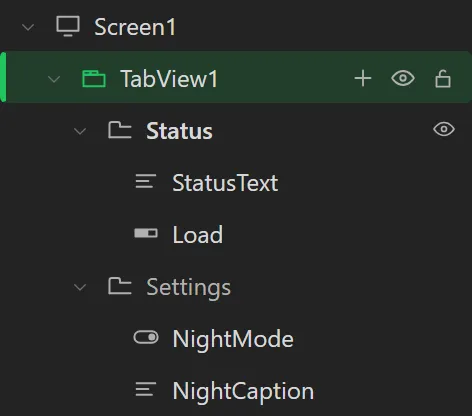
- Each tab is a row in the Hierarchy, under the Tab view, with that tab's widgets under it. An empty tab has a row too.
- Choose the tab to work on by clicking its row in the Hierarchy or the tab itself on the canvas (or under the Tab view's Geometry, Working on tab). That only changes what you are looking at; the tab the board starts on is Active tab.
- Drop a widget on a tab's row and it goes into that tab. Dropped on the Tab view itself, on the canvas or in the Hierarchy, it goes into the tab in sight. So does one added with a click on its palette tile while the Tab view, or a widget in one of its tabs, is selected. Only the tab in sight has its widgets drawn, on the canvas, in Preview and on the board.
- A widget on the screen, over the Tab view, is in no tab, so it is drawn on every tab. Its row in the Hierarchy is beside the Tab view's rather than under a tab, and the Problems tab says which widgets are like that. Drag its row onto a tab's row to put it in that tab; leave it where it is if it is meant to show on every tab, like a status bar.
- Move a widget to another tab by dragging its row onto that tab's row, or with In tab under its own Geometry. Picking a widget in the Hierarchy turns the Tab view to its tab.
- Add a tab with the + on the Tab view's row, rename one by double-clicking its row (or F2), and remove one with the bin on its row. Removing a tab removes the widgets in it, after asking; Undo brings them back. Add a tab and Remove this tab under the Tab view's Geometry do the same from the keyboard.
- A widget's X and Y count from inside the tab page's padding. That padding is the theme's unless Tab padding says otherwise.
The tabs are still the Tabpages setting, one name a line, and can be edited there. If a tab is taken out of Tabpages by hand, the widgets that were in it are kept in the last tab that is left, and the Problems tab names each one. All three exports make a widget inside the page of its own tab.
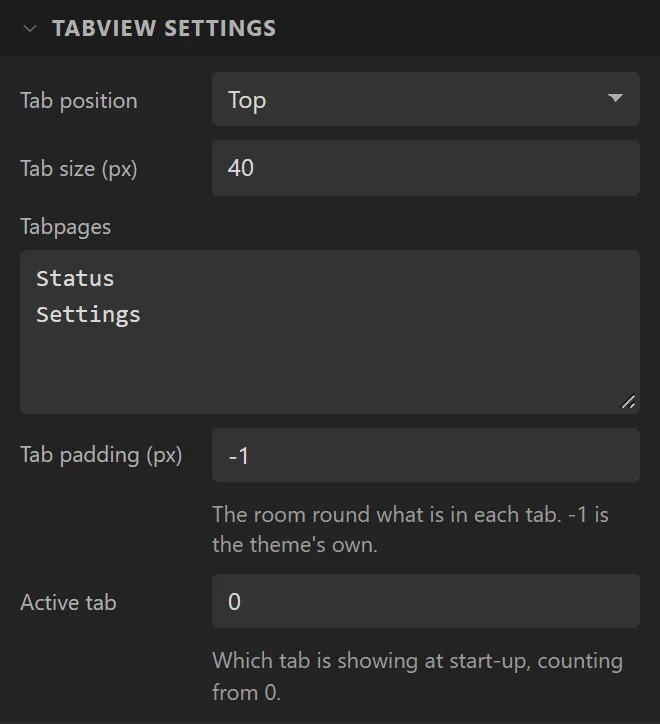
| Setting | Default | What it does |
|---|---|---|
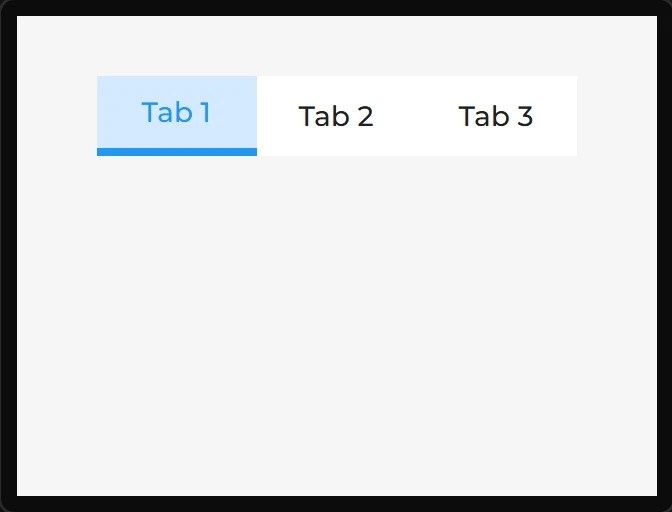
| Tab position | Top | Where the bar sits: Top, Bottom, Left or Right. |
| Tab size | 40 | The bar's height (or width, for Left and Right). |
| Tabpages | Tab 1 / Tab 2 / Tab 3 | One tab per line. |
| Tab padding | -1 | The room round what is in each tab, in pixels. -1 leaves the theme's own, which is what a Panel has. |
| Active tab | 0 | The tab the board starts on, counted from 0. |
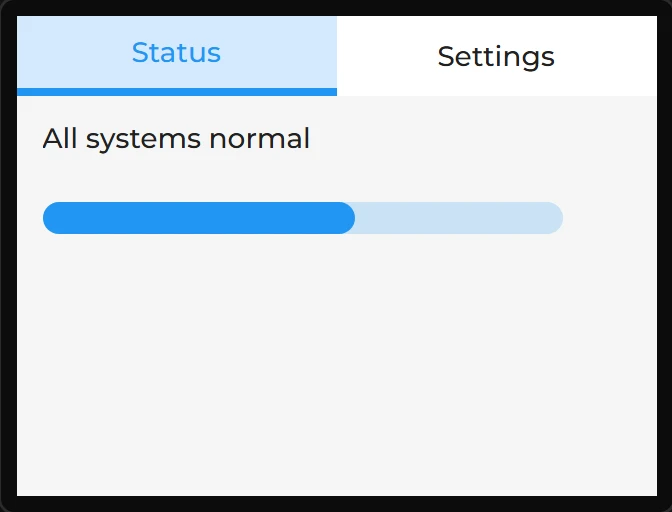
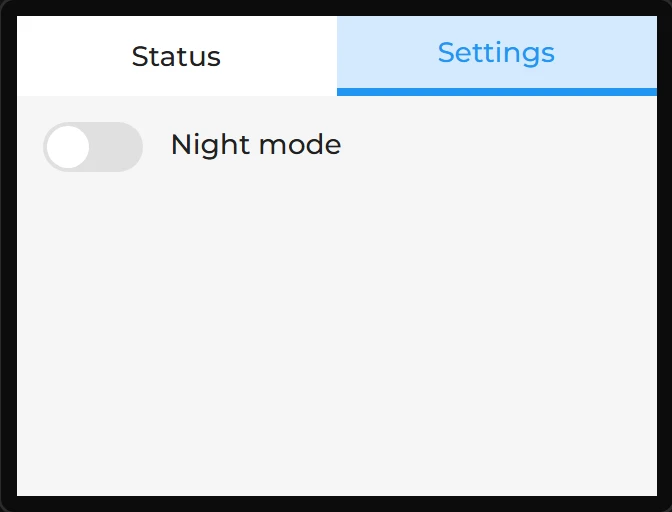
Example: two tabs with widgets in each
- Drag a Tabview onto the screen and make it the whole screen: X
0, Y0, Width320, Height240. - Under Tabview settings set Tabpages to two lines,
StatusandSettings. - In the Hierarchy the Tab view has a row for each tab. Drop a Label on the Status row and set its Text to
All systems normal; drop a Bar on the same row and give it Y40. - Drop a Switch and a Label saying
Night modeon the Settings row. - Click a tab’s row, or the tab on the canvas, to see it. That only changes what you are looking at: the board starts on Active tab.