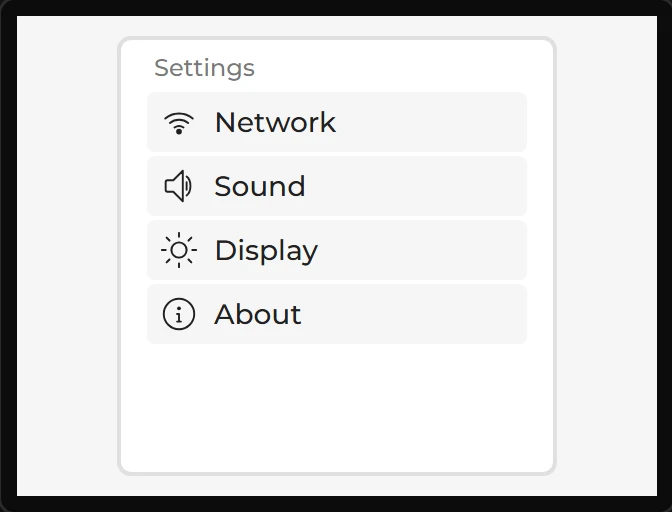
List
A scrolling column of buttons with optional headings - the usual shape for a settings menu. It is a container, so you can drop your own widgets in as well as using the Items list.
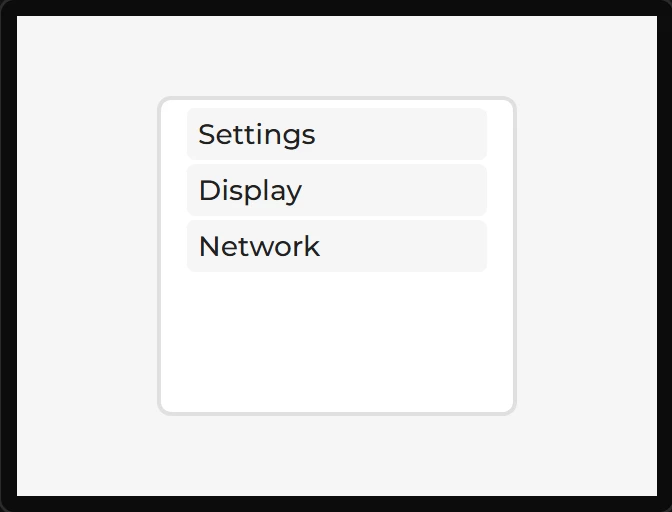
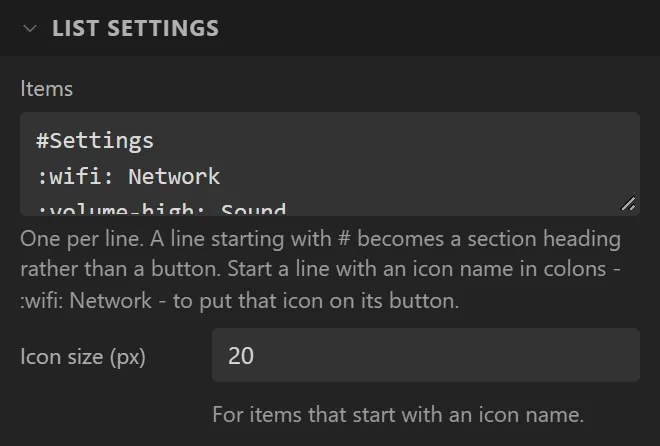
| Setting | Default | What it does |
|---|---|---|
| Items | three entries | One per line. A line starting with # becomes a section heading (lv_list_add_text); everything else becomes a button (lv_list_add_button). Start a line with an icon name in colons - :wifi: Network - to put that icon in front of its caption. |
| Icon size | 20 px | The size of every item's icon. |
Styling the rows
Each item is a button of its own, and Rows under Style settings > Part styles all of them
at once: background, the line under each, text, padding. LVGL's theme draws a pressed row
grey and a little wider than the list on each side. To keep a row its own width and colour, pick
Rows and Pressed, then set Transform > Grow width to 0 and
Misc > Shade to 0, and give it a Background colour of its own if you want one.
Headings are not rows and keep the theme's look.
The generated buttons are named ui_<name>_item1 and so on, so your own code can
attach a callback to one. The designer does not offer events on them yet.
Example: a settings menu
- Drag a List onto the screen and give it X
50, Y10, Width220and Height220. - Under List settings set Items to five lines:
#Settings,:wifi: Network,:volume-high: Sound,:sun: Displayand:info-circle: About. The first is a heading; the others are buttons, each with an icon.