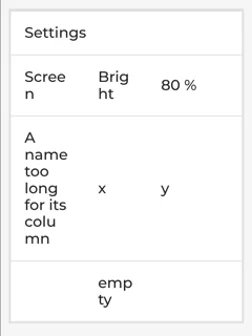
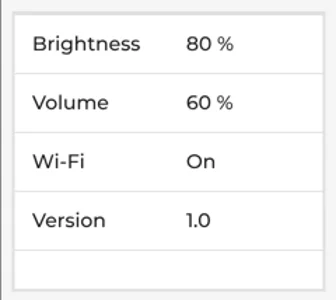
Table
Rows and columns of text - LVGL’s own lv_table, for a settings page, a page of
readings or a list of anything with two sides to it. Each row is as tall as its tallest cell’s
words, and the words are centred up and down in it, as LVGL draws them.
| Setting | Default | What it does |
|---|---|---|
| Rows | 4 | How many rows the table has, 1 to 100. Text past the last row is not shown. |
| Columns | 2 | How many columns, 1 to 20. Text past the last column is not shown. |
| Cells | four rows | One row a line, the cells parted by |. A tab parts them too, so rows copied out of a spreadsheet land in their cells. A cell that is < and nothing else joins the cell on its left: that cell’s text runs across both (LV_TABLE_CELL_CTRL_MERGE_RIGHT), so Settings|<|< is a heading across three columns. A | cannot be part of a cell’s text. |
| Column widths | empty | Pixels for each column in turn, parted by commas: 120, 80. A column given none shares what is left of the table’s width inside its padding and border, the last of them taking the odd pixels, so a table nobody has set fills its box. |
| One line a cell | off | Keeps every row one line tall (LV_TABLE_CELL_CTRL_TEXT_CROP), where LVGL would otherwise wrap a long cell and make its row taller. LVGL 9 draws the one line and cuts it at the cell’s edges; LVGL 8 still wraps it and shows the first line. The designer draws whichever the project is for. |
Styling the cells is the Items part: its padding is the room round each cell’s words, its border the lines between cells (the theme’s is a grey line above and below each, Side Top and bottom - choose Full for a grid), its background and its text colour, font and alignment are every cell’s. Pressed is the cell under a finger. The Main part is the box: its padding and border move where the first column starts.
A Table is in the Arduino, ESP-IDF and MicroPython exports. ESPHome has no table widget; a Panel with a column layout and Labels in rows is the nearest thing there.
Example: a settings page
- Drag a Table onto the screen and give it Width
224and Height300. - Under Table settings set Rows to
5, Columns to3and Column widths to70, 60- the third column takes the rest. - Set Cells to
Settings|<|<on its first line - a heading across all three columns - thenScreen|Bright|80 %,A name too long for its column|x|yand|empty|. The long name wraps and its row grows to hold it.