Tileview
A grid of full-screen tiles you swipe between - the pattern behind a phone home screen. Only one tile is on screen at a time, so the canvas shows one tile with its own widgets on it. A small map in the corner says which tile is in sight (filled) and which one the board opens on (outlined); it is the designer's, and is not drawn in Preview or on the board.

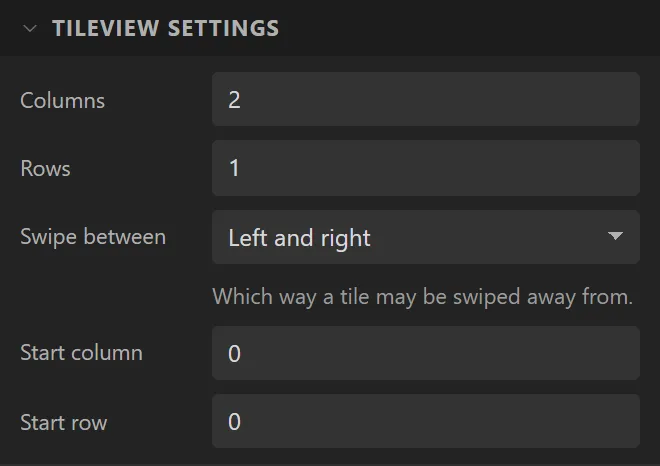
| Setting | Default | What it does |
|---|---|---|
| Columns / Rows | 2 / 1 | The size of the grid. A tile is created for every cell. Changing either keeps every widget on its column and row; one whose tile went is put on the nearest that is left. |
| Swipe between | Any direction | Which way a tile may be swiped away from. |
| Start column / row | 0 / 0 | Which tile is showing at start-up. |
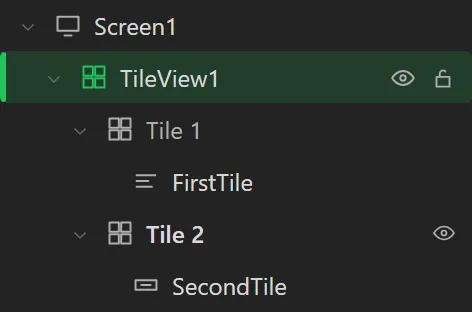
Each tile has widgets of its own. Every tile is a row under the Tileview in the Hierarchy, with its widgets under it, as a Tab view's tabs are. Click a tile's row (or choose it under Working on tile in the Tileview's Geometry) to see it, and what you drop on the Tileview goes on that tile. Drag a widget onto a tile's row to move it there, or choose its tile under On tile in its own Geometry. A widget's X and Y count from the tile's top left corner: a tile fills the Tileview and has no padding.
Example: two tiles side by side
- Drag a Tileview onto the screen and make it the whole screen: X and Y
0, Width320, Height240. - Under Tileview settings leave Columns on
2and Rows on1, and set Swipe between to Left and right. - Drop a Label on it saying
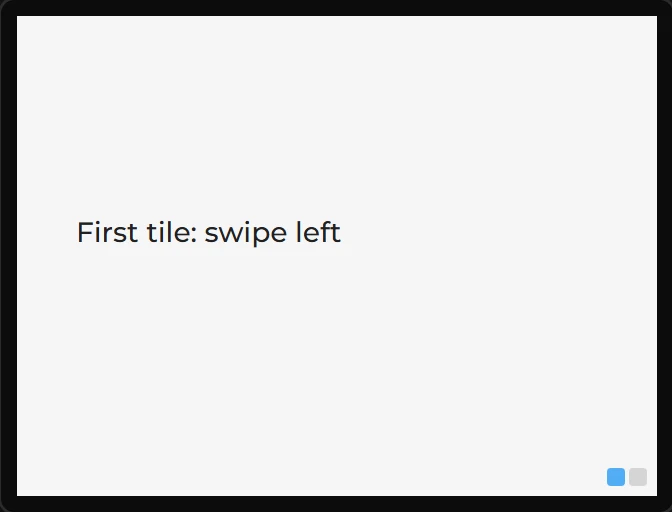
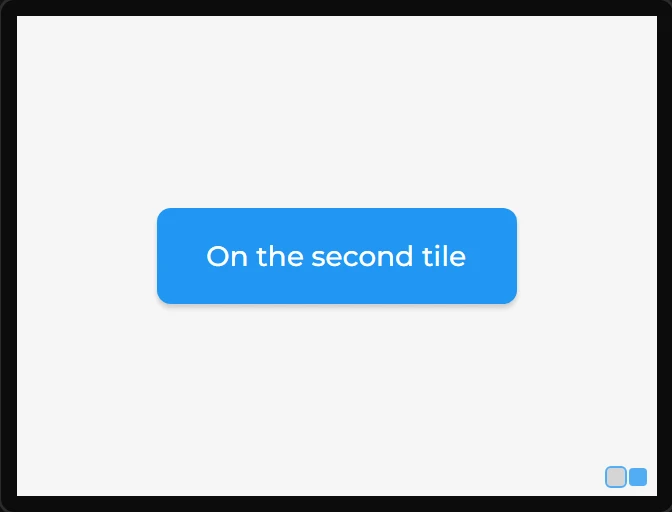
First tile: swipe left. It goes on the first tile, the one in sight. - In the Hierarchy click Tile 2. The canvas shows the second tile, empty. Drop a Button on it saying
On the second tile. - Press Play and swipe left across the screen: the second tile slides in, as it does on the board.