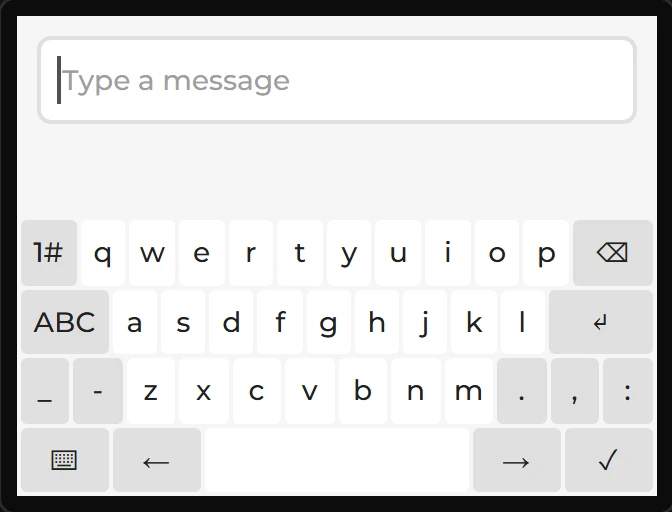
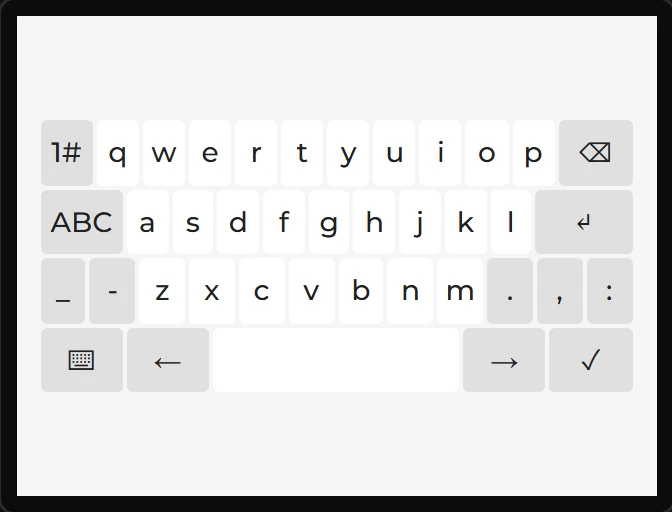
Keyboard
An on-screen keyboard. Give it a Target textarea and typing goes there.
| Setting | Default | What it does |
|---|---|---|
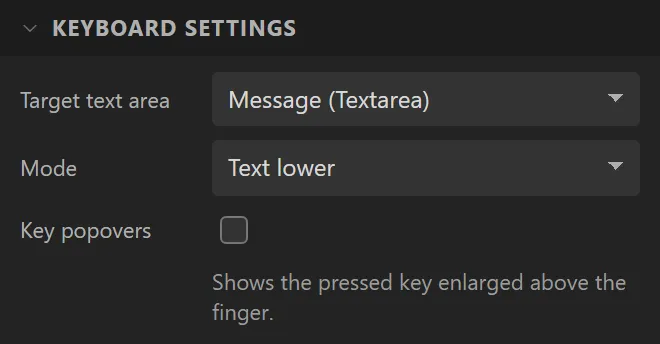
| Target text area | (none) | The textarea it edits. |
| Mode | Text lower | Text lower, Text upper, Special, Number, or User 1 for a map you define in code. |
Example: typing into a text area
- Drag a Textarea to the top of the screen and name it
Message: X10, Y10, Width300, Height44. Set Placeholder toType a messageand tick One line mode. - Drag a Keyboard under it and make it the width of the screen: X
0, Y100, Width320, Height140. - Under Keyboard settings set Target text area to Message. On the board, each key a finger presses goes into it.