Image Button
A button drawn from images rather than a box. Each state is its own asset, so a press swaps the picture instead of tinting it — which is the only way to press a button that already glows, since a tint over a glow reads as a fault rather than a press. Only Released is required; every other slot falls back to it.
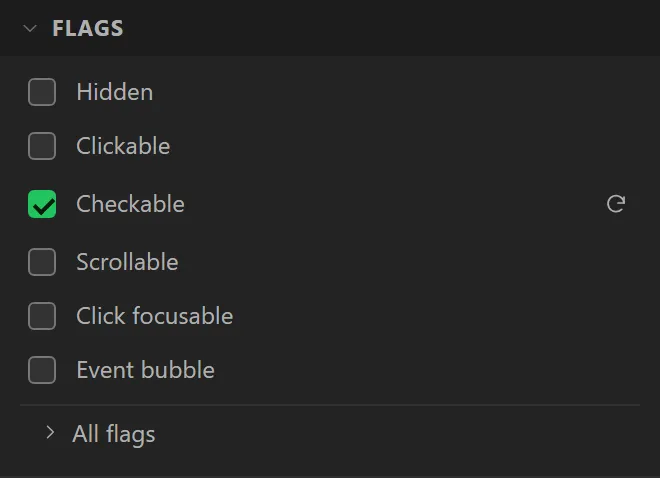
The checked slots need the widget to be checkable before LVGL will ever put it in that state: tick Checkable under Flags in the Inspector. Without it the checked art is compiled in and never drawn. A checkable image button is how one control does play and stop — see NEON DECK, whose transport is exactly that.
| Setting | Default | What it does |
|---|---|---|
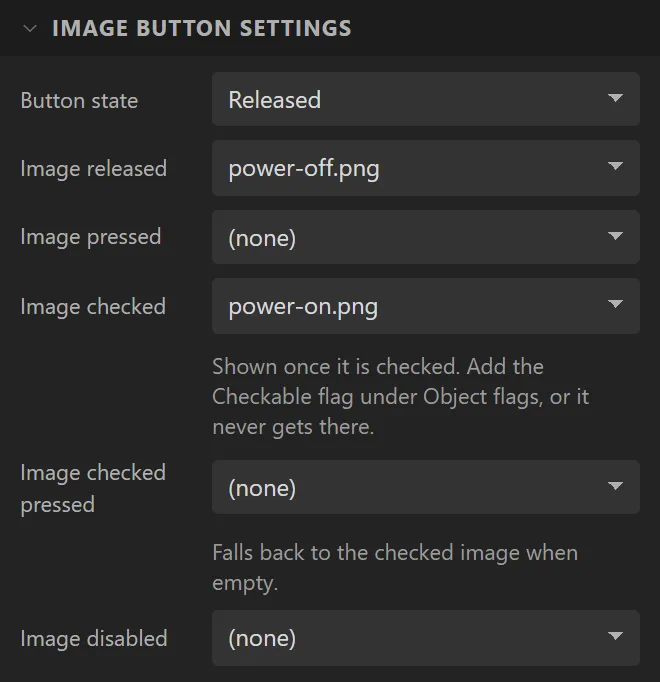
| Button state | Released | Which state to show on the canvas and at start: Released, Pressed, Disabled and their Checked variants. |
| Image released | (none) | The resting picture, and the fallback for every slot below that is empty. |
| Image pressed | (none) | Shown while a finger is on it. |
| Image checked | (none) | Shown once it is checked. Needs the Checkable flag, or the widget never reaches that state. |
| Image checked pressed | (none) | Pressed while checked. Falls back to the checked image. |
| Image disabled | (none) | Shown while the widget is disabled — set by the Set state action or by lv_obj_add_state. |
Example: a power key that stays lit
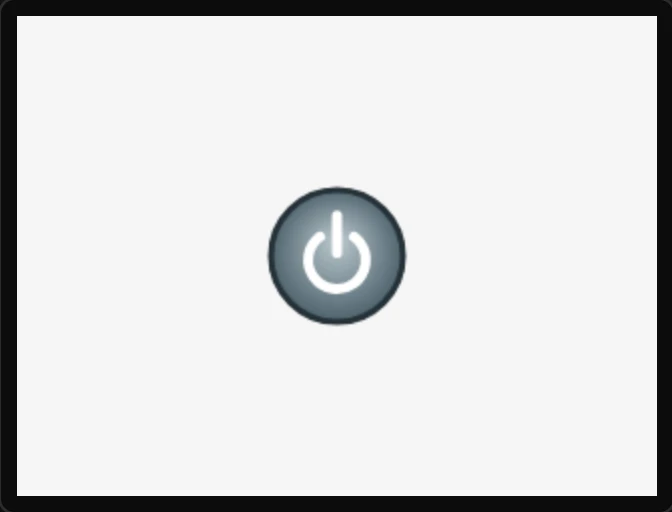
- On the Assets tab press Add image twice and add the two pictures of the key:
power-off.pngandpower-on.png, both 72 x 72. - Drag an Image Button onto the screen and name it
PowerKey. Under Image Button settings set Image released to power-off.png and Image checked to power-on.png. Give it a Width and Height of72. - Open Flags and tick Checkable, or it never reaches the checked state.
- Press Preview and click the key: it lights and stays lit. Click it again and it goes out.