Spectrum analyser
Bars that move with sound, low notes at one end and high notes at the other. It shows what the board’s microphone hears, or what the board’s player is playing: a station, an MP3 file from an SD card or a sound. The bars can sit on a straight line, on an arc or round a whole circle, and grow up, down or both ways. Their colours, ends, steps and peak marks are all settings.
Part of Pro when code is generated. Dropping it on a design and trying it in preview is free, and the export dialog says so before anything is asked for.
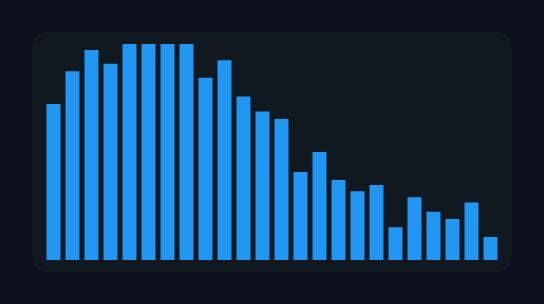
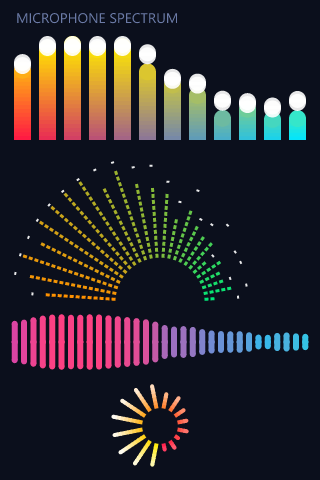
What it shows
| Setting | Default | What it does |
|---|---|---|
| Shows | What the microphone hears | What the microphone hears: the microphone switched on under Hardware > Audio. What the speaker plays: whatever the player plays, as it goes to the speaker, before the volume, so turning it down does not shrink the bars. |
Dropping one switches the microphone on, as the AI Assistant does. If the design already plays sound and has no microphone, it is set to show what the speaker plays instead. Several analysers can show the same source, and a design can have analysers of both.
When the board plays to a Bluetooth speaker, the player’s analyser has nothing to show, because no sound goes through the board. On a board where the microphone and the speaker share one codec (the ES8311 boards), the microphone is not heard while the player has the codec, and its bars fall. About 200 ms after the sound stops, all the bars fall to nothing.
The shape
| Setting | Default | What it does |
|---|---|---|
| Bars | 24 | 8 to 64. Each bar is a band of frequencies, from the lowest to the highest set below. |
| Bend | 0° | 0 is a straight line, 180 a half circle, 360 a whole circle, and anything between is an arc. Bent, the bars point out from the middle. |
| Faces | 0° | Bent only. Which way the middle of the arc points, clockwise from straight up: 0 up, 90 right, 180 down. On a whole circle, where the first bar is. |
| Hole in the middle | 35 % | Bent only. The inner circle the bars start from, as a share of the outer one. A bigger hole gives shorter bars and room for something in the middle, such as a play button. |
| Bars grow | Up, or outward | Straight: up from the bottom, down from the top, or both ways from the middle. Bent: out from the inner circle, in from the outer one, or both ways from the middle of the ring. |
| Order | Low notes first | Which end the low notes are at. First is the left of a straight row, or the start of an arc. |
The widget’s box sets how much room there is. A bent row is drawn as big as the box allows, centred in it. A half circle facing up fits a box about twice as wide as it is high.
The bars
| Setting | Default | What it does |
|---|---|---|
| Bar width | 0 px | 0 makes the bars fill the space, less the gap. On an arc the space is measured at the inner circle. |
| Gap | 2 px | Between one bar and the next, when the width is 0. |
| Shortest bar | 0 % | How long a bar is when its band is silent, as a share of the longest. A little keeps every bar in sight. |
| Track behind each bar | Off | The whole length of each bar drawn faintly behind it, in the Track part’s colour. With steps, it shows the unlit steps. |
| Steps (LED look) | Off | Each bar becomes a column of separate steps, lit from the base, like an LED meter. |
| Step length / Step gap | 4 px / 2 px | With steps on: how long each step is, and the space between steps. |
| End at the base / End at the tip | Square / Square | The shape of each end of a bar. Round tips give the soft, pill-shaped bars. |
Colour
A bar starts in the colour of the Bars part in Style settings. Two settings add more colour, and they can be used together:
| Setting | Default | What it does |
|---|---|---|
| Colour along the row | Off | The low notes are in the Bars colour, blending to the High-notes colour at the other end. For example, orange for the bass through to green for the treble. |
| High-notes colour | green | The colour at the high end of the row. |
| Colour by loudness | Off | A gradient up each bar: every bar runs from its own colour at the base to the Loud colour at full height, so only a loud bar reaches it, for example blue when quiet and red when loud. Each whole bar by how loud it is: each bar is one colour, nearer the loud colour the louder it is. |
| Loud colour | red | The colour that loudness blends towards. |
With both on, each bar’s own colour comes from its place in the row, and loudness blends from there.
Peak marks
| Setting | Default | What it does |
|---|---|---|
| Peak marks | Off | A mark at the highest point each bar last reached, held for a while and then falling. It is drawn in the Peaks part’s colour. |
| Peak held for | 600 ms | How long a mark stays where it was before it starts to fall. |
| Peak fall time | 1500 ms | How long a mark takes to fall from the top to the base. 0 drops it at once. |
| Peak mark length | 2 px | Along the bar. With round ends and a length of 1, the mark is a dot. |
| Peak mark width | 100 % | Across the bar, as a share of its width. 100 is a cap as wide as the bar; less gives a narrower dash. |
| Peak mark ends | Square | Round ends turn a short, full-width mark into a ball sitting on the bar. |
What it hears
| Setting | Default | What it does |
|---|---|---|
| Lowest frequency / Highest frequency | 60 Hz / 8000 Hz | The range the bars cover. The microphone is read 16,000 times a second, so it hears up to 8000 Hz, and a higher top is an error. The player goes up to half its stream’s rate, which is 22,050 Hz for most MP3 files. A higher top is held to that. |
| Bands spaced | Evenly in pitch | Evenly in pitch is how ears hear, and gives the low notes more bars. Evenly in Hz gives every bar the same width in Hz, which leaves most of the bars to the treble. |
| Loudness range | 60 dB | How far below the loudest possible sound a bar is empty. Less makes the bars jump more; more shows quiet sounds. |
| Sensitivity | 0 dB | Added to every band before it is drawn. More makes quiet sounds taller and less makes every bar shorter. The microphone’s own gain is under Hardware > Audio. |
| Rise time | 0 ms | How long a bar takes to rise from empty to full. 0 jumps at once. |
| Fall time | 400 ms | How long a bar takes to fall from full to empty. 0 follows the sound exactly, which flickers; a few hundred milliseconds looks smooth. |
| Frames a second | 25 | 5 to 31: how often the bars are redrawn. Fewer leaves the panel more time for the rest of the screen. |
How the sound becomes bars. Each time the widget redraws, it takes the newest 512 samples of its source and splits them into frequencies with a fast Fourier transform (Espressif’s esp-dsp). That is 32 ms of sound from the microphone and about 12 ms from a 44.1 kHz stream, so the bars follow the sound with almost no delay. The analysis steps are 31 Hz apart for the microphone and 86 Hz apart for the player. The work is done once per drawn frame, never more, and two analysers of the same source share it.
Frequency ranges. The bars share out into at most 24 frequency ranges, each with the same number of bars. The number of ranges is the largest number up to 24 that divides the bar count evenly: 24 bars have 24 ranges, 48 bars have 24 ranges of two bars, and 12 bars have 12 ranges. Bars inside a range are blended between its neighbours, so a range’s bars are not a flat block. A bar count with no divisor from 8 to 24, such as 13 or 29, gets a warning with better counts to choose from. Each range must be at least one analysis step wide, so a narrow range with many bars is an error that says how many fit.
Styling
- Main is the plate behind the bars, styled like any object: background, border, radius, padding. It starts dark, with rounded corners and 6 px of padding.
- Bars, Track behind the bars and Peaks are each drawn as lines. They take a line colour and a line opacity, in any state. Their sizes and ends are the widget’s own settings above.
Keeping it smooth on a panel
Only the bars that moved are redrawn each frame. On a ring with a hole, the hole and whatever sits in it are never redrawn by the bars. Even so, everything under and over a moving bar is drawn again with it, many times a second, over a display bus with little time to spare. On a big panel these settings make the biggest difference:
- Give the Main part a background at full opacity. A see-through plate makes the screen behind it redraw with every frame. The screen’s own colour looks the same.
- Keep shadows away from it. A shadow is the most expensive thing LVGL draws, and one over the analyser is redrawn with it. An outline looks much the same and costs little.
- Shorter bars and no track mean fewer pixels each frame. On a ring, raise Hole in the middle or lower Sensitivity.
- Many bars with many short steps is a lot of drawing. Over 1,200 steps a frame gets a warning.
- Lower Frames a second if the rest of the screen feels slow.
The Problems tab warns of a see-through plate and of any shadow that reaches the analyser, each with the cure.
What the Problems tab checks
- Errors:
- It shows the microphone and the microphone is off, or the speaker and audio is off.
- It shows the microphone with a top above 8000 Hz.
- The highest frequency is not above the lowest.
- The range is too narrow for its frequency ranges.
- The box is too small for its bars, which would be thinner than a pixel.
- There is no room for the bars to grow.
- Warnings:
- A bar count that splits into fewer than 8 ranges.
- A step longer than a bar can be.
- More than 1,200 steps a frame.
- A see-through plate.
- A shadow over it.
In the designer
The canvas and the preview draw the bars with a fixed, made-up sample of music: loud bass falling away to quiet treble. They show the shape, colours, steps and peaks exactly as set, but they do not move. The bars move only on the board.
Exports and boards
Arduino, on LVGL 9 and LVGL 8, and ESP-IDF, for the ESP32 family: ESP32, S2, S3, C3, C5, C6, and the P4 with its Wi-Fi co-processor. It needs a board with a microphone or a sound output that the designer knows, under Hardware > Audio. It is not in the MicroPython or ESPHome exports.
The export adds lw_spectrum.c and lw_spectrum.h beside the UI files. The ESP-IDF export also adds Espressif’s esp-dsp component, version 1.8.0; on Arduino it comes with the ESP32 core. Each source being shown uses about 5 KB of RAM, plus 4 KB once for the analysis tables.
Compiled for the ESP32, S3 and P4 on Arduino and ESP-IDF 5.5 and 6.1, and drawn by LVGL 9.4.0 and 8.3.11 to match the designer. Run on an LCDWIKI ES3C35P from both sources: an SD-card MP3 player with a ring of bars round its play button, and the four-analyser microphone showcase above.
Example: a ring round a play button
- Start on a board with a speaker and an SD card, such as the LCDWIKI 3.5" ESP32-S3 (ES3C35P). Under Hardware > Audio, switch the player on and choose MP3. Drop a Radio icon and set it to play the files on the card.
- Drag a Spectrum analyser onto the screen and set Shows to What the speaker plays. Make it square, 296 × 296 on a 320-wide screen.
- Set Bars to 48, Bend to 360 and Hole in the middle to 64 %.
- Set Colour by loudness to A gradient up each bar. Make the Bars colour blue and the Loud colour red. Turn on Peak marks with round ends.
- Give the Main part the screen’s colour at full opacity, with no radius and no padding.
- Put a round button in the middle with a play icon, and give it the Play audio action set to Toggle play and stop. Use an outline rather than a shadow.
For the microphone instead, leave Shows on What the microphone hears and keep the highest frequency at 8000 Hz. The showcase in the gallery has four setups to open and copy: 12 bars in a row coloured along it and by loudness, a half circle in steps, a line growing both ways, and a small ring.