Radio icon
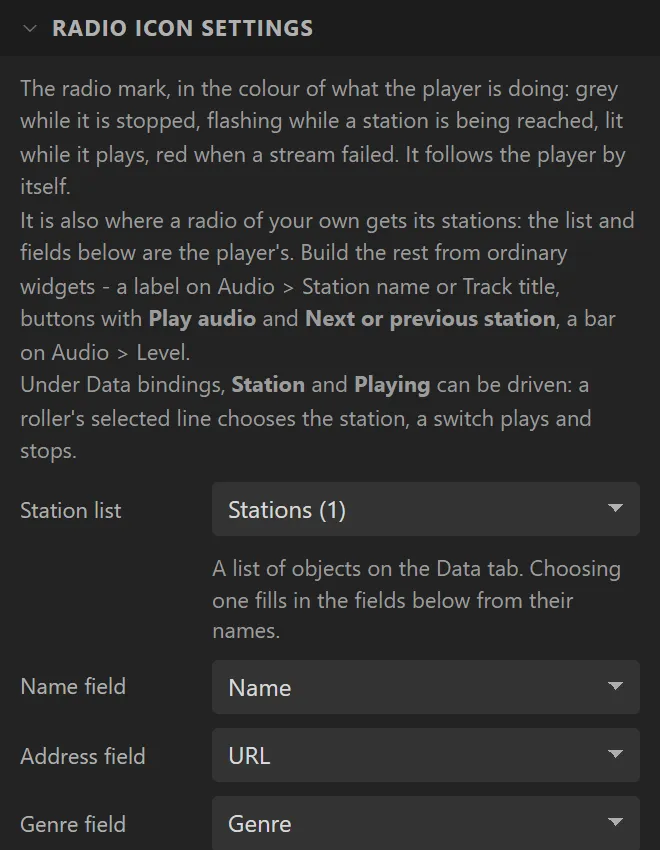
The Internet Radio with nothing drawn but a mark: the radio icon, in the colour of what the player is doing. It is for a radio built out of your own widgets - a label for the station, a button for next, a meter - which still needs somewhere to say where its stations are. So its fields are the Internet Radio's own: which list, and which of its fields is the name, the address and the genre. The first Internet Radio or Radio icon in a design is the player's.
| The player is | The icon | Colour to start with |
|---|---|---|
| Stopped | Lit. | Grey |
| Connecting | Flashes: a station has been asked for and is not playing yet. | Blue |
| Playing | Lit. | Blue |
| Stream failed | Lit, until another station is asked for. | Red |
Its settings are the station list and its three fields, its Size, those four colours and Flashes every (0 keeps it lit). Dropping one switches audio on and makes a station list if there is none, as an Internet Radio does.
Two of its properties can be bound, under Data bindings, on an Internet Radio as well: Station - the number of the station, 0 for the first - and Playing. Driven, each is acted on when it changes: a roller's selected line bound to Station plays that station, and a switch bound to Playing plays and stops. Read, they are which station the player is on and whether it is playing, for another widget to follow. It sends the player's events too - Started playing, Stopped, Track changed, Stream failed. The rest is in building a radio. Arduino export only.
Example: a radio built from your own widgets
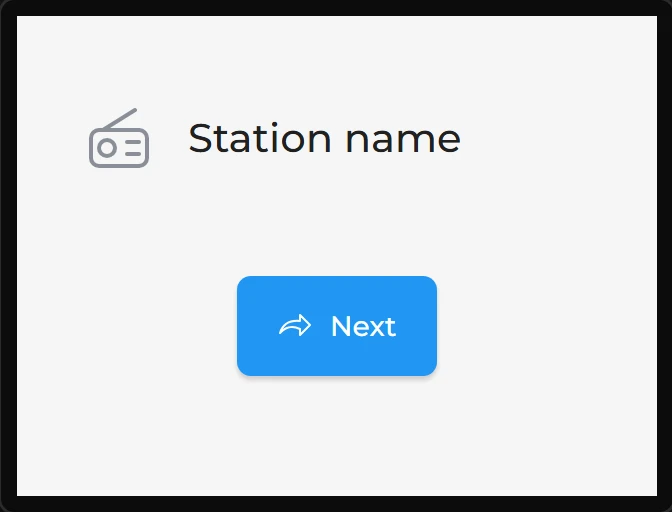
- Drag a Radio icon onto the screen and name it
PlayerState. Audio is switched on and a station list is made, as for an Internet Radio. Set its Size to42. - Drag a Label beside it, name it
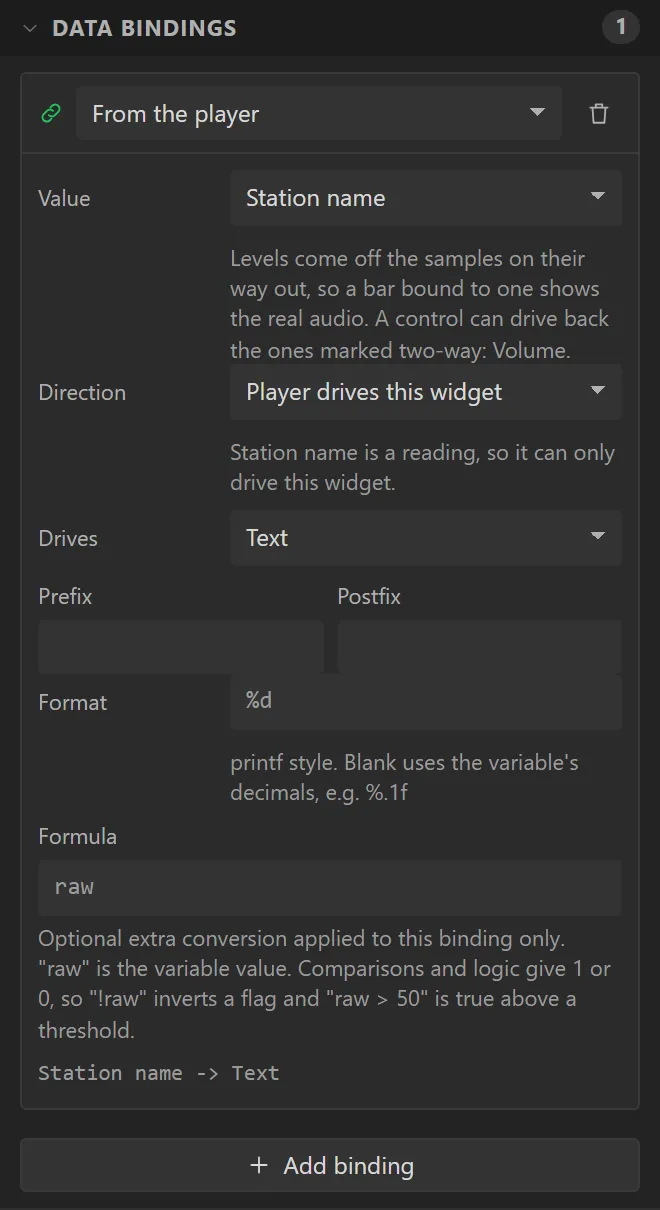
StationNameand give it a font size of20 px. Add a binding and change From a variable to From the player; set Value to Station name and Drives to Text. - Drag a Button under them saying
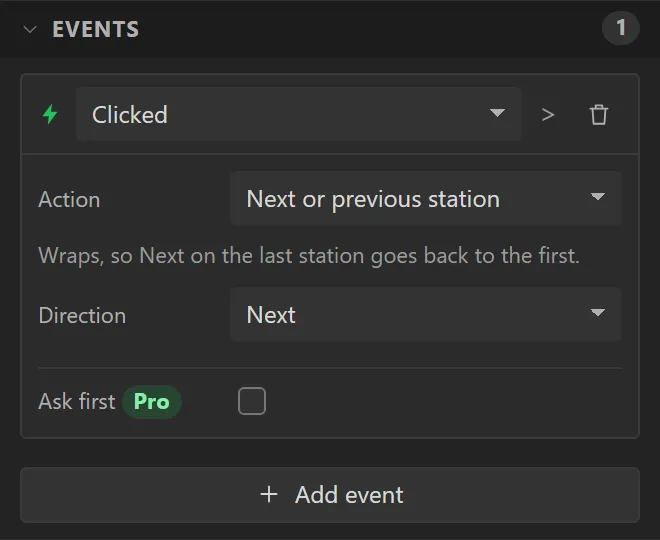
Next, with the Forward icon. Give it an event: Clicked, Action Next or previous station, Direction Next.