Internet Radio
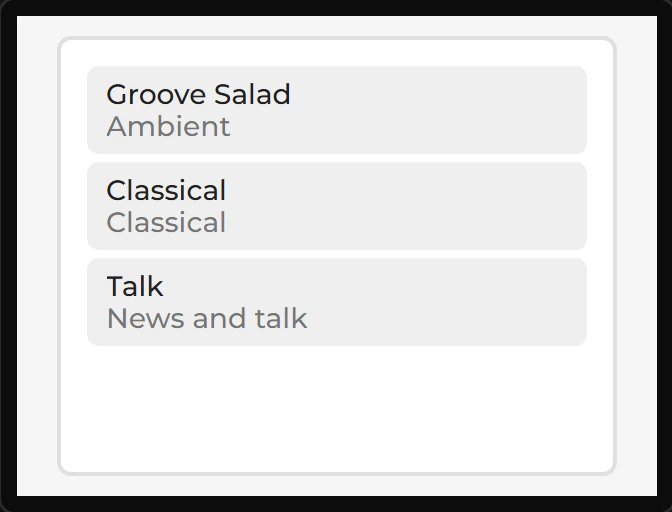
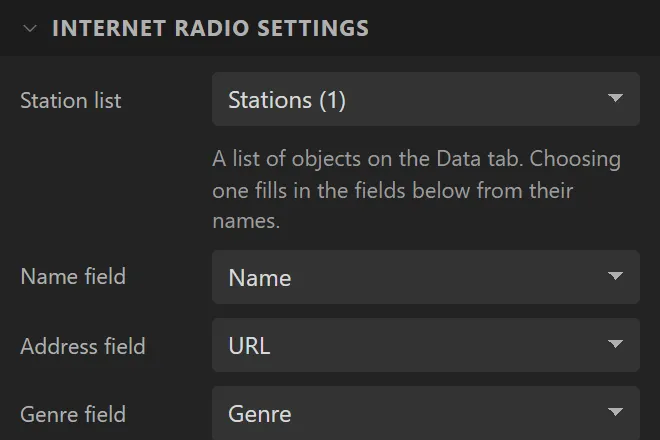
The stations, as a list you tap to play. Which stations is a list of objects on the Data tab; this widget says which list and which of its fields is the name, the address and the genre. It is also the player’s station table, so Play audio and Next or previous station work through the same list. The one playing is highlighted, whoever started it.
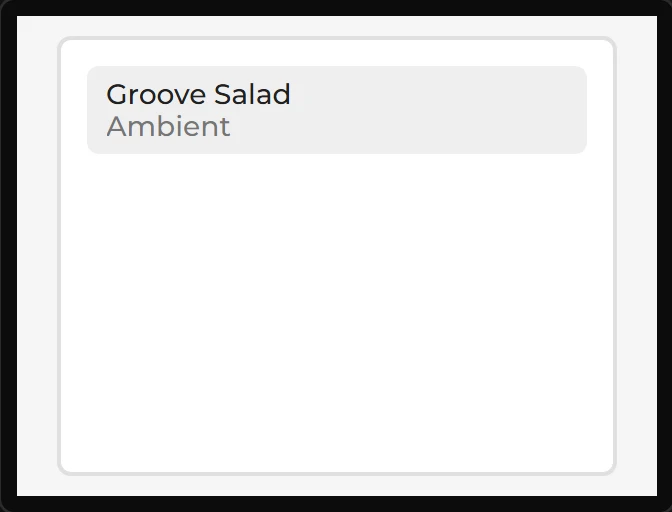
Dropping one switches audio on and, if there is no station list yet, makes one with a station in it - it builds and plays from the first export. The rows are built on the device from the list as it is at run time, so stations your own code adds appear too. Arduino export only.
| Setting | Default | What it does |
|---|---|---|
| Station list | (made on drop) | A list of objects, or + New station list for one with Name, URL and Genre fields. Choosing one fills the fields in from their names. |
| Name / Address / Genre field | from the names | Which text field is which. Genre is optional. |
| Also plays the MP3 files in | (none) | A folder of the SD card whose MP3 files join the list when the board starts and play like stations, with When a file ends and Listed as beside it once a folder is named. See MP3 files from an SD card. Free on every plan. |
| File types | MP3 | With a folder named: MP3, MP3 and WAV, or MP3, WAV, AAC and FLAC. Only an MP3 shows a title; .m4a is not offered. |
| Shuffle, repeat all and seek | off | Adds the Shuffle and Repeat all actions and values and a seek (a slider bound to Position is a seek bar; MP3 and AAC only), with Starts shuffled and Repeat all. See Shuffle, repeat all and seek. |
| Takes more stations from | Nowhere else | A playlist of stations - an .m3u, .m3u8 or .pls file at an address, such as one kept on GitHub - which the board fetches once it is on a network: A playlist at an address, or The playlist chosen in a list for a list of genres, each with a playlist of its own. See Stations from a playlist. Free on every plan. |
| Show genre | on | The genre on a second line under the name. |
| Row height | 44 px | The height of each station’s row. A row says its name and its genre on a line each, and ends what does not fit in dots. 0 makes each row as tall as what it says instead: a long name or genre wraps, and nothing is cut - the setting for a list of stations you did not name yourself, such as a playlist’s. |
Rows are tinted with the widget’s text colour, so they read on a dark design and a light one. Its events - Station chosen, Started playing, Stopped, Track changed and Stream failed - are in building a radio.
Example: stations of your own
- Drag an Internet Radio onto the screen. Audio is switched on (Hardware > Audio) and the Data tab has a list called Stations with one station in it.
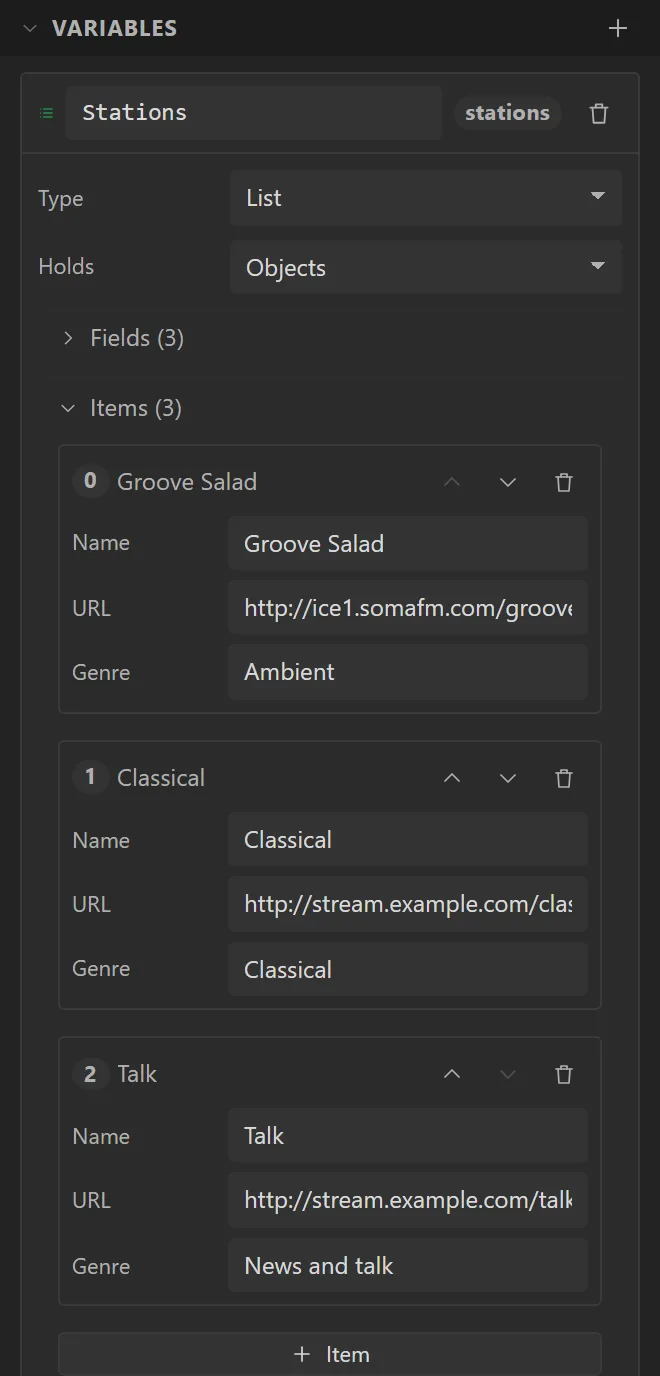
- On the Data tab, in the Stations list, open Items and press + Item. Fill in its Name, its URL - the station’s stream address - and its Genre. Add as many as you like; the addresses in the picture are placeholders.
- Give the radio X
20, Y10, Width280and Height220.