WiFi Setup
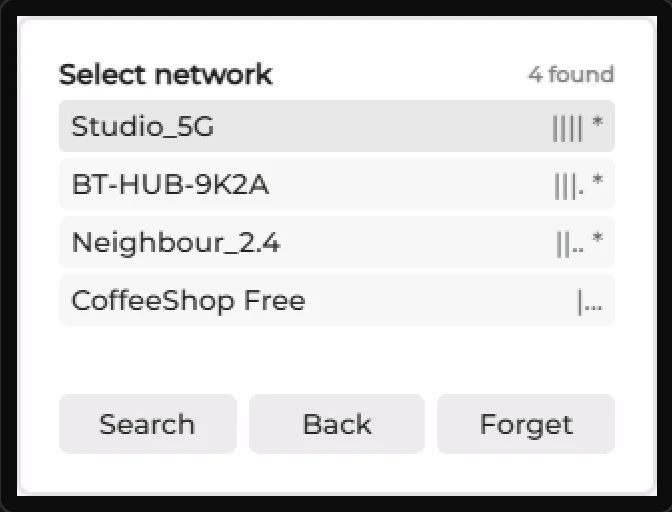
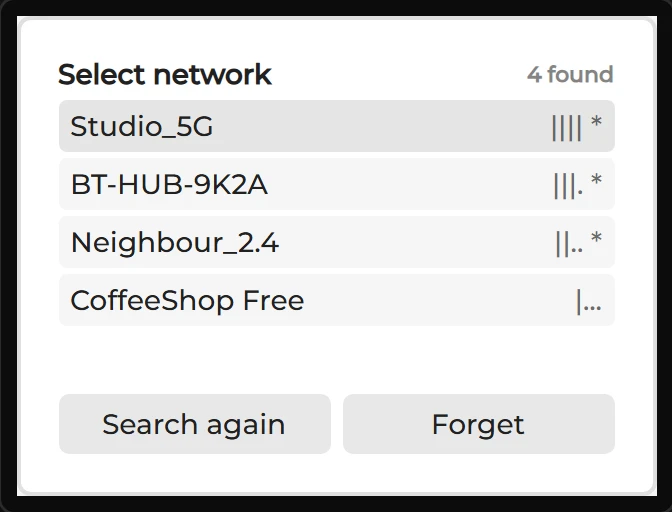
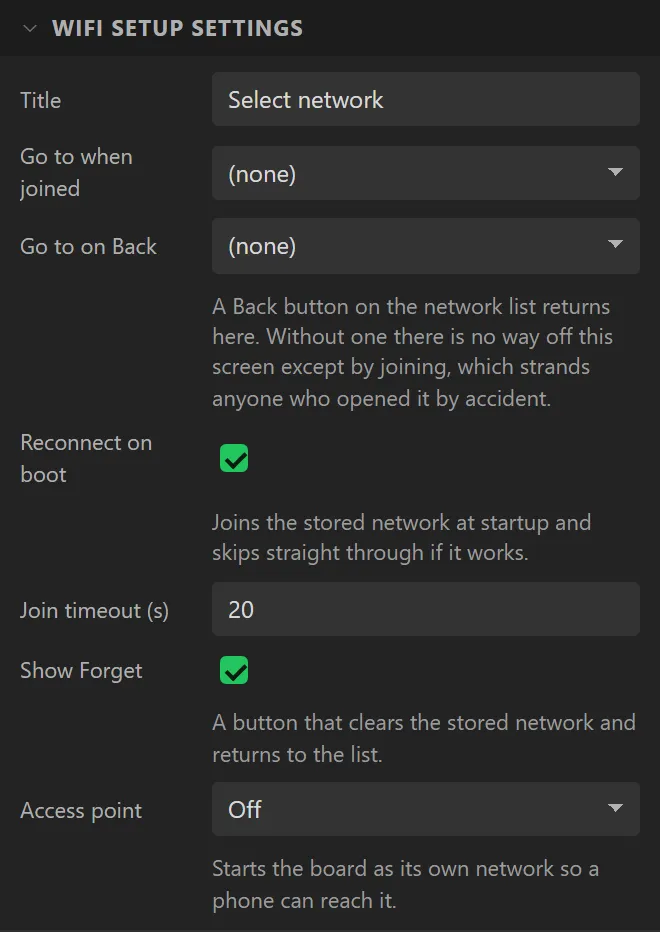
The whole business of joining a network, as one widget: an asynchronous scan, the networks it found strongest first, a password typed on the panel, and three different sentences for the three different ways a join fails. Drop it on a screen and the generator writes the flow - there is nothing to wire.
Espressif chips only - ESP32, S2, S3 and C3. On an STM32 or RP2040 the tile is greyed
with the reason, because the code behind it is the Arduino WiFi library. It is an
Arduino-export widget: ESPHome joins a network from its own wifi: block, and
MicroPython would need its own version.
| Setting | Default | What it does |
|---|---|---|
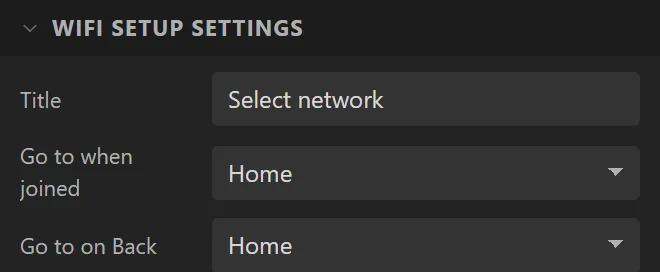
| Title | Select network | The heading above the list. |
| Go to when joined | (none) | The screen to move to once it is on the network. Only fires while this screen is showing, so a background reconnect does not pull somebody off what they were reading. |
| Go to on Back | (none) | Puts a Back button on the list. Worth setting - without it the only way off this screen is to join something. |
| Reconnect on boot | on | Rejoins the stored network at startup without asking. |
| Join timeout | 20 s | How long to wait before giving up and saying so. |
| Show Forget | on | A button that clears the stored network and scans again. |
| Access point | Off | Off, when it cannot join, or always on. |
| AP name / password | LCD-Setup | The board’s own network. Eight characters minimum on the password - a shorter one makes softAP() start an open network without saying so. |
| Do not broadcast | off | The AP is there but does not appear in a scan. |
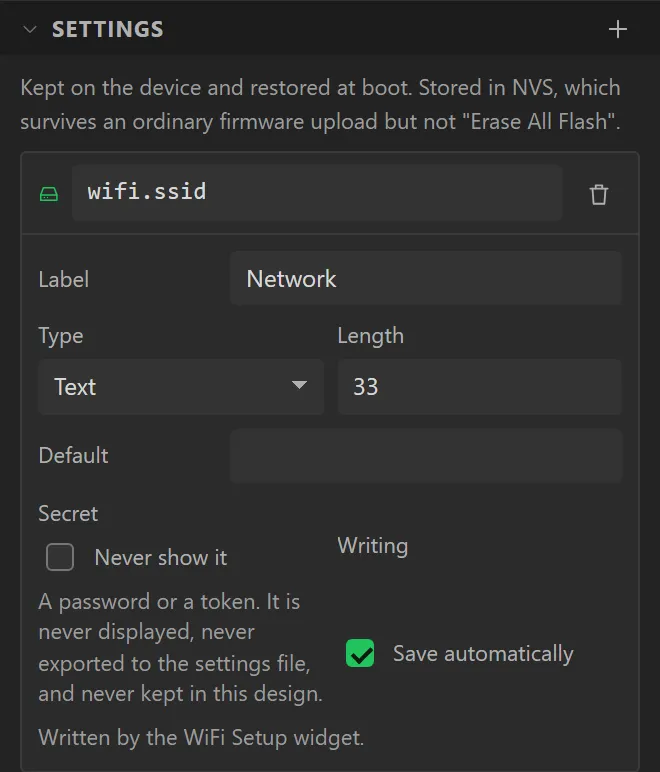
It needs two settings to keep the answer in:
wifi.ssid, and wifi.pass marked secret. A station password is
typed on the device and nowhere else - there is no field for one in the designer, and nothing can
read one back. Joining a network has the whole story.
Example: joining a network, then the home screen
- Drag a WiFi Setup onto Screen1. It fills the 320 x 240 screen. Dropping it adds the two settings it keeps the network in,
wifi.ssidandwifi.pass, on the Data tab under Settings. - Add a screen with + in the Screens list and name it
Home. - Under WiFi Setup settings set Go to when joined to Home, and Go to on Back to Home as well, so that somebody who opened it by mistake can leave.
- Press Preview: the list has a Back button now.