Notification badge
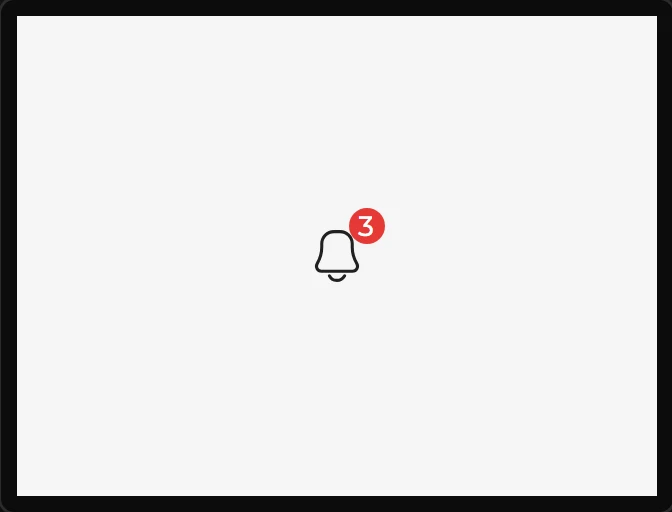
An icon or an image with a mark on its corner, as a phone puts on an app: a count, or a plain dot - unread messages, alarms waiting, jobs in a queue.
How the mark comes and goes. The badge keeps one number, its count. The icon is always drawn. The mark is drawn while the count is above 0 and is gone at 0. So making the mark appear, changing what it says and clearing it are all one thing: changing the count. Count comes from, at the top of the badge’s settings, says who does that:
- A number set here. The badge holds the number itself, starting at Count. An event changes it with the Set badge count action: a button that adds one, another that clears it.
- A variable. The mark follows a variable: 0 and it is gone, anything above and it shows. Whatever changes the variable changes the mark - a sensor, a formula, a Set variable action. Choosing this with no number variable in the design makes one, starting at the badge’s count.
- How many items a list holds. The mark counts a list: an empty list, no mark, and it follows the list as your code adds to it and takes away. Arduino export, as lists are. It is read through a variable, which is made for you and is on the Data tab.
In Dot mode the count is still what decides it - any count above 0 shows the dot. Nothing is redrawn while the count stays the same. To hide the whole badge, icon and all, that is its Hidden flag, as on any widget.
| Setting | Default | What it does |
|---|---|---|
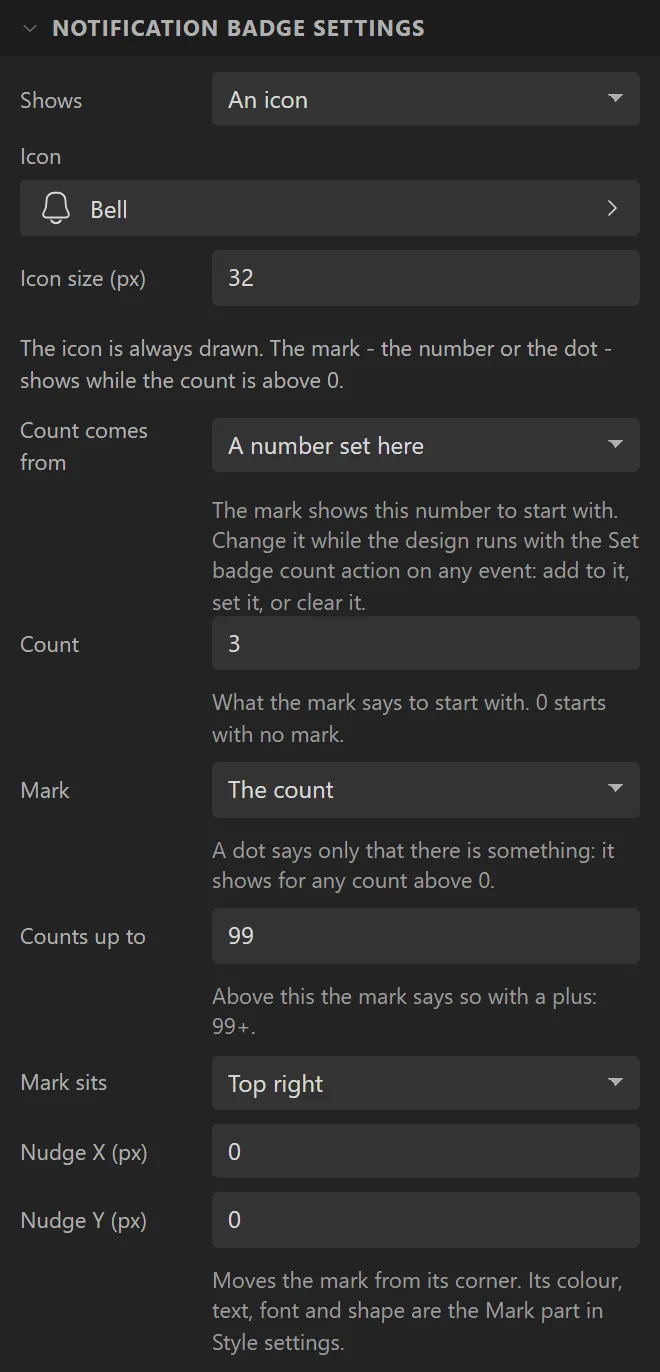
| Shows | An icon | An icon from the icon library, or one of your images. |
| Icon / Icon size | Bell, 32 px | Which icon, and its size. It is drawn in the Icon or image part's text colour. |
| Image | (none) | The image, when it shows one. It is drawn at its own size, centred. |
| Count comes from | A number set here | Who sets the count: the badge itself, a variable, or a list’s length. See above. |
| Count | 3 | What the mark says to begin with, when the number is set here. 0 starts with no mark. |
| Mark | The count | The count as a number, or a dot that says only that there is something. |
| Counts up to | 99 | Above this the mark says so with a plus: 99+. |
| Dot size | 10 px | The dot, when the mark is one. |
| Mark sits | Top right | Which corner of the widget the mark is on. |
| Nudge X / Y | 0 | Moves the mark from its corner, in pixels. |
The mark is red with white figures, round for one figure and a pill for more. Its colour, font,
padding, border and shape are the Mark part in Style settings, and the icon's colour or the
image's recolour is the Icon or image part. In your own code the count is
ui_badge_set(ui_Badge1, 5), ui_badge_add(ui_Badge1, 1) for one more
and ui_badge_get(ui_Badge1) to read it; ui_badge_set(ui_Badge1, 0)
clears the mark. In a MicroPython export they are PT.badge_set(ui.ui_Badge1, 5),
PT.badge_add and PT.badge_get.
Example: a count that buttons change
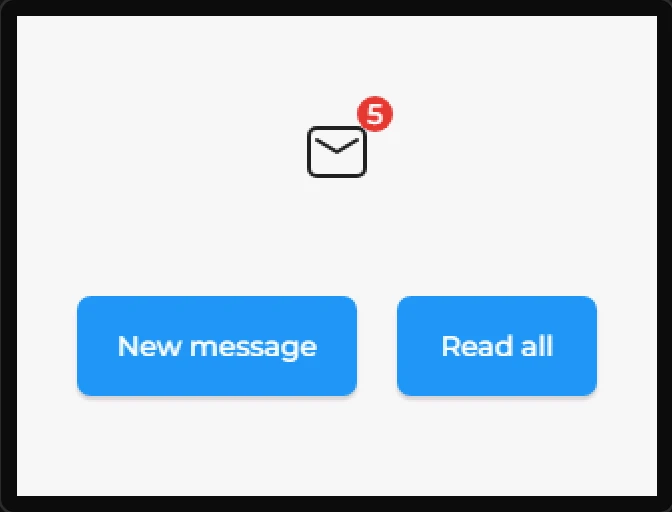
- Drag a Notification badge onto the screen and name it
Inbox. Under its settings choose the Mail icon and set Icon size to42; give the widget a Width and Height of56. - Drag a Button saying
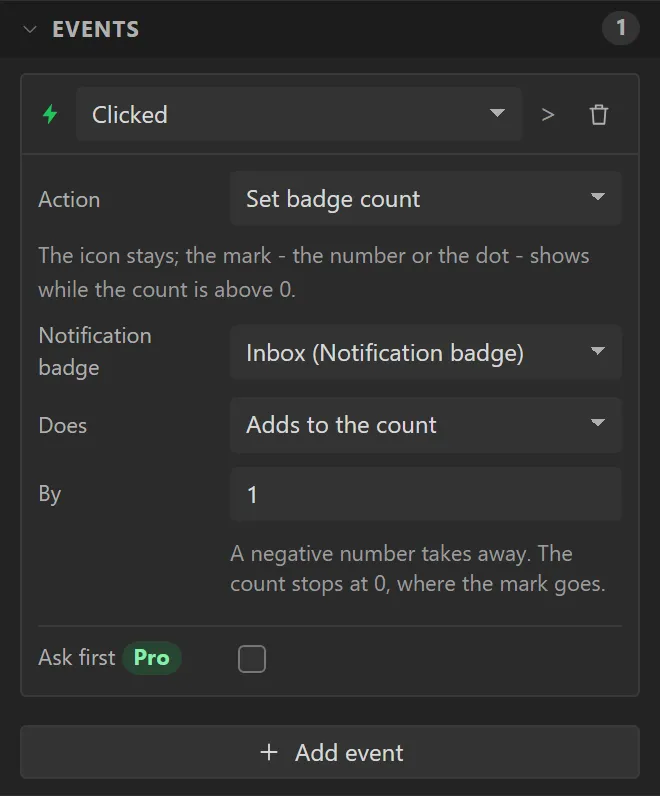
New message. Give it an event: Clicked, Action Set badge count, Notification badge Inbox, Does Adds to the count, By1. - Drag a second button saying
Read all, with the same action and Does set to Clears it: no mark. - Press Preview. Two clicks on New message make the 3 a 5; Read all takes the mark away.