QR code
A code a phone reads: a web address, some text, a Wi-Fi join code. The canvas draws the code the panel will draw, square for square - the designer runs the same encoder LVGL does - so a code that scans off your monitor is the one the board shows. Bind a text variable to it and the code changes on the device; nothing is drawn again while the text stays the same.
| Setting | Default | What it does |
|---|---|---|
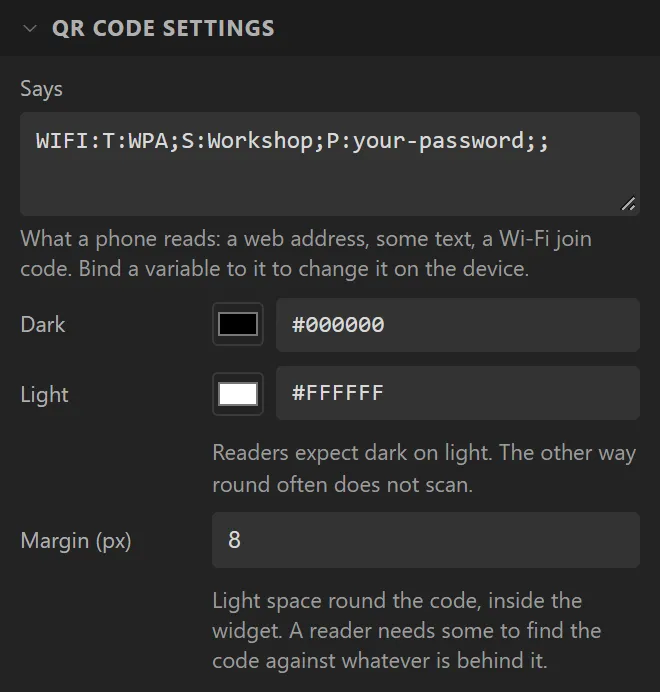
| Says | https://lcdwizard.com | What a phone reads. It is as long as you write it; a longer text is a code with more, smaller squares. |
| Dark / Light | black / white | The two colours. Readers expect dark on light, and the other way round often does not scan. |
| Margin | 8 px | Light space round the code, inside the widget. A reader needs some to find the code against whatever is behind it. |
The widget is always square. The code is drawn in whole pixels to a square, as large as fits,
so growing the widget makes it bigger in steps. The Problems tab says when a code is too small for
what it says, with the size that would do, and when it has only one pixel to a square, which many
phones cannot read off a small panel. A text that outgrows the widget on the device - a bound
variable that turned out longer than you planned - is said on the panel in words rather than
drawn as nothing. The widget's border, radius, outline and shadow are its Main part. In your own
code it is ui_qr_set(ui_QRCode1, "https://example.com"), or
PT.qr_set(ui.ui_QRCode1, 'https://example.com') in a MicroPython export.
It is the one ready-made widget an ESPHome export writes, because
ESPHome has a QR code of its own: the box in its light colour with ESPHome's qrcode
widget in the middle of it, the size the designer worked out, and a bound text as
lvgl.qrcode.update. ESPHome draws the code its own way, so there it is the same
text and may not be the same squares as on the canvas - and a text too long for the size is
ESPHome's to deal with, not said on the panel.
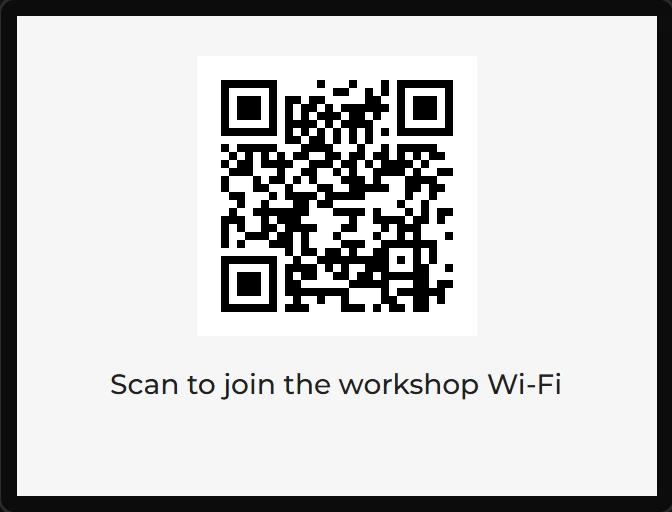
Example: a Wi-Fi join code
- Drag a QR code onto the screen and name it
JoinCode; make it140wide and high. - Set Says to
WIFI:T:WPA;S:Workshop;P:your-password;;with your network’s name afterS:and its password afterP:. A phone that reads it offers to join that network. - Drag a Label under it:
Scan to join the workshop Wi-Fi.