Scale
A ruler or gauge face: a line or an arc with tick marks and numbers along it. It shows a range rather than a value - there is no needle and nothing to drag. Put one behind an Arc to turn it into a dial, or beside a Bar to label what the fill means.
LVGL 9 only. lv_scale does not exist in LVGL 8 and the nearest equivalent
has a different API, so a project set to LVGL 8 reports an error rather than generating code that
will not compile. Switch the version in Project settings, or use the widget's own tick settings on
a Chart instead.
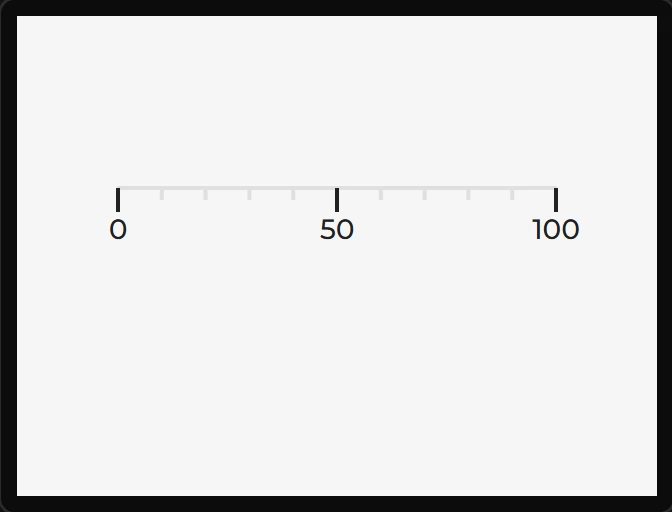
The three parts map onto what is drawn: Main is the line or arc itself, Items the minor ticks, and Indicator the major ticks and their labels. Tick colour and thickness come from each part's Line settings; the label font and colour from Indicator's Text settings.
| Setting | Default | What it does |
|---|---|---|
| Mode | Horizontal, ticks below | Which way the scale runs and which side the ticks sit on: horizontal with ticks above or below, vertical with ticks left or right, or round with ticks pointing inward or outward. |
| Range min / max | 0 / 100 | The numbers at the two ends. Labels are interpolated between them. |
| Total ticks | 11 | Every tick, major and minor, counting both ends - so 11 ticks give 10 gaps. |
| Major tick every | 5 | Every nth tick is drawn longer and, if labels are on, numbered. |
| Show labels | on | Numbers beside the major ticks. |
| Angle range | 270° | Round modes only. How much of the circle the scale covers. |
| Rotation | 135° | Round modes only. Where it starts, measured clockwise from three o'clock - 135° with a 270° range gives the usual gauge with its gap at the bottom. |
| Custom labels | empty | One line per major tick, used instead of the numbers - cold, warm, hot, or the points of a compass. Ticks past the last line keep their number. |
| Ticks over children | off | Draws the ticks on top of anything inside the scale, so a needle passes under them rather than over. |
| Draw after children | off | Draws the whole scale after its children instead of before. |
Tick length
Tick length is a style property rather than a setting, because LVGL treats it as one: set Line › Tick length on the Items part for the minor ticks and on Indicator for the major ones. Colour and thickness come from the same Line group.
The needle
A needle turns the scale into a dial. It is not a property in LVGL but a child object the scale points - either a line it draws for you, or an image it rotates - so the designer generates that child and wires it up.
Round modes only, and only on a square widget. lv_scale_set_line_needle_value
and its image twin both return without doing anything if the scale is horizontal or vertical, or if
its width and height differ. The settings are therefore hidden outside the round modes, and the
Check tab warns when the widget is not square - LVGL would simply draw no needle and say nothing.
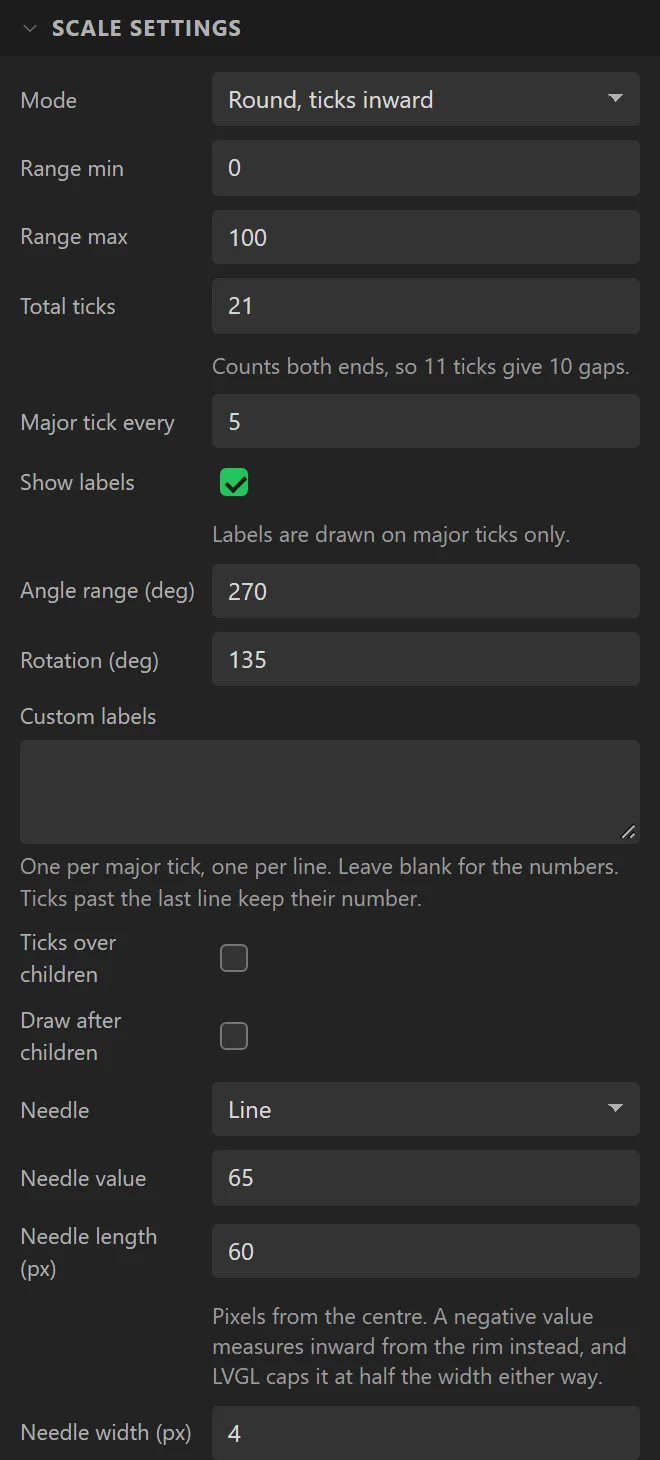
| Setting | Default | What it does |
|---|---|---|
| Needle | None | None, a Line the scale draws, or an Image it rotates. |
| Needle value | 50 | Where it points at start-up. Bind the widget's Value to a variable to move it at runtime. |
| Needle length | 60 | Pixels from the centre. A negative value measures inward from the rim instead, and LVGL caps it at half the width either way. |
| Needle width / colour / rounded ends | 4, red, on | Line needles only - applied to the generated line object. |
| Needle image | none | Image needles only. Draw it pointing right; it is turned about its pivot, and the pivot is put on the centre of the scale. |
| Needle pivot X | 0 | The point in the picture it turns about, in pixels from its left edge. A needle with a hub wants the middle of the hub. |
| Needle pivot Y | -1 | The same, from the top of the picture. -1 is the middle of its height. |
Binding the scale's Value drives the needle, which is what makes it a live gauge: point it at a temperature variable and the firmware moves it every refresh. In preview the needle follows the simulated reading the same way.
Sections
A section recolours a band of the range - the red zone on a rev counter, a green "normal" band. Each has a range, a colour and a tick width, and the colour applies to that band's line, its ticks and its labels together. Add as many as you like; a value in two overlapping sections takes the first.
The Check tab warns about a section that falls outside the scale's own range, since none of it would be drawn.
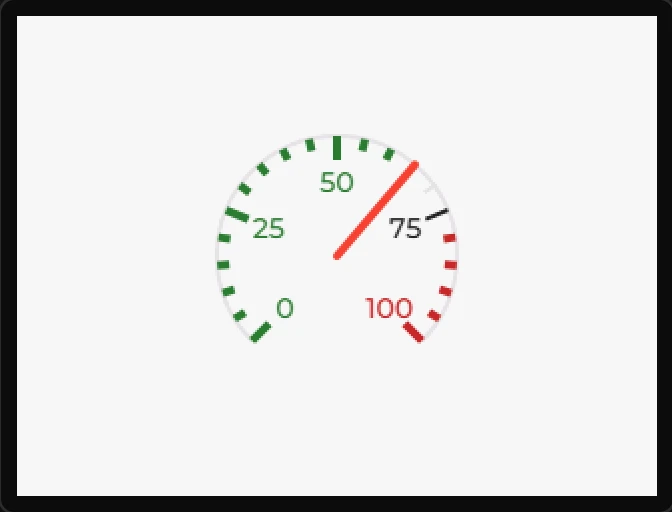
Example: a round gauge with a needle
- On the Data tab add an Integer variable called
pressure, with Initial value65. - Drag a Scale onto the screen and name it
Gauge. Make it square - Width and Height160- or it draws no needle. - Under Scale settings set Mode to Round, ticks inward, Total ticks to
21, Needle to Line and Needle length to60. - Under Sections press Add section twice: one from
0to60in#2E7D32, one from80to100in#C62828. - Bind its Value to pressure: the needle points at it. Press Preview to see it at 65.