Chart
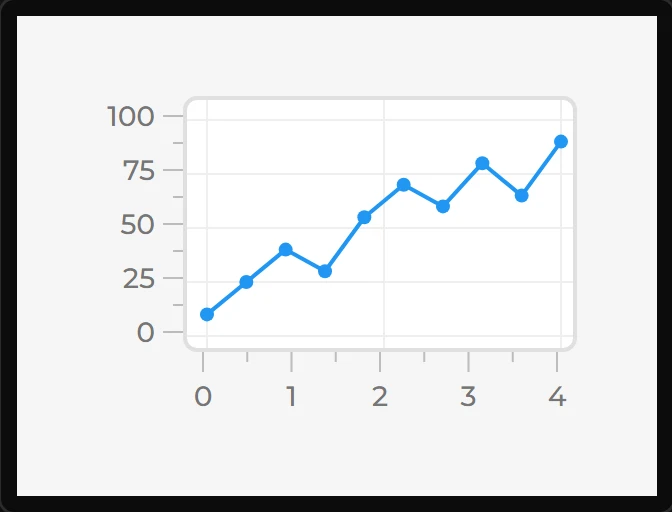
Line, bar or scatter series against one or two Y axes, with a rolling window. The chart is involved enough to have its own page; the settings are summarised here.
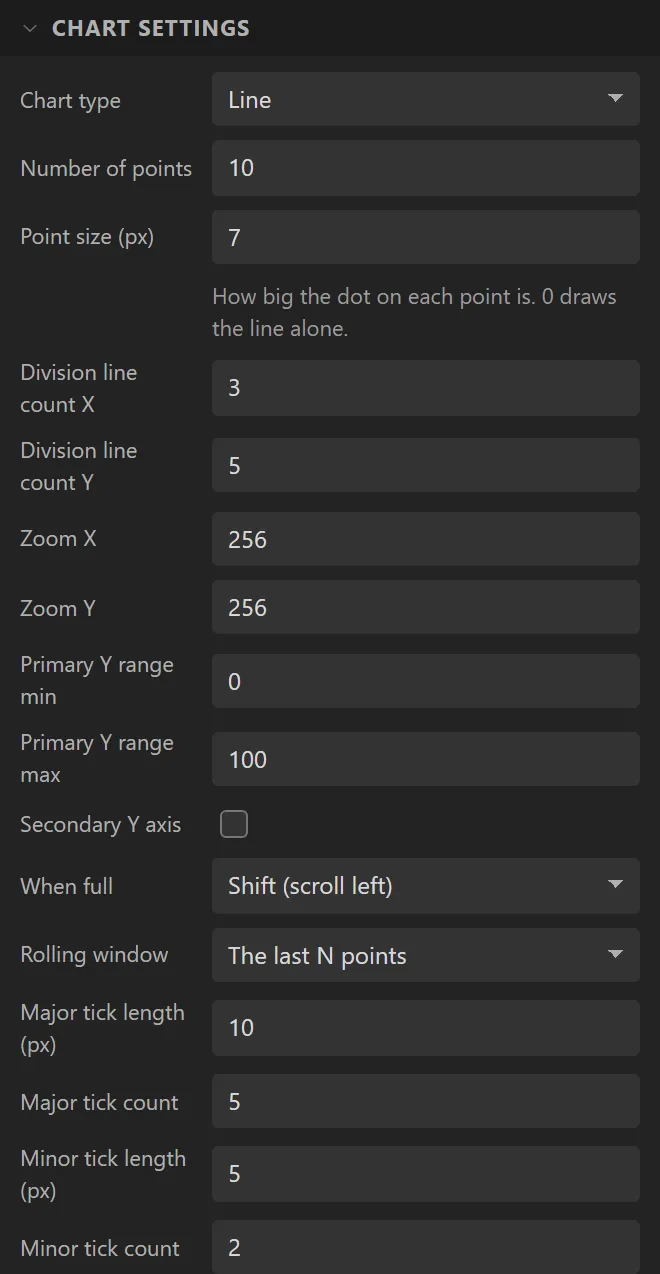
| Setting | Default | What it does |
|---|---|---|
| Chart type | Line | Line, Bar, Scatter or None. |
| Number of points | 10 | Points per series. On the device this is the window length in points. |
| Point size | 7 | The dot on each point of a line or scatter chart, in pixels. 0 draws the line alone. |
| Division line count X / Y | 3 / 5 | Grid lines. |
| Zoom X / Y | 256 | 256 is 100%. |
| Primary Y range min / max | 0 / 100 | The left axis. |
| Secondary Y axis | off | Adds a right-hand axis with its own range; each series chooses which it is measured against. |
| X range min / max, X from | scatter only | The X axis range, and the variable every point takes its X from. |
| When full | Shift | Shift scrolls left; Circular overwrites from the start. |
| Rolling window | The last N points | Or a span of time in seconds, in which case the firmware paces readings to fit the point count. |
| Ticks and labels | various | Major and minor tick length and count, whether to label the X and Y axes, and the axis font size. The X axis can have tick counts of its own, and on a line or bar chart you choose what its numbers read: the ticks counted from 0, the point numbers, or a range. |
| Chart data | one series | The series: each has a name, a colour, design-time values and - once a second axis exists - which axis it uses. |
Example: the light level from the board’s light sensor
The Cheap Yellow Display has a light sensor on GPIO 34. The board reads it as an analog input, a variable holds the reading, and the chart is given each one.
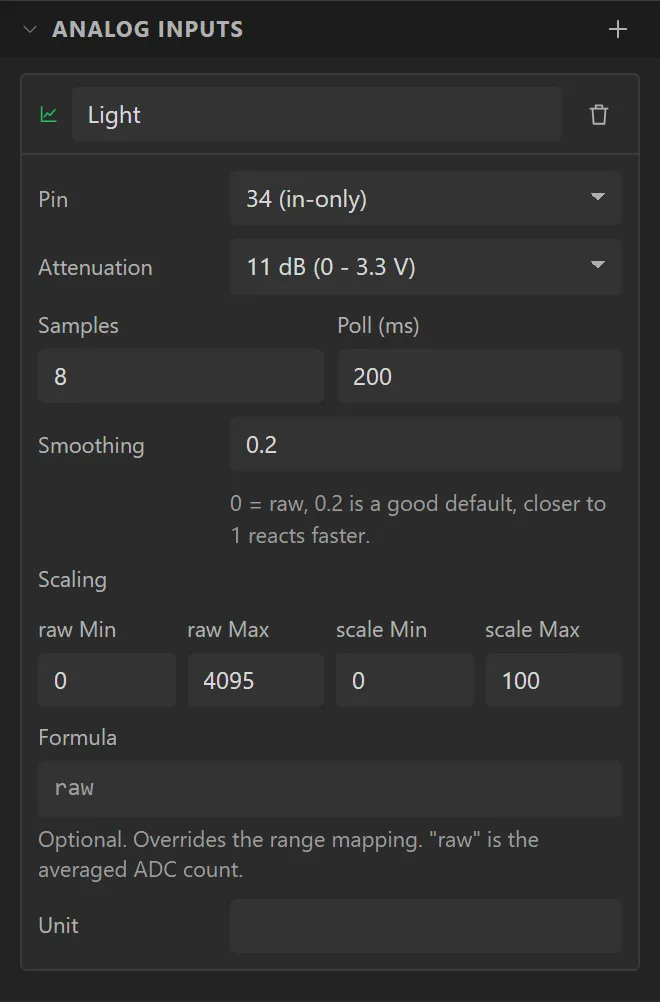
- Open the Hardware tab, then I/O. In Analog inputs press + (Add analog input), name it
Lightand set Pin to 34. Its scaling turns the 0-4095 it reads into 0-100. - On the Data tab add a Float variable called
lightand set its Source to Light, in the Analog inputs group. - Drag a Chart onto the screen, name it
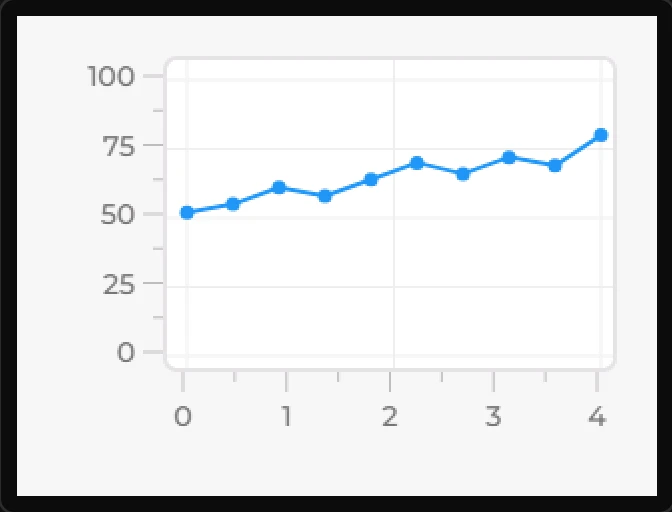
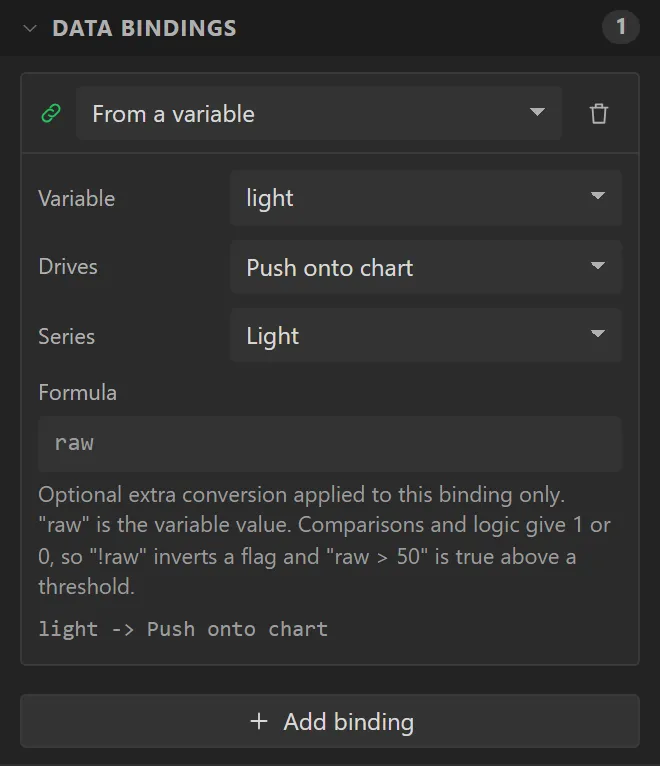
LightChartand give it X30, Y20, Width270and Height190. Under Chart data name its seriesLight. - Open Data bindings and press Add binding: Variable light, Drives Push onto chart, Series Light.
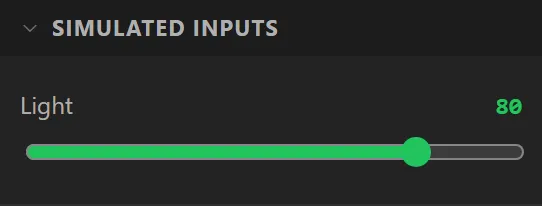
- Press Preview. In the drawer beside the screen, under Simulated inputs, move Light: the reading is put on the end of the line. On the board a point is added at each reading, and the oldest drops off the left.