Panel
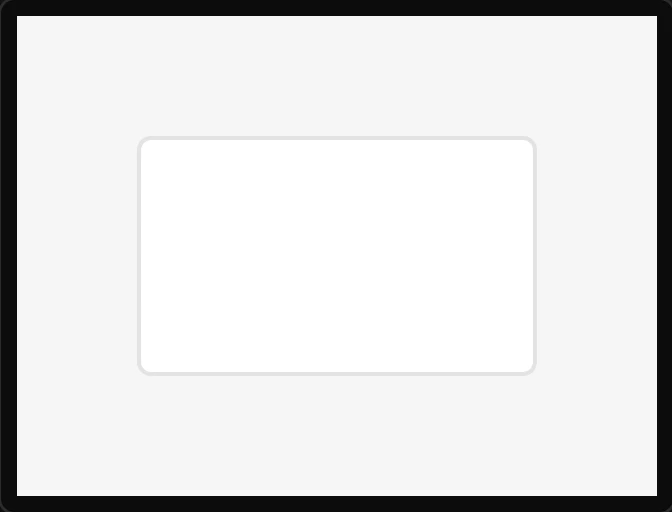
A plain lv_obj with the theme's card look - a background, a border and rounded corners. The usual way to group widgets: children move with it and its Layout setting can arrange them.
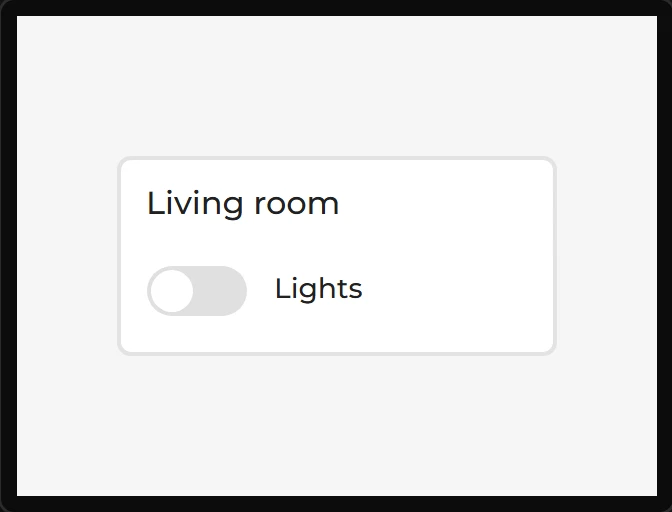
Example: a card holding a caption and a switch
- Drag a Panel onto the screen. Open Geometry and set X
50, Y70, Width220and Height100. - Drag a Label and drop it inside the panel’s box: it goes into the panel. Set its Text to
Living roomand, under Style settings > Text, its font size to16 px. - Drop a Switch into the panel under it, and another Label beside the switch saying
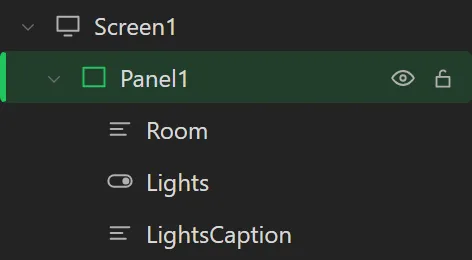
Lights. - In the Hierarchy the three are under
Panel1. Drag the panel and they come with it; their X and Y count from inside the panel’s padding.