Documentation / Widgets / Screen
Screen
The root object. It has no position; it is the panel. A screen is styled like any widget (a background colour is the usual thing) and takes the four screen-only events: Screen loaded, Screen unloaded, Screen load start and Screen unload start.
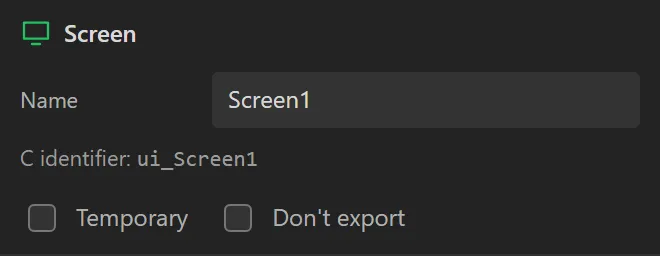
| Setting | Default | What it does |
|---|---|---|
| Temporary | off | Free the screen from RAM when it is unloaded and rebuild it on the next load. Worth it on a small MCU with many screens. |
| Don't export | off | Skip the ui_<Name>_screen_init() so you can write that screen by hand. |
Example: swipe left for the next screen
- In the Screens list press + (Add screen). The new screen is
Screen2; click Screen1 to go back to the first. - Click an empty part of the screen, so that nothing is selected and the Inspector shows the screen. Open Style settings, then Background, and set Color to
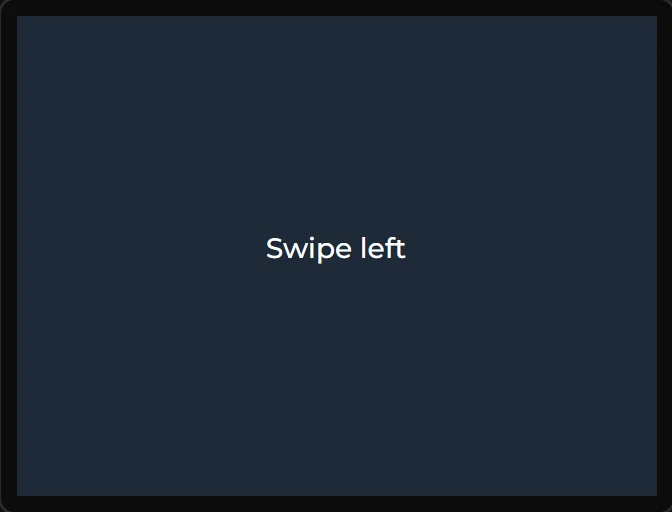
#1E2A38. - Drag a Label onto it. Set its Text to
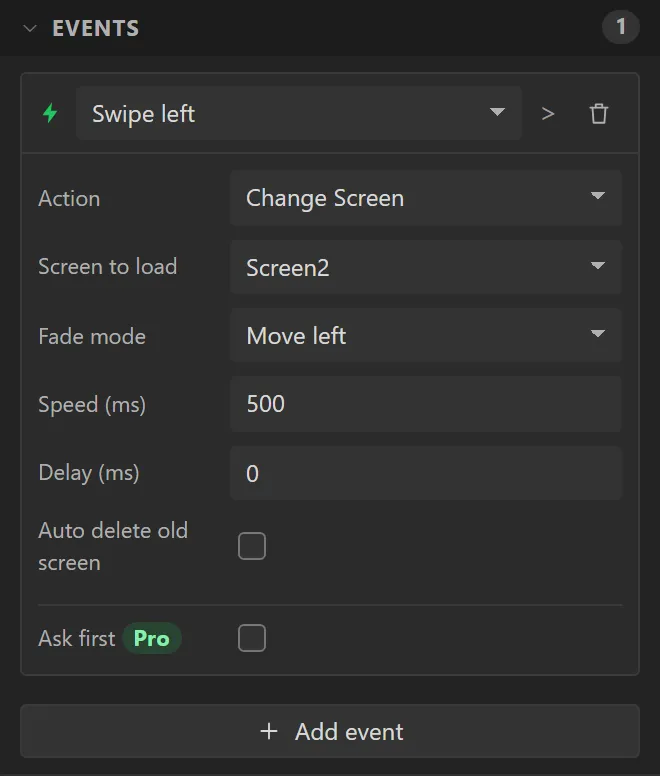
Swipe leftand, under Style settings > Text, its Color to#FFFFFF. - Select the screen again, open Events and press Add event. Set the trigger to Swipe left, Action to Change Screen, Screen to load to Screen2 and Fade mode to Move left.
- Press Preview and use the left arrow of the swipe pad under the screen: Screen2 slides in. On the board it is a finger drawn across the glass.