Container
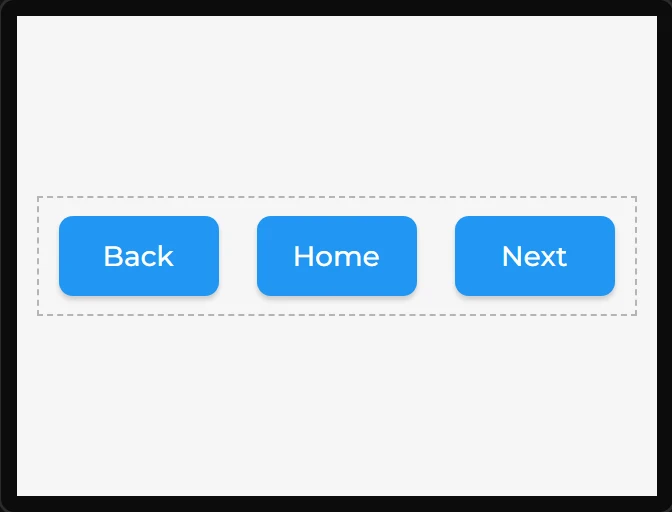
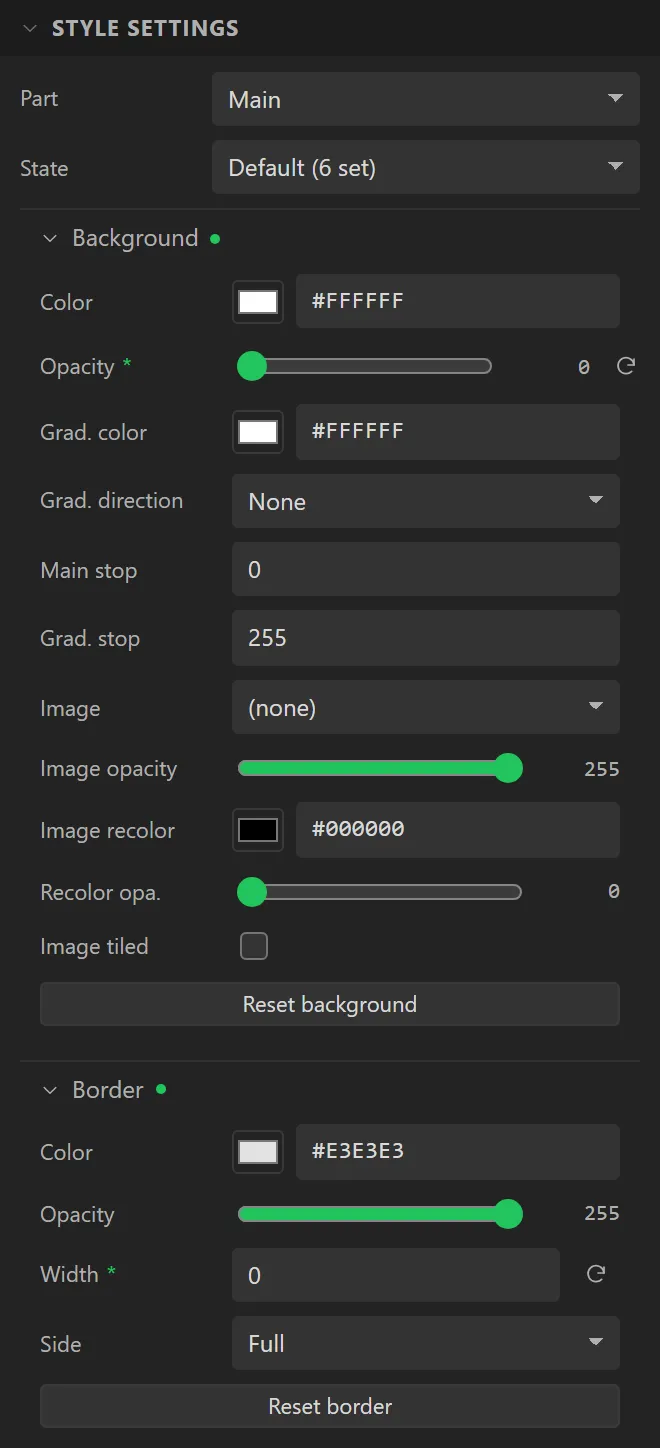
A box that groups widgets and is not seen. It is LVGL’s plain object, which the default theme draws as a card, so a Container is dropped with that taken away: no background, no border and no padding, stored on it under Style settings where you can give any of them back. On the canvas it has a faint dashed edge while you lay out the design, so it can be found; that edge is not drawn in Preview or on the board. For a box that is seen, use a Panel. A Container dropped before 16 October 2026 keeps the card look it had.
Example: three buttons in a row
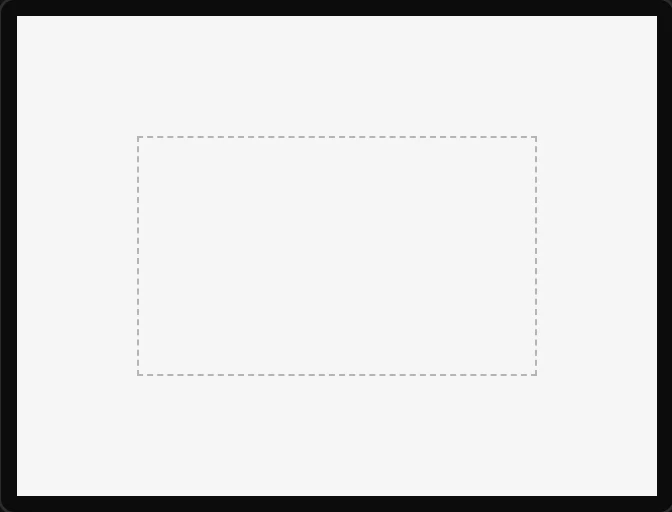
- Drag a Container onto the screen. Under Geometry set X
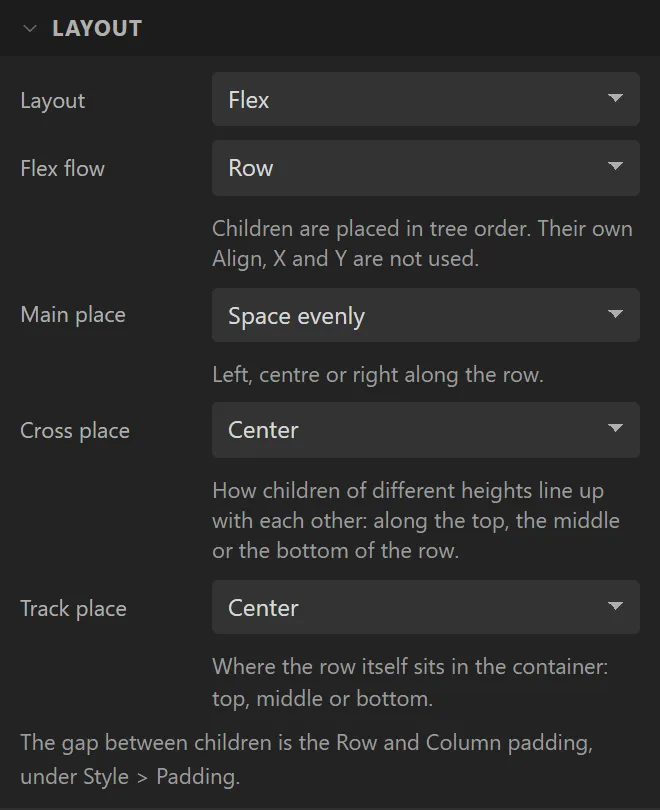
10, Y90, Width300and Height60. - Open Layout and set Layout to Flex, Flex flow to Row, Main place to Space evenly, and Cross place and Track place to Center.
- Drop three Buttons into the container. Give them the Text
Back,HomeandNext, and each a Width of80and a Height of40. The layout places them: their own X and Y are not used. - Nothing of the container is drawn: Style settings shows the Background Opacity of
0and the Border Width of0it was dropped with. Give it a background there to see the box.