Button
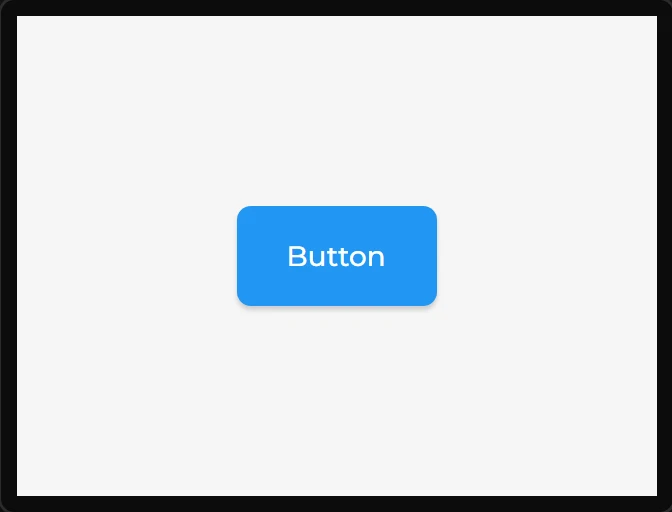
An lv_button with a centred label child. The label is generated as ui_<Name>_label so you can restyle it separately.
With an icon, the icon (a second label, in an icon font) and the caption share a content-sized row or column, ui_<Name>_content, which is centred instead.
| Setting | Default | What it does |
|---|---|---|
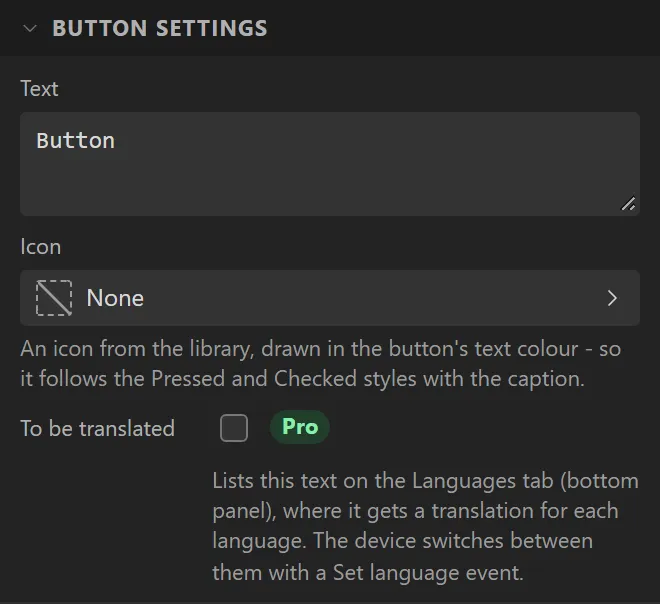
| Text | Button | The caption. |
| Icon | (none) | An icon from the icon library, drawn in the button's text colour - so it follows the Pressed and Checked styles with the caption. |
| Icon position | Left of the text | Left of, right of, above or below the caption. |
| Icon size | 20 px | The icon's square box, 8 to 160 px. 21 and 42 px are the sharpest. |
| Icon gap | 6 px | Space between icon and caption. Ignored when the caption is empty. |
Example: a button that opens another screen
- Add a second screen with + in the Screens list, select it and set its Name to
Settings. Go back to Screen1. - Drag a Button onto Screen1 and set its Name to
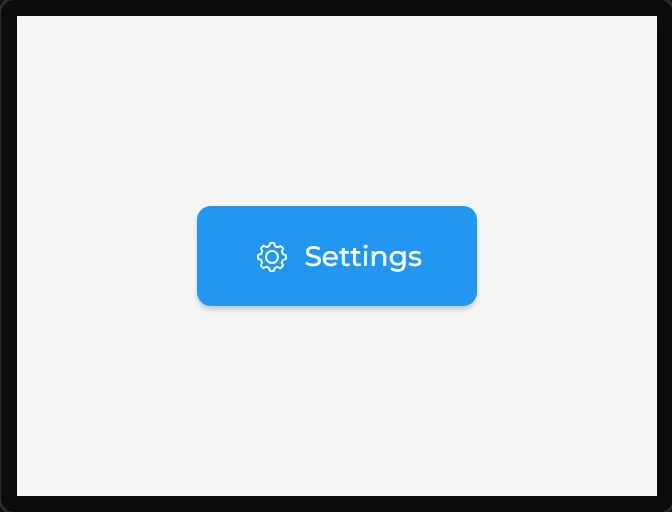
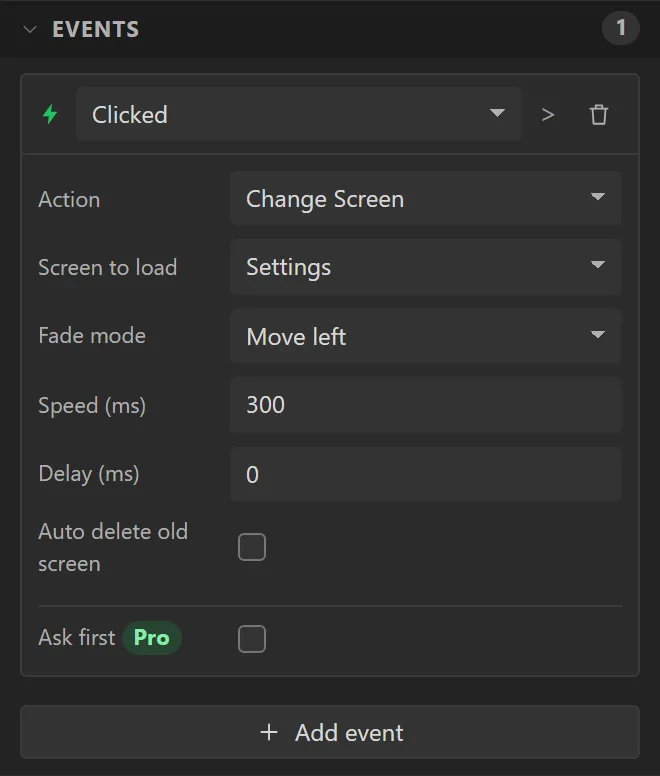
SettingsButton. Under Button settings set Text toSettings, click Icon and choose Settings (typesettingsin the search), and set Icon size to21. Give it a Width of140under Geometry. - Open Events and press Add event. Leave the trigger on Clicked; set Action to Change Screen, Screen to load to Settings, Fade mode to Move left and Speed to
300. - Press Preview and click the button: the Settings screen slides in from the right.