Item text
A label that says one field of a list’s chosen
item - the detail in a list and its detail. It reads the text where it stands in the list, so
it is as long as it comes: an article of two thousand characters is shown whole, where a
Text variable reading the same field keeps the first 255. Several of
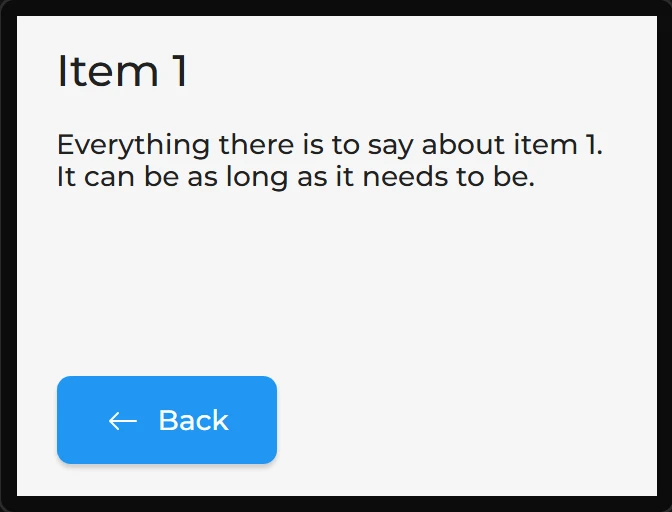
them make a detail screen: one for the title, one for the body, one saying 3 of 12.
Arduino export.
| Setting | Default | What it does |
|---|---|---|
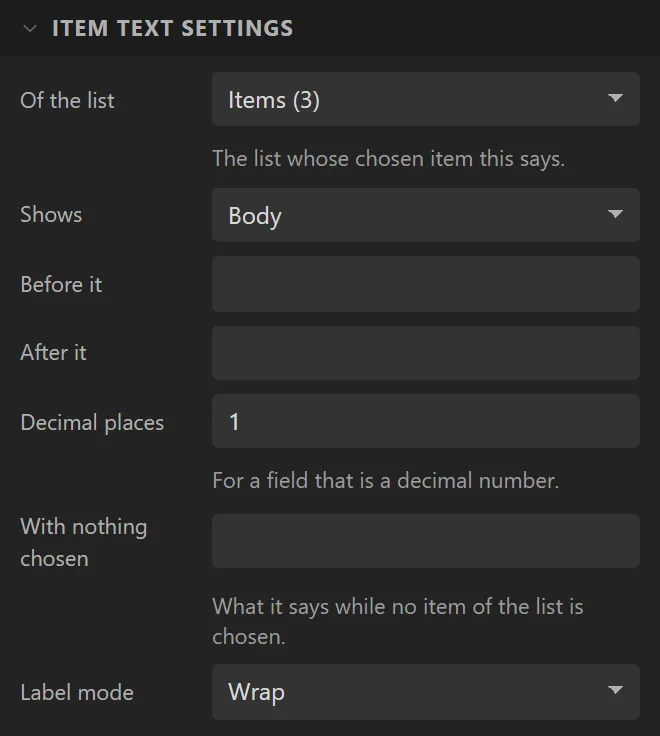
| Of the list | the list on the design | The list whose chosen item this says. |
| Shows | the last text field | One field of the chosen item - or its place in the list (1 is the first), or how many items the list holds. |
| Before it / After it | nothing | Written round what it says: Score: , of 12. |
| Decimal places | 1 | For a field that is a decimal number. |
| With nothing chosen | nothing | What it says while no item of the list is chosen, in place of all of the above. |
| Label mode | Wrap | As a label’s: wrap, end in dots, scroll or clip. |
While a design is laid out it says the list’s first item, so that a detail screen is not laid out empty. In preview and on the board nothing is chosen until a row is tapped or a Choose list item action chooses one, and it says what it is set to say then.
Example: the detail screen
The second screen of the Data list example.
- On the Detail screen drag an Item text to the top and name it
ItemTitle. Set Shows to Title, its width to280and its font size to22 px. - Drag a second Item text under it,
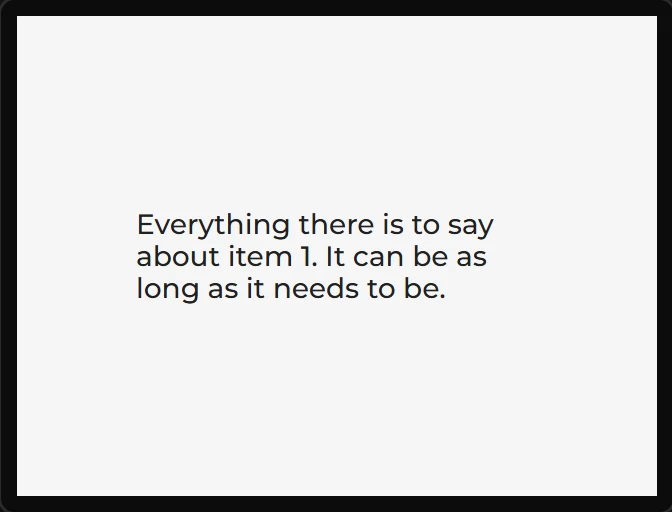
ItemBody, showing Body,280wide and110tall: it wraps, and is as long as the item’s text. - Drag a Button saying
Back, with the Arrow left icon, and give it an event: Clicked, Change Screen to Screen1, Fade mode Move right. - While you lay it out it shows the list’s first item. Press Preview, tap a row on Screen1, and Detail says that one.