Data list
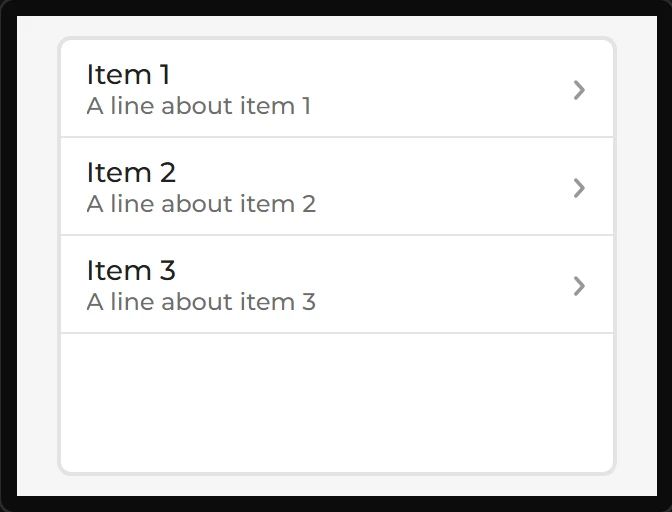
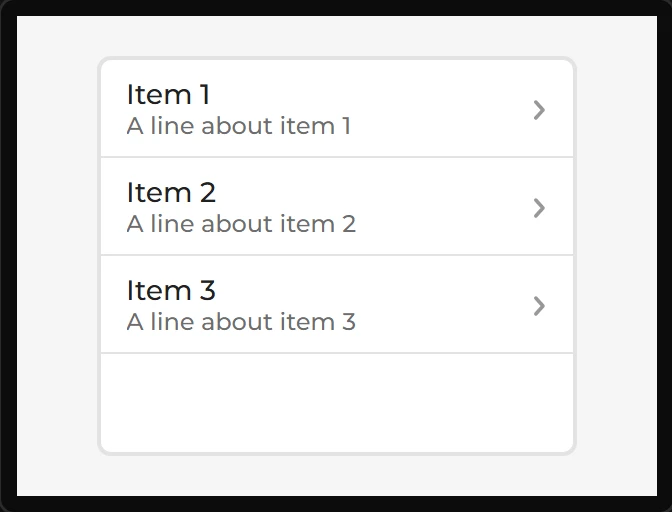
A list’s items on the screen, a row each - and the row somebody taps becomes the list’s chosen item. With an Item text on another screen that is a list and its detail: a screen of topics, and the screen that says the one that was tapped. Drop one on a design with no list in it and it brings one, with three items to look at. Arduino export.
| Setting | Default | What it does |
|---|---|---|
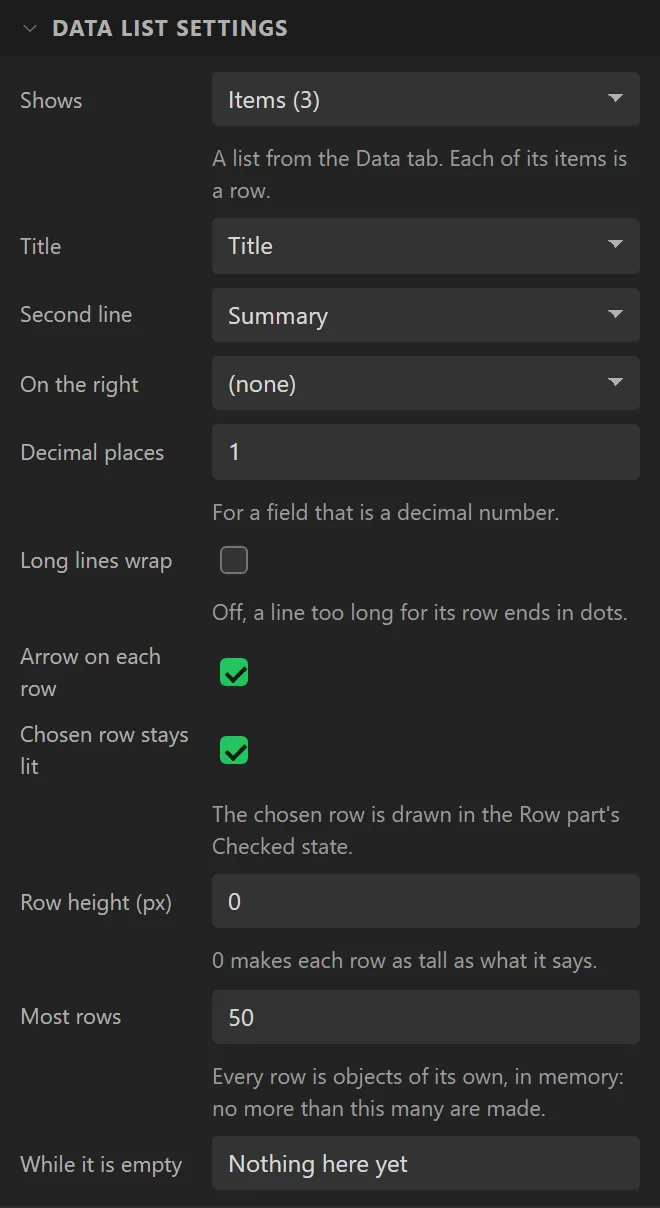
| Shows | the list it was given | Which list from the Data tab. Each of its items is a row. Choosing another lets go of the old one’s fields and finds them again in the new. |
| Title | the first field | The field a row says first. A list of plain values has one, the item itself. |
| Second line | the second text field | A field under the title, or none. |
| On the right / After it | none | A field at the right-hand end of the row - a figure, more often than not - and what is written after it: a unit. |
| Decimal places | 1 | For a field that is a decimal number, wherever in the row it is. |
| Long lines wrap | off | Off, a title or a second line too long for its row ends in dots. On, it wraps and the row grows. |
| Arrow on each row | on | An arrow at the end of the row, which is what says a row leads somewhere. |
| Chosen row stays lit | on | The row of the chosen item is drawn in the Row part’s Checked state. |
| Row height | 0 | In pixels; 0 makes each row as tall as what it says. |
| Most rows | 50 | Every row is objects of its own, in memory: no more than this many are made, however long the list. The Problems tab says when a list has room for more. |
| While it is empty | Nothing here yet | What the box says while the list has no items. |
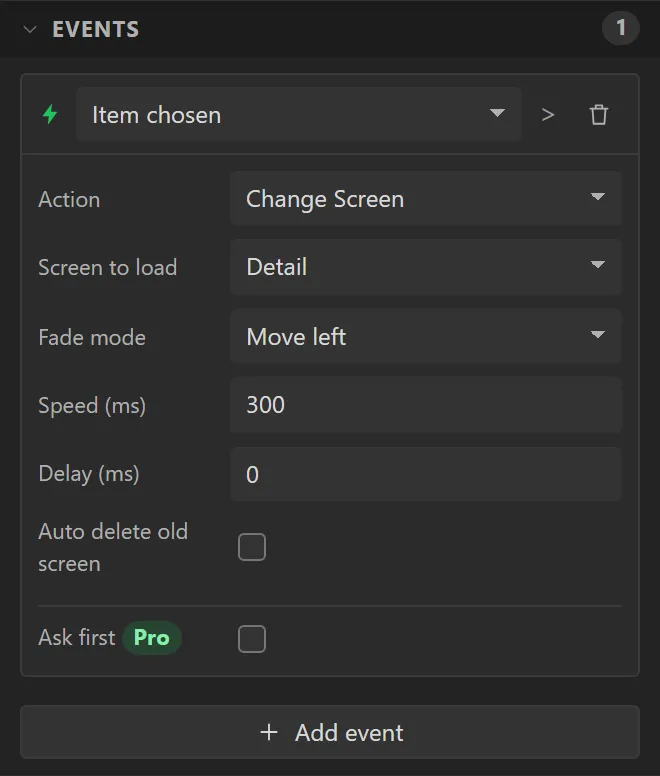
It has one event of its own, Item chosen: a row was tapped, and its item is now the chosen one. Put Change Screen on it and the tap opens the detail.
How a row looks is Style settings and nothing else, which is why there is no setting above for a divider or a gap. The line under each row is the Row part’s border; the space between rows is the box’s row padding; a row under a finger is the Row’s Pressed state and the chosen one its Checked state. A list starts with all four when it is dropped, as styles you can see and change. Text in a row takes its colour and font from the Row, and the Row from the box, unless it is given its own - so one colour set on the Row’s Checked state turns the whole of the chosen row.
The list can be filled from the rows of a web answer, and then needs no items of its own: it is drawn from the answer pasted into its source, and shows what it is set to say while it is empty until the board has its first answer.
Rows are made as the list fills and go as it empties, so an item your own code adds with
var_<Name>_add() is a row a fifth of a second later. The box scrolls when its
rows are taller than it is. In preview a tap on a row chooses its item, as it does on the board.
Example: a list and its detail
A screen of topics, and a second screen that says the one tapped. This is the first screen; the Item text example is the second.
- Drag a Data list onto the screen and name it
Topics. With no list in the design it brings one, Items, with three to look at: each has a Title, a Summary and a Body (Data tab). - Give it X
20, Y10, Width280and Height220. - Add a screen with + in the Screens list and name it
Detail. - Select the list, open Events and press Add event: trigger Item chosen, Action Change Screen, Screen to load Detail, Fade mode Move left.