Timer
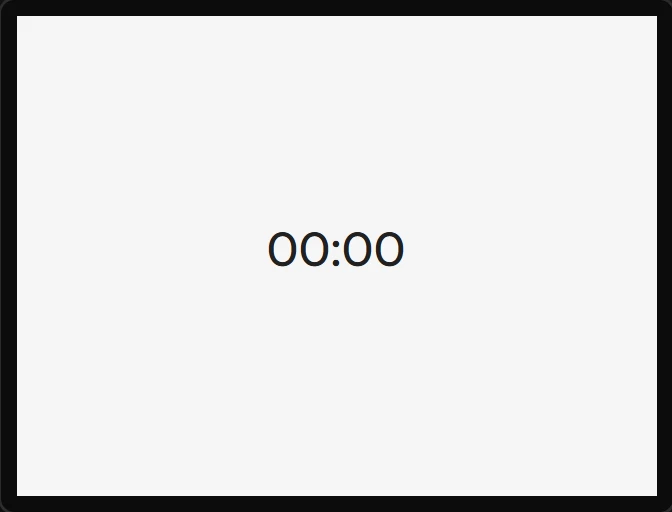
A stopwatch or a countdown, kept without any code. It is a label that writes itself: it remembers when it was started and works out what to show from the board's own millisecond clock, so it does not run slow the way a counter kept by a once-a-second tick does. Without it the same thing is a variable, an automation, two formulas and three labels.
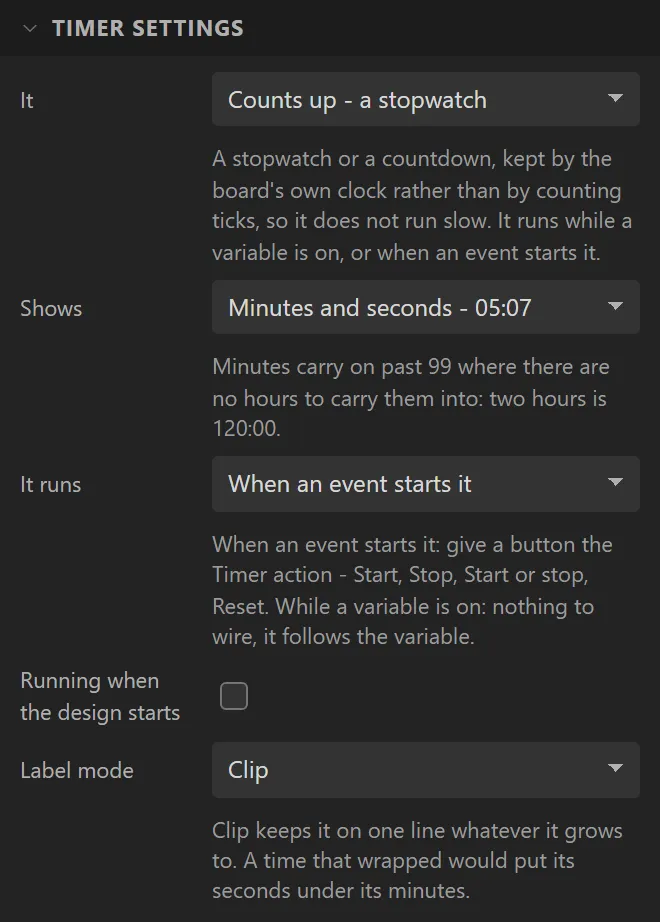
| Setting | Default | What it does |
|---|---|---|
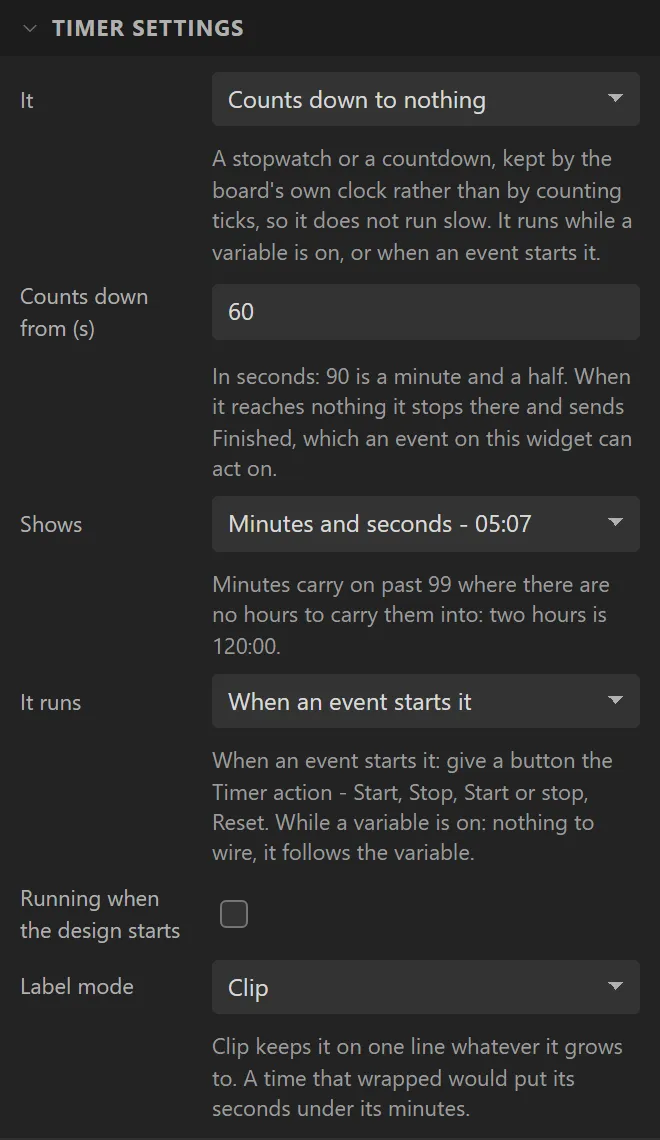
| It | Counts up | Counts up, a stopwatch, or counts down to nothing. |
| Counts down from | 60 s | For a countdown, in seconds. When it reaches nothing it stops there and sends Finished. |
| Shows | Minutes and seconds | 05:07; hours, minutes and seconds, 1:05:07; minutes and seconds with hours once there are any; seconds, 307; or seconds and tenths, 307.4. Minutes carry on past 99 where there are no hours to carry them into. |
| It runs | When an event starts it | When an event starts it: a button with the Timer action. While a variable is on: nothing to wire - it runs while the variable is not 0. |
| While | - | The variable it runs while: a yes/no such as recording, or any number. |
| Held while | (none) | Optional. A second variable that holds it where it is: a paused beside a recording. |
| From the beginning each time | on | On, it starts from nothing whenever its variable comes on. Off, it carries on and adds up - a total of running time. |
| Running when the design starts | off | For one an event runs: it is already going when the screen appears. |
| Label mode | Clip | Clip keeps it on one line whatever it grows to. |
How it looks is its text: font, colour, alignment and letter spacing under Style settings.
In a seven-segment font, a second label behind it in the same box
saying 88:88 in a faint colour is the unlit segments of a real display - both right
aligned, so the digits land on each other. The gallery's OBS Stream Deck
has two, one that runs while it is recording and is held while paused, one that runs while it is
live.
A stopwatch shows the second it is in; a countdown the one it has not finished, so one of 60
seconds says 01:00 until a second has gone and 00:00 only when it is
done. Finished is sent within a tenth of a second of that. In the
preview it runs as it does on the board. In your own code it is
ui_timer_start(), ui_timer_stop(), ui_timer_reset() and
ui_timer_ms() from lw_parts.h. Arduino export, LVGL 8 and 9, on any chip.
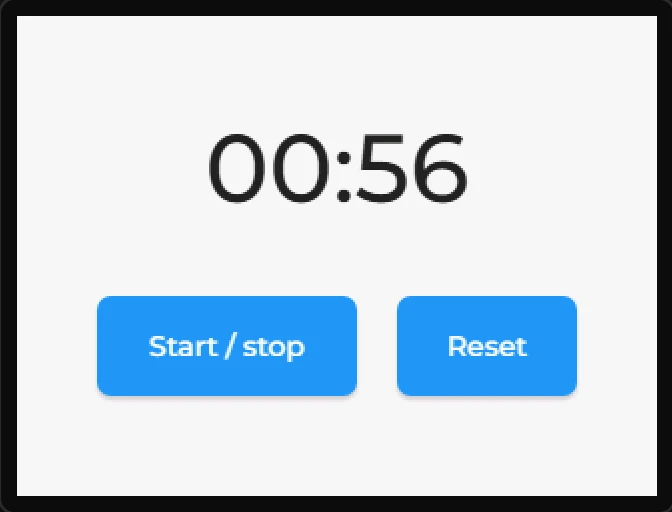
Example: a one-minute countdown
- Drag a Timer onto the screen and name it
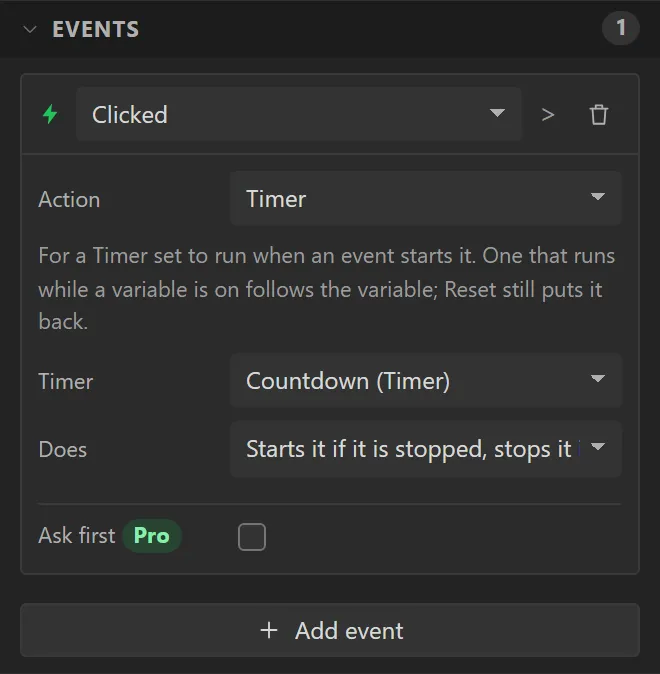
Countdown. Set It to Counts down to nothing and Counts down from to60. Make it200wide, with a font size of48 px, centred. - Drag a Button saying
Start / stopand give it an event: Clicked, Action Timer, Timer Countdown, Does Starts it if it is stopped, stops it if it is running. - Drag a second button,
Reset, with Does set to Puts it back to the beginning. - Press Preview and click Start / stop: it counts down. At nought it stops and sends Finished.