Bluetooth LE icon
The Bluetooth mark, in the colour of what Bluetooth is doing: grey while it is switched off, flashing while it waits to be paired, lit once something is connected. It follows the board by itself - no event, no binding - whether the board is a keyboard, an HMI link or a speaker, and dropping one into a design with Bluetooth off switches it on.
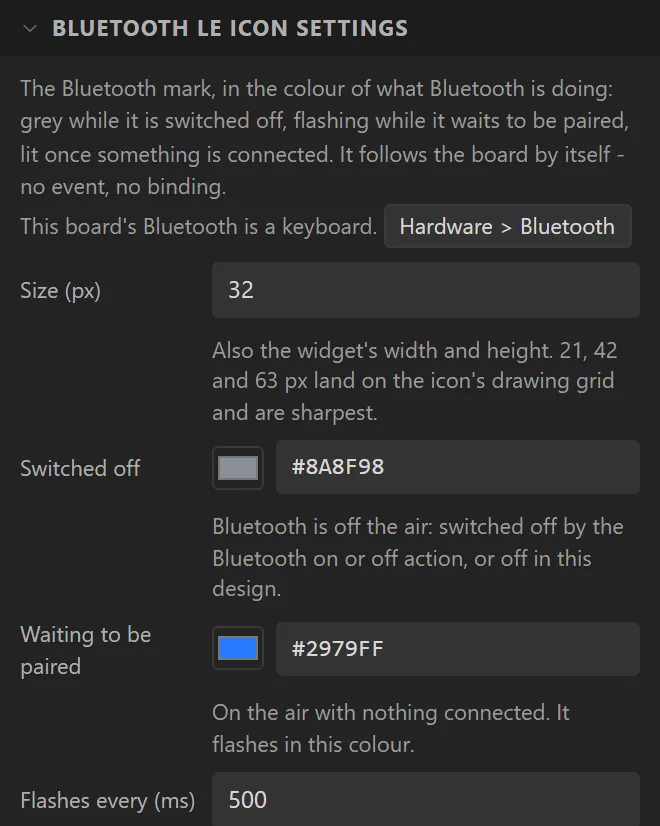
| Setting | Default | What it does |
|---|---|---|
| Size | 32 px | Also its width and height. 21, 42 and 63 px land on the icon's drawing grid and are sharpest. |
| Switched off | Grey | Its colour while Bluetooth is off the air. |
| Waiting to be paired | Blue | On the air with nothing connected. It flashes in this colour. |
| Flashes every | 500 ms | How long it is lit, and how long dark, while it waits. 0 keeps it lit. |
| Connected | Blue | A host or a phone is connected. |
| Sound is playing | Blue | A speaker only. The same as Connected unless you want to tell them apart. |
| Trouble | Red | Pairing failed, or a host keeps connecting and dropping. |
It has no text colour or font of its own: the colour is the state's. Its background, border and padding are ordinary Style settings, so it can sit on a plate. Give it a Clicked event running Bluetooth on or off and the icon is its own switch. Arduino export, LVGL 8 and 9; in a design whose Bluetooth is off it stays the first colour.
Example: its own on and off switch
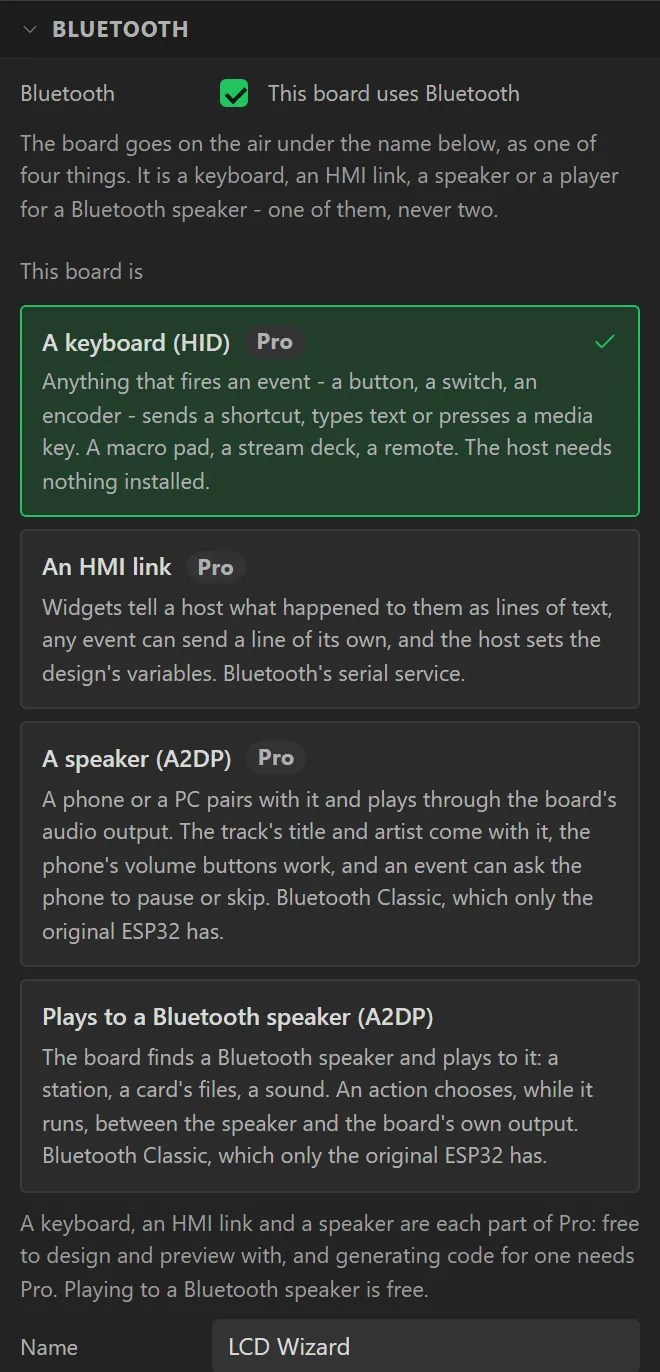
- Drag a Bluetooth LE icon onto the screen. With Bluetooth off in the design, it is switched on, as a keyboard: Hardware > Bluetooth says so and is where you choose another role.
- Name it
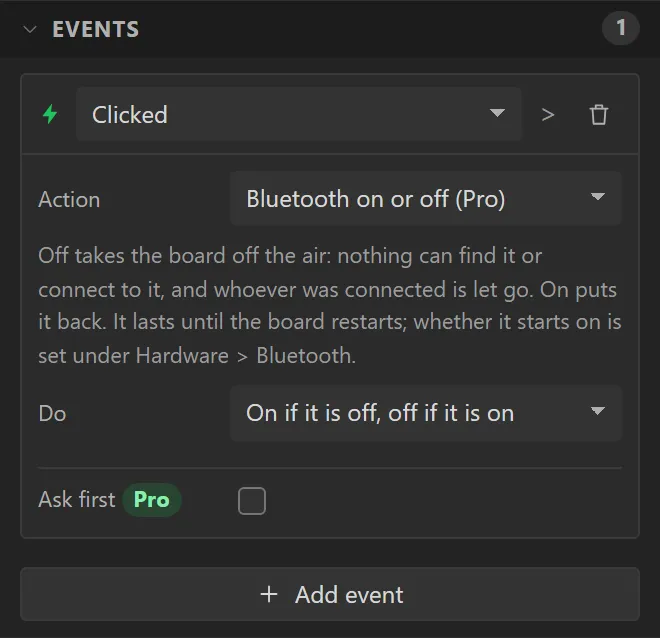
BluetoothStateand set its Size to42. - Give it an event: Clicked, Action Bluetooth on or off, Do On if it is off, off if it is on.
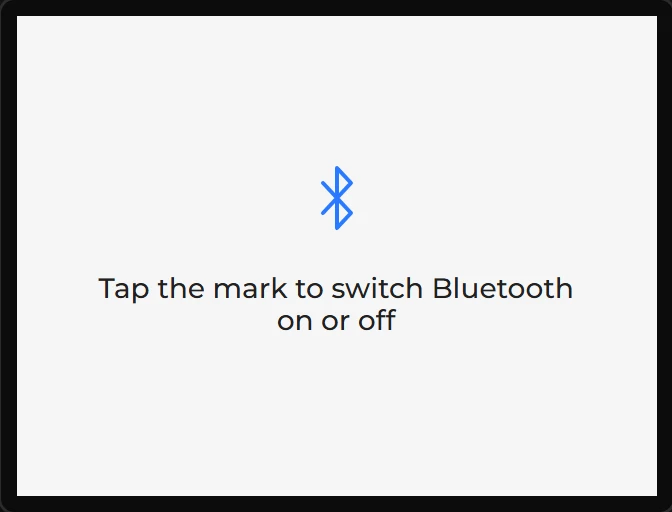
- Drag a Label under it saying what a tap does.