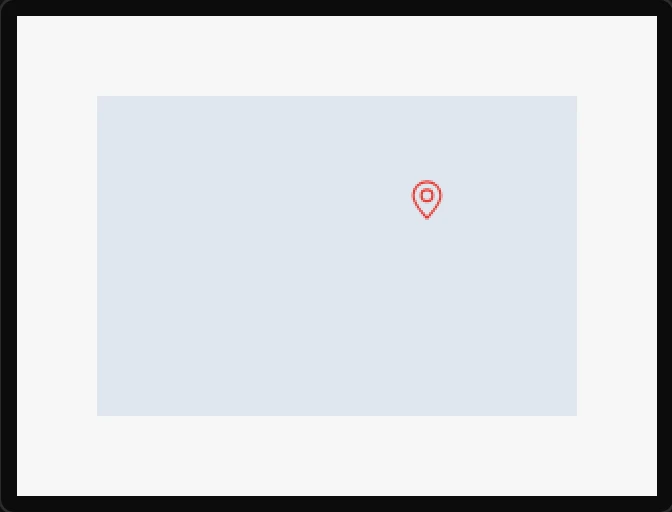
Map marker
Something at a place on a Map: an icon from the library, in the colour you give it, or a picture. Drop it on a map and it is given the place it was dropped on; drag it and its latitude and longitude follow, and an arrow key moves it a pixel. Its latitude and longitude can each be bound to a variable, so it follows a position read off a GPS on the board, off the web or an MQTT topic - and it is moved only when it would land somewhere else. It is a widget like any other: give it a Clicked event and a tap on it opens a screen. Arduino export.
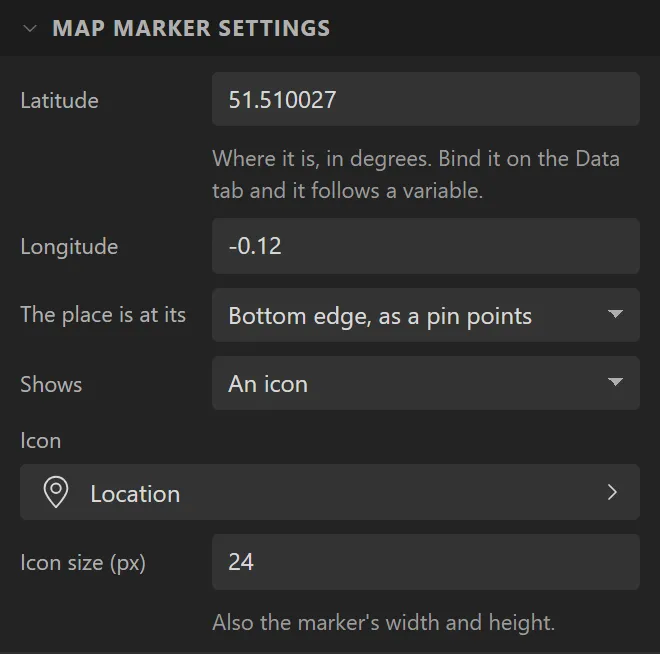
| Setting | Default | What it does |
|---|---|---|
| Latitude / Longitude | where it was dropped | Where it is, in degrees. |
| The place is at its | Bottom edge | The middle of its bottom edge, as a pin points - or its middle, as a dot sits. |
| Shows | An icon | An icon, with its size - which is also the marker’s - or an image, whose size the marker takes. |
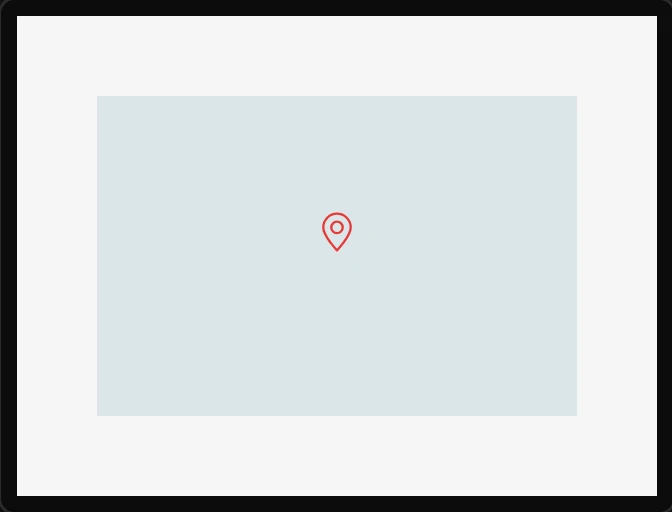
The canvas and the preview put a marker where the board will: the arithmetic is the same on both and is checked against each other. A marker that is not inside a map has nowhere to be placed, stays where it is drawn, and the Problems tab says so.
Example: a marker that follows a position
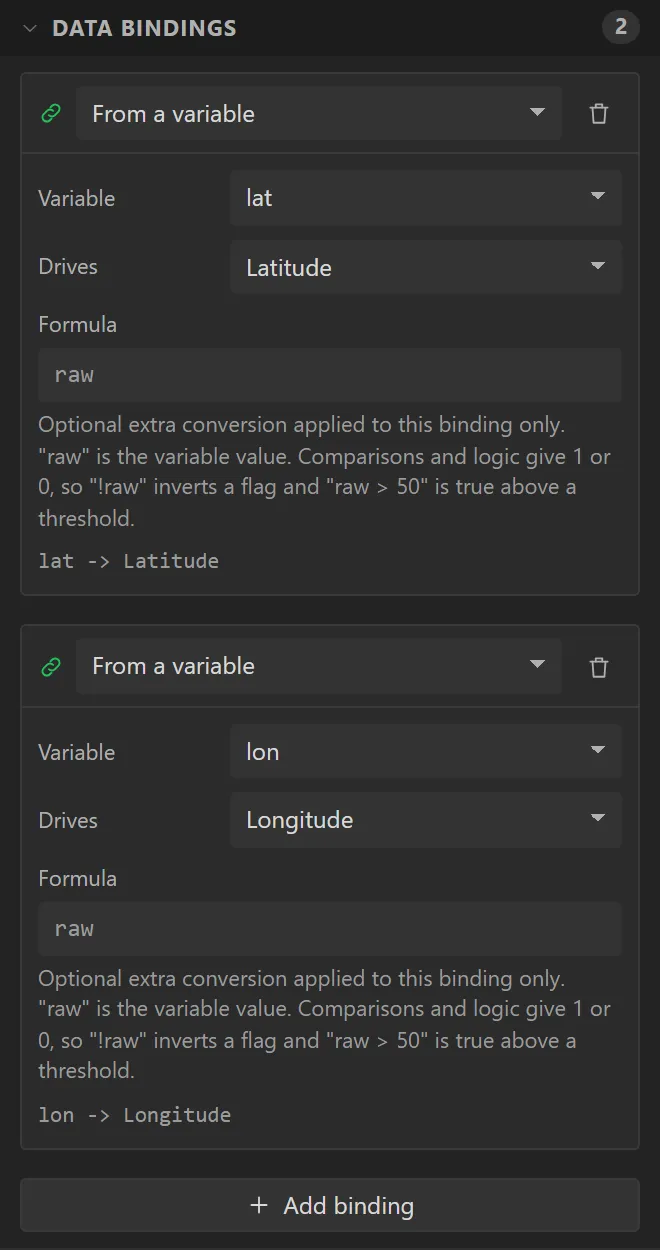
- On the Data tab add two Float variables,
latandlon, each with Decimals5:51.52and-0.09to start with. On the board they would be read from a GPS, the web or an MQTT topic. - Select the marker, open Data bindings and add two bindings: lat driving Latitude, and lon driving Longitude.
- Press Preview: the marker is where the two variables say.