Tutorial: your panel and Home Assistant over MQTT
A touchscreen on the wall that shows what the house is doing and switches a light, talking to Home Assistant through an MQTT broker: what a broker is, how to set one up, and a panel built from it one step at a time.
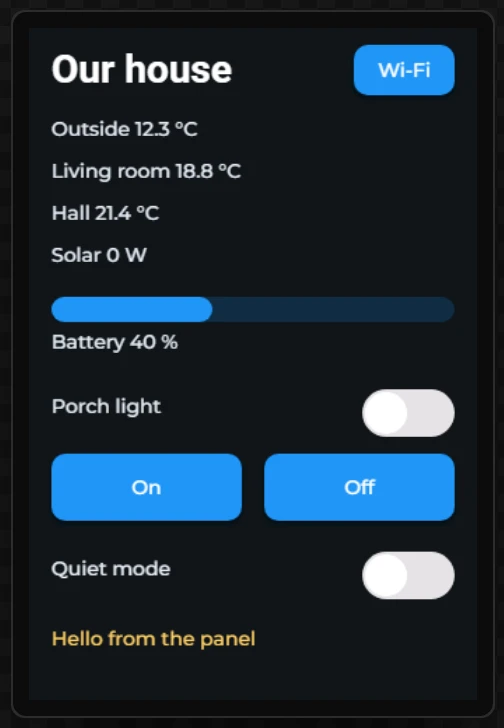
MQTT is how a lot of home kit talks: sensors, smart plugs, Zigbee2MQTT, Tasmota, ESPHome, and Home Assistant itself. This tutorial explains how the pieces fit together, sets up the broker that sits in the middle, and then builds a panel on an LCDWIKI ES3C35P that reads six values from the house, switches the porch light, and shows up in Home Assistant as a device of its own.
Every step below was carried out in the designer to take its picture. The values come from a real grab of a pretend house: a small program that publishes lights, heating, solar and a doorbell to a broker, with Home Assistant watching it. The design that came out of the steps was generated and compiled for the board: 1.39 MB of firmware.
What is free and what is Pro. Connecting to a broker, listening to topics, publishing to them and importing a grab are free on every plan. Announcing the panel's own values to Home Assistant (Part 7) is Pro. Leave Part 7 out and the rest of the panel generates on any plan; the export dialog says so before anything is charged (step 25).
Run on a board. The same MQTT and Home Assistant set-up has run on a Waveshare ESP32-P4 4.3 board against our test house: it joined the broker, turned up in Home Assistant as a device by itself, and was controlled from there both ways. The ES3C35P build in this tutorial has been compiled, not yet run.
What you need
- A board with Wi-Fi. This tutorial uses the LCDWIKI ES3C35P (3.5 inches, 320 x 480), but nothing in it is special to that board.
- An MQTT broker on your network, and a login for it. Part 1 explains what that is and how to get one if you use Home Assistant.
- MQTT Wizard, our free desktop app that listens to a broker for a few seconds and saves what it hears to a file (Part 3). You can do without it and type the topics in yourself (step 13 shows how).
- PlatformIO or the Arduino IDE, to build and upload what the designer generates. Flashing and configuration covers both.
Part 1: what a broker is
A broker is a post office for small messages. Nothing on MQTT talks to anything else directly: every device connects to the broker, and the broker passes messages on.
- A message goes to a topic, a name with slashes in it such as
house/outside/temperature. Saying something on a topic is publishing. - Anything that wants to hear a topic subscribes to it, and from then on the broker hands it
every message published there.
house/light/+/statemeans every room's light, andhouse/#everything underhouse. - A message can be retained: the broker keeps the last one and hands it to anyone who subscribes later. That is how a panel switched on in the morning knows at once that the porch light is off, without waiting for it to change.
Everything that connects is a client, and they are all equal: your sensors, Home Assistant, the panel, and MQTT Wizard when it grabs. Home Assistant is not the broker. It is one more client, which listens to what devices say and publishes the commands you give it.
So the panel points at the broker, never at Home Assistant's web page. If Home Assistant is
at http://192.168.1.20:8123 and the broker runs on the same machine (the usual way, below),
the panel's broker is 192.168.1.20, port 1883. Port 8123 is Home
Assistant's website; the board does not speak to it.
Part 2: setting up the broker
If you run Home Assistant OS
- In Home Assistant open Settings > Add-ons > Add-on store, find Mosquitto broker, press Install and then Start. Mosquitto is the broker; the add-on runs it on the same machine as Home Assistant, on port 1883.
- Home Assistant finds it by itself: Settings > Devices & services offers the MQTT integration. Press Configure and accept.
- Make a login for the panel. The add-on lets in Home Assistant's own users, so the simplest is
Settings > People > Users > Add user (turn on advanced mode in your profile if you
do not see Users), called something like
panel, with a password of its own. Give each device its own login, not yours.
If you run Home Assistant in Docker
Home Assistant Container has no add-ons, so the broker is a container of its own beside it, from the
eclipse-mosquitto image. Give it a mosquitto.conf that listens on the network
and asks for a password:
listener 1883
allow_anonymous false
password_file /mosquitto/config/passwd
persistence true
persistence_location /mosquitto/data/
Make the password file with mosquitto_passwd -c /mosquitto/config/passwd panel inside the
container (leave out -c for the second user and after, or it starts the file again), make one
for Home Assistant too, and restart the container. Then add the MQTT integration in Home Assistant
by hand, with the machine's address, port 1883 and Home Assistant's login. Publish port 1883 from the
container, or the board will not reach it.
One broker. Home Assistant's MQTT integration connects to one broker. If you already have another (a Zigbee2MQTT box with its own, say), do not point the panel at a second one and hope: either use that broker for everything, or join the two with a bridge (Part 8).
Part 3: a project, and the broker
1 Start a project for Arduino
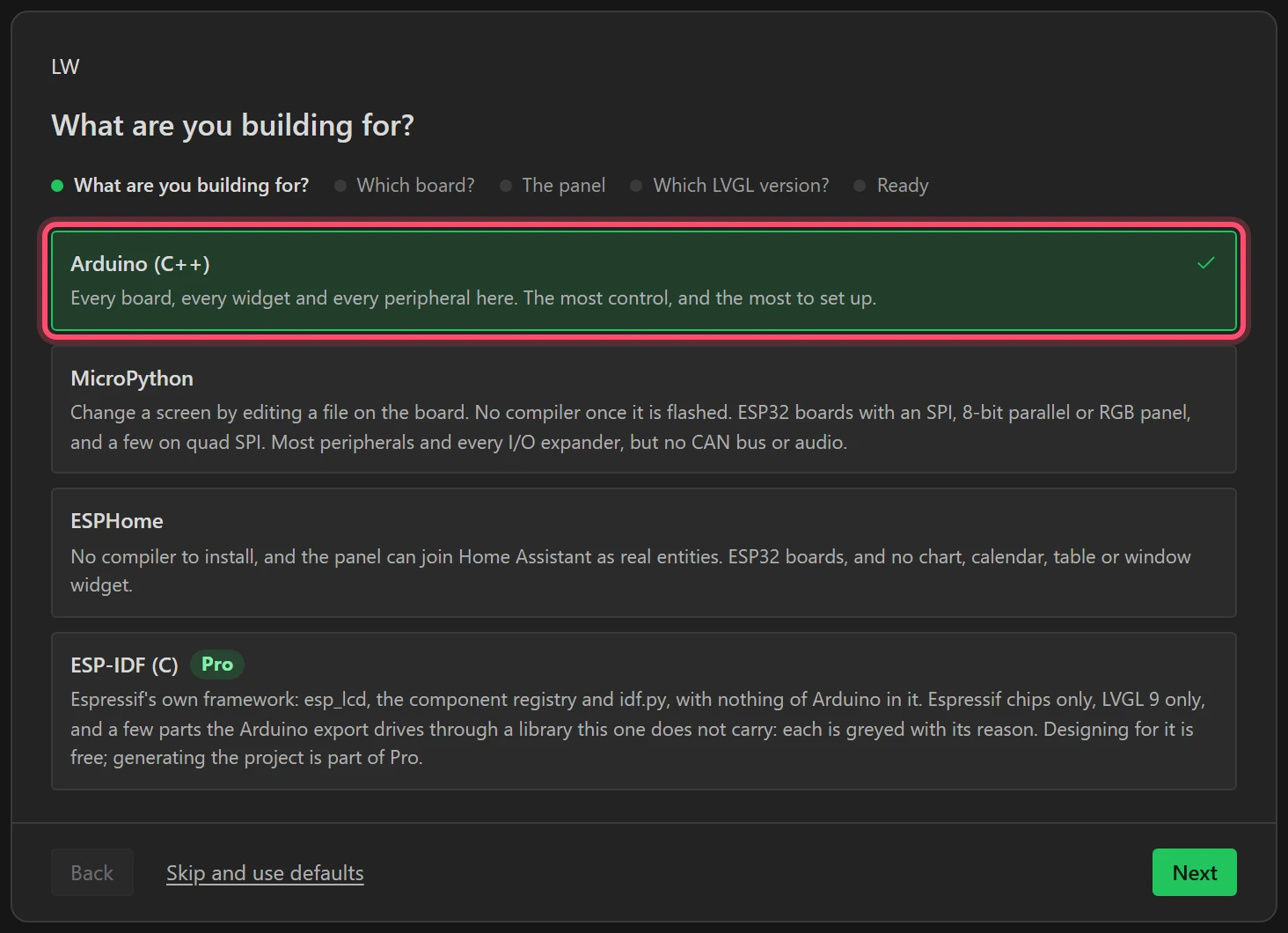
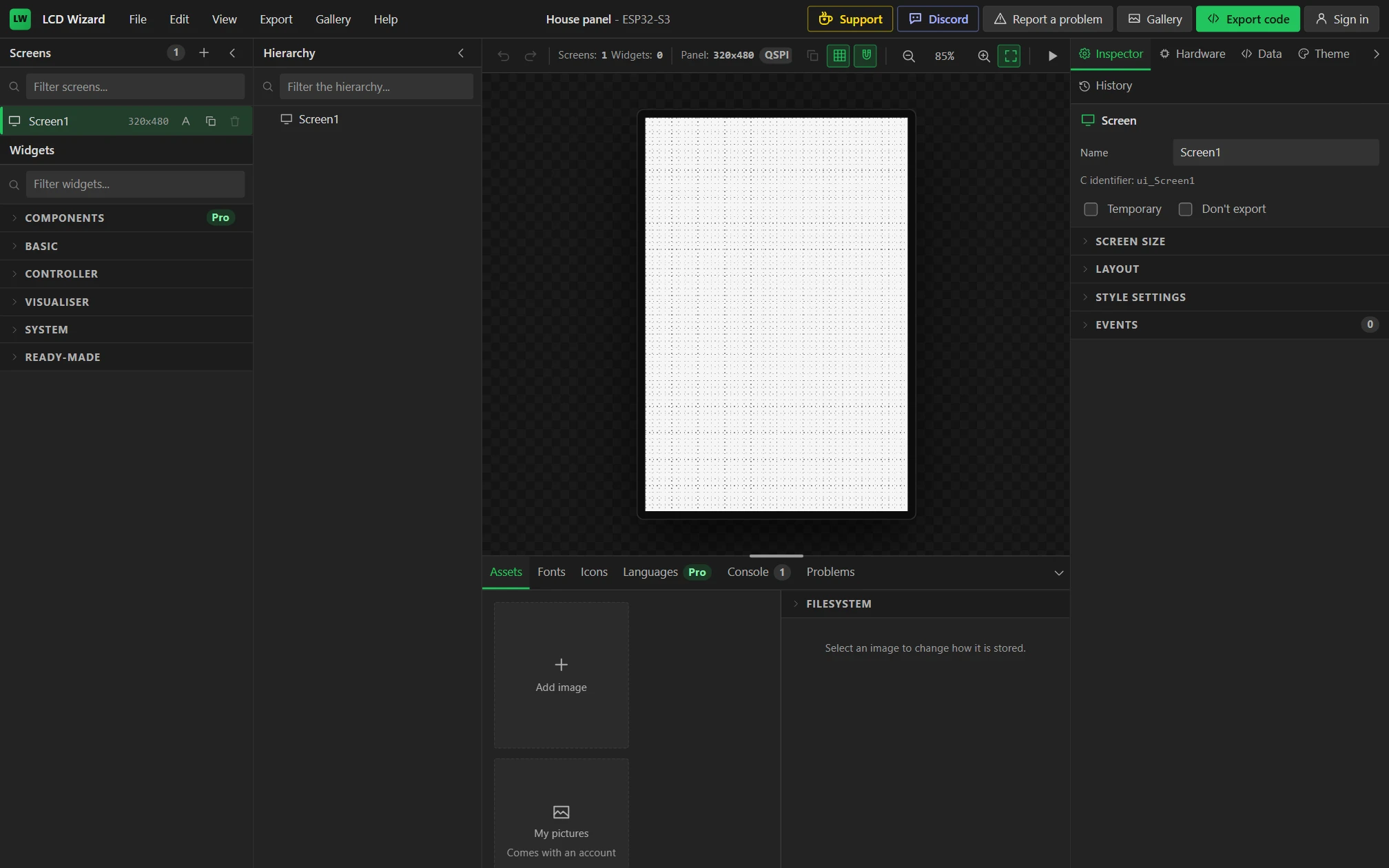
Open the designer. On a first visit the setup wizard is already there; otherwise choose File > New project. For What are you building for? choose Arduino (C++) and press Next.
2 Choose the board
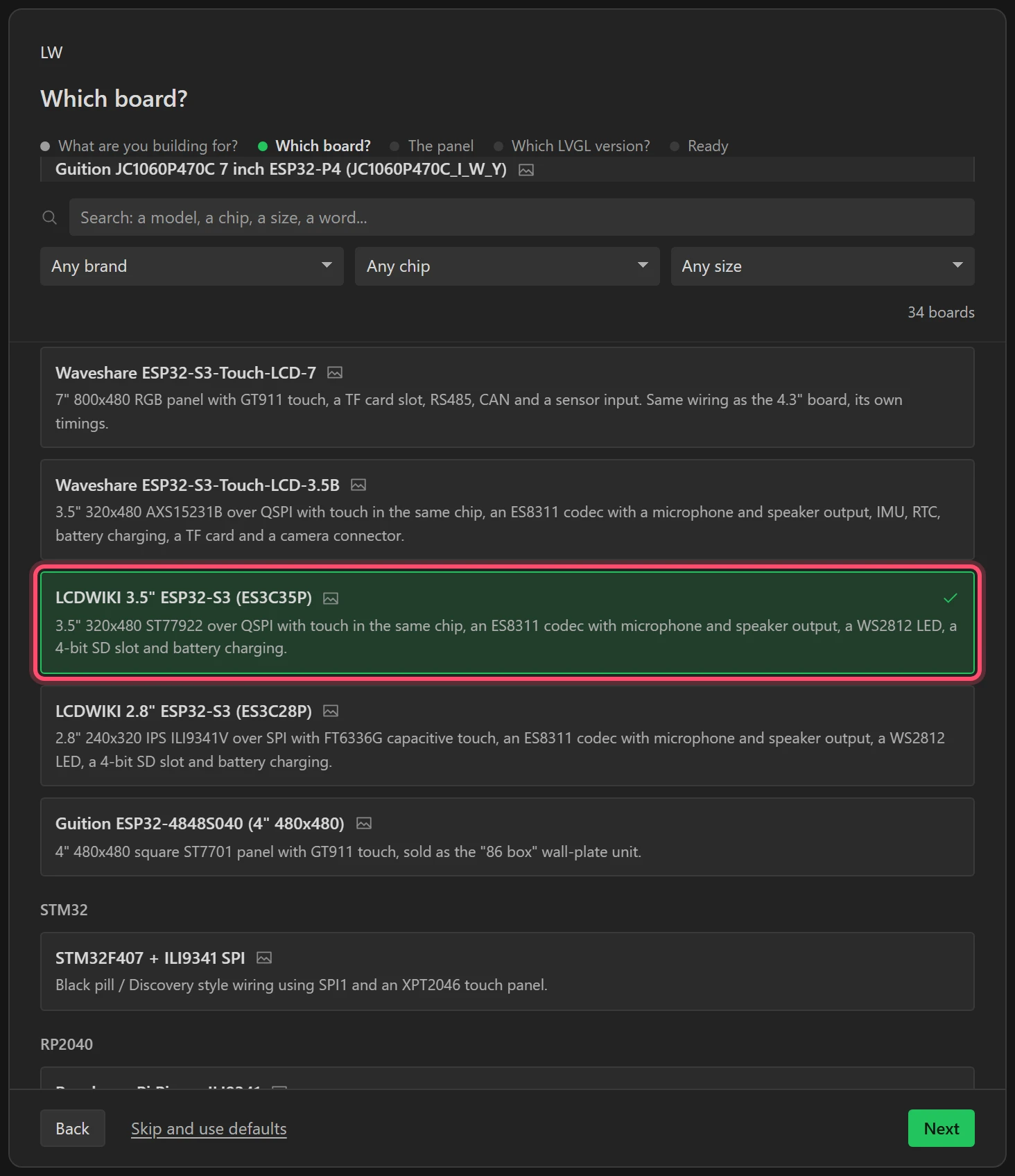
Choose LCDWIKI 3.5" ESP32-S3 (ES3C35P) and press Next. Leave Rotation at 0 degrees and press Next; keep LVGL 9 and press Next.
3 Name it and start empty
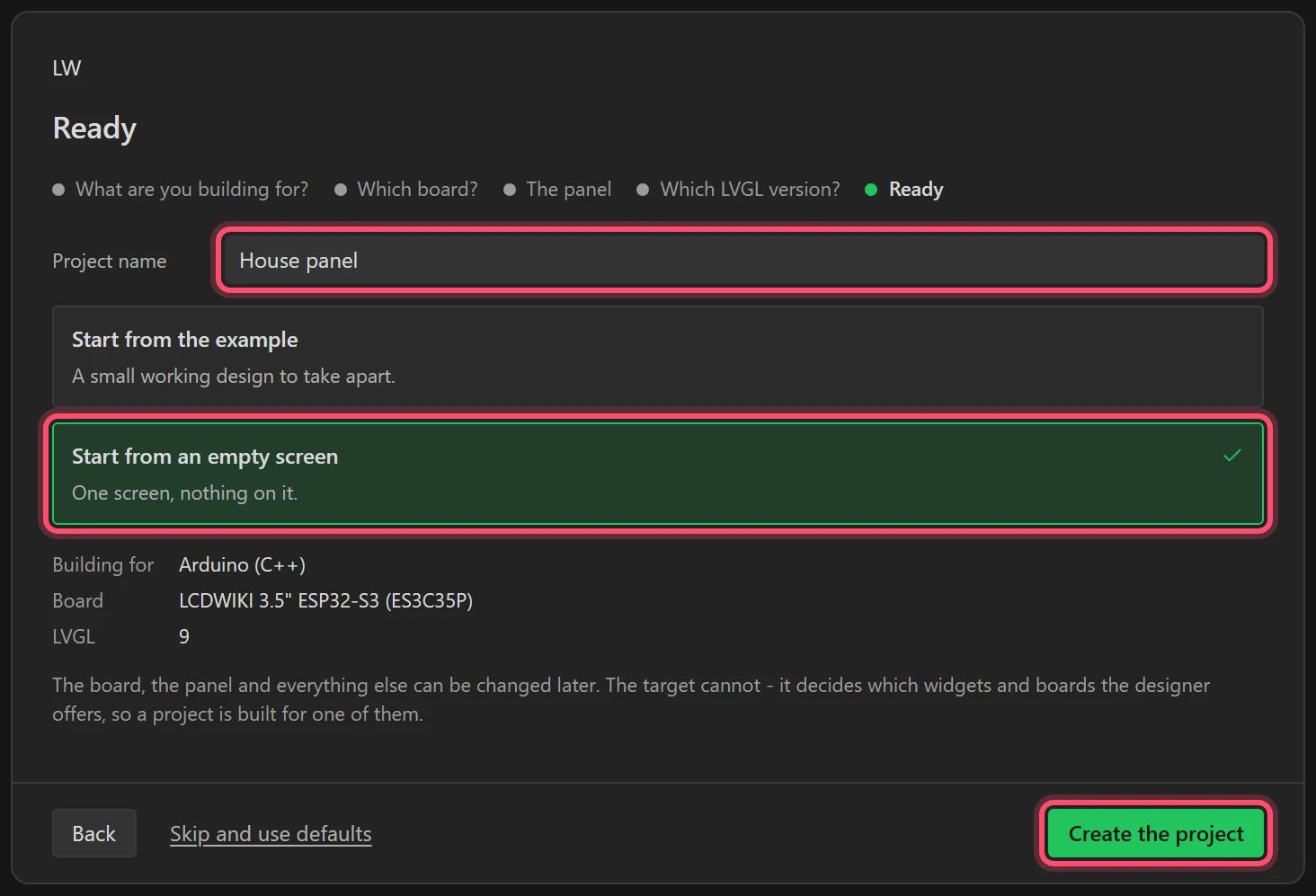
Type House panel for the project name, choose Start from an empty screen, and
press Create the project.
4 Open the MQTT window
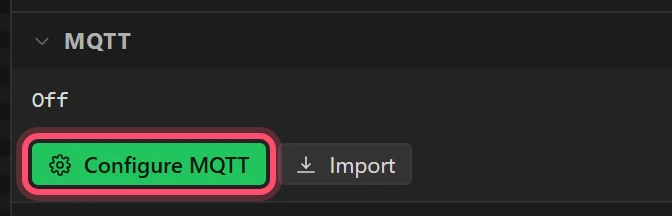
On the right, open the Data tab and its MQTT section. It is one line while MQTT is off. Press Configure MQTT.
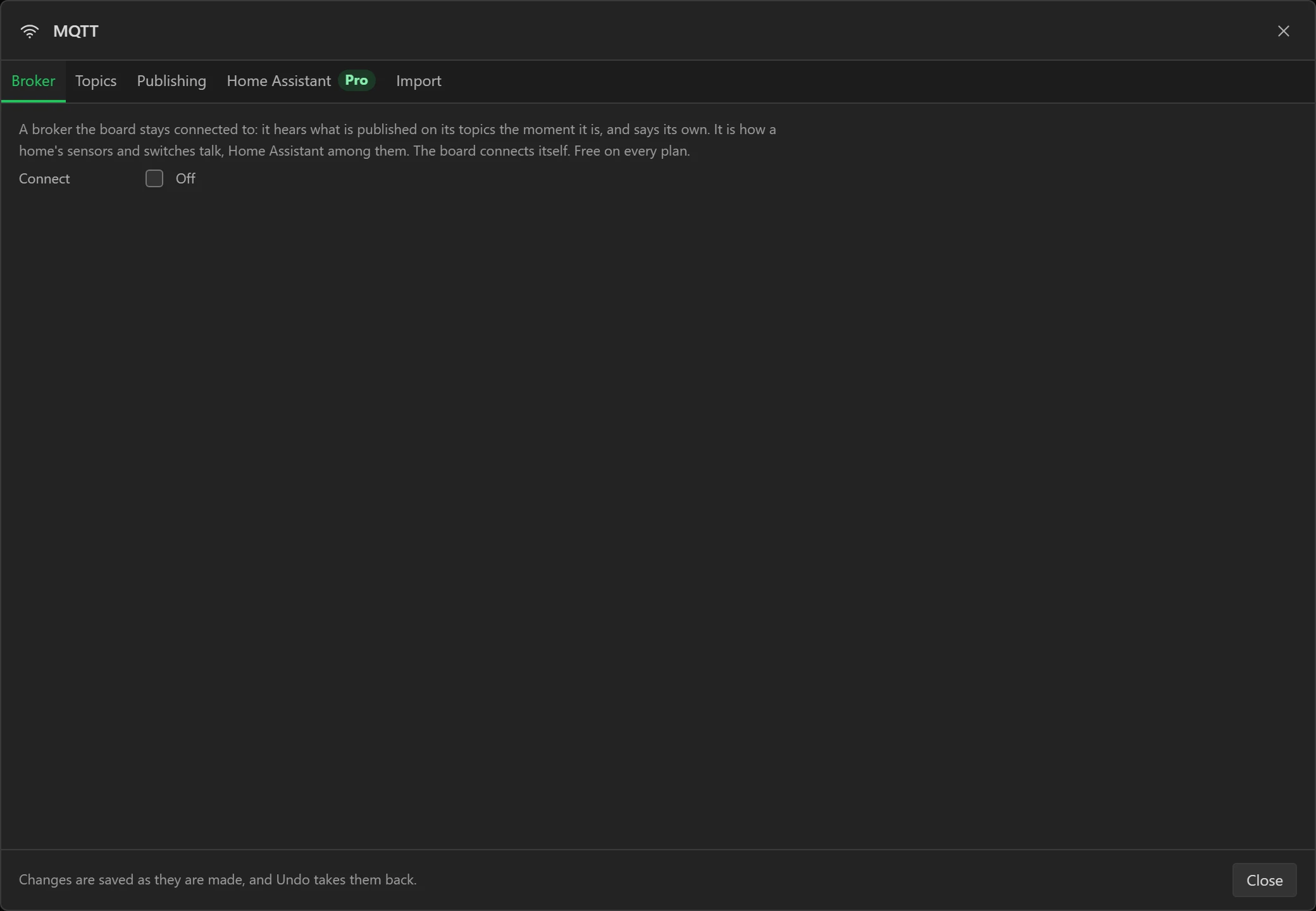
The window has five tabs: Broker (where to connect), Topics (what the panel listens to), Publishing (what it says), Home Assistant and Import.
5 Point it at the broker
Tick Connect. Type the broker's address under Broker (the house here is at
192.168.1.163; yours is the Home Assistant machine's address with the add-on), leave
Port at 1883 and TLS off, and type the User and Password you made
in Part 2.
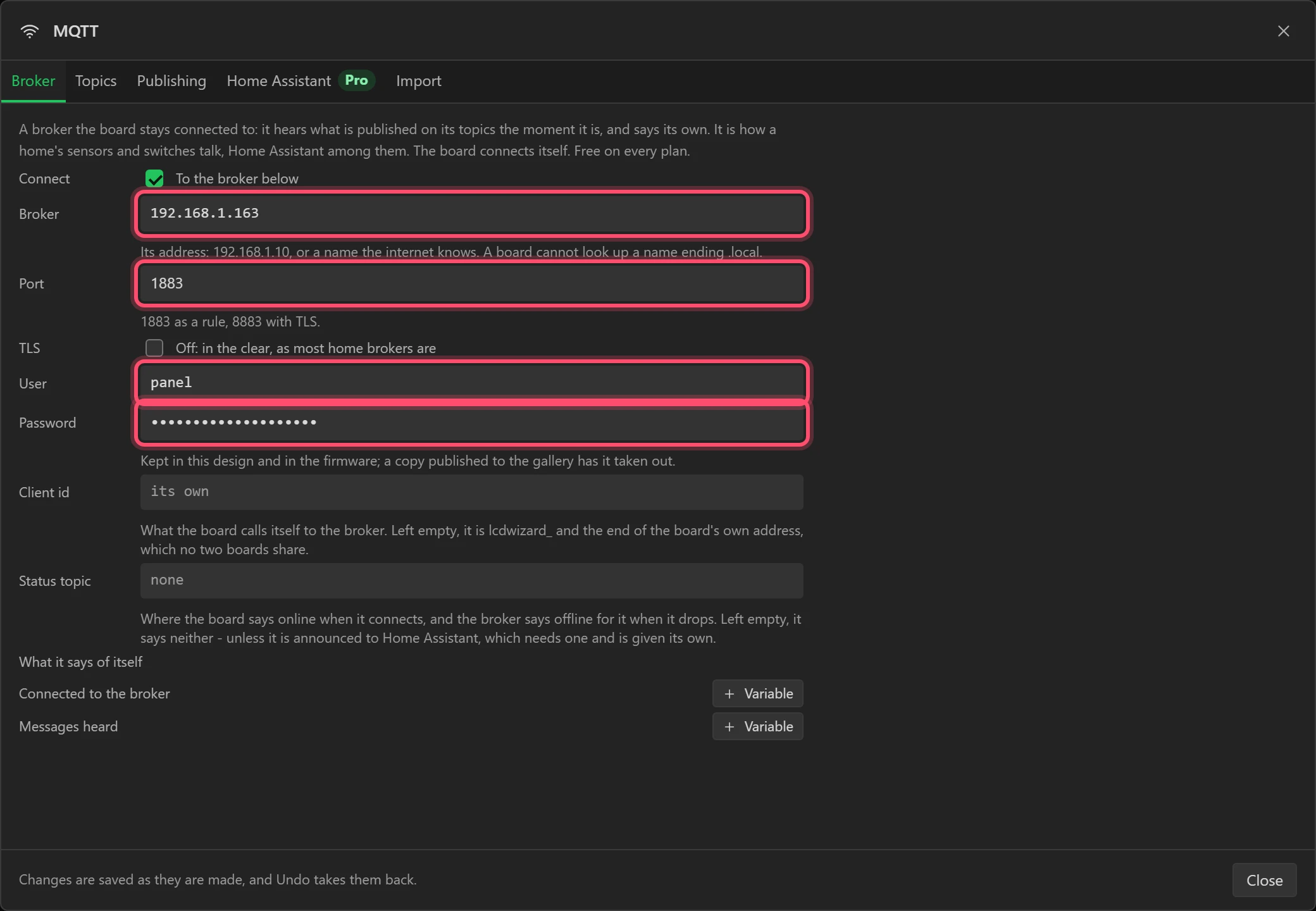
Use the address as numbers. A name ending .local, such as
homeassistant.local, works on your computer and not on the board, which does not look such
names up. Your router can usually be told to keep the Home Assistant machine on the same address.
The password is kept in the design and in the firmware, and taken out of any copy you publish to the gallery. Client id can stay empty: each board then makes its own from its network address.
Part 4: grabbing the topics
The designer cannot see your broker: it runs in a browser, on our server, and your broker is on your own network with a password. So instead of typing every topic in, you grab them. MQTT Wizard runs on a computer on the same network, connects to the broker with a login you give it, listens to everything for a few seconds, and saves what it heard to a file: every topic, the last thing said on it, whether it was retained, and every device that announced itself to Home Assistant. Your password is not written to the file.
6 Load the grab
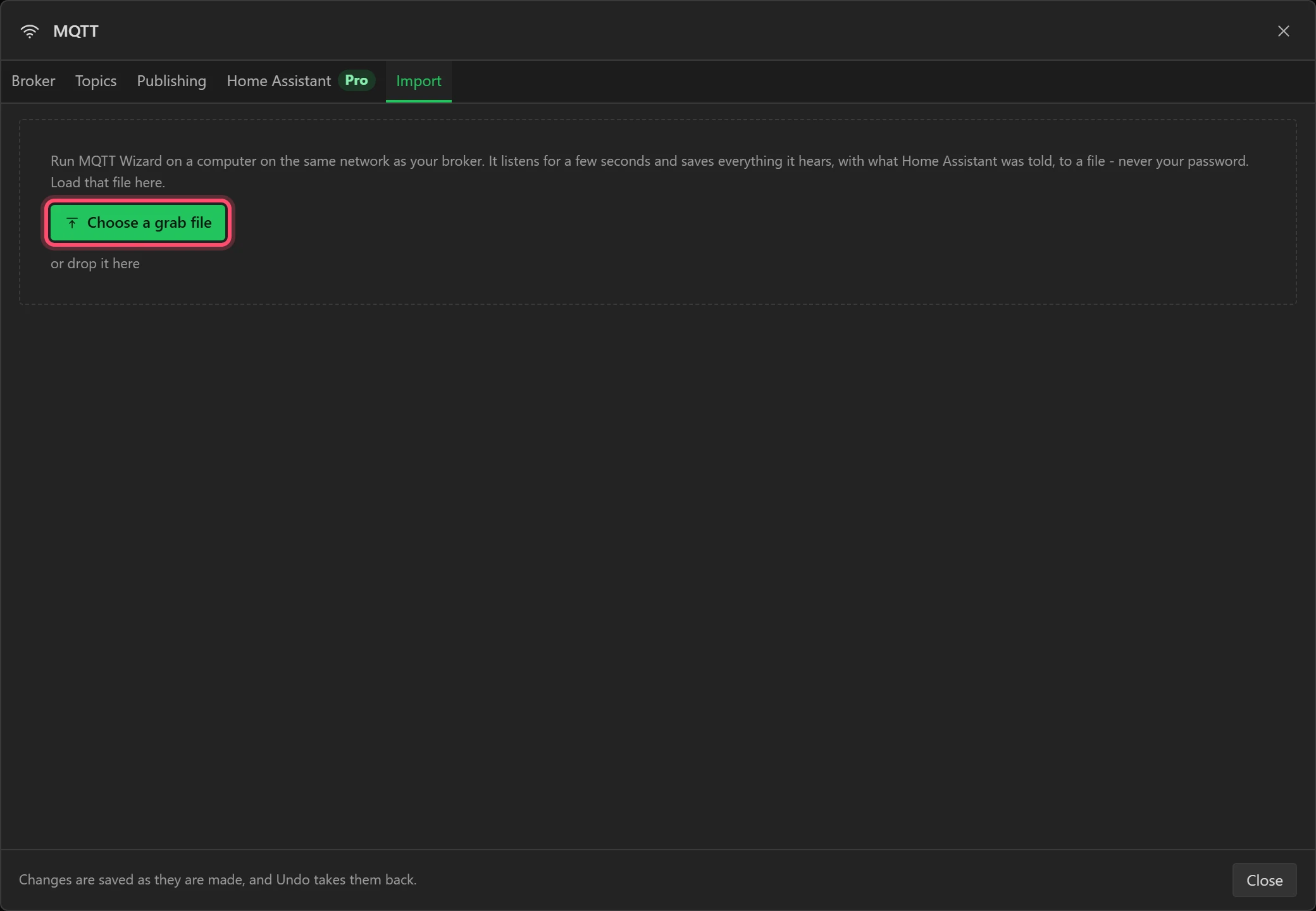
Open the window's Import tab and press Choose a grab file, or drop the file on it.
On the left are the topics as a tree, as they are named. On the right are the Home Assistant devices the grab heard announced, each entity with the topics it is read from (listen) and the topics it takes commands on (publish, with the commands it understands).
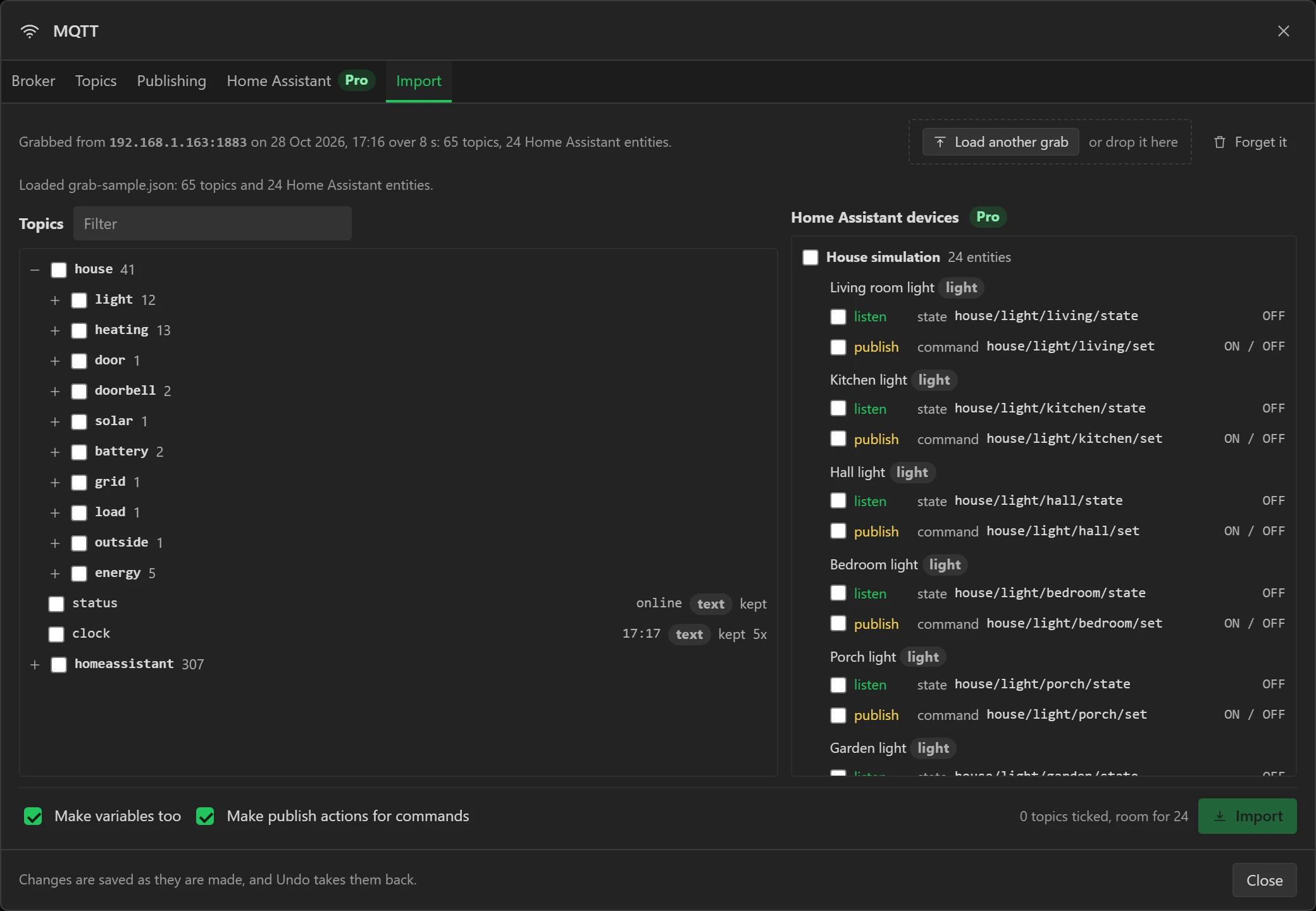
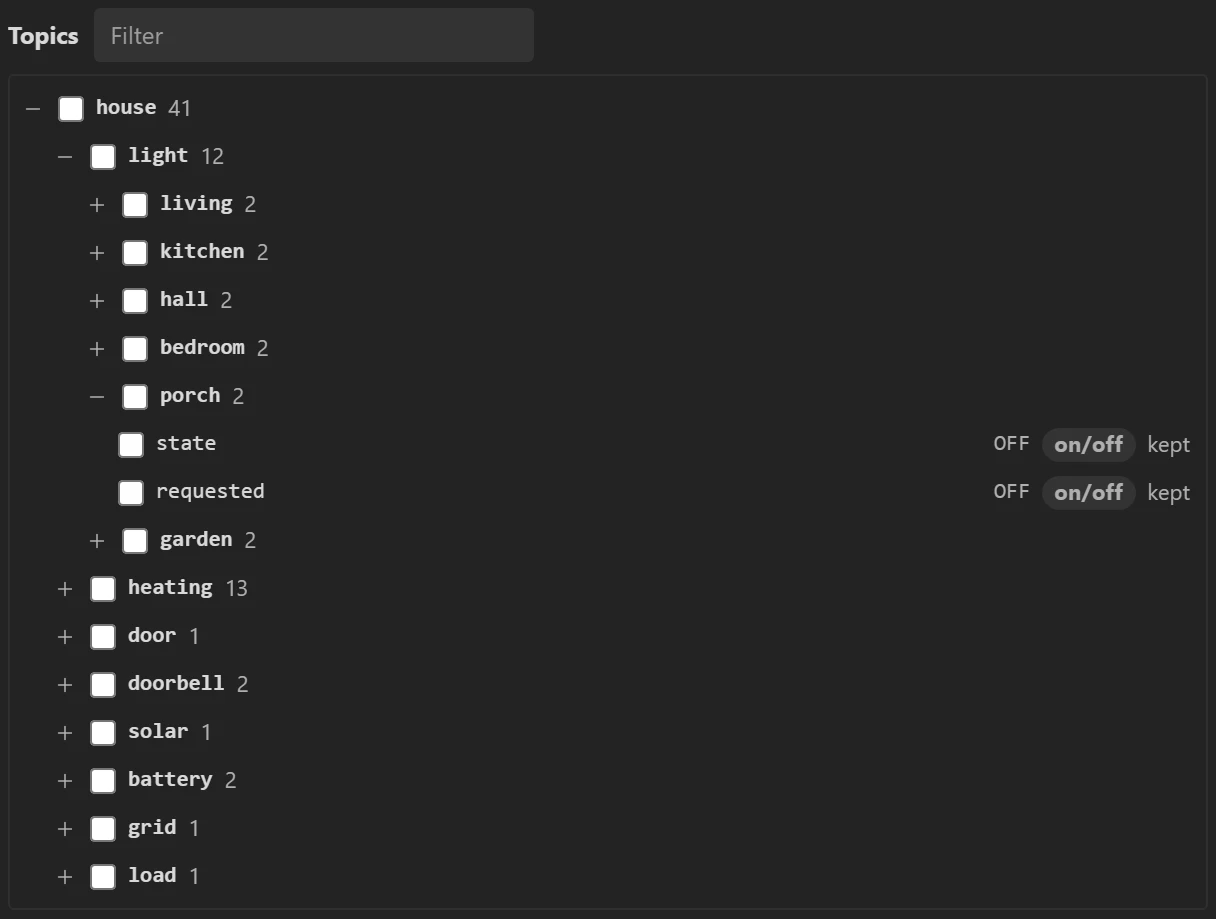
The grab is kept with the design, so you can come back and tick more later without grabbing again. Forget it takes it off. The tree opens a level at a time with the + beside each name; each row shows the last payload heard, its kind, kept for a retained topic, and how many times it was heard.
7 Tick what the panel needs
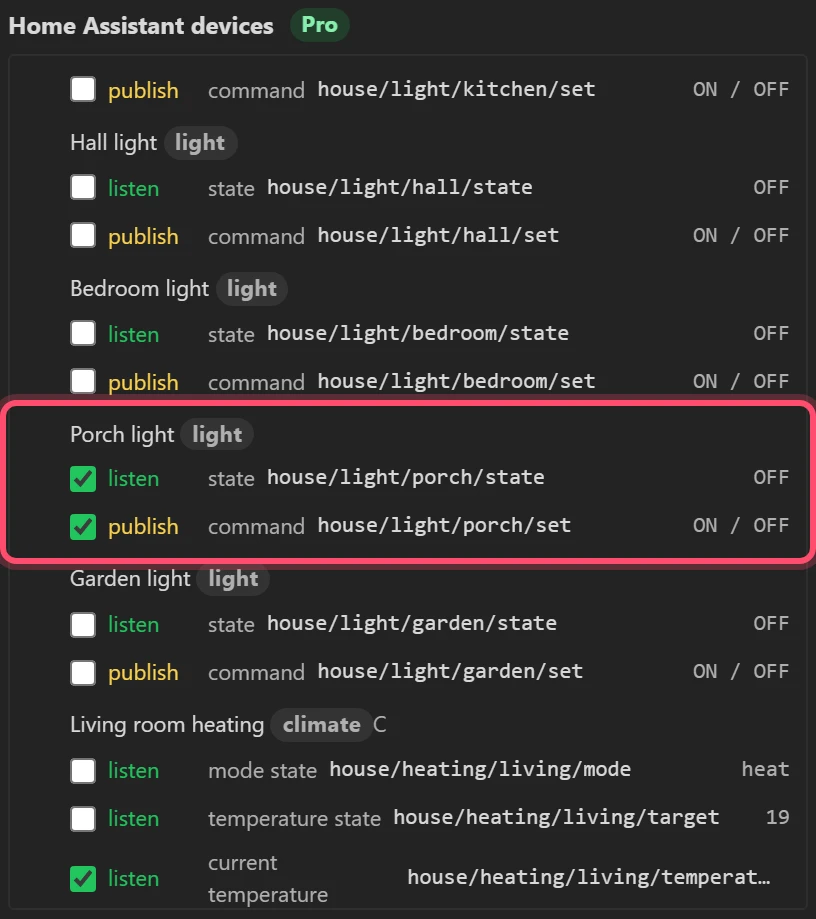
In Home Assistant devices, tick:
- Porch light: listen on
house/light/porch/stateand publish onhouse/light/porch/set. - Outside temperature, Solar power and Battery: each one's listen.
- Living room heating: the listen for its current temperature,
house/heating/living/temperature.
Ticking the topic on either side ticks the same thing: it is one topic.
8 Import
Leave Make variables too and Make publish actions for commands ticked, and press Import.

- Make variables too gives each topic a variable that holds what it last said. Widgets are bound to variables, not to topics.
- Make publish actions for commands turns each command into a ready-made publish: Porch light ON and Porch light OFF. Nothing is put on a widget; they wait to be picked (step 18).
A design listens to at most 24 topics for each screen: 24 on one screen, 48 on two. If you tick more than there is room for, Import says how many to untick, and changes nothing.
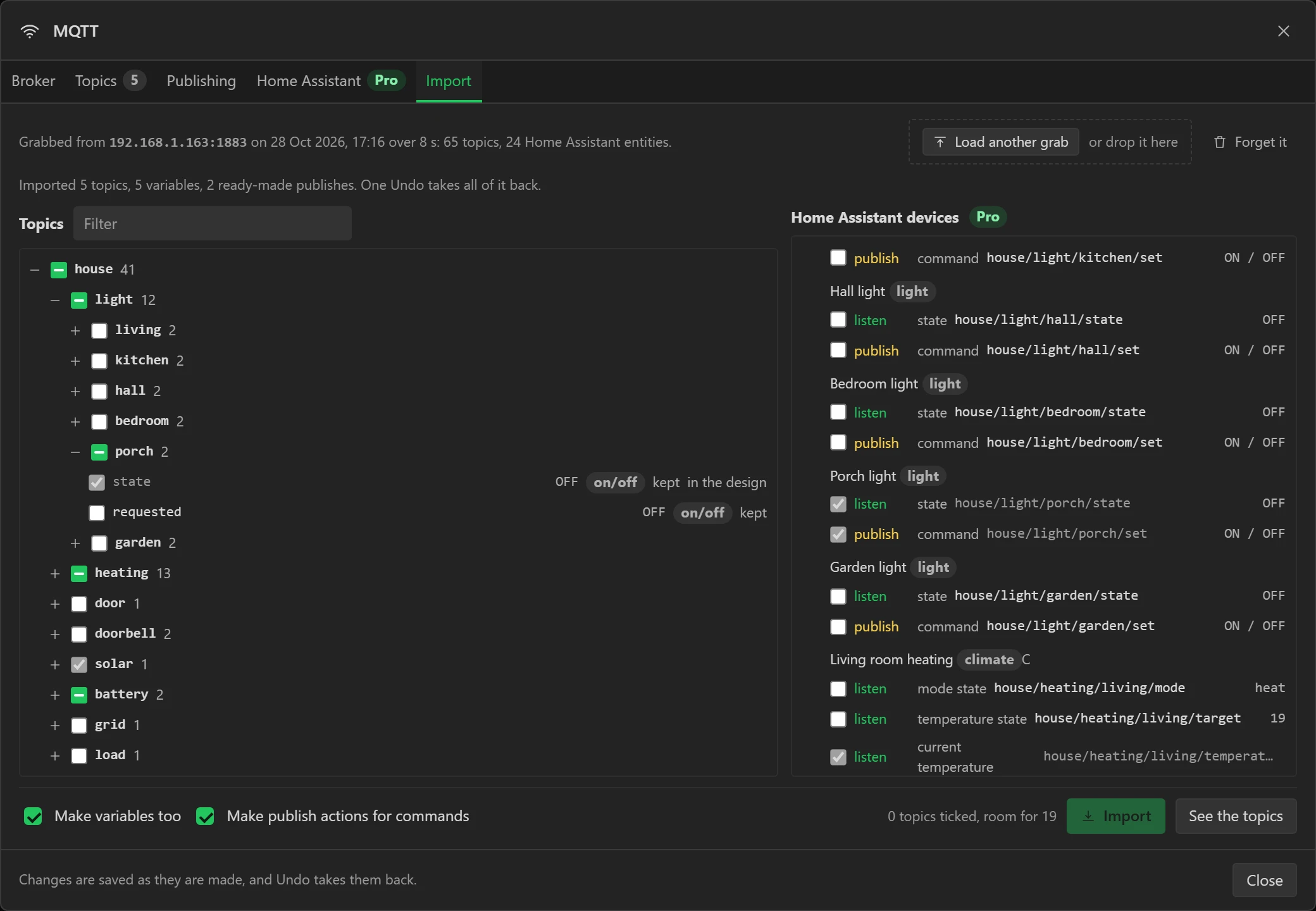
All of it is one change: one Undo takes every topic, variable and ready-made publish back.
Part 5: topics and JSON
9 Look at the topics
Open the Topics tab. Each row is one value the panel listens to: its Name, the Topic, its Type, a Sample payload (filled in from the grab), what that sample Reads as, and the Variable that holds it.
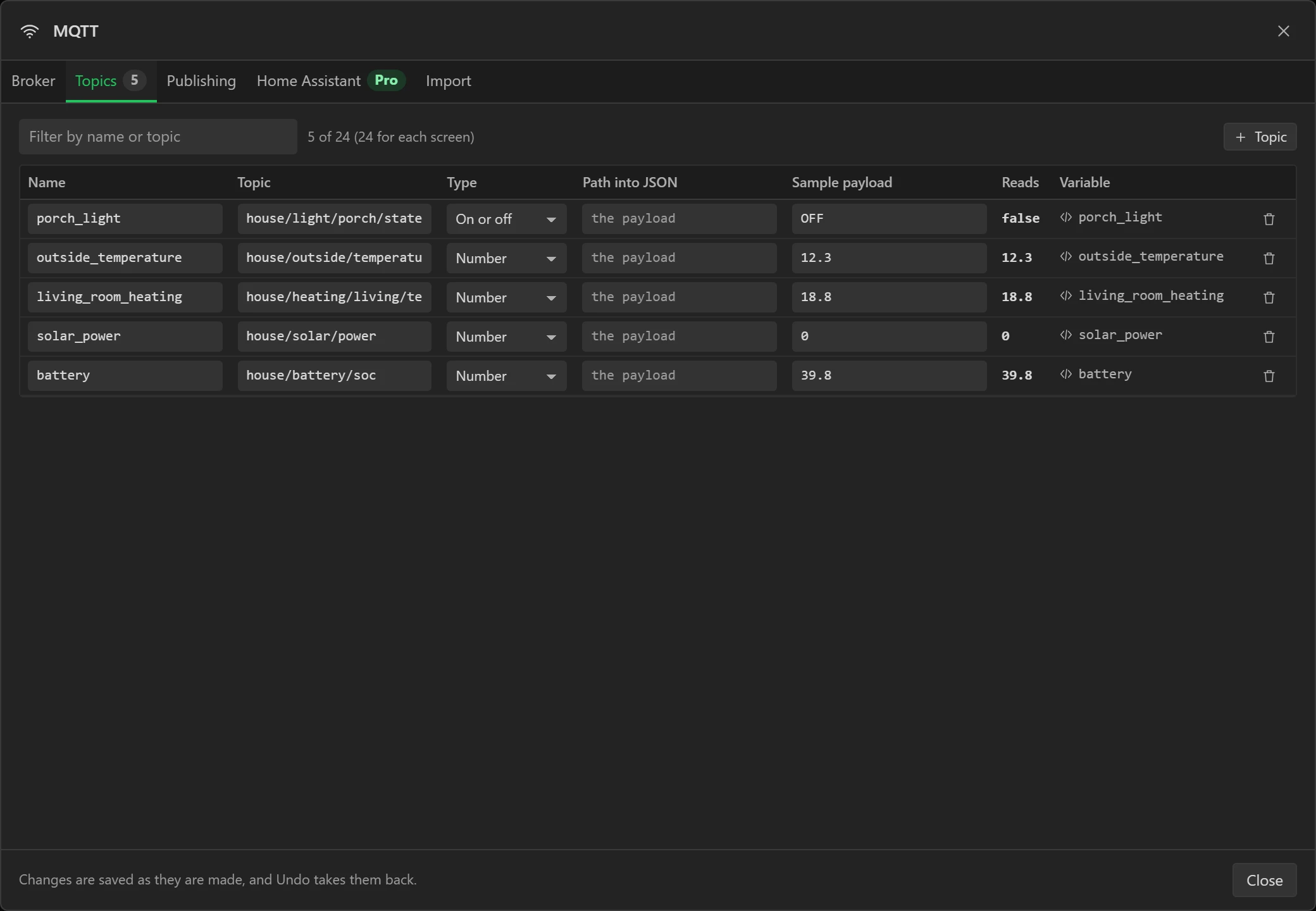
The sample is what the designer and Preview show, since the designer never connects to your broker. The board reads the real thing.
10 Read one value out of a JSON payload
Not every device says one value per topic. Zigbee2MQTT, for one, puts a whole sensor in one message:
{"temperature":21.4,"humidity":48,"battery":92,"linkquality":120} on
zigbee2mqtt/hall_sensor. The house in this tutorial has no such sensor, so this step types
one in, as you would for a topic the grab did not hear.
- Press + Topic.
- Name:
hall_temperature. Topic:zigbee2mqtt/hall_sensor. Type: Number. - Path into JSON:
temperature. That is the key to read. Deeper values are reached with dots and brackets:update.state,readings[0].value. - Sample payload: paste the message above. Reads shows 21.4.
- Press + Variable on the row.
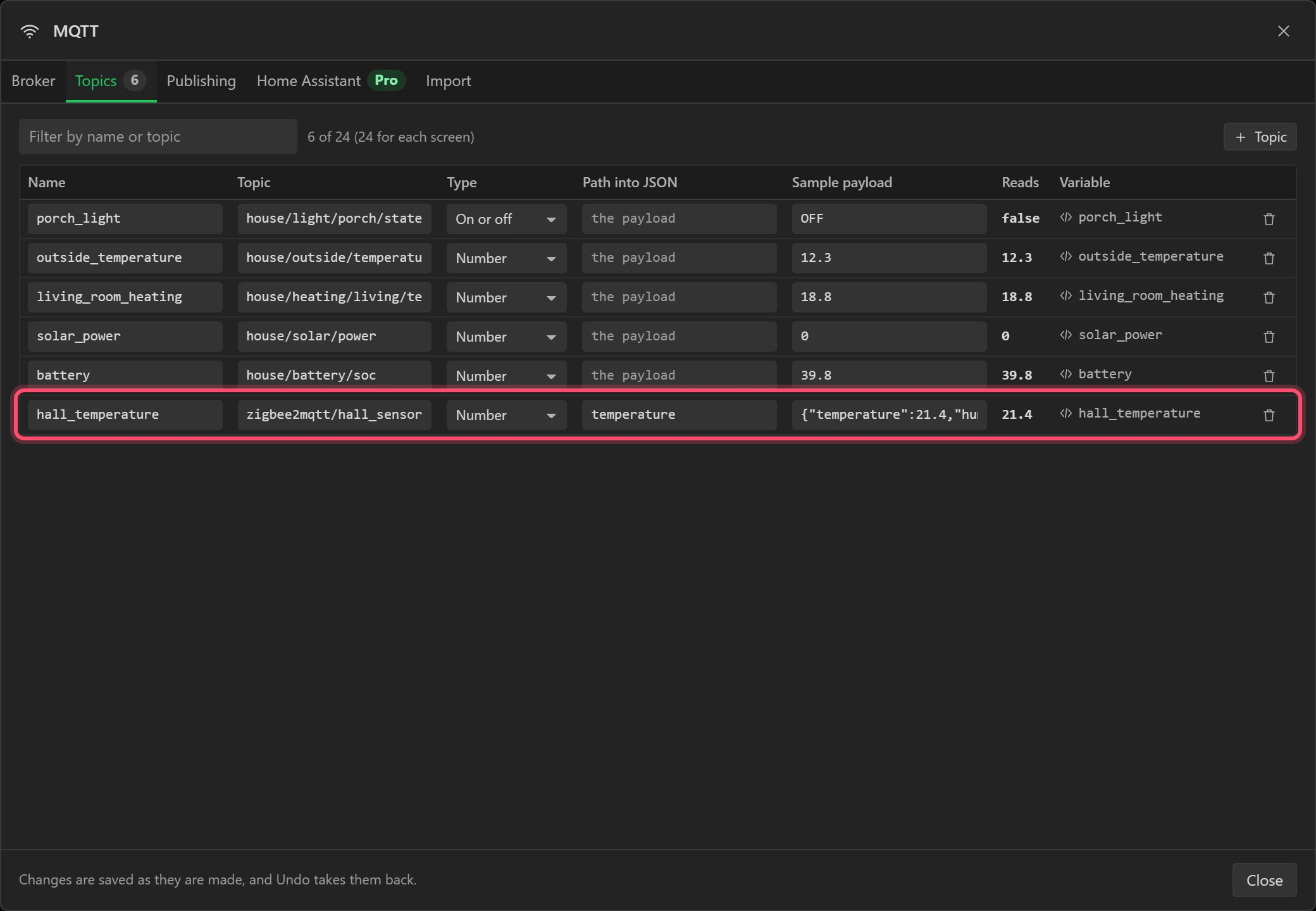
With a grab, a JSON payload's keys are offered in the tree to tick one by one, and this is done for
you. To read the humidity as well, add a second row with the same topic and the path
humidity. Close the window.
Part 6: the panel
11 Lay out the screen
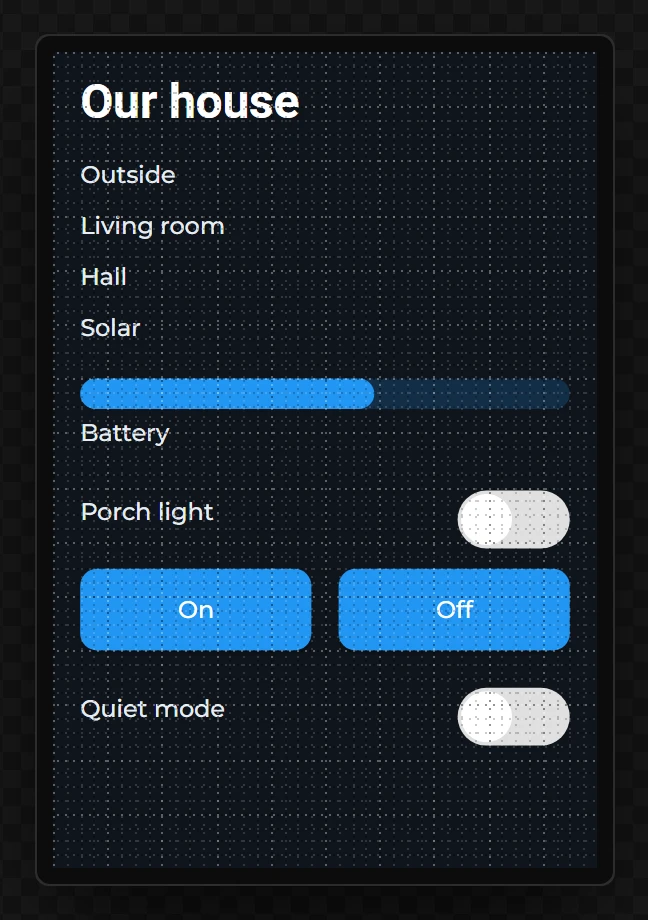
Give the screen a dark background (#10151c) and drop on these, from Widgets:
- A Label
Our houseat the top, in Roboto Bold 28. - Four Labels under it: Outside, Living, Hall and Solar.
- A Bar called Battery, 0 to 100, and a Label under it, BatteryText.
- A Label
Porch lightwith a Switch beside it, PorchState, and two Buttons under them, PorchOn and PorchOff, readingOnandOff. - A Label
Quiet modewith a Switch, Quiet, and at the bottom a Label called Message, in yellow.
12 Bind the labels to the variables
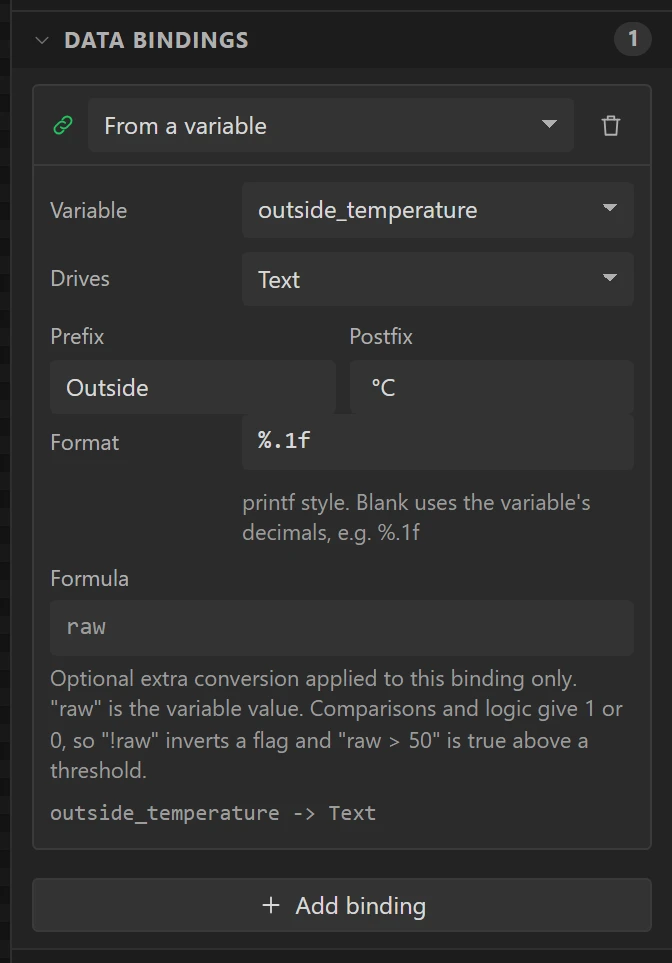
Select Outside and, in the Inspector's Data bindings, press +: From a
variable, Variable outside_temperature, Drives Text, Prefix
Outside , Format %.1f, Postfix °C.
Do the same for the others:
- Living:
living_room_heating, prefixLiving room,%.1f,°C. (Import names a variable after the Home Assistant entity, here Living room heating; rename it in the Data tab if you like.) - Hall:
hall_temperature, prefixHall,%.1f,°C. - Solar:
solar_power, prefixSolar,%.0f,W. - Battery (the bar):
battery, Drives Value. - BatteryText:
battery, prefixBattery,%.0f,%.
13 Show the porch light's state
Select PorchState and bind it: Variable porch_light, Drives
Checked, Direction Variable -> widget. The switch now shows the light as the
house reports it.
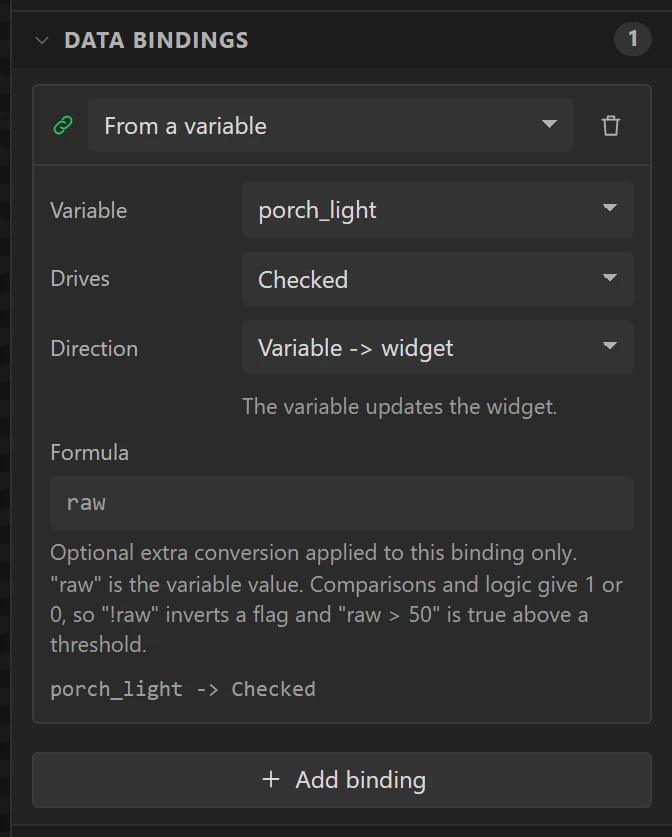
One way on purpose. The house says the light's state on one topic and takes commands on
another, and a well-behaved device works that way: you ask on .../set, and the state topic
changes once the light has done it. The buttons in the next step ask.
14 Make the On button switch the light on
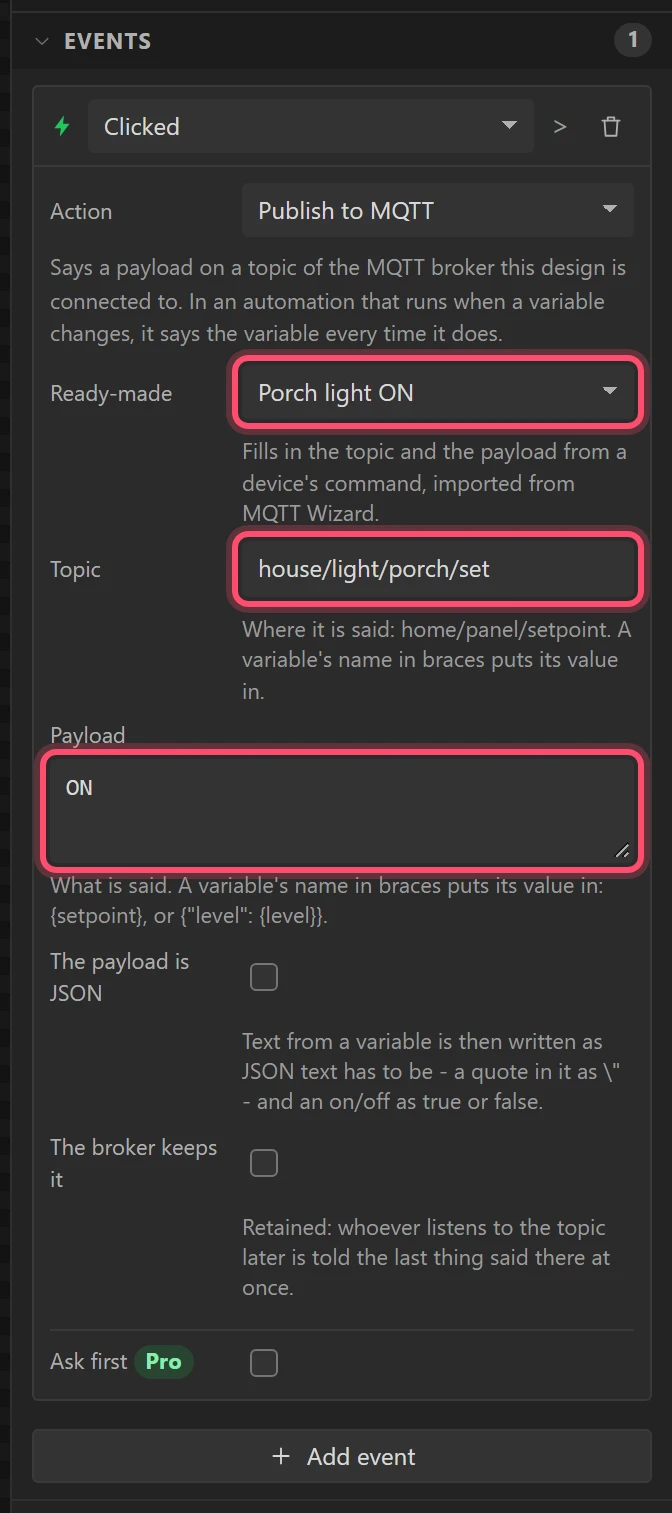
Select PorchOn. Under Events press + Add event, leave Clicked, and
choose the action Publish to MQTT. The card offers Ready-made: choose Porch light
ON. It fills in the Topic, house/light/porch/set, and the Payload,
ON.
Do the same on PorchOff with Porch light OFF.
Without a grab, type the topic and payload yourself: they are whatever the device's documentation
says it takes. A payload can carry a variable in braces: {"brightness": {level}}.
15 Give the board a way onto Wi-Fi
MQTT goes over the network, and the board has to join one. The designer says so under Problems until it can: MQTT needs a network, and nothing in this design joins one.
- Rename the screen
Home. Add a second screen,Network, and drop a WiFi Setup on it, filling the screen. Set its Go to when joined and Go to on Back to Home, and leave Reconnect on boot ticked. - Back on Home, add a small Button at the top right reading
Wi-Fi, with the event Clicked, Change Screen, Network.
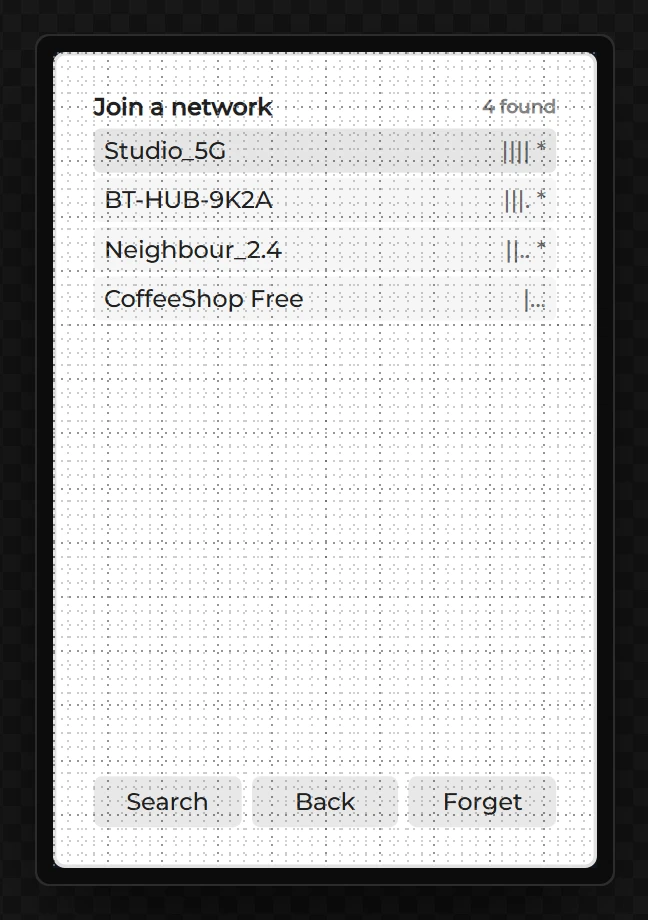
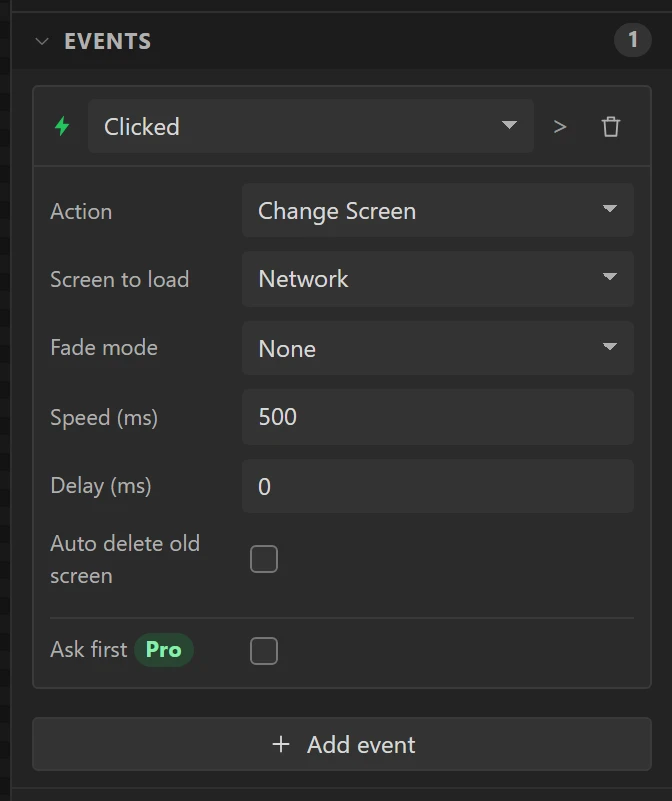
The first time, press Wi-Fi on the board and join your network. It keeps the network and rejoins it each time it starts, and connects to the broker as soon as it has.
Part 7: the panel as a device in Home Assistant
So far the panel listens to the house and asks for the porch light. This part goes the other way: values that belong to the panel, made visible and settable in Home Assistant, with no YAML. The panel announces them by MQTT discovery, the way Zigbee2MQTT and ESPHome devices announce themselves.
16 Two variables of the panel's own
On the Data tab add two variables: quiet, On or off, and
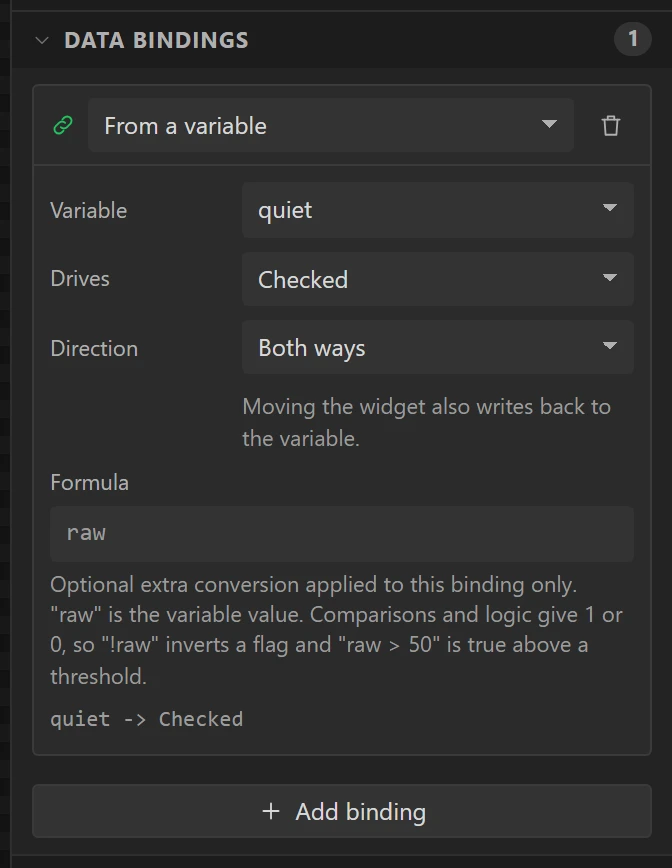
message, Text, starting as Hello from the panel. Bind the Quiet
switch's Checked to quiet, Both ways, and the Message label's
Text to message.
17 Announce them
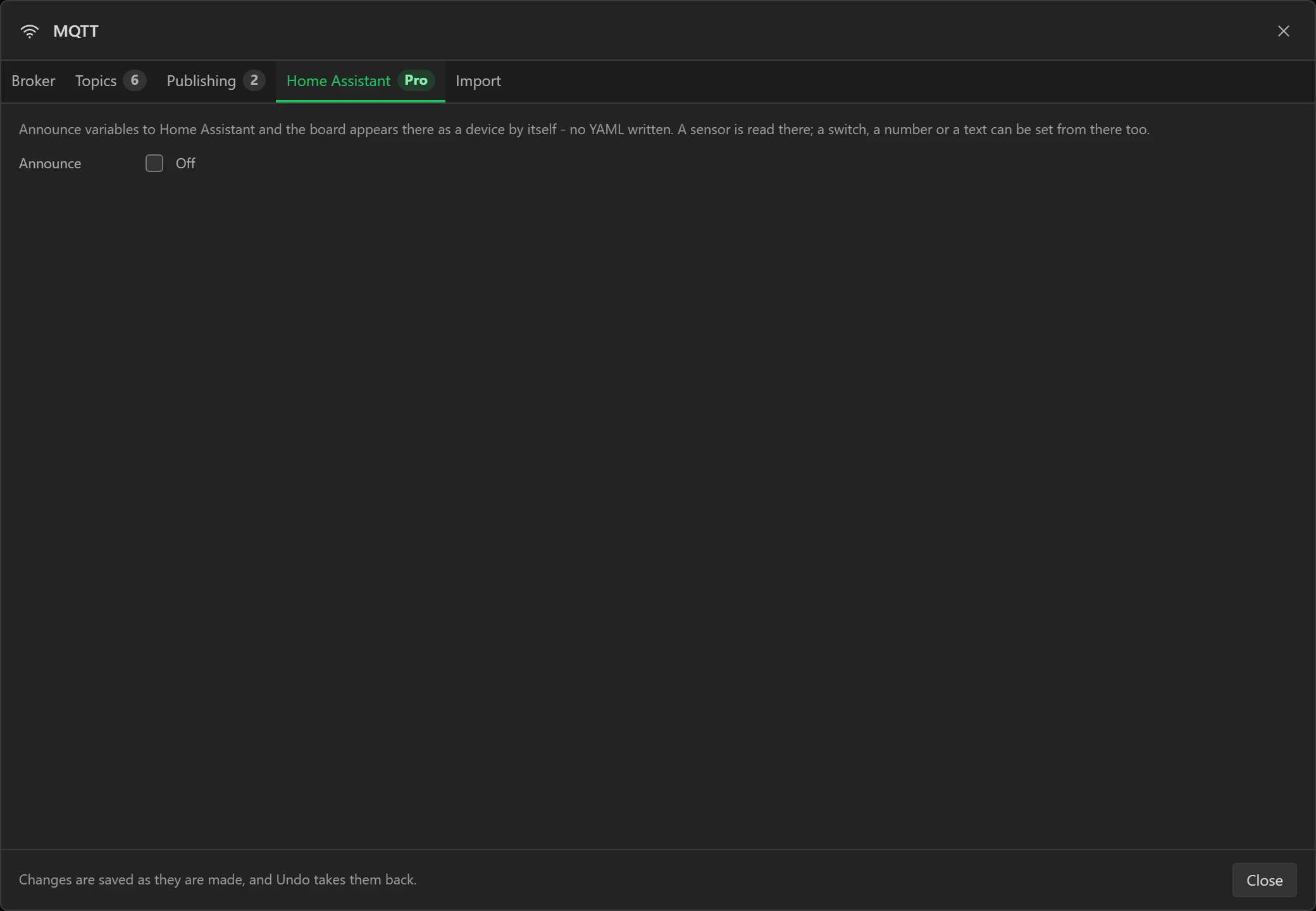
Open the MQTT window again and its Home Assistant tab. Tick Announce, and type a
Device name: Hall panel.
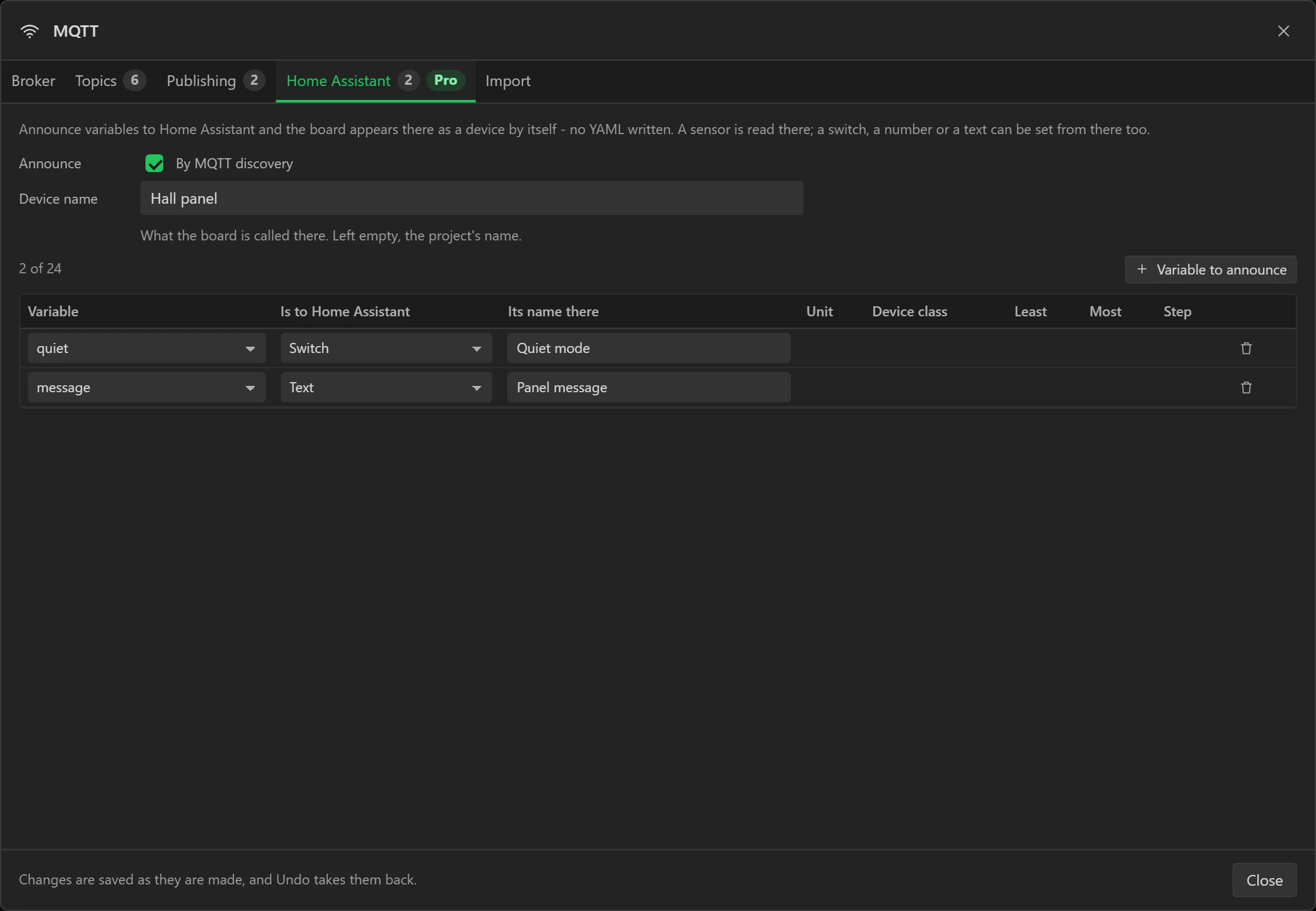
Press + Variable to announce twice. In the first row choose quiet, a
Switch, named Quiet mode; in the second message, a Text, named
Panel message.
What each kind means there:
- A Sensor or Binary sensor is only read: a number, or on and off.
- A Switch, a Number or a Text can also be set from Home Assistant. The panel
listens on the entity's own
/settopic and puts what arrives into the variable, so the switch on the screen moves, or the message changes. - Give a Sensor a Unit and a Device class (
°Candtemperature) and Home Assistant draws it as a temperature, with a history graph.
18 What it says, and that it is there
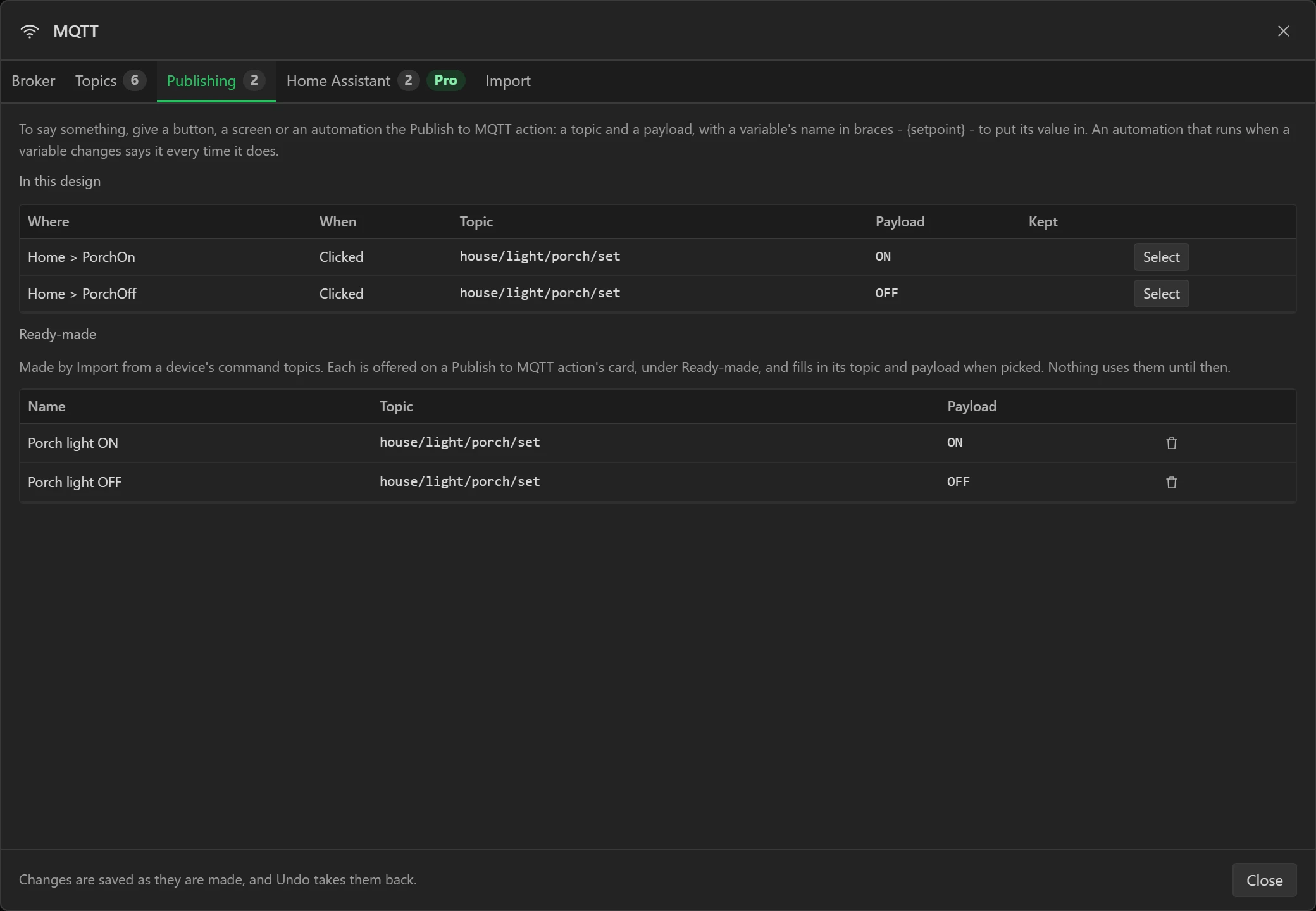
The Publishing tab lists everything in the design that publishes, with what sets it off, and the ready-made publishes Import made. Select goes to the widget.
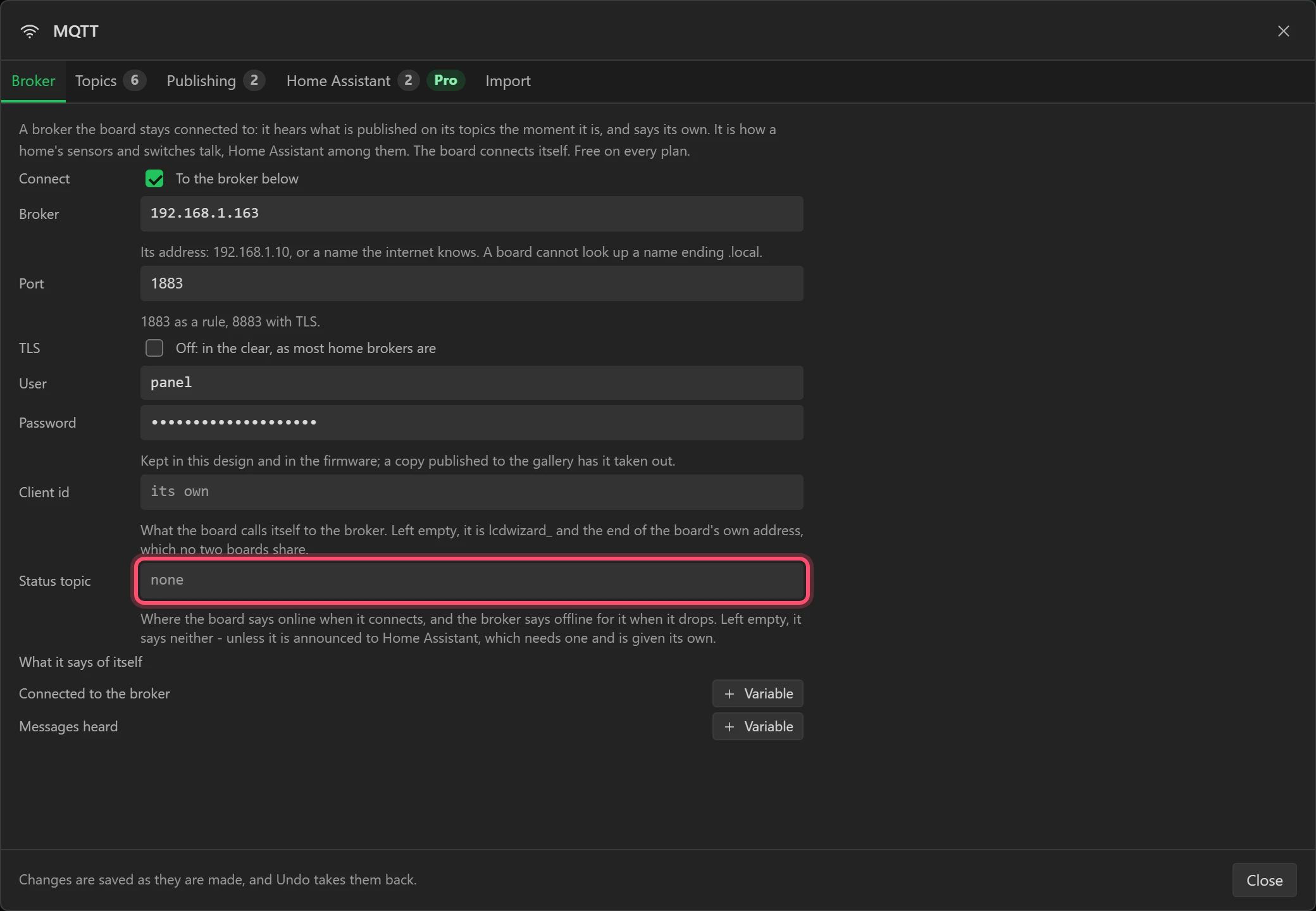
On the Broker tab, Status topic can stay empty: a design that announces anything is
given one of its own. The panel says online there when it connects, and the broker says
offline for it when it drops off, so Home Assistant greys its entities out while the panel
is unplugged.
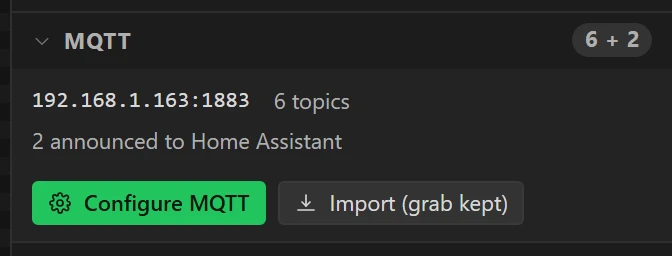
Close the window. The Data tab's MQTT line now sums it up.
Once the board connects, the device should appear in Home Assistant under Settings > Devices & services > MQTT as Hall panel, with Quiet mode and Panel message. Nothing is announced until then, so the device is not there while the board is off or before its first connection. If Home Assistant restarts, the panel announces itself again.
Part 8: try it, and build it
19 Check it
Open Problems at the bottom: no errors and no warnings.
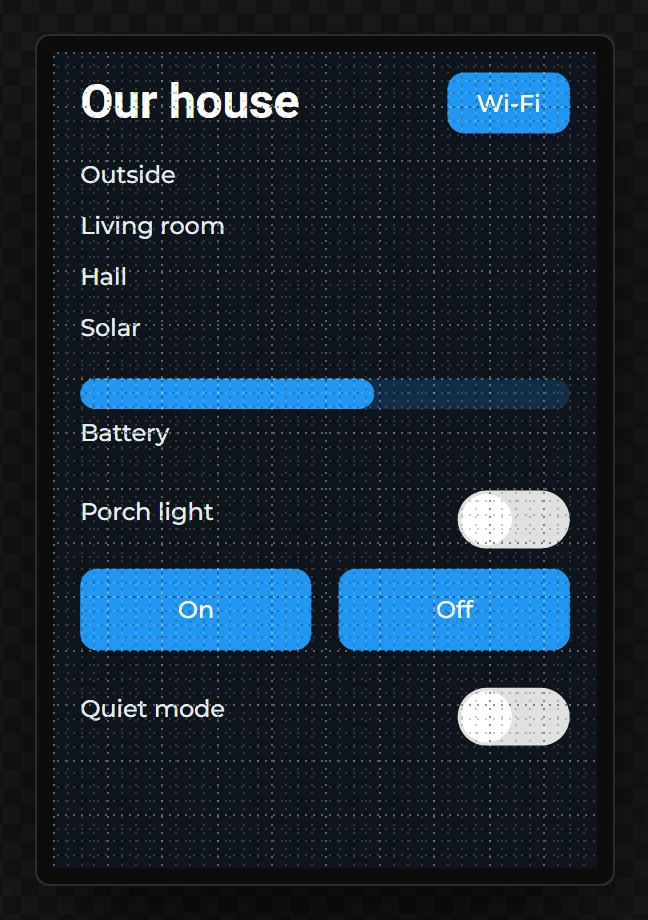
20 Preview
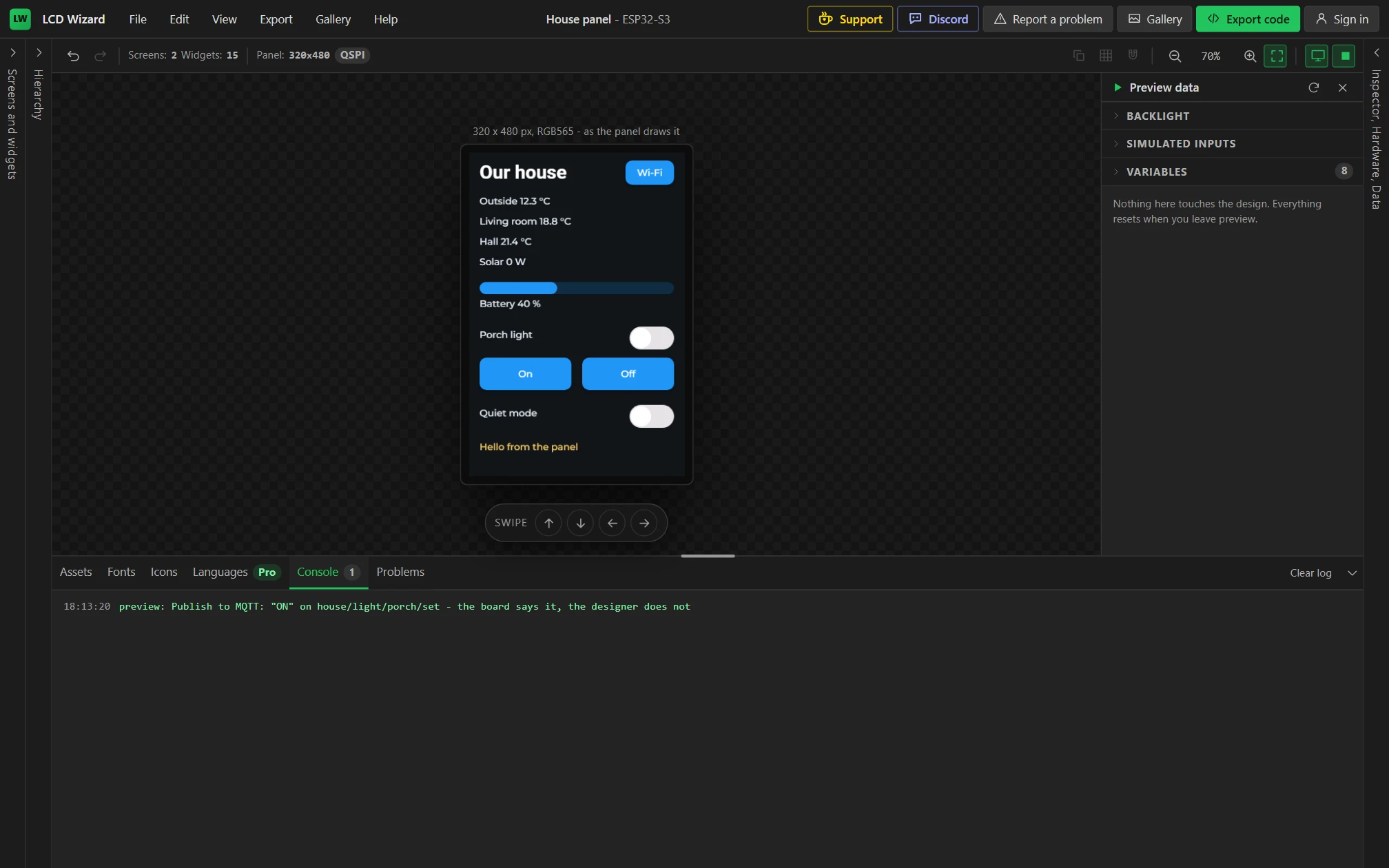
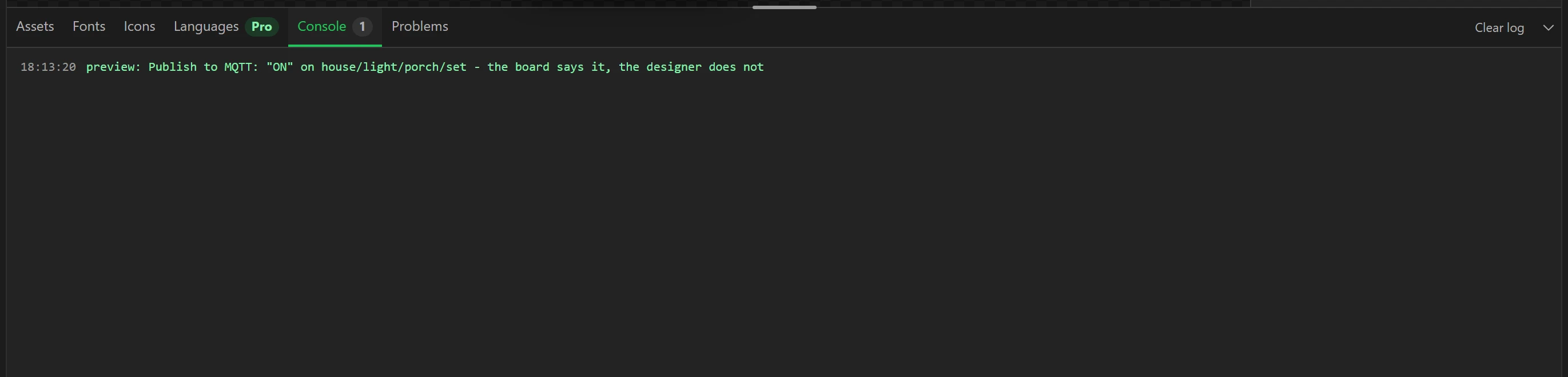
Press Preview. Every label reads its topic's sample payload, so you see the panel as it will look with real values. Press On: the Console says what the board would publish, and that the designer does not send it.
21 Generate the code
Press Export code. The dialog says which parts are Pro: here, Home Assistant discovery on Quiet mode and Panel message. Without Part 7 the design has no Pro part.

Generate, download, and build and upload it as Flashing and configuration describes. The MQTT client is the one in the ESP32's own core, so there is no library to install.
22 On the board
Press Wi-Fi, join your network, and the panel goes back to Home. Within a few seconds of joining it should connect to the broker: the retained values arrive at once and the labels fill in, and On and Off switch the porch light. To see the connection on the panel, the Broker tab's Connected to the broker has a + Variable you can bind a label or an LED to.
Part 9: devices that are not on MQTT, and more than one broker
A Hue bulb, a Nest, anything Home Assistant knows
Many devices reach Home Assistant some other way (Wi-Fi integrations, Zigbee through ZHA, cloud
services) and say nothing on the broker, so the panel cannot hear them. Home Assistant can put them on
the broker for you with MQTT Statestream, in configuration.yaml:
mqtt_statestream:
  base_topic: homeassistant_states
  include:
    entities:
      - light.kitchen
      - sensor.living_room_temperature
After a restart Home Assistant publishes each entity's state, retained, on
homeassistant_states/light/kitchen/state and so on: on and off
for a light, the number for a sensor. Grab again and they are there to import.
Statestream only speaks. To switch the kitchen light from the panel, give a button a Publish to MQTT on
a topic of your own, panel/kitchen/set with ON or OFF, and an
automation in Home Assistant that does it:
automation:
  - alias: Panel switches the kitchen light
    triggers:
      - trigger: mqtt
        topic: panel/kitchen/set
    actions:
      - action: "light.turn_{{ 'on' if trigger.payload == 'ON' else 'off' }}"
        target:
          entity_id: light.kitchen
The same can be made in the automation editor: trigger MQTT, action Light: Turn on.
Several brokers
The panel connects to one broker, and so does Home Assistant. If some of your kit talks to another broker, join that one into yours with a bridge: a few lines in the main broker's Mosquitto configuration that copy chosen topics both ways.
connection garage
address 192.168.1.50:1883
remote_username bridge
remote_password a-password
topic zigbee2mqtt/# both 0
Point the panel at the broker everything is bridged into. With the add-on, the lines go in a file in
/share/mosquitto/ and the add-on's Customize option turns that folder on; see the
add-on's own documentation.
When it does not work
- Nothing arrives, and the broker's address ends
.local. The board does not look those names up. Use the numbers, and have your router keep that machine on them. - Nothing arrives, and the address is
:8123or Home Assistant's web address. That is Home Assistant's website. The broker is port 1883 on the machine that runs Mosquitto. - The broker turns the panel away. Check the User and Password by logging in with them from MQTT Wizard. With the add-on, the user is a Home Assistant user; with your own Mosquitto, it is a line in its password file, and Mosquitto needs a restart after a new one.
- TLS. With TLS ticked, the board checks the broker's certificate. A broker on the internet with a certificate from a known authority passes as it is. A home broker with a certificate you made yourself needs that certificate pasted into Its certificate, or the board will not connect. Most home brokers do not use TLS on the local network, and port 1883 is the plain one.
- The panel is not in Home Assistant. Nothing is announced until the board has connected to the broker, and Home Assistant must be connected to the same broker. Check that the MQTT integration is set up and that discovery is on in its options (it is unless someone turned it off).
- A value is always 0 or blank. Look at its row on the Topics tab: a wrong
Type or Path into JSON shows not a number or bad path against the sample.
Topics are case sensitive:
House/is nothouse/.
Where next
- Data: MQTT is the reference: every field, what the board says of itself, and how publishing works in an automation.
- Network covers Wi-Fi: setting it up from a phone instead of the panel, and wired Ethernet.
- Variables and bindings and Automations: an automation that runs when a variable changes, with a Publish to MQTT in it, says that variable on a topic every time it changes.
- The other tutorials: a stream deck for OBS and a two-way radio.