Slider
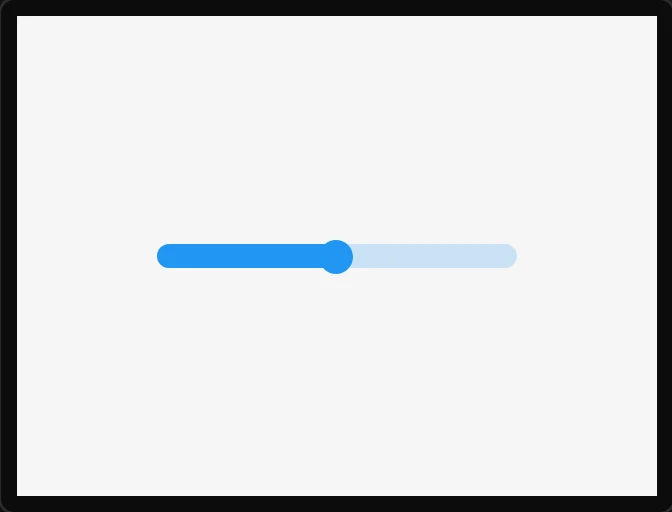
A horizontal or vertical slider - make it taller than wide and LVGL turns it vertical. Fires Value changed as it moves. Bindable both ways.
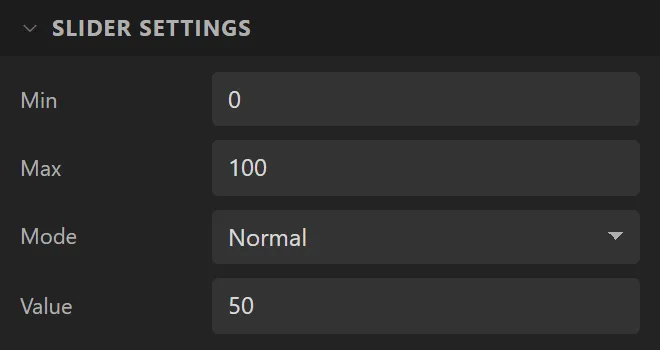
| Setting | Default | What it does |
|---|---|---|
| Min / Max | 0 / 100 | The range. |
| Mode | Normal | Normal fills from the start to the value. Symmetrical fills from zero, in whichever direction the value lies - give it a range such as -50 to 50. Range has two knobs and fills between them. The canvas and the preview draw all three, and in preview a range slider moves whichever knob you press nearer to. |
| Value | 50 | The initial value - the right-hand (or upper) knob in Range mode. |
| Value left | 0 | The lower knob in Range mode. It cannot pass the value; LVGL clamps it and so does the designer. |
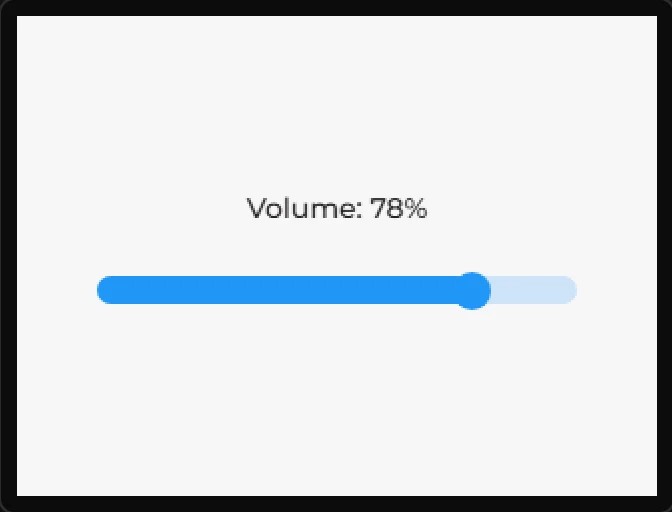
Example: a volume control with its value above it
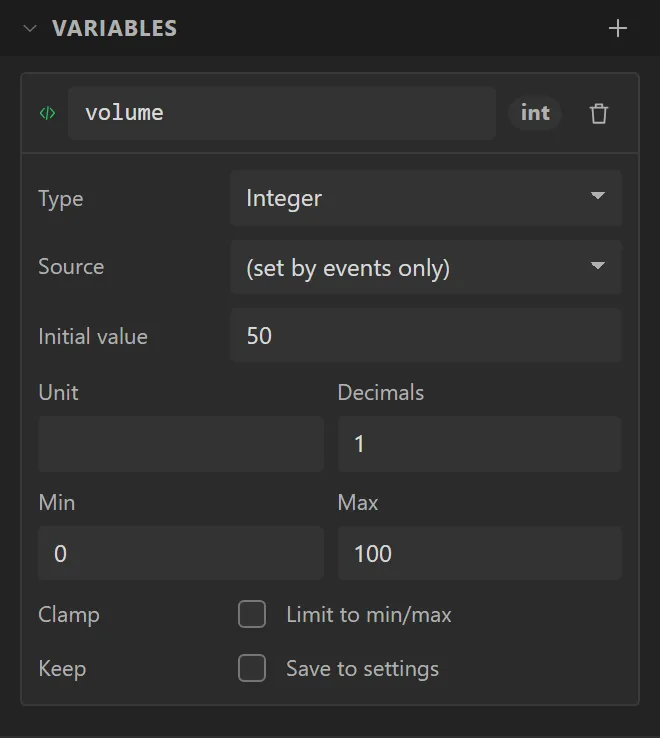
- On the Data tab, in Variables, press +. Name it
volume, set Type to Integer, Initial value to50, Min to0and Max to100. - Drag a Slider onto the screen and set its Name to
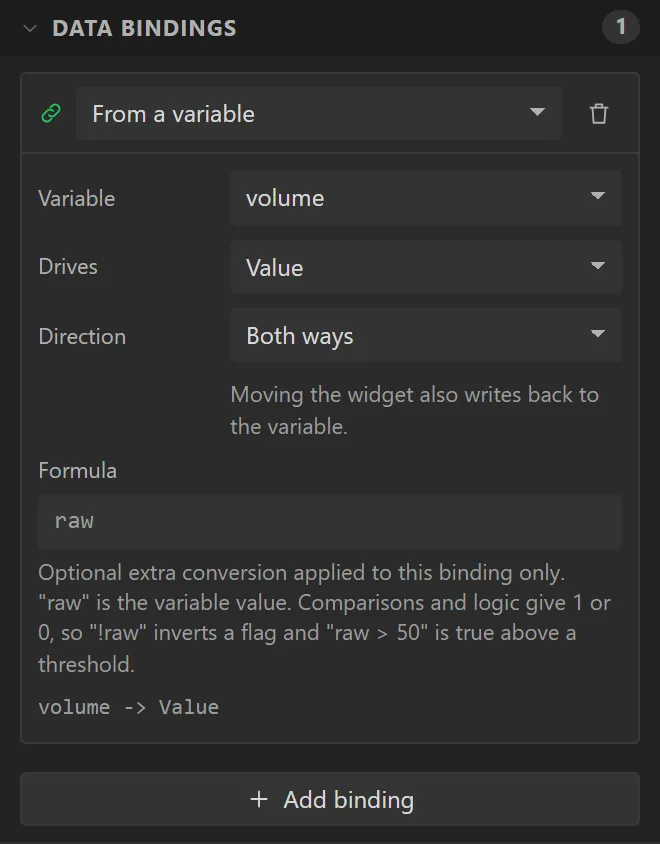
Volume, with X40, Y130, Width240and Height14. Open Data bindings, press Add binding, and set Variable to volume, Drives to Value and Direction to Both ways. - Drag a Label above it (X
40, Y88, Width240, its text centred). Give it a binding too: Variable volume, Drives Text, PrefixVolume:and Postfix%. - Press Preview and drag the knob: the label follows it.